![]() |
![]() | ![]() | ![]() | ![]() | ![]() | ![]() | ![]() |
| Welcome to Windows Vista Forums. Our forum is dedicated to helping you find solutions with any problems, errors or issues you are experiencing with Windows Vista. The Vista forum also covers news and updates and has an extensive Windows Vista tutorial section that covers a wide range of tips and tricks. |
| |||||||
![]() |
| |
| | |
| Vista x64 Ultimate SP2, Windows 7 Ultimate x64 | System Recovery Options |
My System Specs![]() |
| | |
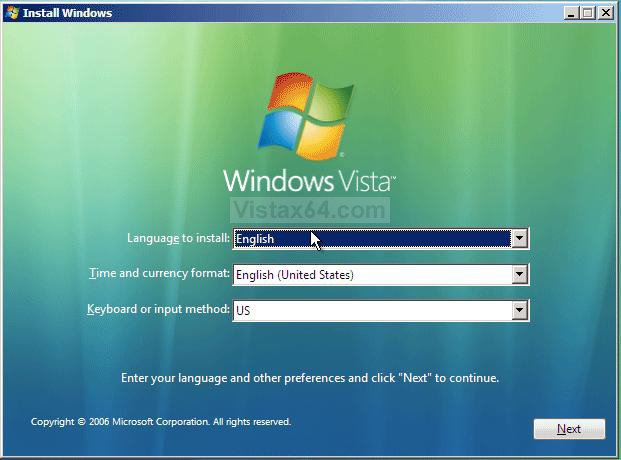
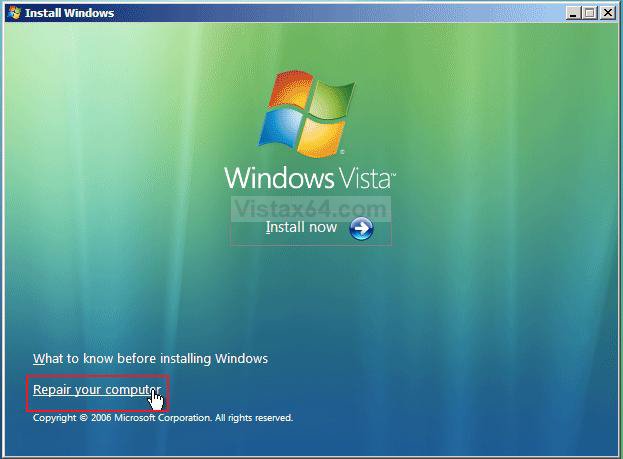
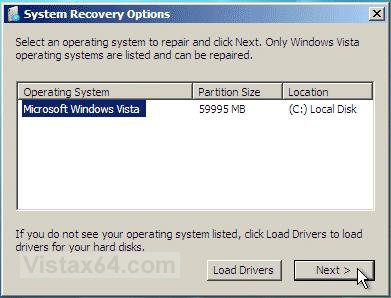
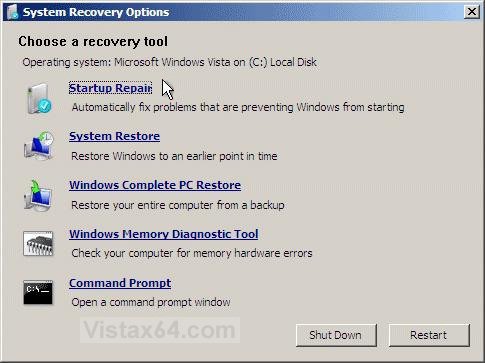
| Vista x64 Ultimate SP2, Windows 7 Ultimate x64 | Re: System Recovery Options You may be able to boot to the Advanced Boot Options screen instead, then select "Repair your computer", and select "System Restore" from the System Recovery Options screen. |
My System Specs![]() |
| | |
| VISTA HOME PREMIUM X64/ 7 x64 / 7x86 | Re: System Recovery Options Hi Mwb, If Shawn's suggestion is not able to fix the problem , I understand HP send out copies of their recovery discs free (maybe a postage charge). It's worth contacting your local HP service centre and requesting them. While you are waiting for the discs, you could try marking the recovery partition as active - you should then boot straight into the HP recovery process. You could use Disk Management to do this, but would have no way of setting the Vista drive back to active if needed. May be a good idea to download a bootable iso, burn it to cd with an isoburner (don't format the cd - just close autoplay if it pops up). There are a couple here that will be useful You can directly download a partition program and isoburner from this page: Dual Boot using free partitioning software and the Vista recovery cd iso ( torrent download) from here Windows Vista Recovery Disc Download — The NeoSmart Files Hope it helps SIW2 |
My System Specs![]() |
| | |
| VISTA HOME PREMIUM X64/ 7 x64 / 7x86 | Re: System Recovery Options This might help, It mentions compaq as well Restore the PC to its original condition with the HP Recovery Manager if Windows Vista is not accessible. If the PC cannot launch into Windows, it may still be possible to use the HP Recovery Manager on the hard drive to restore the computer to its original operating condition by first pressing the Power button to start the PC, and then pressing the F11 key to start the HP Recovery Manager. NOTE: Depending on the BIOS version, your computer may display multiple prompts during startup including F11 to start System Recovery. Pressing the F11 key on a computer with an HP factory image will start System Recovery even if the prompt is not displayed. * If the HP Recovery Manager can access the hard drive, a prompt is displayed to backup the user files before beginning the recovery. Follow any on-screen instructions. * If the HP Recovery Manager cannot access the hard drive to fix any system errors, use the set of recovery discs to recover the hard drive to its original condition. HP Notebook PCs*-* Using HP Backup and Recovery Manager* |
My System Specs![]() |
| | |
| Vista Business x64 | You may be able to boot to the Advanced Boot Options screen instead, then select "Repair your computer", and select "System Restore" from the System Recovery Options screen. Thanks for on-going support and aplogies fo rmy delay in replying but I got married on Saturday and this and the honeymoon took up some of my time. I tried this option but without success but have now received recovery discs from HP in amazingly quick time so I will use these and hopefully also minimise any changes to or reloading of my current system set up. MANY THANKS ![]() ![]() Mark |
My System Specs![]() |
| | |
| Vista Business x64 | Hi Mwb, If Shawn's suggestion is not able to fix the problem , I understand HP send out copies of their recovery discs free (maybe a postage charge). It's worth contacting your local HP service centre and requesting them. While you are waiting for the discs, you could try marking the recovery partition as active - you should then boot straight into the HP recovery process. You could use Disk Management to do this, but would have no way of setting the Vista drive back to active if needed. May be a good idea to download a bootable iso, burn it to cd with an isoburner (don't format the cd - just close autoplay if it pops up). There are a couple here that will be useful You can directly download a partition program and isoburner from this page: Dual Boot using free partitioning software and the Vista recovery cd iso ( torrent download) from here Windows Vista Recovery Disc Download — The NeoSmart Files Hope it helps SIW2 HP discs are now with me and I will attempt the recovery later today. MUCH OBLIGED!! ![]() |
My System Specs![]() |
| | |
| Vista x64 Ultimate SP2, Windows 7 Ultimate x64 | Re: System Recovery Options Congratulations Mark on getting married. I hope you two have a great and everlasting marriage. ![]() Shawn |
My System Specs![]() |
| | |
| Vista Home Premium Service Pack 1 32 bit OS | I have had to reinstall the operating system twice within 11 months. Most recently was Monday - needless to say anything that wasn't backed up is gone far far far away never to return. Anyway, the problem both times had something to do with the boot records. I made every disc I was told to at the very beginning when I purchased the computer, i.e. Bootable Hardware Diagnostic Disc (silly me thought this was an actual bootable disc), HP Recovery Disc, Backup of Imagine Drive D "Factory Imagine", and External Drive Backup. I tried each and every disc trying to repair the boot files so that I wouldn't have to reinstall to factory condition, but nothing worked and it kept telling me to restore to factory condition - so at 4:00 a.m. I gave in and did just that. My question is, HOW CAN I KEEP THIS FROM HAPPENING AGAIN??? Please if you have any answers I would be in your debt forever. Oh I have Vista Home Premium, I think, I know its not the home basic one. |
My System Specs![]() |
| | |
| Vista x64 Ultimate SP2, Windows 7 Ultimate x64 | Re: System Recovery Options Hello Lori, and welcome to Vista Forums. You can create a recovery disc that can be used to try and repair Vista at boot by running a Startup Repair from the System Recovery Options screen. However, this will not always repair Vista if it is damaged (corrupted) beyond repair. The best thing to do is to keep good file backups of anything you do not want to lose, or a good drive image backup to restore the whole drive or partition. It's best to keep these backups on a separate hard drive, but a separate partition will do in a pinch. A good free backup program to use is Macrium Reflect free edition. Hope this helps, Shawn |
My System Specs![]() |
| | |
| Vista Home Premium Service Pack 1 32 bit OS | Re: System Recovery Options I failed to tell you what a wonderful site this is, I stumbled on it last night while googling and am so glad that I did. Thank you for your response, I have been reading the forum regarding creating a recovery disc and was going to attempt that but I wanted your advise for. I don't even know you but from reading your responses I believe you are extremely knowledgeable and I trust your advise. Thank you again. I'm sure I'll be talking to you again soon. Have a great day. |
My System Specs![]() |
| | |
| Vista x64 Ultimate SP2, Windows 7 Ultimate x64 | Re: System Recovery Options You're welcome Lori. I'll be around here somewhere if you need anymore help. |
My System Specs![]() |
![]() |
| Tutorial Tools | |
| |
Similar Threads | ||||
| Tutorial | Category | |||
| How to creat recovery partition with recovery image in vista to restore the system | Vista installation & setup | |||
| System Recovery Options Not Available | Vista installation & setup | |||
| No operating systems in System recovery options | Vista installation & setup | |||
| Data Recovery Options | Vista General | |||
| Stuck in System Recovery Options | Vista General | |||