
How to Add or Remove the Public Folder Desktop Icon in Vista
 Information
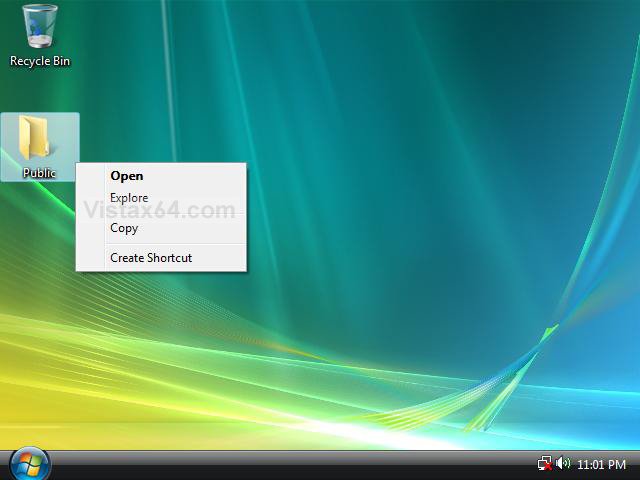
This will show you how to add or remove the Public folder desktop icon for when you are using either the Classic Start Menu or new Vista Start Menu.
 Note
NoteThis can be helpful if you have a Public folder on the desktop that you cannot delete, or would like a Public folder on the desktop for easier access.
NOTE: This is example was using the Vista Start Menu and not Classic Start Menu.
 OPTION ONE
1. To Add Public Folder to Desktop Using Classic Start Menu
A) Click on the Download button below to download the file below.
Add_Public_Clasisc_Start_Menu.reg

B) Go to step 5.
2. To Remove Public Folder from Desktop Using Classic Start Menu
A) Click on the Download button below to download the file below.
Remove_Public_Classic_Start_Menu.reg
B) Go to step 5.
3. To Add Public Folder to Desktop Using Vista Start Menu
A) Click on the Download button below to download the file below.
Add_Public_New_Start_Menu.reg
5. Click on Save, and save the .reg file to the Desktop.
6. Right click on the downloaded .reg file and click on Merge.
7. Click on Run, Continue (UAC), Yes, and OK when prompted.
8. Right click on a empty space on the Desktop and click on Refresh.
9. When done, you can delete the downloaded .reg file if you like.
OPTION TWO 1. Open the Start Menu.
2. In the white line (Start Search) area, type regedit and press Enter.
3. Click on Continue in the UAC prompt.
4. In regedit, go to: (See screenshot below step 5A or 6A)
Code:
HKLM\SOFTWARE\Microsoft\Windows\CurrentVersion\explorer \HideDesktopIcons5. To Add Public Folder to Desktop Using Classic Start Menu
A) In the left pane click on ClassicStartMenu. (See screenshot below)
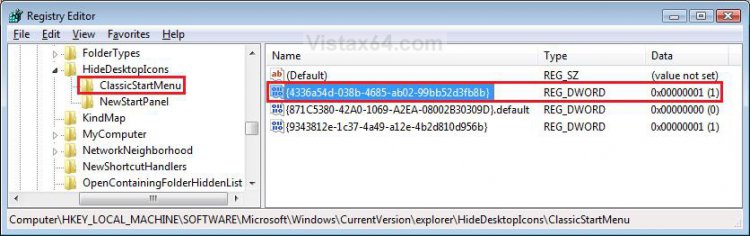
B) In the right pane, right click on {4336a54d-038b-4685-ab02-99bb52d3fb8b} and click on Modify. (See screenshot above)
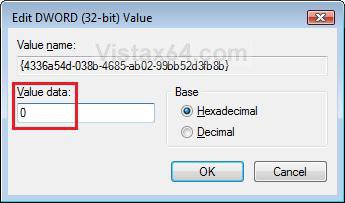
C) Type 0 (number zero) and click on OK. (See screenshot below)
D) Right click on a empty space on the Desktop and click on Refresh.
E) Go to step 9.
6. To Remove Public Folder from Desktop Using Classic Start Menu
A) In the left pane click on ClassicStartMenu. (See screenshot below step 5A)
B) In the right pane, right click on {4336a54d-038b-4685-ab02-99bb52d3fb8b} and click on Modify. (See screenshot below step 5A)
C) Type 1 and click on OK. (See screenshot below step 5C)
D) Right click on a empty space on the Desktop and click on Refresh.
E) Go to step 9.
7. To Add Public Folder to the Vista Start Menu Desktop
A) In the left pane click on NewStartPanel. (See screenshot below)
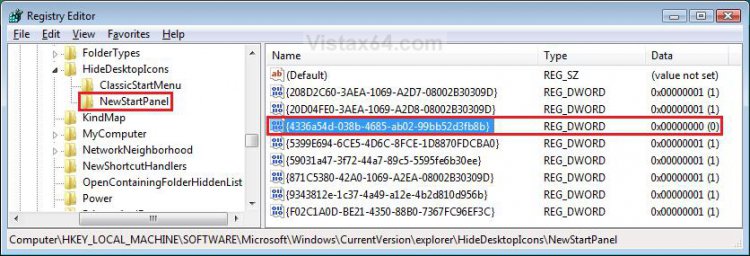
B) In the right pane, right click on {4336a54d-038b-4685-ab02-99bb52d3fb8b} and click on Modify. (See screenshot above)
C) Type 0 (number zero) and click on OK. (See screenshot below)
D) Right click on a empty space on the Desktop and click on Refresh.
E) Go to step 9.
8. To Remove Public Folder from Desktop Using Classic Start Menu
A) In the left pane click on NewStartPanel. (See screenshot below step 7A)
B) In the right pane, right click on {4336a54d-038b-4685-ab02-99bb52d3fb8b} and click on Modify. (See screenshot below step 7A)
C) Type 1 and click on OK. (See screenshot below step 7C)
D) Right click on a empty space on the Desktop and click on Refresh.
9. Close regedit.
That's it,Shawn
Attachments

Last edited: