Windows Vista Forums
Vista Forums Home Join Vista Forums Windows 7 Forum Vista Tutorials Tags
Welcome to Windows Vista Forums. Our forum is dedicated to helping you find solutions with any problems, errors or issues you are experiencing with Windows Vista. The Vista forum also covers news and updates and has an extensive Windows Vista tutorial section that covers a wide range of tips and tricks.

Go Back   Vista Forums > Vista Forums > Tutorials

Vista - Burning to CD and DVD - Enable or Disable

Comment
 

Burning to CD and DVD - Enable or Disable

How to Enable or Disable the Vista Built-in CD and DVD Burning Features
Published by Brink
03-26-2009

How to Enable or Disable the Vista Built-in CD and DVD Burning Features


Information
  This will allow you to enable or disable the Vista Explorer built-in CD and DVD burning features for all users. This feature is enabled by default in Vista. If you have installed a third party CD and DVD burning program, then this may be handy disabled.
WARNING
  Disabling this feature does not prevent users from using third party applications to create, burn to, or modify CDs and DVDs.
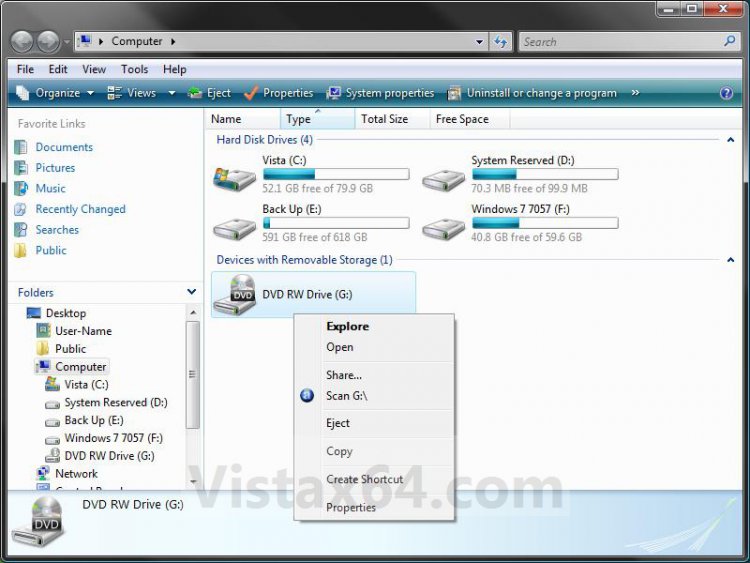
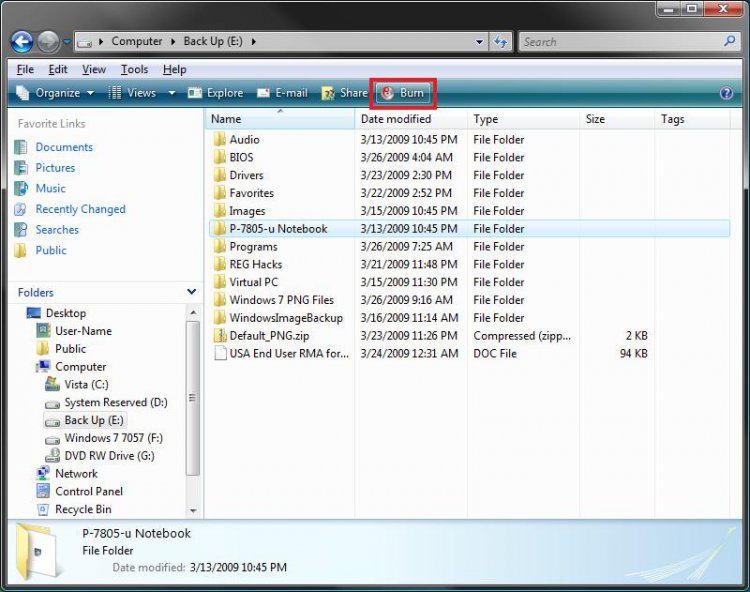
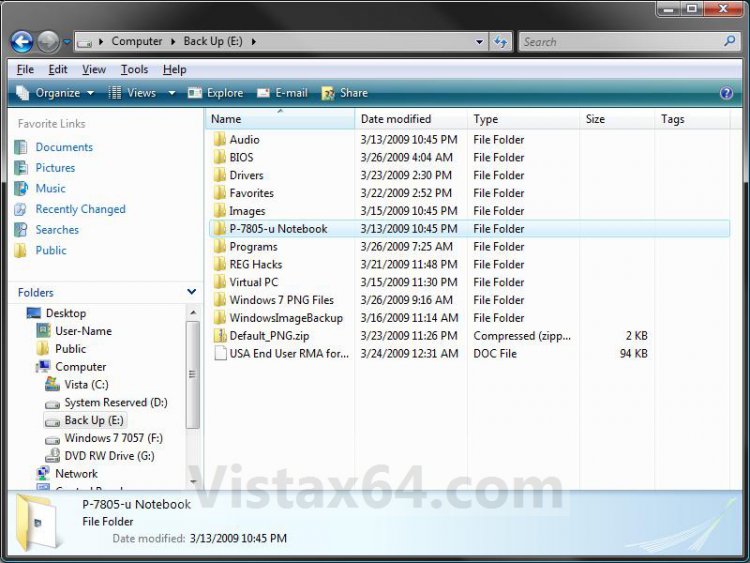
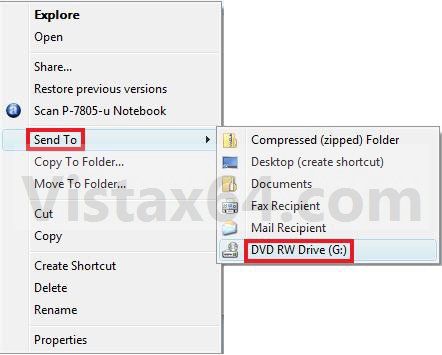
RELATED LINKS:EXAMPLE: Built-in CD and DVD Burning Features Enabled and Disabled
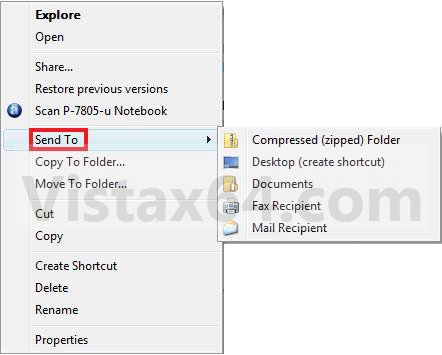
NOTE: Left screenshots below are enabled, and right screenshots are disabled.
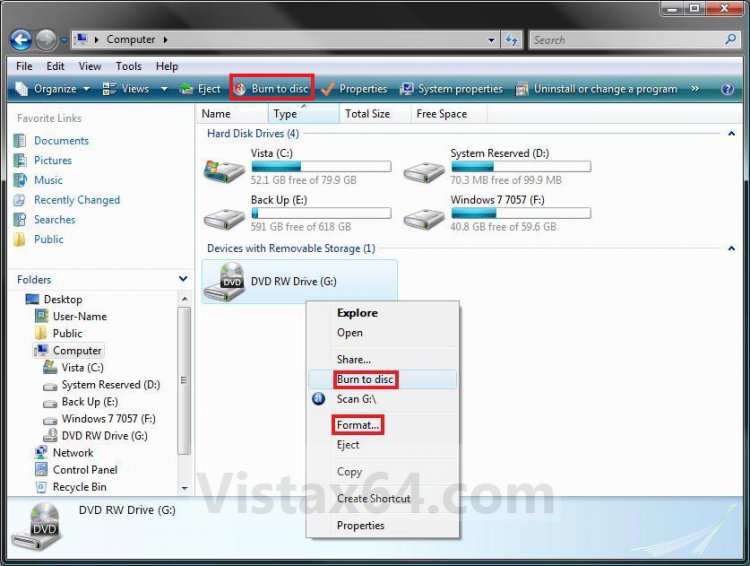
drive_context_menu_enabled.jpgdrive_context_menu_disabled.jpg

explorer_enabled.jpgexplorer_disabled.jpg

send_to_enabled.jpgsend_to_disabled.jpg


OPTION ONE:
Through a Download
1. To Enable CD and DVD Burning Features -
A) Click on the Download button below to download the
Enable_CD_DVD_Burning_Features.zip file below.

B) Go to step 3.
2. To Disable CD and DVD Burning Features -
A) Click on the Download button below to download the
Disable_CD_DVD_Burning_Features.zip file below.

3. Click on Save, and save the .zip file to the desktop.

4. Open the .zip file and extract the .reg file to the desktop.

5. Right click the .reg file (On Desktop) and click on Merge.

6. Click on Run, Continue, Yes, and OK when prompted.

7. When done, you can delete the downloaded .reg and .zip files on the desktop if you like.

8. Log off and log on, or restart the computer to apply.


OPTION TWO:
Through the Local Group Policy Editor
1. Open the Local Group Policy Editor.


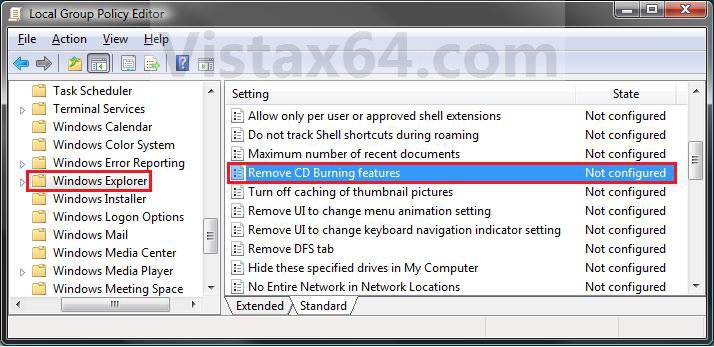
2. In the left pane, click on to expand User Configuration, Administrative Templates, Windows Components, and Windows Explorer. (See screenshot below)
group_policy.jpg
3. In the right pane, right click on Remove CD Burning features and click on Properties. (See screenshot above)

4. To Enable CD and DVD Burning Features -
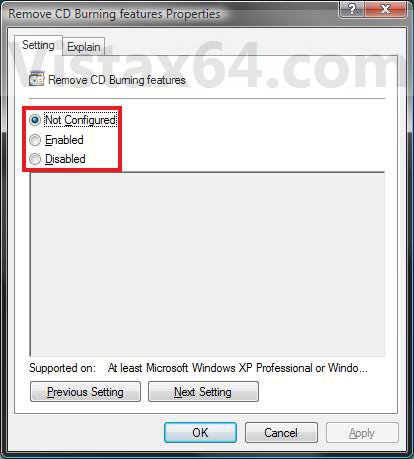
A) Select (dot) either Not Configured or Disabled. (See screenshot below step 6)

B) Go to step 6.
5. To Disable CD and DVD Burning Features -
A) Select (dot) Enabled. (See screenshot below step 6)
6. Click on OK. (See screenshot below)
properties.jpg
7. Close the Local Group Policy Editor window.
That's it,
Shawn

Published by
Brink's Avatar
Administrator

Join Date: Apr 2007
Location: Texas, USA
Posts: 25,919
Rep Power: 150
Brink has a reputation beyond reputeBrink has a reputation beyond reputeBrink has a reputation beyond reputeBrink has a reputation beyond reputeBrink has a reputation beyond reputeBrink has a reputation beyond reputeBrink has a reputation beyond reputeBrink has a reputation beyond reputeBrink has a reputation beyond reputeBrink has a reputation beyond reputeBrink has a reputation beyond repute

Tutorial Tools

Applies to
All Vista Versions
64 Bit & 32 Bit

Old 05-04-2009  
freshair22


Vista Home Premium 32bit


Re: Burning to CD and DVD - Enable or Disable

Hello, I may have deleted some programs, like power2go and cyberlink and other programs that came with the instalation. My hp advisor is not working and I can't burn dvds or cds with windows, can you help how can i restore all factory settings.

Thanks
freshair

My System SpecsSystem Spec
Old 05-04-2009  
Brink


Vista x64 Ultimate SP2, Windows 7 Ultimate x64


Re: Burning to CD and DVD - Enable or Disable

Hello Freshair, and welcome to Vista Forums.

This link at HP below will show you how to do a factory restore. Scroll down to the Restore the PC to its original condition with the HP Recovery Manager if Windows Vista is not accessible section there for how.

HP Notebook PCs*-* Using HP Backup and Recovery Manager*

Hope this helps,
Shawn
My System SpecsSystem Spec
Comment

Tutorial Tools


Similar Threads
Tutorial Category
DEP - Enable or Disable Tutorials
Flip 3D - Enable or Disable Tutorials
Enable/disable iPV6 Network & Sharing
Disable and Enable Devices PowerShell
Regedit - Enable or Disable Tutorials


Vista Forums is an independent web site and has not been authorized,
sponsored, or otherwise approved by Microsoft Corporation.
"Windows Vista", the Start Orb, and related materials are trademarks of Microsoft Corp.
© Designer Media Ltd
Tutorial powered by GARS 2.1.8m ©2005-2006

1 2 3 4 5 6 7 8 9 10 11 12 13 14 15 16 17 18 19 20 21 22 23 24 25 26 27 28 29 30 31 32 33 34 35 36 37 38 39 40 41 42 43 44 45 46