
How to Turn Presentation Settings On or Off in Vista
 Information
This will show you how to either turn on, change, or turn off presentation settings in Vista.
 Note
NotePresentation settings are options on a laptop or desktop that you can apply when giving a presentation. When presentation settings are turned on, your laptop stays awake and system notifications are turned off. You can also turn off the screen saver, adjust the speaker volume, and change your desktop background image when presentation settings are turned on.
 OPTION ONE
1. Open Windows Mobility Center.
2. To Turn On Presentation Settings
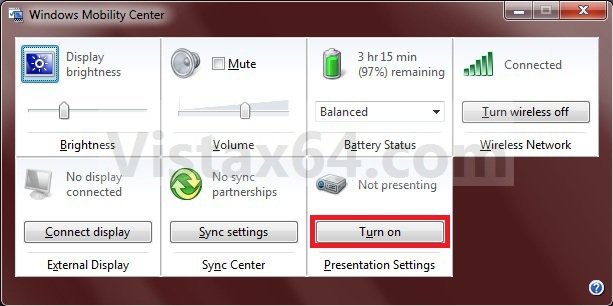
A) In the Presentation Settings tile, click on the Turn on button. (See screenshot below)
NOTE: This will turn on the presentation settings that you have set in step 4.
B) Go to step 4.
3. To Turn Off Presentation Settings
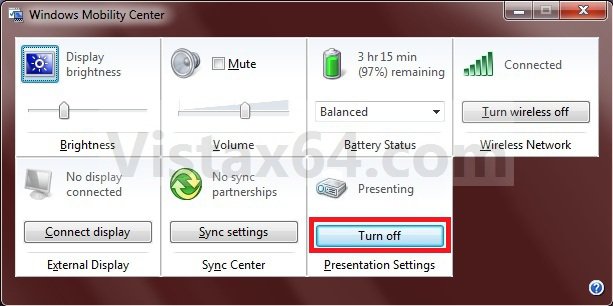
A) In the Presentation Settings tile, click on the Turn off button. (See screenshot below)
B) Go to step 5.
4. To Change the Presentation Settings
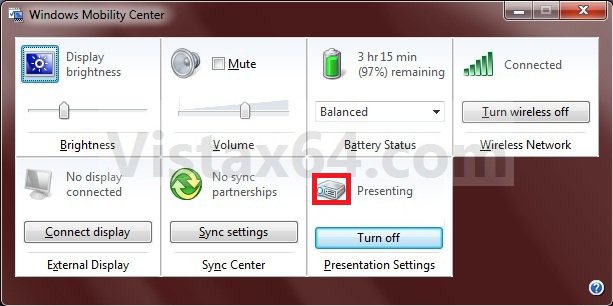
A) In the Presentation Settings tile, click on icon in the upper left corner of the tile. (See screenshot below)
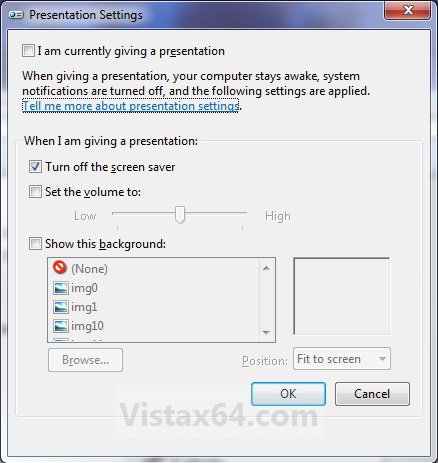
B) Change the settings for what you want when giving a presentation, and click on OK. (See screenshot below)
5. When done, close Windows Mobility Center.
OPTION TWO 1. Open the Start Menu.
A) In the Search line, type presentationsettings.exe, and press enter.
NOTE: If you would like to create a Windows Mobility Center shortcut, then right click on presentationsettings.exe at the top of the Start Menu below and click on Send to and Desktop (create shortcut). You can also create one from the exe file located at C:\Windows\System32\PresentationSettings.exe.
2. To Turn On Presentation Settings
A) Check the I am currently giving a presentation box. (See screenshot below step 5)
NOTE: This will turn on the presentation settings that you have set in step 4.
B) Go to step 5.
3. To Turn Off Presentation Settings
A) Uncheck the I am currently giving a presentation box. (See screenshot below step 5)
B) Go to step 5.
4. To Change the Presentation Settings
A) Change the settings for what you want when giving a presentation. (See screenshot below step 5)
5. When done, click on OK. (See screenshot below)
That's it,
Shawn
Attachments

Last edited: