
How to Keep InPrivate Filtering On or Off in New Internet Explorer 8 Session
 Information
By default InPrivate Filtering is turned off when you start a new Internet Explorer 8 browsing session until you turn it on. This will allow you to set InPrivate Filtering to be turned On to Auto, On to Choose content to block (manual), or Off at the start of every new Internet Explorer 8 browsing session automatically.
 Note
NoteWhile in Internet Explorer 8, InPrivate Filtering helps prevent websites from collecting information about sites you visit. Many webpages use content from websites other than the one you are visiting. These websites are called third-party websites. The content from these third party websites, such as images, maps, or videos, is often provided to the website you are visiting in exchange for information about who is looking at the content. If the third-party website provides content to a large number of the websites you visit, the website owners could develop a profile of your browsing preferences. The profile of your browsing preferences allows the website to do things such as offer you targeted advertisements.
Usually this third party website content is displayed seamlessly, such as in an embedded video, or image. The content appears to originate from the website you originally went to, so you don't know that another website might be able to see where you are surfing. InPrivate Filtering works by analyzing web content on the webpages you visit. If it sees the same content being used on a number of websites, it will add it to the list to allow or block that content. By default, InPrivate Filtering will automatically block any website third party content from displaying it detects in at least 10 different websites you visited. You can also set the number of websites you visit that share content before they are put in the list to what you want instead. You also can choose to turn off InPrivate Filtering, or manually choose to allow or block the listed third party website content.
Usually this third party website content is displayed seamlessly, such as in an embedded video, or image. The content appears to originate from the website you originally went to, so you don't know that another website might be able to see where you are surfing. InPrivate Filtering works by analyzing web content on the webpages you visit. If it sees the same content being used on a number of websites, it will add it to the list to allow or block that content. By default, InPrivate Filtering will automatically block any website third party content from displaying it detects in at least 10 different websites you visited. You can also set the number of websites you visit that share content before they are put in the list to what you want instead. You also can choose to turn off InPrivate Filtering, or manually choose to allow or block the listed third party website content.
 Warning
This will override how you have manually set InPrivate Filtering to inside Internet Explorer or Internet Properties at the start of each new Internet Explorer browsing session.
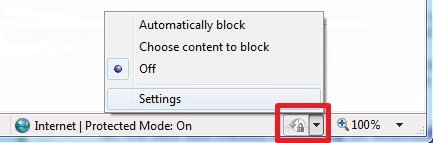
EXAMPLE: InPrivate Filtering Set to On (Auto or Choose) and Off
NOTE: This will be displayed in the status bar at the bottom of a Internet Explorer 8 window to show you what the status of InPrivate Blocking is.


EXAMPLE: InPrivate Filtering OptionsNOTE: These are the options to manually turn InPrivate Filtering On to Auto, On to Choose content to block (manual), or Off.
 OPTION ONE
NOTE: If you are doing this for Internet Explorer 9, then you may only be able to do the steps below while in Safe Mode instead.
1. To Keep InPrivate Filtering Turned On to Auto
A) Click on the download button below to download the file below.
Start_InPrivate_Filtering_Auto.zip

B) Go to step 4.
2. To Keep InPrivate Filtering Turned On to Manual (Choose)
A) Click on the download button below to download the file below.
Start_InPrivate_Filtering_Manual_Choose.zip
B) Go to step 4.
3. To Keep InPrivate Filtering Turned Off
NOTE: This is the default setting.
A) Click on the download button below to download the file below.
Start_InPrivate_Filtering_Off.zip
4. Click on Save, and save the .zip file to the desktop.
5. Open the downloaded .zip file and extract the .reg file to the desktop.
6. Right click the extracted .reg file and click on Merge.
7. Click on Run, Continue, Yes, and OK when prompted.
8. Log off and log on, or restart the computer.
9. When done, you can delete the downloaded .reg and .zip files on the desktop if you like.
OPTION TWO NOTE: If you are doing this for Internet Explorer 9, then you may only be able to do the steps below while in Safe Mode instead.
1. Open the Start Menu.
2. In the search line, type regedit and press Enter.
3. In regedit, go to: (See screenshot below)
HKEY_CURRENT_USER\Software\Microsoft\Internet Explorer\Safety\PrivacIE
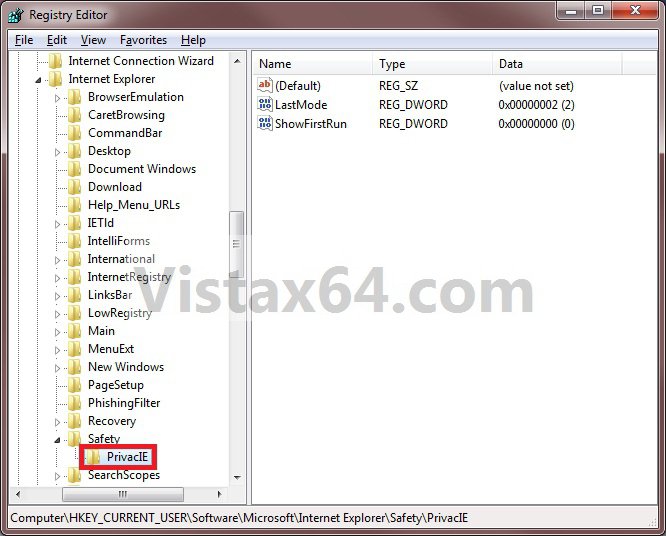
4. In the right pane of PrivacIE, right click on a empty area and click on New and DWORD (32-bit) Value. (See screenshot above)
5. Type in Start Mode and press Enter. (See screenshot below)
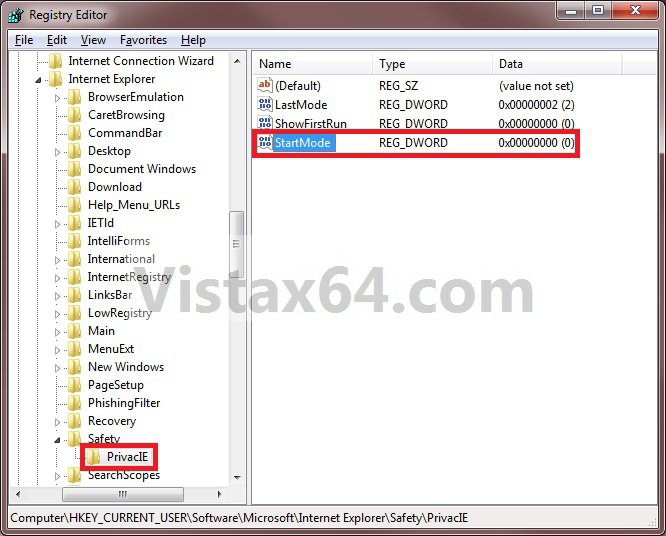
6. Right click on Start Mode and click on Modify. (See screenshot above)
7. To Keep InPrivate Filtering Turned Off
NOTE: This is the default setting.
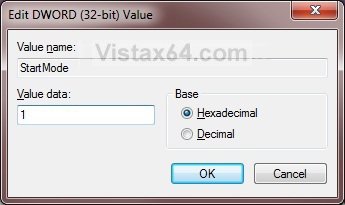
A) Type in 0 (number zero). (See screenshot below step 10)
B) Go to step 10.
8. To Keep InPrivate Filtering Turned On to Auto
A) Type in 1. (See screenshot below step 10)
B) Go to step 10.
9. To Keep InPrivate Filtering Turned On to Manual (Choose)
A) Type in 2. (See screenshot below step 10)
10. Click on OK. (See screenshot below)
11. Close Regedit.
12. Close and reopen Internet Explorer to apply.
That's it,Shawn
Related Tutorials
Attachments

Last edited:


