
How To Add Application Shortcuts To The Desktop Context Menu
 Note
NoteThis tutorial aims to show you how to add application and batch file shortcuts to the desktop context menu. More precisely it aims to provide a template for this. Possible uses of the method include adding shortcuts for the Registry Editor, Command Prompt, and Task Manager. See the Examples section for several ideas.
Instructions
1. Choose an executable or batch file as your target. In the figures I have chosen Firefox. You may also want to download the Basic Application Template found in the Examples section.
TIP: To quickly find the directory of an application right click it and select properties. Copy the Location entry.
NOTE: The shortcuts appear in the order in which they were created.
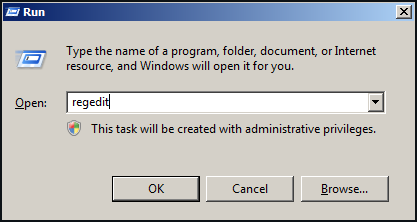
2. Open Run (Winkey + R) and type in regedit. Hit enter to open up the Registry Editor.
TIP: Run is a very efficient way to access system programs.
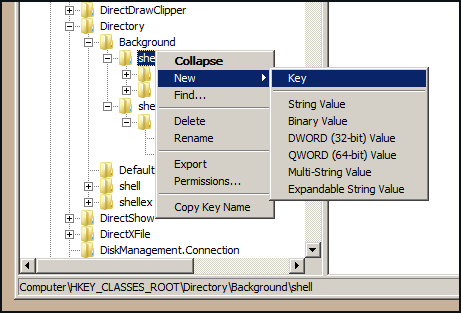
3. Navigate to HKEY_CLASSES_ROOT\Directory\Background\shell. This is the directory in which you will be working.
NOTE: If shell does not exist, right click Background and click New > Key. Name the key shell.
4. Right click on shell and select New > Key. Name the key whatever you want.
NOTE: Name will not effect final result.
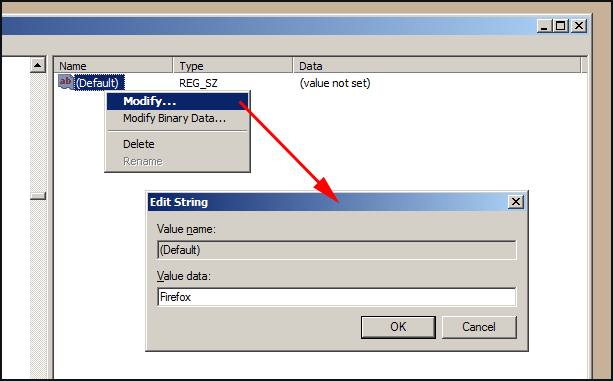
5. In the right pane right click on the String Value and click Modify. The value you enter will be the name of the shortcut.
NOTE: Value will not alter functionality.
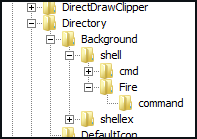
6. Under the first key create another one. Name it command and nothing else. See the figure below for current structure.
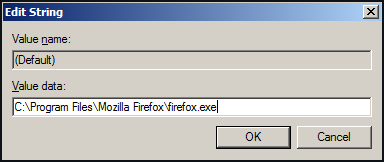
7. Set the String Value to the target application. Be sure to include the full path.
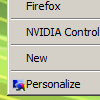
8. Test to see if the new entry has been added. If this is not the case, compare with the Basic Application Template under Examples.
ExamplesBasic Application Template:
Adds a shortcut for Internet Explorer.

Remove:
Registry Editor:
Creates a shortcut for the Registry Editor.
Remove:
Task Manager:
Creates a shortcut for Task Manager.
Remove:
Attachments
-
RegistryEditor.reg432 bytes · Views: 828
-
BasicApplication.reg468 bytes · Views: 866
-
TaskManager.reg446 bytes · Views: 850
-
Remove_BasicApplication.reg96 bytes · Views: 784
-
Remove_TaskManager.reg101 bytes · Views: 834
-
Remove_RegistryEditor.reg103 bytes · Views: 723
-
 thumb_TutorialIcon.png7.3 KB · Views: 217
Last edited by a moderator: