
Windows Update Error 80070424 in Vista
All aspects of this error -how to fix
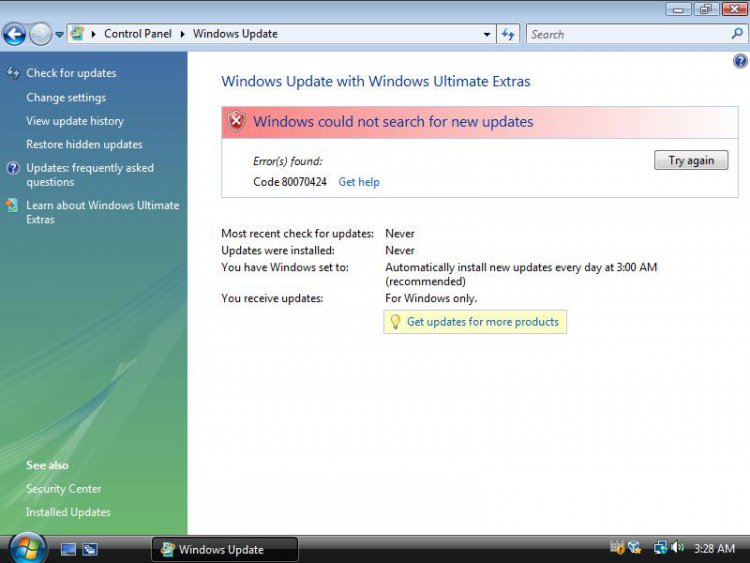
This error may be caused trouble with following services
-Backgroung Inteligence Transfer Service
-Windows Update
-Windows Modules Installer
[digg]http://www.vistax64.com/tutorials/258701-windows-update-error-80070424-a.html[/digg]
SOLUTION
Go to Start>>Search>>services.msc
and check below services exist, have correct settings and are working
BITS :Automatic(Delayed),started
Windows Update : Automatic(Delayed),started
Windows Modules Installer:Manual
If you have another settings you have to correct it.If you can't correct settings or any service don't exist follow below:
SCENARIO I
Issue with Background Inteligence Transfer Service
See this tutorial How to fix Background Inteligence Transfer Service
SCENARIO II
Issue with Windows Update
METHOD I
//worth only to try if service is available but you can't start it//
Try reset the whole WU in aggresive mode KB971058
METHOD II
//worth only to try if service is available but you can't start it//
Try reinstall Windows Update Agent KB949104
METHOD III
Import to registry special fix for Windows Update service attached here View attachment WU.zip
and next restart computer
SCENARIO III
Issue with Windows Modules Installer
---------------------------------------------------------------------
FYI
Another symptom of this service corruption is unable to run System File Checker.
When you run any SFC command the following error is returned:
Windows Resource Protection could not start the repair service
-------------------------------------------------------------------------------
What you need to fix:
1.Fix to registry for Windows Modules Installer services:View attachment TrustedInstallerFix.zip
//this ZIP file include TrustedInstaller.reg file //
2.TrustedInstaller.exe file appriopriate for your system.You can extract it from your own Vista DVD using 7-zip or WinRAR CLICK
or claasic method using WAIK CLICK -your choose how to do that

or just download & extract from already prepared ZIP files;appriopriate for your system
for x32 View attachment TrustedInstallerX86.zip
for x64 View attachment TrustedInstallerX64.zip
3.Sometimes you will need Psexec.exe file cointained in PsTools if you have any trouble with importing fix to registry (details below)
How to fix:
1.Download TrustedInstaller.reg and TrustedInstaller.exe (appriopriate for your system),TrustedInstaller.reg file you can place anywhere for example you can place on your desktop,Documents folder (as you wish).File TrustedInstaller.exe you have to place directly in C:\Windows\Servicing folder but you have to change permissions to do that because Administrators group nor you don't have full control for Servicing folder:
-takeownership C:\Windows\Servicing folder and add your account to have full control
//see this tutorial how to do that:CLICK
-place TrustedInstaller.exe in C:\Windows\Servicing folder
2.Import fix to registry attached above (just double click on TrustedInstaller.reg file).Possible you don't have any problem with importing it,if it won't return any error ignore points 3 and 4 and go to point 5 ,if it return error "Acess denied" the best way to workaround it, import this fix from SYSTEM account (go to point 3).
3.Download PsTools ,extract from this psexec.exe file and place it in C:\Windows\System32 folder
4.Run cmd.exe with administrative previlliges (right click on cmd.exe as admin) and type:
psexec -s -i -d regedit
This command run regedit from System account.In regedit go to File>>Import,navigate to location where you store TrustedInstaller.reg file,choose it and apply.
5.Restart computer.After restart Windows Update should work fine now.
6.If everything work fine now restore oryginal permissions to C:\Windows\Servicing folder
-remove your account from permissions to Servicing folder
-Restore ownership of Servicing folder back to "NT Service\TrustedInstaller"
//see this tutorial how to do that CLICK
Attachments

Last edited by a moderator:

 .
.