
How to Extract Files from the Vista Installation DVD
 Information
This will show you how to extract original files from the retail Vista installation DVD. You can then use these extracted files to replace missing or corrupted system files in your current Vista installation.
 Note
NoteNormally you will find out that you have corrupted system files that cannot be repaired after your run a sfc /scannow command and look at it's log report.
Here's How:
1. Download and install the same free 32-bit (x86) or 64-bit (x64) 7-Zip program version as your 32-bit or 64-bit Vista.
2. Use Compatibiliy Mode on the 7-Zip shortcut and check the Run this program as an administrator box.
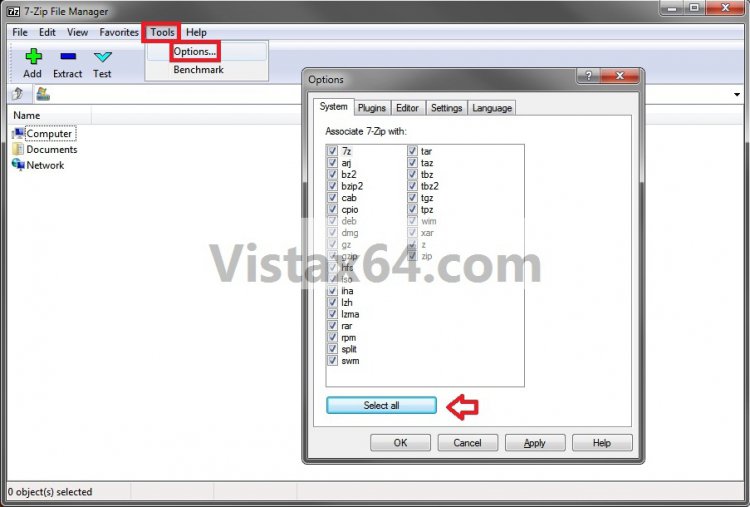
3. Run 7-Zip, then click on Tools and Options. Next, click on the Select all button and on OK. (See screenshot below)
4. Insert your retail Vista installation disc into the DVD drive and wait for it to be recognized.
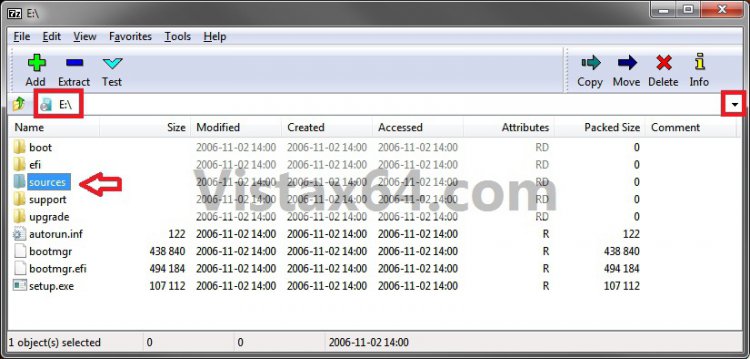
5. In 7-Zip, navigate to your DVD drive letter (ex: E: ) that has the Vista installation disc in it, and double click on the Sources folder. (See screenshot below)
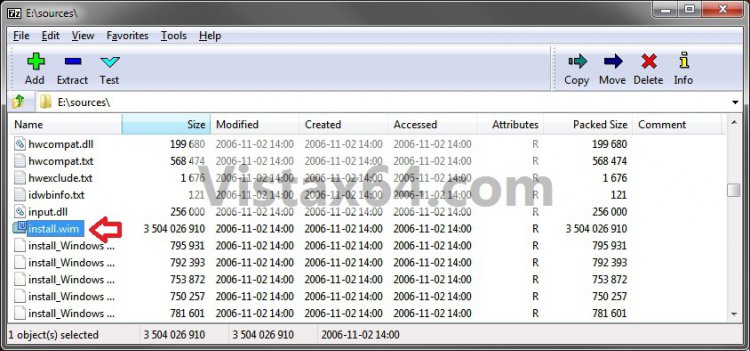
6. Scroll down and double click on the install.wim file. (See screenshot below)
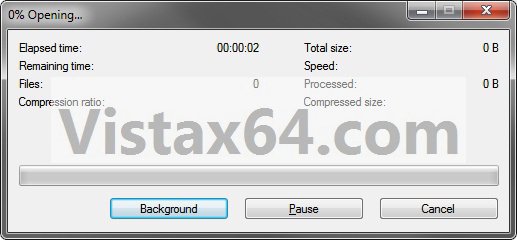
7. You will now see this for a few seconds as it opens. (See screenshot below)
8. Each numbered folder is a different edition of Vista. They will vary depending on what type of Vista installation DVD you have. To see what edition is for each numbered folder, select the 1.xml file and click on the Extract button on the toolbar. (See screenshots below)
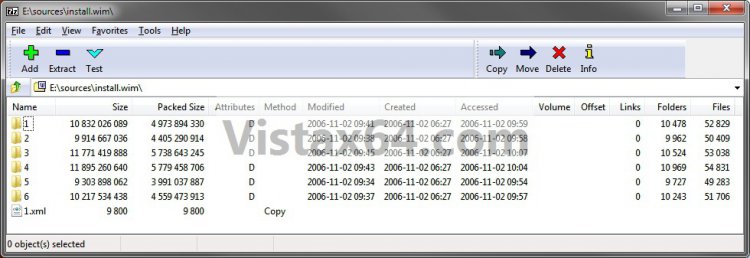
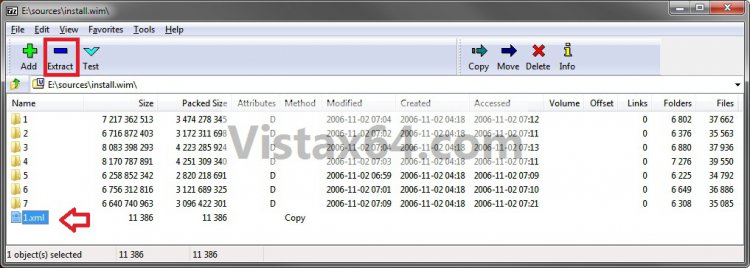
9. Copy the 1.xml file to your desktop. (See screenshot below)
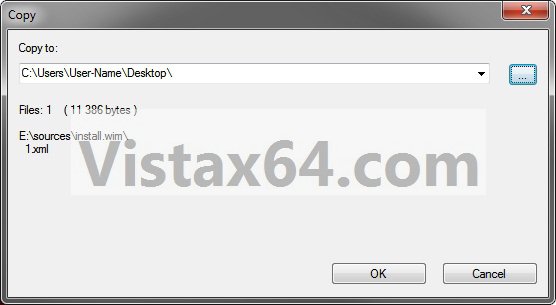
10. Open the 1.xml file on the desktop. Look for the IMAGE INDEX # and the Name under it in the code (highlighted in red below) to see what Vista edition is for each numbered folder in step 8. (See code box below with an example 1.xml file)
NOTE: This file will open in Internet Explorer by default.
Code:
[/INDENT]
[INDENT][URL="file:///C:/Users/User-Name/Desktop/1.xml#"]-[/URL] <WIM>[/INDENT]
[INDENT]  <TOTALBYTES>2412491164</TOTALBYTES>[/INDENT]
[INDENT][URL="file:///C:/Users/User-Name/Desktop/1.xml#"][B][COLOR=red]-[/COLOR][/B][/URL][B][COLOR=red] <IMAGE INDEX="1">[/COLOR][/B][/INDENT]
[INDENT][B][COLOR=red]<NAME>Windows Vista BUSINESS</NAME>[/COLOR][/B][/INDENT]
[INDENT]  <DESCRIPTION>Windows Vista Business</DESCRIPTION>[/INDENT]
[INDENT]  <FLAGS>BUSINESS</FLAGS>[/INDENT]
[INDENT][URL="file:///C:/Users/User-Name/Desktop/1.xml#"]-[/URL] <WINDOWS>[/INDENT]
[INDENT]  <ARCH>0</ARCH>[/INDENT]
[INDENT]  <PRODUCTNAME>Microsoft® Windows® Operating System</PRODUCTNAME>[/INDENT]
[INDENT]  <HAL>acpiapic</HAL>[/INDENT]
[INDENT]  <PRODUCTTYPE>WinNT</PRODUCTTYPE>[/INDENT]
[INDENT]  <PRODUCTSUITE>Terminal Server</PRODUCTSUITE>[/INDENT]
[INDENT][URL="file:///C:/Users/User-Name/Desktop/1.xml#"]-[/URL] <LANGUAGES>[/INDENT]
[INDENT]  <LANGUAGE>en-US</LANGUAGE>[/INDENT]
[INDENT]  <DEFAULT>en-US</DEFAULT>[/INDENT]
[INDENT]  </LANGUAGES>[/INDENT]
[INDENT][URL="file:///C:/Users/User-Name/Desktop/1.xml#"]-[/URL] <VERSION>[/INDENT]
[INDENT]  <MAJOR>6</MAJOR>[/INDENT]
[INDENT]  <MINOR>0</MINOR>[/INDENT]
[INDENT]  <BUILD>6000</BUILD>[/INDENT]
[INDENT]  <SPBUILD>16386</SPBUILD>[/INDENT]
[INDENT]  </VERSION>[/INDENT]
[INDENT]  <SYSTEMROOT>WINDOWS</SYSTEMROOT>[/INDENT]
[INDENT]  </WINDOWS>[/INDENT]
[INDENT]  <DIRCOUNT>6758</DIRCOUNT>[/INDENT]
[INDENT]  <FILECOUNT>37706</FILECOUNT>[/INDENT]
[INDENT]  <TOTALBYTES>7217370857</TOTALBYTES>[/INDENT]
[INDENT][URL="file:///C:/Users/User-Name/Desktop/1.xml#"]-[/URL] <CREATIONTIME>[/INDENT]
[INDENT]  <HIGHPART>0x01C6FE83</HIGHPART>[/INDENT]
[INDENT]  <LOWPART>0xFACE2238</LOWPART>[/INDENT]
[INDENT]  </CREATIONTIME>[/INDENT]
[INDENT][URL="file:///C:/Users/User-Name/Desktop/1.xml#"]-[/URL] <LASTMODIFICATIONTIME>[/INDENT]
[INDENT]  <HIGHPART>0x01C6FE96</HIGHPART>[/INDENT]
[INDENT]  <LOWPART>0x96045D5F</LOWPART>[/INDENT]
[INDENT]  </LASTMODIFICATIONTIME>[/INDENT]
[INDENT]  </IMAGE>[/INDENT]
[INDENT][URL="file:///C:/Users/User-Name/Desktop/1.xml#"][B][COLOR=red]-[/COLOR][/B][/URL][B][COLOR=red] <IMAGE INDEX="2">[/COLOR][/B][/INDENT]
[INDENT][B][COLOR=red]<NAME>Windows Vista HOMEBASIC</NAME> [/COLOR][/B][/INDENT]
[INDENT]  <DESCRIPTION>Windows Vista HomeBasic</DESCRIPTION>[/INDENT]
[INDENT]  <FLAGS>HOMEBASIC</FLAGS>[/INDENT]
[INDENT][URL="file:///C:/Users/User-Name/Desktop/1.xml#"]-[/URL] <WINDOWS>[/INDENT]
[INDENT]  <ARCH>0</ARCH>[/INDENT]
[INDENT]  <PRODUCTNAME>Microsoft® Windows® Operating System</PRODUCTNAME>[/INDENT]
[INDENT]  <HAL>acpiapic</HAL>[/INDENT]
[INDENT]  <PRODUCTTYPE>WinNT</PRODUCTTYPE>[/INDENT]
[INDENT]  <PRODUCTSUITE>Terminal Server</PRODUCTSUITE>[/INDENT]
[INDENT][URL="file:///C:/Users/User-Name/Desktop/1.xml#"]-[/URL] <LANGUAGES>[/INDENT]
[INDENT]  <LANGUAGE>en-US</LANGUAGE>[/INDENT]
[INDENT]  <DEFAULT>en-US</DEFAULT>[/INDENT]
[INDENT]  </LANGUAGES>[/INDENT]
[INDENT][URL="file:///C:/Users/User-Name/Desktop/1.xml#"]-[/URL] <VERSION>[/INDENT]
[INDENT]  <MAJOR>6</MAJOR>[/INDENT]
[INDENT]  <MINOR>0</MINOR>[/INDENT]
[INDENT]  <BUILD>6000</BUILD>[/INDENT]
[INDENT]  <SPBUILD>16386</SPBUILD>[/INDENT]
[INDENT]  </VERSION>[/INDENT]
[INDENT]  <SYSTEMROOT>WINDOWS</SYSTEMROOT>[/INDENT]
[INDENT]  </WINDOWS>[/INDENT]
[INDENT]  <DIRCOUNT>6332</DIRCOUNT>[/INDENT]
[INDENT]  <FILECOUNT>35607</FILECOUNT>[/INDENT]
[INDENT]  <TOTALBYTES>6716880747</TOTALBYTES>[/INDENT]
[INDENT][URL="file:///C:/Users/User-Name/Desktop/1.xml#"]-[/URL] <CREATIONTIME>[/INDENT]
[INDENT]  <HIGHPART>0x01C6FE83</HIGHPART>[/INDENT]
[INDENT]  <LOWPART>0x92D51928</LOWPART>[/INDENT]
[INDENT]  </CREATIONTIME>[/INDENT]
[INDENT][URL="file:///C:/Users/User-Name/Desktop/1.xml#"]-[/URL] <LASTMODIFICATIONTIME>[/INDENT]
[INDENT]  <HIGHPART>0x01C6FE97</HIGHPART>[/INDENT]
[INDENT]  <LOWPART>0x395C54EA</LOWPART>[/INDENT]
[INDENT]  </LASTMODIFICATIONTIME>[/INDENT]
[INDENT]  </IMAGE>[/INDENT]
[INDENT][URL="file:///C:/Users/User-Name/Desktop/1.xml#"][B][COLOR=red]-[/COLOR][/B][/URL][B][COLOR=red] <IMAGE INDEX="3">[/COLOR][/B][/INDENT]
[INDENT][B][COLOR=red]<NAME>Windows Vista HOMEPREMIUM</NAME>[/COLOR][/B][/INDENT]
[INDENT]  <DESCRIPTION>Windows Vista HomePremium</DESCRIPTION>[/INDENT]
[INDENT]  <FLAGS>HOMEPREMIUM</FLAGS>[/INDENT]
[INDENT][URL="file:///C:/Users/User-Name/Desktop/1.xml#"]-[/URL] <WINDOWS>[/INDENT]
[INDENT]  <ARCH>0</ARCH>[/INDENT]
[INDENT]  <PRODUCTNAME>Microsoft® Windows® Operating System</PRODUCTNAME>[/INDENT]
[INDENT]  <HAL>acpiapic</HAL>[/INDENT]
[INDENT]  <PRODUCTTYPE>WinNT</PRODUCTTYPE>[/INDENT]
[INDENT]  <PRODUCTSUITE>Terminal Server</PRODUCTSUITE>[/INDENT]
[INDENT][URL="file:///C:/Users/User-Name/Desktop/1.xml#"]-[/URL] <LANGUAGES>[/INDENT]
[INDENT]  <LANGUAGE>en-US</LANGUAGE>[/INDENT]
[INDENT]  <DEFAULT>en-US</DEFAULT>[/INDENT]
[INDENT]  </LANGUAGES>[/INDENT]
[INDENT][URL="file:///C:/Users/User-Name/Desktop/1.xml#"]-[/URL] <VERSION>[/INDENT]
[INDENT]  <MAJOR>6</MAJOR>[/INDENT]
[INDENT]  <MINOR>0</MINOR>[/INDENT]
[INDENT]  <BUILD>6000</BUILD>[/INDENT]
[INDENT]  <SPBUILD>16386</SPBUILD>[/INDENT]
[INDENT]  </VERSION>[/INDENT]
[INDENT]  <SYSTEMROOT>WINDOWS</SYSTEMROOT>[/INDENT]
[INDENT]  </WINDOWS>[/INDENT]
[INDENT]  <DIRCOUNT>6836</DIRCOUNT>[/INDENT]
[INDENT]  <FILECOUNT>37980</FILECOUNT>[/INDENT]
[INDENT]  <TOTALBYTES>8083406637</TOTALBYTES>[/INDENT]
[INDENT][URL="file:///C:/Users/User-Name/Desktop/1.xml#"]-[/URL] <CREATIONTIME>[/INDENT]
[INDENT]  <HIGHPART>0x01C6FE84</HIGHPART>[/INDENT]
[INDENT]  <LOWPART>0x7D5966D0</LOWPART>[/INDENT]
[INDENT]  </CREATIONTIME>[/INDENT]
[INDENT][URL="file:///C:/Users/User-Name/Desktop/1.xml#"]-[/URL] <LASTMODIFICATIONTIME>[/INDENT]
[INDENT]  <HIGHPART>0x01C6FE98</HIGHPART>[/INDENT]
[INDENT]  <LOWPART>0x0B9D5D9A</LOWPART>[/INDENT]
[INDENT]  </LASTMODIFICATIONTIME>[/INDENT]
[INDENT]  </IMAGE>[/INDENT]
[INDENT][URL="file:///C:/Users/User-Name/Desktop/1.xml#"][B][COLOR=red]-[/COLOR][/B][/URL][B][COLOR=red] <IMAGE INDEX="4">[/COLOR][/B][/INDENT]
[INDENT][B][COLOR=red]<NAME>Windows Vista ULTIMATE</NAME> [/COLOR][/B][/INDENT]
[INDENT]  <DESCRIPTION>Windows Vista Ultimate</DESCRIPTION>[/INDENT]
[INDENT]  <FLAGS>ULTIMATE</FLAGS>[/INDENT]
[INDENT][URL="file:///C:/Users/User-Name/Desktop/1.xml#"]-[/URL] <WINDOWS>[/INDENT]
[INDENT]  <ARCH>0</ARCH>[/INDENT]
[INDENT]  <PRODUCTNAME>Microsoft® Windows® Operating System</PRODUCTNAME>[/INDENT]
[INDENT]  <HAL>acpiapic</HAL>[/INDENT]
[INDENT]  <PRODUCTTYPE>WinNT</PRODUCTTYPE>[/INDENT]
[INDENT]  <PRODUCTSUITE>Terminal Server</PRODUCTSUITE>[/INDENT]
[INDENT][URL="file:///C:/Users/User-Name/Desktop/1.xml#"]-[/URL] <LANGUAGES>[/INDENT]
[INDENT]  <LANGUAGE>en-US</LANGUAGE>[/INDENT]
[INDENT]  <DEFAULT>en-US</DEFAULT>[/INDENT]
[INDENT]  </LANGUAGES>[/INDENT]
[INDENT][URL="file:///C:/Users/User-Name/Desktop/1.xml#"]-[/URL] <VERSION>[/INDENT]
[INDENT]  <MAJOR>6</MAJOR>[/INDENT]
[INDENT]  <MINOR>0</MINOR>[/INDENT]
[INDENT]  <BUILD>6000</BUILD>[/INDENT]
[INDENT]  <SPBUILD>16386</SPBUILD>[/INDENT]
[INDENT]  </VERSION>[/INDENT]
[INDENT]  <SYSTEMROOT>WINDOWS</SYSTEMROOT>[/INDENT]
[INDENT]  </WINDOWS>[/INDENT]
[INDENT]  <DIRCOUNT>7232</DIRCOUNT>[/INDENT]
[INDENT]  <FILECOUNT>39594</FILECOUNT>[/INDENT]
[INDENT]  <TOTALBYTES>8170796235</TOTALBYTES>[/INDENT]
[INDENT][URL="file:///C:/Users/User-Name/Desktop/1.xml#"]-[/URL] <CREATIONTIME>[/INDENT]
[INDENT]  <HIGHPART>0x01C6FE84</HIGHPART>[/INDENT]
[INDENT]  <LOWPART>0x9AC07836</LOWPART>[/INDENT]
[INDENT]  </CREATIONTIME>[/INDENT]
[INDENT][URL="file:///C:/Users/User-Name/Desktop/1.xml#"]-[/URL] <LASTMODIFICATIONTIME>[/INDENT]
[INDENT]  <HIGHPART>0x01C6FE98</HIGHPART>[/INDENT]
[INDENT]  <LOWPART>0xEA8B4173</LOWPART>[/INDENT]
[INDENT]  </LASTMODIFICATIONTIME>[/INDENT]
[INDENT]  </IMAGE>[/INDENT]
[INDENT][URL="file:///C:/Users/User-Name/Desktop/1.xml#"][B][COLOR=red]-[/COLOR][/B][/URL][B][COLOR=red] <IMAGE INDEX="5">[/COLOR][/B][/INDENT]
[INDENT][B][COLOR=red]<NAME>Windows Vista HOMEBASICN</NAME>[/COLOR][/B][/INDENT]
[INDENT]  <DESCRIPTION>Windows Vista HomeBasicN</DESCRIPTION>[/INDENT]
[INDENT]  <FLAGS>HOMEBASICN</FLAGS>[/INDENT]
[INDENT][URL="file:///C:/Users/User-Name/Desktop/1.xml#"]-[/URL] <WINDOWS>[/INDENT]
[INDENT]  <ARCH>0</ARCH>[/INDENT]
[INDENT]  <PRODUCTNAME>Microsoft® Windows® Operating System</PRODUCTNAME>[/INDENT]
[INDENT]  <HAL>acpiapic</HAL>[/INDENT]
[INDENT]  <PRODUCTTYPE>WinNT</PRODUCTTYPE>[/INDENT]
[INDENT]  <PRODUCTSUITE>Terminal Server</PRODUCTSUITE>[/INDENT]
[INDENT][URL="file:///C:/Users/User-Name/Desktop/1.xml#"]-[/URL] <LANGUAGES>[/INDENT]
[INDENT]  <LANGUAGE>en-US</LANGUAGE>[/INDENT]
[INDENT]  <DEFAULT>en-US</DEFAULT>[/INDENT]
[INDENT]  </LANGUAGES>[/INDENT]
[INDENT][URL="file:///C:/Users/User-Name/Desktop/1.xml#"]-[/URL] <VERSION>[/INDENT]
[INDENT]  <MAJOR>6</MAJOR>[/INDENT]
[INDENT]  <MINOR>0</MINOR>[/INDENT]
[INDENT]  <BUILD>6000</BUILD>[/INDENT]
[INDENT]  <SPBUILD>16386</SPBUILD>[/INDENT]
[INDENT]  </VERSION>[/INDENT]
[INDENT]  <SYSTEMROOT>WINDOWS</SYSTEMROOT>[/INDENT]
[INDENT]  </WINDOWS>[/INDENT]
[INDENT]  <DIRCOUNT>6181</DIRCOUNT>[/INDENT]
[INDENT]  <FILECOUNT>34836</FILECOUNT>[/INDENT]
[INDENT]  <TOTALBYTES>6258860686</TOTALBYTES>[/INDENT]
[INDENT][URL="file:///C:/Users/User-Name/Desktop/1.xml#"]-[/URL] <CREATIONTIME>[/INDENT]
[INDENT]  <HIGHPART>0x01C6FE83</HIGHPART>[/INDENT]
[INDENT]  <LOWPART>0x4D63255F</LOWPART>[/INDENT]
[INDENT]  </CREATIONTIME>[/INDENT]
[INDENT][URL="file:///C:/Users/User-Name/Desktop/1.xml#"]-[/URL] <LASTMODIFICATIONTIME>[/INDENT]
[INDENT]  <HIGHPART>0x01C6FE99</HIGHPART>[/INDENT]
[INDENT]  <LOWPART>0x86FA2B08</LOWPART>[/INDENT]
[INDENT]  </LASTMODIFICATIONTIME>[/INDENT]
[INDENT]  </IMAGE>[/INDENT]
[INDENT][URL="file:///C:/Users/User-Name/Desktop/1.xml#"][B][COLOR=red]-[/COLOR][/B][/URL][B][COLOR=red] <IMAGE INDEX="6">[/COLOR][/B][/INDENT]
[INDENT][B][COLOR=red]<NAME>Windows Vista BUSINESSN</NAME>[/COLOR][/B][/INDENT]
[INDENT]  <DESCRIPTION>Windows Vista BusinessN</DESCRIPTION>[/INDENT]
[INDENT]  <FLAGS>BUSINESSN</FLAGS>[/INDENT]
[INDENT][URL="file:///C:/Users/User-Name/Desktop/1.xml#"]-[/URL] <WINDOWS>[/INDENT]
[INDENT]  <ARCH>0</ARCH>[/INDENT]
[INDENT]  <PRODUCTNAME>Microsoft® Windows® Operating System</PRODUCTNAME>[/INDENT]
[INDENT]  <HAL>acpiapic</HAL>[/INDENT]
[INDENT]  <PRODUCTTYPE>WinNT</PRODUCTTYPE>[/INDENT]
[INDENT]  <PRODUCTSUITE>Terminal Server</PRODUCTSUITE>[/INDENT]
[INDENT][URL="file:///C:/Users/User-Name/Desktop/1.xml#"]-[/URL] <LANGUAGES>[/INDENT]
[INDENT]  <LANGUAGE>en-US</LANGUAGE>[/INDENT]
[INDENT]  <DEFAULT>en-US</DEFAULT>[/INDENT]
[INDENT]  </LANGUAGES>[/INDENT]
[INDENT][URL="file:///C:/Users/User-Name/Desktop/1.xml#"]-[/URL] <VERSION>[/INDENT]
[INDENT]  <MAJOR>6</MAJOR>[/INDENT]
[INDENT]  <MINOR>0</MINOR>[/INDENT]
[INDENT]  <BUILD>6000</BUILD>[/INDENT]
[INDENT]  <SPBUILD>16386</SPBUILD>[/INDENT]
[INDENT]  </VERSION>[/INDENT]
[INDENT]  <SYSTEMROOT>WINDOWS</SYSTEMROOT>[/INDENT]
[INDENT]  </WINDOWS>[/INDENT]
[INDENT]  <DIRCOUNT>6605</DIRCOUNT>[/INDENT]
[INDENT]  <FILECOUNT>36930</FILECOUNT>[/INDENT]
[INDENT]  <TOTALBYTES>6756321160</TOTALBYTES>[/INDENT]
[INDENT][URL="file:///C:/Users/User-Name/Desktop/1.xml#"]-[/URL]</CREATIONTIME>[/INDENT]
[INDENT]  <HIGHPART>0x01C6FE83</HIGHPART>[/INDENT]
[INDENT]  <LOWPART>0xA629EF7C</LOWPART>[/INDENT]
[INDENT]  </CREATIONTIME>[/INDENT]
[INDENT][URL="file:///C:/Users/User-Name/Desktop/1.xml#"]-[/URL] <LASTMODIFICATIONTIME>[/INDENT]
[INDENT]  <HIGHPART>0x01C6FE9A</HIGHPART>[/INDENT]
[INDENT]  <LOWPART>0x69DFB6FB</LOWPART>[/INDENT]
[INDENT]  </LASTMODIFICATIONTIME>[/INDENT]
[INDENT]  </IMAGE>[/INDENT]
[INDENT][URL="file:///C:/Users/User-Name/Desktop/1.xml#"][B][COLOR=red]-[/COLOR][/B][/URL][B][COLOR=red] <IMAGE INDEX="7">[/COLOR][/B][/INDENT]
[INDENT][B][COLOR=red]<NAME>Windows Vista STARTER</NAME>[/COLOR][/B][/INDENT]
[INDENT]  <DESCRIPTION>Windows Vista Starter</DESCRIPTION>[/INDENT]
[INDENT]  <FLAGS>STARTER</FLAGS>[/INDENT]
[INDENT][URL="file:///C:/Users/User-Name/Desktop/1.xml#"]-[/URL] <WINDOWS>[/INDENT]
[INDENT]  <ARCH>0</ARCH>[/INDENT]
[INDENT]  <PRODUCTNAME>Microsoft® Windows® Operating System</PRODUCTNAME>[/INDENT]
[INDENT]  <HAL>acpiapic</HAL>[/INDENT]
[INDENT]  <PRODUCTTYPE>WinNT</PRODUCTTYPE>[/INDENT]
[INDENT]  <PRODUCTSUITE>Terminal Server</PRODUCTSUITE>[/INDENT]
[INDENT][URL="file:///C:/Users/User-Name/Desktop/1.xml#"]-[/URL] <LANGUAGES>[/INDENT]
[INDENT]  <LANGUAGE>en-US</LANGUAGE>[/INDENT]
[INDENT]  <DEFAULT>en-US</DEFAULT>[/INDENT]
[INDENT]  </LANGUAGES>[/INDENT]
[INDENT][URL="file:///C:/Users/User-Name/Desktop/1.xml#"]-[/URL] <VERSION>[/INDENT]
[INDENT]  <MAJOR>6</MAJOR>[/INDENT]
[INDENT]  <MINOR>0</MINOR>[/INDENT]
[INDENT]  <BUILD>6000</BUILD>[/INDENT]
[INDENT]  <SPBUILD>16386</SPBUILD>[/INDENT]
[INDENT]  </VERSION>[/INDENT]
[INDENT]  <SYSTEMROOT>WINDOWS</SYSTEMROOT>[/INDENT]
[INDENT]  </WINDOWS>[/INDENT]
[INDENT]  <DIRCOUNT>6264</DIRCOUNT>[/INDENT]
[INDENT]  <FILECOUNT>35129</FILECOUNT>[/INDENT]
[INDENT]  <TOTALBYTES>6640749307</TOTALBYTES>[/INDENT]
[INDENT][URL="file:///C:/Users/User-Name/Desktop/1.xml#"]-[/URL] <CREATIONTIME>[/INDENT]
[INDENT]  <HIGHPART>0x01C6FE87</HIGHPART>[/INDENT]
[INDENT]  <LOWPART>0xA27366AF</LOWPART>[/INDENT]
[INDENT]  </CREATIONTIME>[/INDENT]
[INDENT][URL="file:///C:/Users/User-Name/Desktop/1.xml#"]-[/URL] <LASTMODIFICATIONTIME>[/INDENT]
[INDENT]  <HIGHPART>0x01C6FE9B</HIGHPART>[/INDENT]
[INDENT]  <LOWPART>0xA7338EAC</LOWPART>[/INDENT]
[INDENT]  </LASTMODIFICATIONTIME>[/INDENT]
[INDENT]  </IMAGE>[/INDENT]
[INDENT]  </WIM>[/INDENT]
[INDENT]
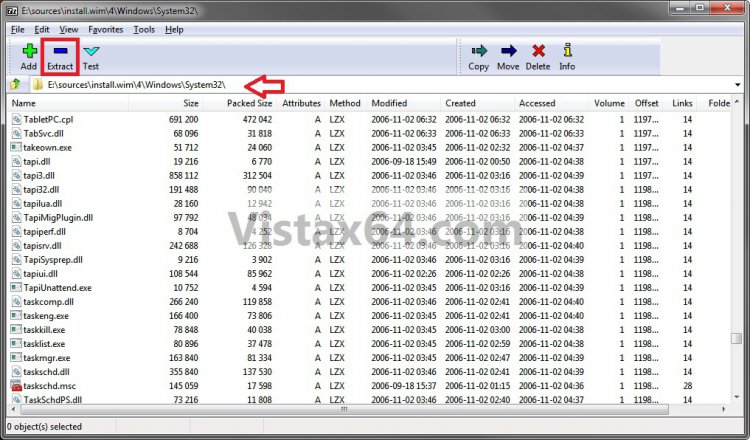
11. Now open the numbered folder that is the same edition as your currently installed Vista edition, and navigate to the Windows\System32 folder. You can now select and extract the system files that you need to your desktop to use to copy and replace your missing or corrupted system files in your currently installed Vista. (See screenshot below)
NOTE: You may need to take ownership and "Allow" your account "Full Control" of the file in your current installation before you will be allowed to replace it with the extacted copy.
That's it,
Shawn
Attachments

Last edited by a moderator:


