
Vista Forums
Vista Forums Home Join Vista Forums Donate Vista Tutorials Tags

Welcome to Vista Forums we are your forum to discuss Windows Vista x64 and x86 systems. Whether you need help or just want to post an idea you have on Vista, this is the forum for you.
Register at Vista forums...the world biggest Windows Vista resource Join Vista Forums Now

Go Back   Vista Forums > Vista Forums > Tutorials

Vista Tutorial Categories Network & Internet Tutorials File & Folder Settings Tutorials Taskbar & Start Menu Tutorials Performance & Maintenance Tutorials General Tips Tutorials Programs & Features Tutorials Context Menu Tutorials Shortcut Tutorials Security & System Tools Tutorials Parental Controls Tutorials User Account Tutorials Hardware & Drivers Tutorials Appearance & Personalization Tutorials Backup & Restore Tutorials Music, Photo, Video and Media Tutorials Power Management Tutorials

Desktop Icon size

Update your Vista Drivers Update Your Drivers Now!!
Poll: Did this Tutorial help and work for you?
Poll Options
Did this Tutorial help and work for you?

Comment
 
Tutorial Tools Display Modes
<!-- google_ad_section_start -->Desktop Icon size<!-- google_ad_section_end -->
Desktop Icon size
How to Change the Size of Desktop Icons in Vista
Published by Brink
05-05-2007

How to Change the Size of Desktop Icons in Vista

Information
  This will show you how to increase or decrease the size of all the icons on the Desktop in Vista. The icons size is set to Medium Icons by default.
NOTE
  To see the icons for internet URL shortcuts on the Desktop instead of the default e icon, you must have the View set to Classic Icons. For more on this, see: How to Add a Fully Functional IE7 Shortcut Icon to the Desktop in Vista
RELATED LINKS:


METHOD ONE:
Change Size with the Context Menu
1. Right click desktop.
2. Click on View. (See screenshot below)
3. Select the size you want. (Classic, Medium, or Large Icons)
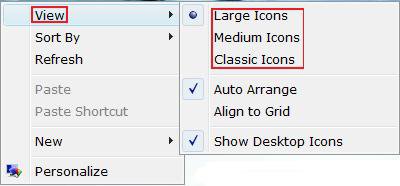
Name:  Right_Click.jpg
Views: 3264
Size:  13.7 KB


METHOD TWO:
Change Size with the Mouse Scroll Wheel
NOTE
  This will work on all of the icons located anywhere in Vista.
1. Highlight the Icon.

2. Press and hold down the CTRL key (Control).
NOTE: You may need to also press and hold the right mouse button with some older mouse models.

3. Roll your mouse scroll wheel up or down to adjust the icon size
NOTE: The trick is not moving the mouse while rolling the scroll wheel. (up=larger, down=smaller)
That's it,
Shawn

Published by
Brink's Avatar
Administrator
Join Date: Apr 2007
Location: Texas, USA
Posts: 16,633
Rep Power: 150
Brink has a reputation beyond reputeBrink has a reputation beyond reputeBrink has a reputation beyond reputeBrink has a reputation beyond reputeBrink has a reputation beyond reputeBrink has a reputation beyond reputeBrink has a reputation beyond reputeBrink has a reputation beyond reputeBrink has a reputation beyond reputeBrink has a reputation beyond reputeBrink has a reputation beyond repute

Tutorial Tools
Show Printable Version Show Printable Version
Email this Page Email this Page

Applies to
All Vista Versions
64 Bit & 32 Bit

Old 05-19-2008  
Terrorist's Avatar
Terrorist
Tech. Terror


Join Date: May 2008
Vista Home Premium 32bit
England
 
Rep Power: 3
Terrorist is on a distinguished road
  Terrorist is offline

Re: Desktop Icon size

I liked Method Two, More Controllable

My System SpecsSystem Spec
Old 09-07-2008  
SIW2
Master


Join Date: Jul 2008
VISTA HOME PREMIUM X64
 
Rep Power: 36
SIW2 has much to be proud ofSIW2 has much to be proud ofSIW2 has much to be proud ofSIW2 has much to be proud ofSIW2 has much to be proud ofSIW2 has much to be proud ofSIW2 has much to be proud ofSIW2 has much to be proud of
  SIW2 is online now

Re: Desktop Icon size

Hi Shawn,

I only need to hold down ctrl and scroll the mouse button - don't need to right click as well.

Think you only need to use right click as well if it doesn't work with just the ctrl key and scroll wheel.

I think this is true of most modern mice. ( The ones with clickable scroll wheels - in fact right clicking might stop you being able to do it if you have one of these). Seems it's the older ones where you also need to right click.

SIW2

Last edited by SIW2; 09-07-2008 at 09:50 AM.
My System SpecsSystem Spec
Old 09-07-2008  
Brink's Avatar
Brink
Administrator


Join Date: Apr 2007
Vista x64 Ultimate SP1
Texas, USA
 
Rep Power: 150
Brink has a reputation beyond reputeBrink has a reputation beyond reputeBrink has a reputation beyond reputeBrink has a reputation beyond reputeBrink has a reputation beyond reputeBrink has a reputation beyond reputeBrink has a reputation beyond reputeBrink has a reputation beyond reputeBrink has a reputation beyond reputeBrink has a reputation beyond reputeBrink has a reputation beyond repute
  Brink is online now

Re: Desktop Icon size

Thank your SIW2. The tutorial has been updated for this.

Shawn
My System SpecsSystem Spec
Comment

Tags
appearance & personalize, desktop, icon, size

Tutorial Tools
Display Modes


Update your Vista Drivers Update Your Drivers Now!!

Similar Threads
Tutorial Tutorial Starter Category Comments Last Post
Desktop Icon size vapor Vista General 2 03-31-2008 07:46 AM
Scroll Wheel Desktop Icon Size Problem Shadowman Vista hardware & devices 1 01-03-2008 12:01 PM
Desktop Icon Size Richard Vista General 2 08-06-2007 10:40 AM
Vista Desktop Icon Size CSM Vista General 7 02-26-2007 02:13 AM
Desktop Icon Size Jimmy Brush Vista General 1 06-30-2006 11:35 AM


Vistax64.com is an independent web site and has not been authorized,
sponsored, or otherwise approved by Microsoft Corporation.
"Windows Vista", the Start Orb, and related materials are trademarks of Microsoft Corp.
© Designer Media 2005-2008
Tutorial powered by GARS 2.1.8m ©2005-2006