
How to Add or Delete an Exception in Windows Firewall in Vista
 Information
An Exception is an instruction that tells Windows Firewall to open a port briefly, allow a program or service to pass a specific piece of information through, and then close the port. These instructions are called "exceptions" because normally the firewall blocks all unsolicited attempts to send information.
For more information, see: Windows Help and How-to: Firewall Exceptions
For more information, see: Windows Help and How-to: Firewall Exceptions
 Note
NoteIt is generally safer to create a program exception than to open a port. If you open a port, it stays open until you close it, whether or not a program is using it. If you create an exception, the "door" is open only when needed for a particular communication.
 Warning
Only create an exception or open a port when you really need to, and remove exceptions or close ports that you no longer need. Never create an exception or open a port for a program that you do not recognize.
Here's How:
1. Open the Control Panel. (Classic View)
2. Click on the Windows Firewall Icon.
3. Click on Allow a program through Windows Firewall. (See screenshot below)
4. Click on Continue in the UAC prompt.
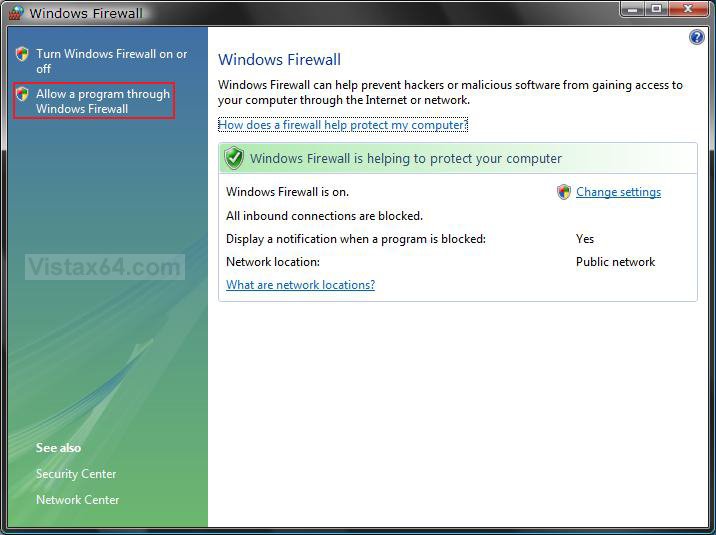
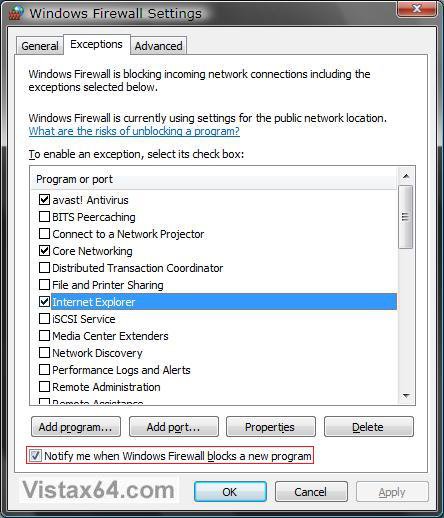
5. You will now see this. (See screenshot below)
 Option One
6. If the program is listed, then check the program and click on OK. (See screenshot above)
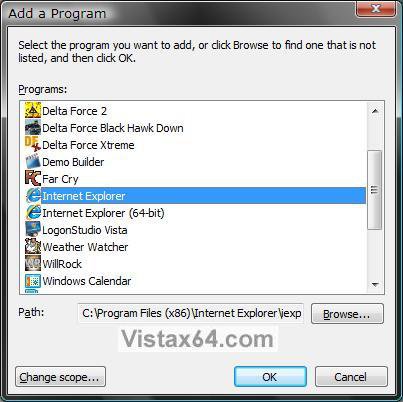
7. If the program is not listed, then click the Add Program button. (See screenshot above)
A) Select the program if listed and click on OK and check it. (See screenshots below)
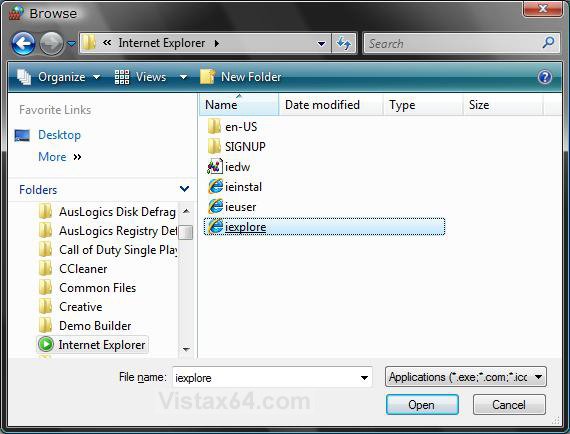
B) If the program is not listed here, then click on Browse and navigate to the program's .exe file and select it and click on Open.
Option Two 8. If the port is listed, then check the port and click on OK. (See screenshot below step 5)
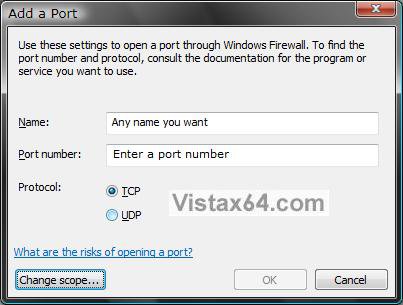
9. Click on the Add Port button. (See screenshot from below step 5)
A) Type in a description name, port number, and check what protocol to use. (See screenshots below)
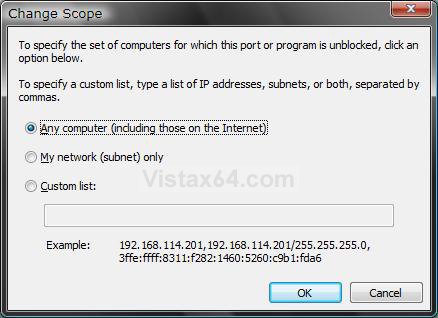
B) Click the Change Scope button to specify the computer this is for.
C) Click on OK.
Option Three 10. Click on a item to highlight it and click on Properties. (See screenshot from below step 5)
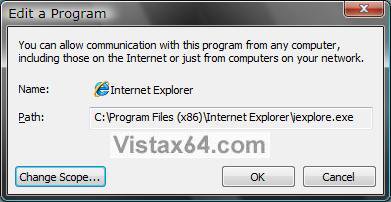
11. You can change the properties of the item and click on OK. (See screenshots below)
A) Click the Change Scope button to specify the computer this is for.
Option Four 12. To Disable a Item - Uncheck the item and click on OK. (See screenshot from below step 5)
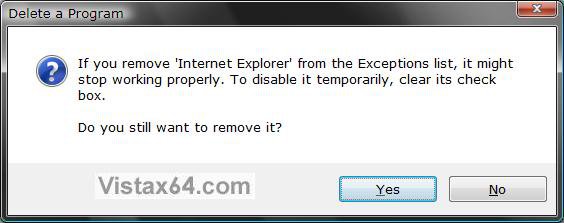
13. To Delete a Item - Click on the item listed to highlight it, and click the Delete button. (See screenshot from below step 5)
A) Click on Yes to delete. (See screenshot below)
That's it,
Shawn
Attachments

Last edited:
