Vista Forums
Vista Forums Home Join Vista Forums Donate Vista Tutorials Tags

Welcome to Vista Forums we are your forum to discuss Windows Vista x64 and x86 systems. Whether you need help or just want to post an idea you have on Vista, this is the forum for you.
Register at Vista forums...the world biggest Windows Vista resource Join Vista Forums Now

Go Back   Vista Forums > Vista Forums > Tutorials

Vista Tutorial Categories Network & Internet Tutorials File & Folder Settings Tutorials Taskbar & Start Menu Tutorials Performance & Maintenance Tutorials General Tips Tutorials Programs & Features Tutorials Context Menu Tutorials Shortcut Tutorials Security & System Tools Tutorials Parental Controls Tutorials User Account Tutorials Hardware & Drivers Tutorials Appearance & Personalization Tutorials Backup & Restore Tutorials Music, Photo, Video and Media Tutorials Power Management Tutorials

Memory Diagnostics Tool

Update your Vista Drivers Update Your Drivers Now!!
Poll: Did this Tutorial help and work for you?
Poll Options
Did this Tutorial help and work for you?

Comment
 
Tutorial Tools Display Modes
<!-- google_ad_section_start -->Memory Diagnostics Tool<!-- google_ad_section_end -->
Memory Diagnostics Tool
How to Use the Memory Diagnostics Tool in Vista
Published by Brink
05-23-2007

How to Use the Memory Diagnostics Tool in Vista

Information
  The Memory Diagnostics Tool allows you to check your computer for problems with the RAM memory. For more information, see: Microsoft Online Crash Analysis: Windows Memory Diagnostic Users Guide
NOTE
  If you had changed your boot screen, then you will need to temporarily uncheck the No GUI boot to be able to see what is happening when the Memory Diagnostics Tool is running at boot up. For how, see: How to Enable or Replace the Hidden Aurora Boot Screen in Vista
RELATED LINKS:
Here's How:
1. Start the Memory Diagnostics Tool.
NOTE: Use either Method One, Method Two, or Method Three below.

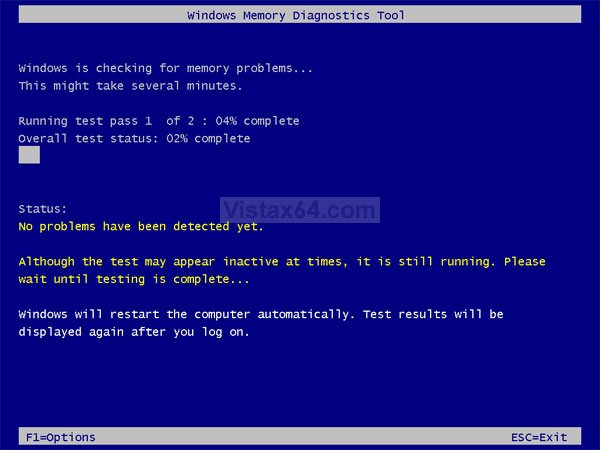
2. When the computer restarts you will see this. (See screenshot below step 4)
3. Press ESC to exit the Memory Diagnostics Tool.
4. Press F1 to make any changes to the test options.

Name:  Mem_Diag_Tool.jpg
Views: 2625
Size:  96.7 KB

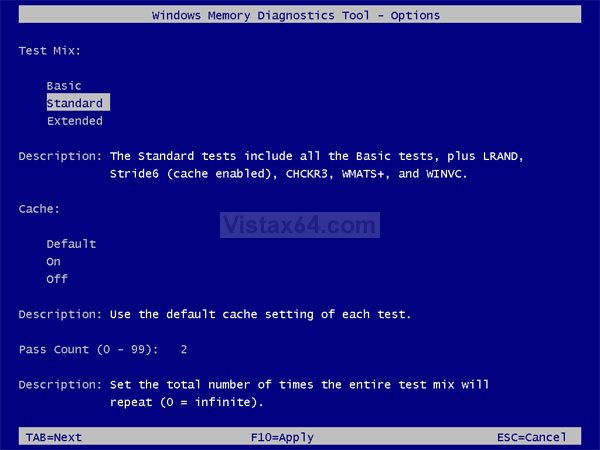
5. Press the TAB key to switch between option categories and the arrow keys to select the particular option. (See screenshot below)
6. Press F10 to apply any changes in the options.
7. Press ESC to cancel any changes not applied and return to the screenshot under step 4.

Name:  Mem_Diag_Options.jpg
Views: 2614
Size:  91.5 KB

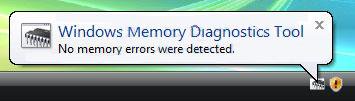
8. When the tests are complete, the tool will automatically reboot your computer and the next time you logon to
Vista the results of the test will be displayed as seen below.
NOTE: If errors are found, the Windows Memory Diagnostics Tool will attempt to determine which particular memory module in your computer is causing these errors. If that information is available, it will be stated in the results. If bad memory is found then you will need to remove that memory and replace it.

Name:  Mem_Diag_Results.jpg
Views: 2592
Size:  9.1 KB

METHOD ONE:
How to Start From the Desktop
1. Open the Control Panel. (Classic View)
2. Click on the Administrative Tools icon and click Memory Diagnostics Tool.
A) Go to step 3.
OR

1. Open the Start menu.
2. In the white line (Start Search) area, type MdSched and press Enter.
3. Click Continue button for UAC prompt.
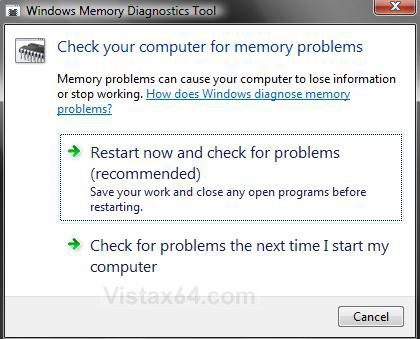
4. Click on the choice you want to do. (See screenshot below)
Name:  Memory.jpg
Views: 2933
Size:  86.9 KB

5. Restart the computer to run the test.
6. It will take a while to finish. (5 minutes or so)


METHOD TWO:
How to Start From the Windows Boot Manager
1. Restart the computer.
2. Press F8 until you boot into the Advanced Boot Options.
NOTE: For how, see: How to Boot Up in and Use Advanced Boot Options in Vista

3. Press Esc on your keyboard while you’re in the Advanced Boot Options screen.
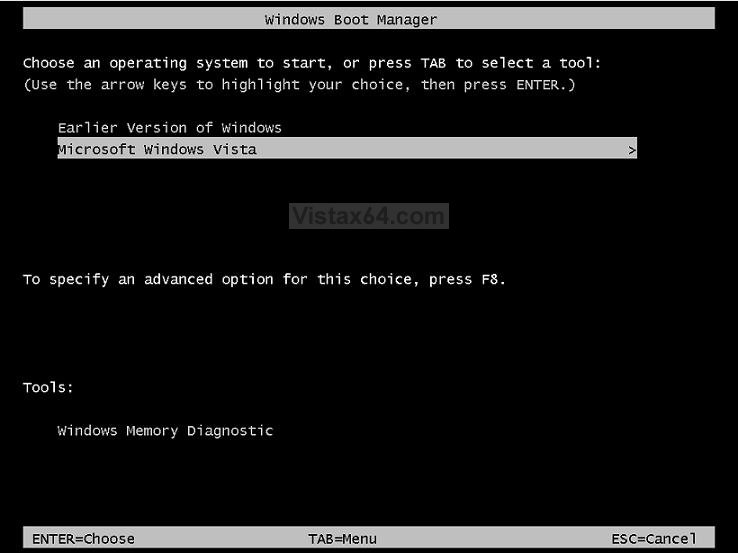
4. Press Tab on your keyboard to move to the Tools section of the boot manager screen. (See screenshot below)
NOTE: This will highlight Windows Memory Diagnostics.

5. Press Enter to start the Memory Diagnostics.
Name:  Windows_Boot_Manager.jpg
Views: 2918
Size:  74.6 KB


METHOD THREE:
How to Start From the Vista Installation DVD
NOTE
  You will need a Vista Express or Retail installation DVD to do this. If you only have a OEM Recovery DVD or Recovery Partition, then you can create a recovery disc that will let you boot into the Recovery Options screen to run a Startup repair with the download from here: How to Create a Vista Recovery Disc
1. Insert your Vista installation DVD and then restart your computer.
NOTE: You will be booting from the Vista DVD. In the BIOS, make sure that your CD/DVD is listed to boot first.

2. If prompted, press any key to start Vista from the installation DVD. (See screenshot below)
NOTE: You will only have about 8 seconds to press this key.

Name:  boot-from-cd-prompt.jpg
Views: 2902
Size:  11.2 KB

3. When your computer has booted to the DVD select your language and then press Next. (See screenshot below)

Name:  Select_Language.jpg
Views: 2903
Size:  101.3 KB

4. Click on Repair your computer. (See screenshot below)

Name:  Repair_Computer.jpg
Views: 2896
Size:  83.3 KB

5. Select the operating system your want to repair and click Next. (See screenshot below)
NOTE: There is usually only one here unless you’re dual booting.

Name:  Select_OS.jpg
Views: 2878
Size:  55.0 KB

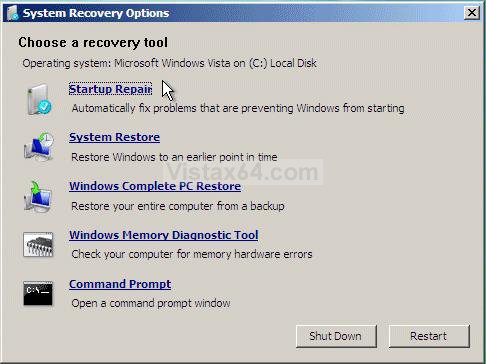
6. Click on Windows Memory Diagnostic Tool. (See screenshot below)

Name:  Recovery_Options.jpg
Views: 2871
Size:  74.2 KB

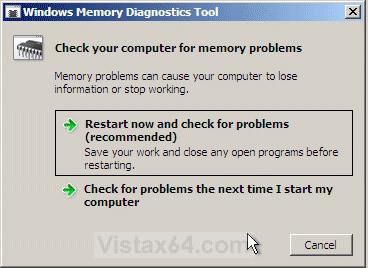
7. Click on Restart now and check for problems and wait for your computer to restart. (See screenshot below)
Name:  Check_Memory.jpg
Views: 2835
Size:  52.4 KB

That's it,
Shawn

Published by
Brink's Avatar
Administrator
Join Date: Apr 2007
Location: Texas, USA
Posts: 16,477
Rep Power: 150
Brink has a reputation beyond reputeBrink has a reputation beyond reputeBrink has a reputation beyond reputeBrink has a reputation beyond reputeBrink has a reputation beyond reputeBrink has a reputation beyond reputeBrink has a reputation beyond reputeBrink has a reputation beyond reputeBrink has a reputation beyond reputeBrink has a reputation beyond reputeBrink has a reputation beyond repute

Tutorial Tools
Show Printable Version Show Printable Version
Email this Page Email this Page

Applies to
All Vista Versions
64 Bit & 32 Bit

Old 09-20-2007  
Brink's Avatar
Brink
Administrator


Join Date: Apr 2007
Vista x64 Ultimate SP1
Texas, USA
 
Rep Power: 150
Brink has a reputation beyond reputeBrink has a reputation beyond reputeBrink has a reputation beyond reputeBrink has a reputation beyond reputeBrink has a reputation beyond reputeBrink has a reputation beyond reputeBrink has a reputation beyond reputeBrink has a reputation beyond reputeBrink has a reputation beyond reputeBrink has a reputation beyond reputeBrink has a reputation beyond repute
  Brink is offline

Re: Memory Diagnostics Tool

Updated to include multiple ways to start Memory Diagnostics Tool.

Shawn

My System SpecsSystem Spec
Old 07-31-2008  
chuckbam's Avatar
chuckbam
Member


Join Date: Jun 2007
Vista Ultimate 64-bit
 
Rep Power: 10
chuckbam is on a distinguished road
  chuckbam is offline

Re: Memory Diagnostics Tool

I just keep the OS DVD in a drive. complete system backups and system restore is very EZ to get to. If you have the room for an extra DVD drive, that is the way to go.
My System SpecsSystem Spec
Comment

Tags
diagnostics, memory, performance & maintenance, security & system tools, tool

Tutorial Tools
Display Modes


Update your Vista Drivers Update Your Drivers Now!!

Similar Threads
Tutorial Tutorial Starter Category Comments Last Post
Memory Diagnostics Tool(memtest.exe) file missing after Vista SP1 Trifon Vista performance & maintenance 8 05-04-2008 01:11 PM
Memory Diagnostics Tool(memtest.exe)does not run After Vista SP1 Trifon Vista General 4 04-18-2008 02:06 PM
memory diagnostics problem christolio iliovitis Vista General 1 03-05-2008 07:31 PM
memory diagnostics tool Debbie Graham Vista General 11 01-20-2008 12:51 PM
windows memory diagnostics tool gbp007 General Discussion 1 11-09-2007 04:09 PM


Vistax64.com is an independent web site and has not been authorized,
sponsored, or otherwise approved by Microsoft Corporation.
"Windows Vista", the Start Orb, and related materials are trademarks of Microsoft Corp.
© Designer Media 2005-2008
Tutorial powered by GARS 2.1.8m ©2005-2006
Page generated in 0.36177 seconds with 15 queries