
How to Fix the Recycle Bin Icon Not Refreshing When Emptied
 Information
The Recycle Bin provides a safety net when deleting files or folders. When you delete any of these items from your hard disk, Windows places it in the Recycle Bin and the Recycle Bin icon changes from empty to full.
If the Recycle Bin icon on the desktop does not refresh back to a empty icon when you empty it and stays the full icon, or the other way around, then this will show you how to fix this refreshing problem in Vista and Windows 7.
If the Recycle Bin icon on the desktop does not refresh back to a empty icon when you empty it and stays the full icon, or the other way around, then this will show you how to fix this refreshing problem in Vista and Windows 7.
 Note
Note- A temporary solution is to click on a empty space on the desktop and press F5 to refresh the Recycle Bin icon.
- If you cannot Empty Recycle Bin or delete a file or folder inside the Recycle Bin, then see: How to Fix a Corrupted Recycle Bin in Vista
- Removable drives do not use or have a Recycyle Bin. Files deleted from removable drives are permanently deleted instead.
 Tip
TipThis usually happens when the icon has been deleted by mistake and restored. For more on this, see : How to Restore the Recycle Bin back to the Desktop in Vista and Windows 7
EXAMPLE: Recycle Bin Stuck at Full or Empty


 OPTION ONE
1. Click on the download button below to download the file below.
Fix_Recycle_Bin.reg

2. Click on Save, and save the .reg file to the Desktop.
3. Right click on the downloaded .reg file and click Merge.
4. Click on Run, Continue (UAC-vista) or Yes (UAC-Windows 7), Yes, and then OK when prompted.
5. When done, you can delete the .reg file (On Desktop).
NOTE: You may need to refresh (F5) the desktop to notice the change.
OPTION TWO NOTE: You will just be temporarily changing the Recycle Bin icons to something else, then change them back to the default icons.
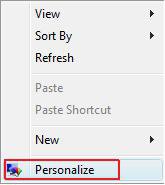
1. Right click on a empty area of the desktop and click Personalize. (See screenshot below)
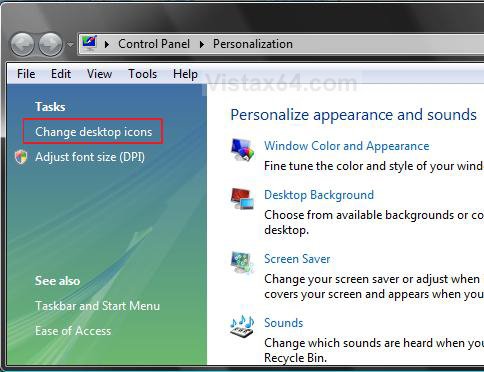
2. Click on Change desktop icons in the upper left corner. (See screenshot below)
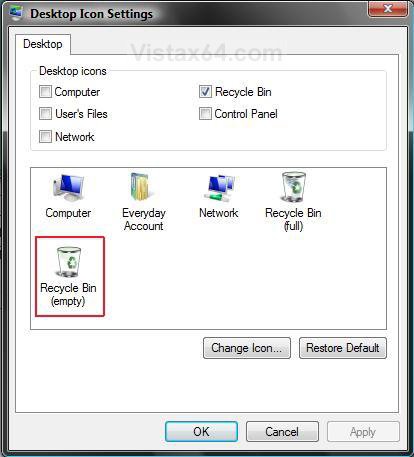
3. Click on the Recycle Bin (Empty) icon in the middle. (See screenshot below)
4. Click on the Change Icon button.
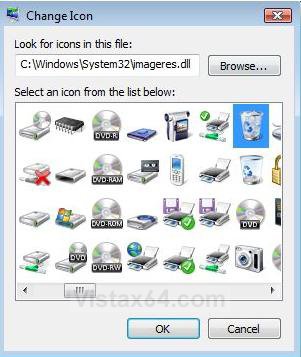
5. In the change icon window, click on the Recycle Bin (Full) icon. (See screenshot below)
NOTE: For 2nd time thru after step 11, choose empty icon.
6. Click on OK.
7. Click on the Recycle Bin (Full) icon in the middle. (See screenshot below)
8. Click on the Change Icon button.
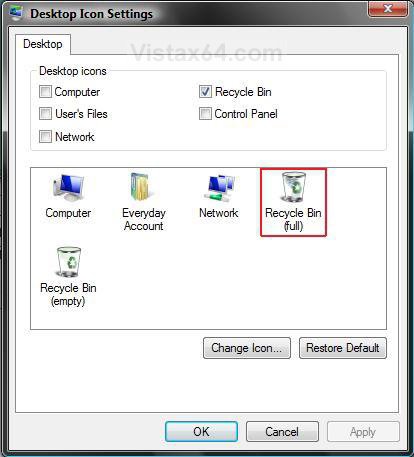
9. In the change icon window, click on the Recycle Bin Empty icon. (See screenshot below)
NOTE: For 2nd time thru after step 11, choose full icon.
10. Click on OK.
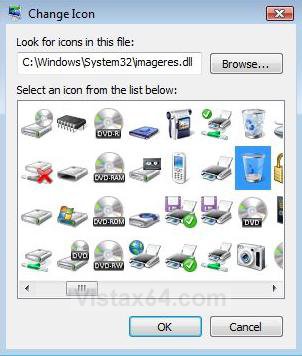
11. Click on Apply. (Now your Recycle Bin icons are backwards)
NOTE: For 2nd time thru, go to step 13.
12. Now go back and do steps 3 to 11 again, but time you will be picking the correct Recycle Bin icons for the empty (step 5) and full (step 9).
13. Click on OK to go back to desktop.
14. The Recycle Bin will now refresh again on it's own.
OPTION THREE NOTE: This will show you how to fix the icon refreshing problem when you have used custom icons for the Recycle Bin in Vista and Windows 7.
1. For how, see: Recycle Bin - Fix For Custom Icons Not Refreshing - Windows 7 Forums
That's it,
Shawn
Related Tutorials
- How to Customize the Recycle Bin Storage Size in Vista
- How to Replace Delete in the Recycle Bin Context Menu in Vista
- How to Set Recycle Bin to Permanently Delete a Item Immediately in Vista
- How to Enable or Disable the Recycle Bin Delete Confirmation Dialog in Vista
- How to Customize the Recycle Bin Context Menu in Vista
- How to Restore and Change a Desktop Icon in Vista
- How to Restore Previous Versions of a File and Folder in Vista
- How to Fix a Corrupted Recycle Bin in Vista
- How to Restore the Recycle Bin back to the Desktop in Vista
- How to Allow or Prevent the Vista Recycle Bin Icon to Display
- How to Add Empty Recycle Bin to the Vista Desktop Context Menu
Attachments
Last edited:


