
How to Log on Automatically at Startup in Vista
 Information
This will show you how to set or change a user account for Vista to automatically log on to at startup. By default all user accounts must log on at startup.
 Note
Note- If you only have one user account without a password on your computer, then Vista will logon to that account automatically at startup.
- If you have more than one user account and the one you want to have Vista logon to automatically at startup does not have a password, then leave the password fields blank in step 7 below.
- If you forgot or lost the password for a user account, then see: How to Reset a User Account Password in Vista
- If your computer is a member of a domain, then the check box for Users must enter a user name and password to use this computer will not be available. It will be grayed out instead.
 Warning
Be sure to enter the correct password for the selected user account to have Vista automatically log on to at startup. If this user account does not have a password, then leave it blank. If you change the user account password, be sure to change it here as well. If you enter or have a incorrect password for this user account you will get a Incorrect Password error at the next startup. When you click OK to this at the logon screen, you will then see a duplicate logon icon for this user account. You can fix this problem by loging on to another account, or boot into Safe mode, and change the password to the correct one in step 7 below and restart again.
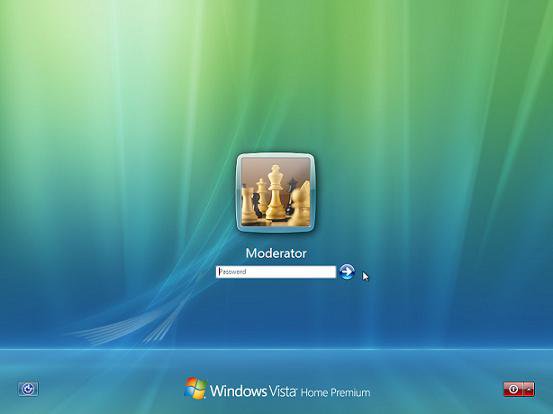
EXAMPLE: Log On Screen
NOTE: With Automatic Log On, you will not see this anymore. Vista will boot into the desktop of the selected user account instead.
Here's How:
1. Open the Start Menu.
2. In the white line (Start Search) area, type netplwiz or control userpasswords2 and press Enter.
NOTE: It is your choice on which one to type. They both open the same window.
3. Click on Continue in the UAC prompt.
4. To Turn On Automatic Log On for a User Account
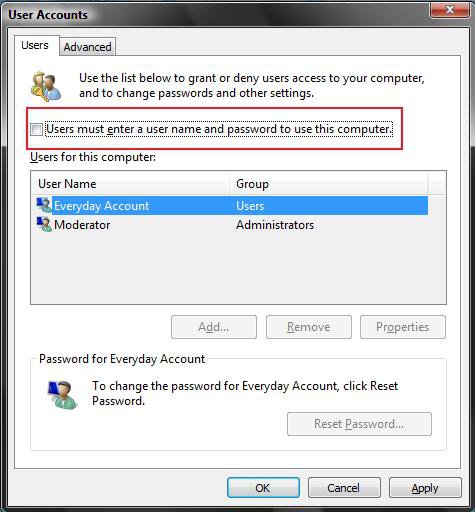
A) Check the Users must enter a user name and password to use this computer box. (See screenshot below step 6)
B) Click on the user account name, that you want to have automatically log on at startup, to highlight it.
C) Uncheck the Users must enter a user name and password to use this computer box.
D) Click on OK.
E) Go to step 7.
5. To Turn Off Automatic Log On
A) Check the Users must enter a user name and password to use this computer box. (See screenshot below step 6)
B) Click on OK.
C) Your done.
6. To Choose a Different User Account to Automatically Log On to
NOTE: For this step, you would have already had a user account selected to log on to automatically in step 4.
A) Check the Users must enter a user name and password to use this computer box. (See screenshot below)
B) Click on Apply.
C) Select the other user account name, that you want to have automatically log on at startup instead, to highlight it.
D) Uncheck the Users must enter a user name and password to use this computer box.
E) Click on OK.
7. Enter the User Account Password
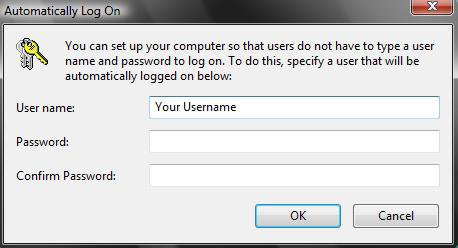
A) In the Password field, enter the selected user account's password. (See screenshot below)
NOTE: If the user account does not have a password, then leave this field empty. See the WARNING at the top of the tutorial.
B) In the Confirm Password field, enter the selected user account's password again to confirm that it is the same as in step 7A.
NOTE: Be sure to enter the correct password for this user account. If this user account does not have a password, then leave it empty. See the WARNING at the top of the tutorial.
C) Click on OK.
That's it,
Shawn
Related Tutorials
- How to Temporarily Bypass Automatic Logon at Startup in Windows
- How to Enable or Disable Ctrl+Alt+Delete Secure Logon in Vista
- How to Make Vista Require a Username and Password at Logon
- How to Display Information About Previous Logons During User Log On in Vista
- How to Change the Log On Screen in Vista
- How to Change or Stop Password Expiration in Vista
- How to Remove a Password from a User Account in Vista
- How to Create a Password Reset Disk in Vista
- How to Reset a User Account Password in Vista
- How to Disable or Enable Password Protection on Wakeup in Vista
- How to Change the Number of Log On Entries Allowed to be Saved in the Logon Cache in Vista
- How to Create a Password for a User Account in Vista
- How to Fix the "The User Profile Service failed the logon. User profile cannot be loaded." Error
- How to Use and Change a Screen Saver in Vista
- How to Add User Accounts Netplwiz to the Control Panel in Vista
- How to Prevent or Allow a User to Change their Password in Vista
- How to Remove or Restore the Vista Log On Shutdown Options
- How to Set Vista Account Lockout when a User Fails to Logon
Attachments

Last edited by a moderator:


