
How to Run Check Disk at Startup in Vista or Windows 7
 Information
This will show you how to use and run Check Disk or chkdsk at startup from within Vista, the command prompt, and the registry to check for corruption and possibly repair errors and bad sectors on the hard drive.
 Note
NoteIf you had changed your default boot screen, then you will need to temporarily uncheck the No GUI boot to be able to see what is happening when chkdsk is running at boot up. See: How to Enable the Hidden Aurora Boot Screen in Vista or How to Change the Default Boot Screen in Vista SP1
 Warning
This will take about 20 minutes or so to finish, depending on how big your hard drive is. Do not stop chkdsk once it has started, let it finish. It could cause errors on your hard drive. When you restart to chkdsk, you will only have 10 seconds to press a key to cancel chkdsk. Check for a sticky keyboard key stuck down. It will cancel the chkdsk at startup.
 Tip
TipCHECK DISK WILL NOT RUN AT STARTUP PROBLEM:
If chkdsk will not run at startup after trying the methods below, then see: How to Fix Chkdsk will Not Run at Startup in Vista
If chkdsk will not run at startup after trying the methods below, then see: How to Fix Chkdsk will Not Run at Startup in Vista
 METHOD ONE
NOTE: This method may not always run chkdsk when the computer restarts on some computers. I'm not sure why, but if this is your case, then you can do Method Two, Method Three, Method Four, or Method Five below.
1. Open the Start Menu.
2. Click on the Computer button.
3. Right click on your hard drive and click on Properties.
4. Click on the Tools tab.
5. Click on Check Now under the Error checking section. (See circled in red below)
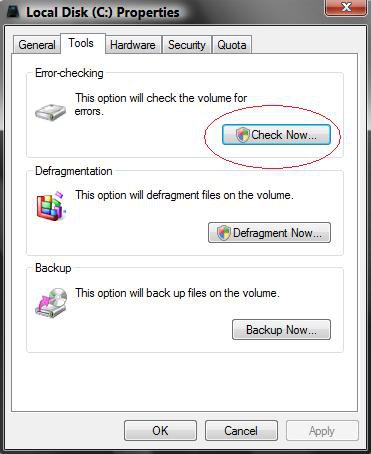
6. Click on Continue in the UAC prompt.
7. Make sure both options are checked. (See screenshot below)
NOTE: The Automatically fix file system errors box will be checked by default.
8. Click on the Start button.
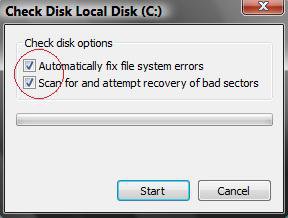
9. You will get a pop-up window saying, "Windows can't check this disk while it's use". (See screenshot below)
10. Click on the Schedule disk check button for chkdsk to run the next time you restart your computer.
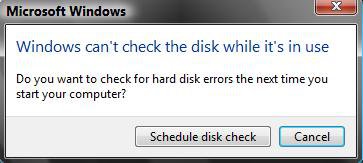
METHOD TWO 1. To Run chkdsk in Safe Mode
A) Restart the computer and boot into Safe Mode.
B) Go to step 3.
2. To Run chkdsk in a Command Prompt at Boot
A) Place the Vista installation DVD into the DVD drive and restart the computer.
B) Boot from the DVD into the System Recovery Options screen.
C) Select Command prompt.
D) Go to step 4 below.
3. To Run chkdsk in a Elevated Command Prompt
A) Open a elevated command prompt.
4. In the command prompt, type chkdsk or chkdsk C: followed by one or a combination of switches listed in steps 4A to 4D below and press Enter. See the screenshot below for all switch combinations.
NOTE: If you want check disk to scan a drive other than the C: drive, then substitute the drive letter C: after chkdsk to the drive letter that you want.
EX: chkdsk E:
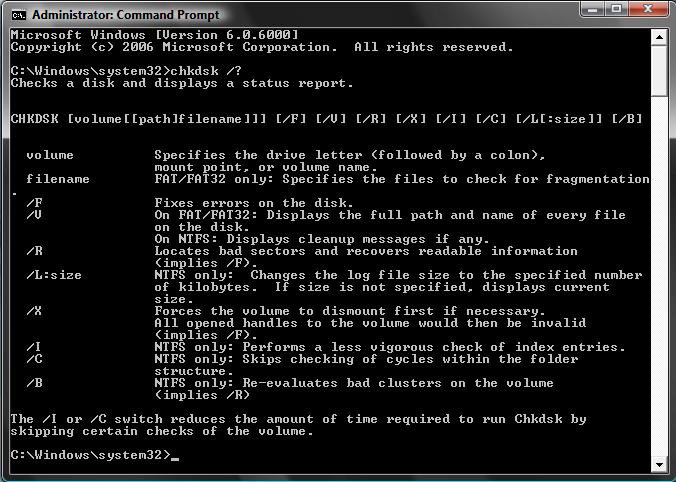
Type One of these Commands to Run Chkdsk:
NOTE: The most common command is chkdsk /f or chkdsk C: /f
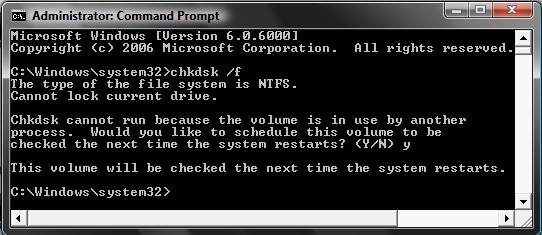
A) /f = The /f switch is the most common of the chkdsk switches. It tells chkdsk to try and fix any errors it finds. EX Type: chkdsk /f or chkdsk C: /f
NOTE: Answer Y when chkdsk asks you if you want to check the drive next time Vista boots (restarts).
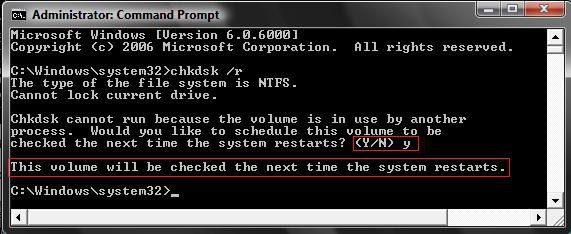
B) /r = The /r switch tells chkdsk to attempt to recover any bad sectors of the hard drive if any are found. A bad sector is a spot on the hard drive that cannot hold saved data anymore. (See screenshot below)
EX Type: chkdsk /r or chkdsk C: /r
NOTE: Answer Y when chkdsk asks you if you want to check the drive next time Windows Vista boots.
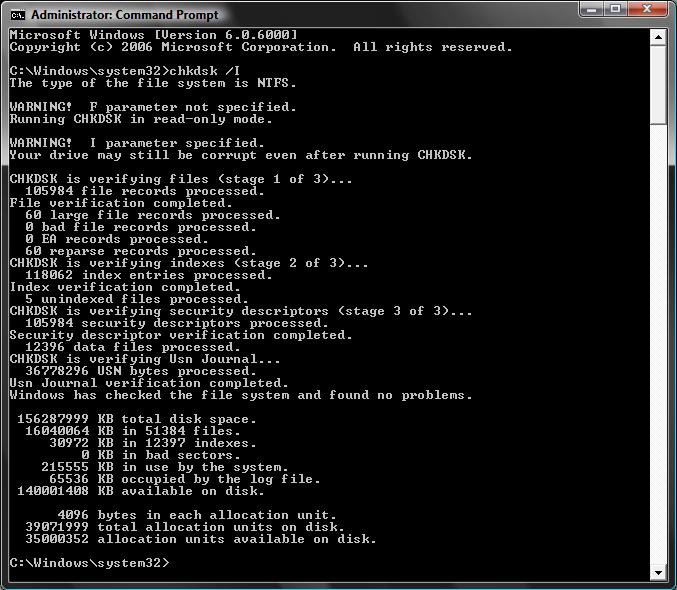
C) /i = The /i switch tells chkdsk to perform a less detailed but faster disk check. (See screenshot below)
EX Type: chkdsk /i or chkdsk C: /i
NOTE: This will run immediately.
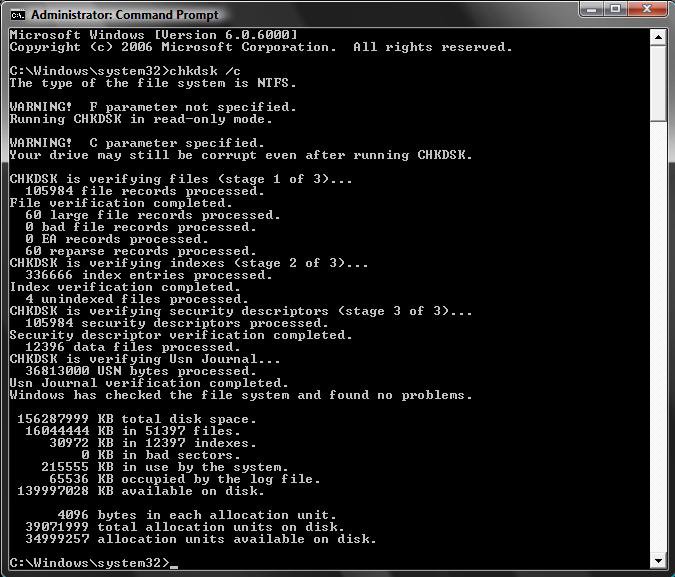
D) /c = The /c switch tells chkdsk to skip the checking of cycles within a folder structure which reduces the scan time.
EX Type: chkdsk /c or chkdsk C: /c
NOTE: This will run immediately.
5. Close the command prompt.
6. Restart the computer to run chkdsk at startup.
METHOD THREE NOTE: This will reset all drives to be checked at startup and mark a drive as dirty so chkdsk will run at startup for it. Chkdsk will mark the drive clean again after it runs. If chkdsk does not run at startup, then do step 5 only to mark the drive clean again.
1. Open a elevated command prompt.
2. To Reset and Check All Drives and Run CHKDSK if a Drive is Dirty
A) In the command prompt, type chkntfs /d and press Enter. (See screenshot below)
NOTE: Restores the computer to the default behavior; all drives are checked at boot time and chkdsk is run on those that are marked dirty.
B) Go to step 4.

3. To Check a Specific Drive and Run CHKDSK if the Drive is Dirty
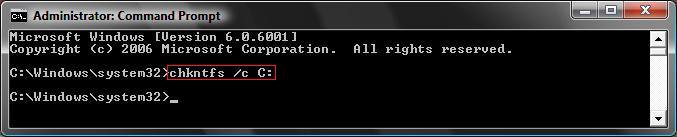
A) In the command prompt, type chkntfs /c C: and press Enter. (See screenshot below)
NOTE: This will schedule the C: drive to be checked at boot time. If the drive is marked dirty, then chkdsk will run. If you want to schedule another drive letter to be checked, then substitute C: with the drive letter you want checked instead.
4. To Mark a Drive Dirty
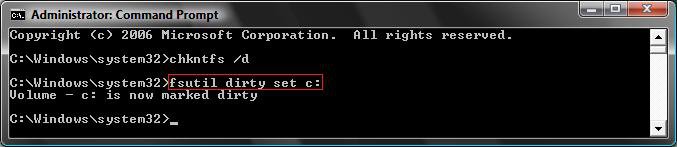
A) In the command prompt, type fsutil dirty set c: and press Enter. (See screenshot below)
NOTE: This marks the c: drive as dirty so chkdsk will run at startup. If you want to run chkdsk on another drive letter, then substitute c: for the drive letter you want instead.
B) You will now get a Volume - c: is now marked dirty message.
5. Close the elevated command prompt.
6. Restart the computer.
NOTE: Chkdsk will now run at startup. If chkdsk does not run at startup, then run chkntfs /d in step 5A again and see: How to Fix Chkdsk will Not Run at Startup in Vista
METHOD FOUR 1. Click on the download button below to download the Run_chkdsk.reg file.
NOTE: If the hard drive you want to run chkdsk on has a different driver letter than C: , then do the Manual Way below to substitute C: with your drive letter instead.

2. Click on Save, and save the .reg file to the Desktop.
3. Right click the .reg (On Desktop) file and click Merge.
4. Click on the Run button in the Security Warning pop-up.
5. Click on Continue (UAC), Yes, and then OK when prompted.
6. When done, you can delete the .reg file (On Desktop).
METHOD FIVE 1. Open the Start Menu.
2. In the white line (Start Search) area, type regedit and press Enter.
3. Click on the Continue button in the UAC prompt.
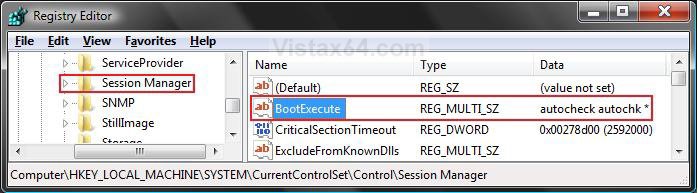
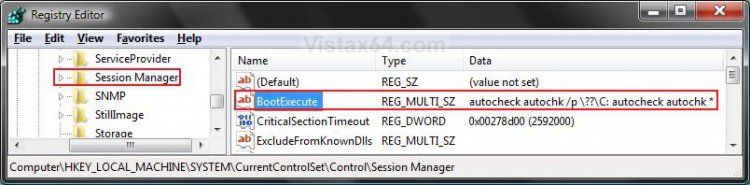
4. In regedit, go to: (See screenshot below step 5)
HKEY_LOCAL_MACHINE\SYSTEM\CurrentControlSet\Control\Session Manager
5. In the right pane, right click on BootExecute and click on Modify.
6. Highlight the code below, then right click on it and click on Copy.
NOTE: If the hard drive you want to run chkdsk on has a different driver letter than C: , then substitute C: with your drive letter instead.
Code:
[/INDENT][/INDENT]
[INDENT][INDENT]autocheck autochk /p \??\C:[/INDENT][/INDENT]
[INDENT][INDENT]autocheck autochk *[/INDENT][/INDENT]
[INDENT][INDENT]
7. Clear the box, then right click on a empty area in the box and click on Paste to copy the code above into it. (See screenshot below)
8. Click on OK.
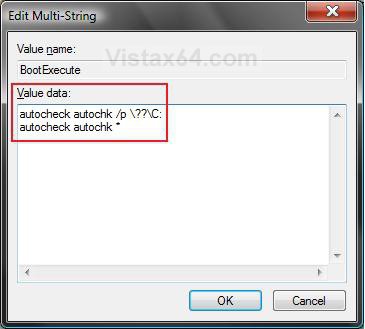
9. The registry will now look like this. (See screenshot below)
10. Close regedit.
11. Restart the computer to run chkdsk at startup.
That's it,Shawn
Related Tutorials
- How to Repair and Verify the Integrity of Vista System Files with System File Checker
- How to Extract Files from the Vista Installation DVD
- How To Perform a Repair Installation For Vista
- How to Do a Clean Install of Vista From a Upgrade Version
- How to Use the Memory Diagnostics Tool in Vista
- How to Generate a System Health Report in Vista
- How to Troubleshoot the Computer with Reliability Monitor in Vista
- How to Do a Startup Repair in Vista
- How to Do a System Restore in Vista
- How to Use the DirectX Diagnostic Tool in Vista
- How to Use the Resource Monitor in Vista
- How to Fix a Crashing Internet Explorer in Vista
- How to Start Vista in Safe Mode
- How to Fix Chkdsk will Not Run at Startup in Vista
- How to Change Vista Disk Check Press Any Key Timeout Value at Startup
- How to Read the Event Viewer Log for Check Disk (chkdsk) in Windows
Attachments
Last edited by a moderator:


