Welcome to Vista Forums we are your forum to discuss Windows Vista x64 and x86 systems. Whether you need help or just want to post an idea you have on Vista, this is the forum for you.
Register at Vista forums...the world biggest Windows Vista resource Join Vista Forums
Go Back   Vista Forums > Vista Forums > Tutorials
Join Now FAQ Search Today's Posts Mark Forums Read

Take Ownership of file

Poll: Did this Tutorial help and work for you?
Poll Options
Did this Tutorial help and work for you?

Comment
 
Tutorial Tools Display Modes
<!-- google_ad_section_start -->Take Ownership of file<!-- google_ad_section_end -->
Take Ownership of file
How to Take Ownership of a Item in Vista
Published by Brink
06-01-2007

How to Take Ownership of a Item in Vista

INFO: This will show you how to be able to delete or modify a system file, folder, registry key, or drive in Vista by taking Ownership of it.

WHY: You will quickly notice that you cannot delete or modify system files, even as administrator in Vista. This is because Vista system files are owned by the TrustedInstaller service by default, and Windows File Protection will keep them from being overwritten. You will encounter a "Access Denied" error.

WARNING: Deleting or modifying system files without knowing what you are doing may lead to eratic behavior from Vista. Even complete system failure with full data loss.

NOTE:
A) If you are trying to delete a folder, then sometimes you will need to delete the contents within the subfolders first before you will be able to delete the main folder itself.
B) The hidden My ..... folders are actually a Junction Point to the real username user folders. They cannot be modified since they are not a real location. EX: My Documents for C:\Users\(your username)\Documents
For more on junction points, see: jimmah.com: Why do I get an Access Denied error when trying to open a folder?
C) Sometimes you will need to move the file to the desktop or a user folder first before Vista will allow changes to be made to it. You can then move the file back afterwards.
D) You will sometimes need to take ownership of Files and folders created in another operating system when migrated into Vista.

RELATED LINKS:
1. How to Turn UAC On or Off in Vista

2. How to Enable or Disable the Real Built-in Administrator Account in Vista

3. How to Elevate Administrators Privilege Level in Vista

4. How to Hide or Show Hidden Files and Folders in Vista

5. How to Add Take Ownership to the Context Menu in Vista

6. How to Set and Unset the Read-only File and Folder Attribute in Vista

7. Cannot Rename or Move a File or Folder in Vista Fix

8. How to Restore or Remove the Security Tab in Vista


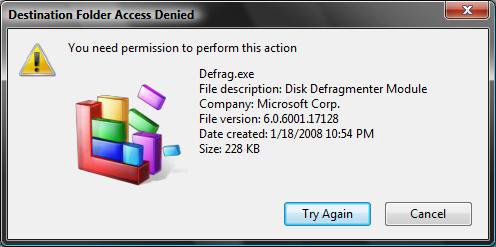
EXAMPLE: You need permission to perform this action
NOTE: You will see this Access Denied with the Try Again type message when your user account or group does not have Ownership of the file. Clicking on the Try Again does nothing.
Need_Permission.jpg


METHOD ONE:
AUTOMATIC WAY:
Through the Context (right click) Menu :
1. See: How to Add Take Ownership to the Context Menu in Vista


METHOD TWO:
MANUAL WAY:
OPTION ONE:
Through the Command Prompt :
EX. System file: C:\Windows\System32\en-US\winload.exe.mui
EX. User name: Brink

1. Open the Start Menu.
2. In the white line (Start Search) area, type cmd
3. Right click cmd (at top) and click Run as administrator. (See screenshot below)

cmd_Start_Menu.jpg

4. Click Continue button for UAC prompt.
5. In command prompt, type takeown /f (full path of file)
NOTE: Substitute (full path of file) with your file's full path.
EX: takeown /f C:\Windows\System32\en-US\winload.exe.mui

6. Press Enter.
7. A message will be displayed that this completed successfully. This will give you ownership of the file.
8. In same command prompt, type icacls (full path of file) /grant (your username):F
NOTE: Substitute (full path of file) with your file's full path and (your username) with your current username.
EX: icacls C:\Windows\System32\en-US\winload.exe.mui /grant Brink:F

9. Press Enter.
10. A message will be displayed that this completed successfully.
NOTE: You should be able to delete or modify the file now. If you still can't, you may need to reboot into Safe Mode and try this again. It may vary according to the file. Some are more stubborn.


OPTION TWO:
Through a Windows Explorer Window :
1. Go to the file, folder, drive, or registry key you want to delete or modify.
NOTE: For example, the system file: C:\Windows\System32\en-US\winload.exe.mui

2. For a File, Folder, or Drive :
A) Right click on the file, folder, or drive and click Properties.

EX. File: winload.exe.mui
WARNING: Do not do this to the hard drive partition that Vista is installed on. It can mess up the boot files.
B) Go to step 4

3. For a Registry Key :
A) Click on the key in the left pane to highlight the registry key (folder).
B) Right click on the key and click Permissions, or click Edit (on Menu bar) and click Permissions.

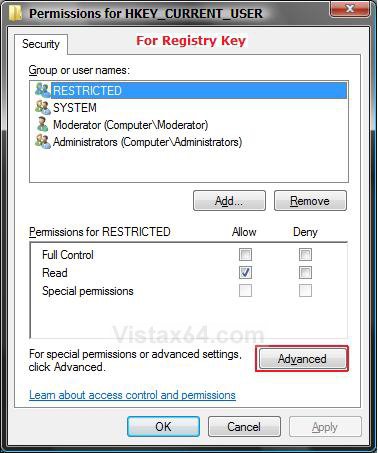
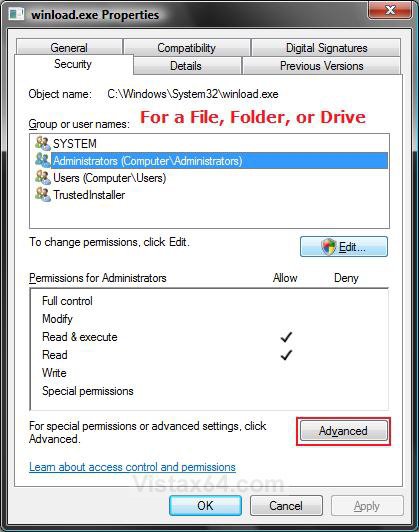
4. Click on the Security tab and click the Advanced button. (See screenshots below)
Properties1.jpgRegistry_Advanced.jpg

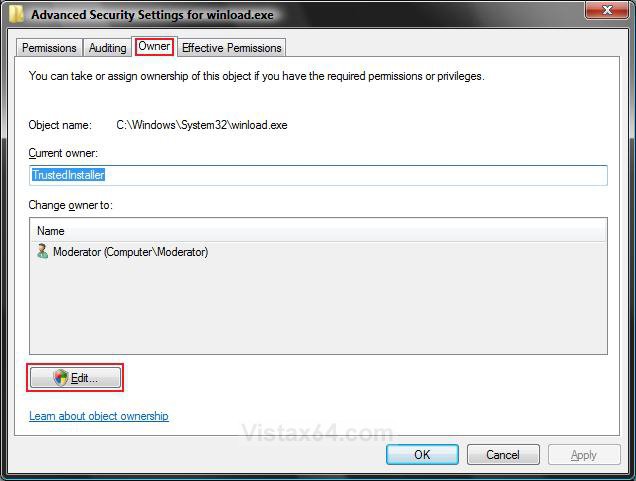
5. Click on the Owner tab. (See screenshot below)
NOTE: For a Registry key, go to step 8 after this.

6. Click on the Edit button.
7. Click on the Continue button for UAC prompt.

Owner.jpg

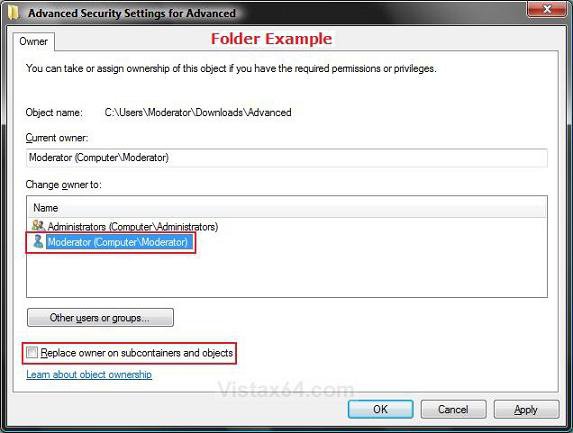
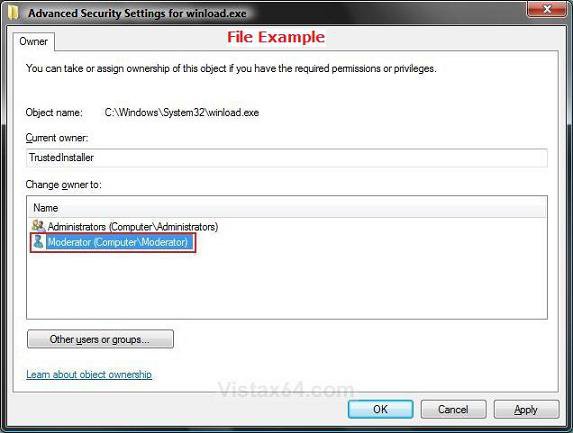
8. Under the Change owner to section, click on your user account name and click OK. (See screenshots below)
NOTE: If you have a check box for Replace owner on subcontainers and objects, then check it if you want to
take ownership of them as well. You will not see when taking ownership of just a file.
EX. Username: Moderator (Computer Name/Username)
Owner2.jpgOwner2_Folder.jpg

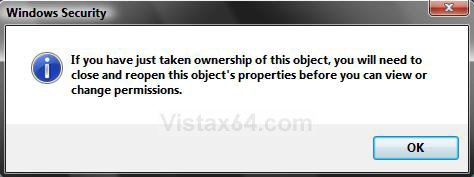
9. Click OK at the Security pop-up window. (See screenshot below)
NOTE: For a Registry Key, you will not see steps 9 to 12. Go to step 13.
Security.jpg

10. Click OK. (See screenshot below step 7)
11. Click on the Edit button. (See screenshot below)
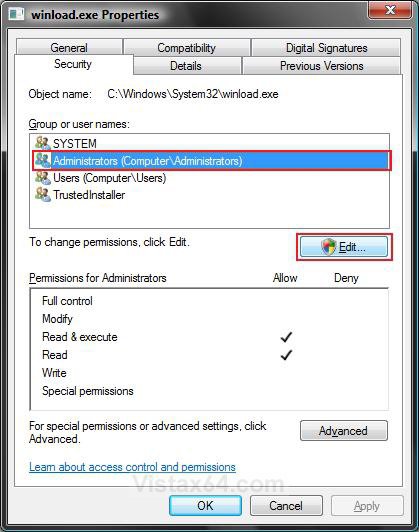

Properties2.jpg

12. Click on the Continue button for UAC prompt.
13. Click on the Add button. (See screenshot below)
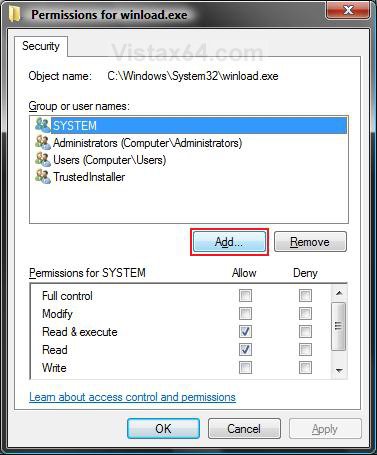
Permissions.jpg

14. To Type in Your User Account Name -
A) Type in your user account name in the box under Enter the objects name to select. (See left screenshot below)
NOTE: For example, Moderator.
B) Click on the Check Names button.
NOTE: If the username is found, then see right screenshot below. If it is not found, then go to step 15 below to select it.
C) Go to step 16.
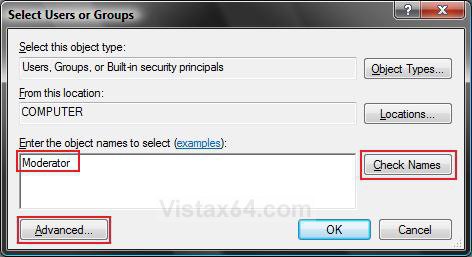
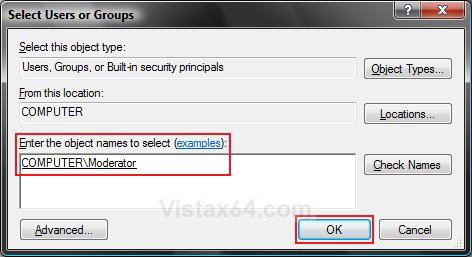
Select_User_Groups1.jpgSelect_User_Groups2.jpg

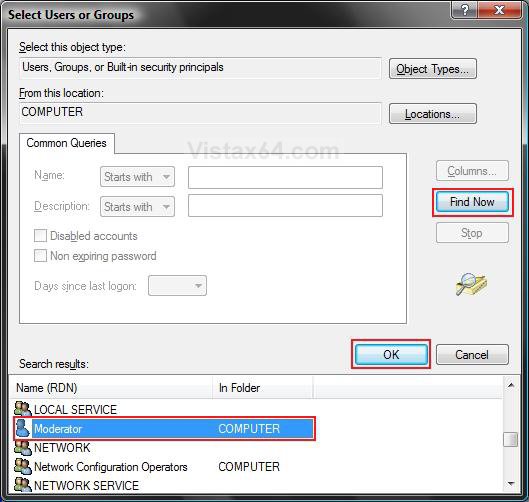
15. To Select Your User Account name -
A) Click on the Advanced button. (See left screenshot above)
B) Click on the Find Now button. (See screenshot below)
C) Under Search results, click on your user account name to highlight it.
NOTE: For example, Moderator. If this is for something like a Flash USB drive, you may also want to select Everyone and give it full permission to. This way you will be able to access it from any user account.

D) Click OK.

Advanced_Select.jpg

16. Click OK. (See right screenshot above step 15)
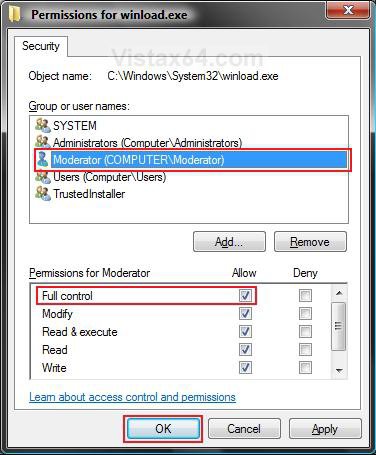
17. Click on your user account name to highlight it. (See screenshot below)
NOTE: For example, Moderator (Computer Name/Username)

18. Check the box for Full Control.
NOTE: For more information on these permission choices, see: Windows Help and How-to: What are Permissions?

19. Click OK.
NOTE: For a Registry Key, you will not see steps 20 and 21. Go to step 22.
Permissions2.jpg

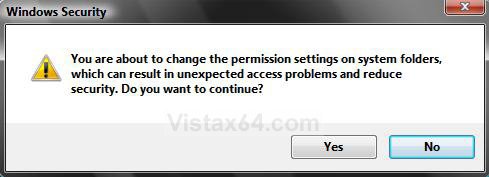
20. Click Yes in Windows Security pop-up. (See screenshot below)
Confirmation.jpg

21. Click OK. (See screenshot below step 11)
22. Your Done. You can now delete or modify the item.


Hope this helps,
Shawn
Published by
Brink's Avatar
Administrator
Join Date: Apr 2007
Location: Texas, USA
Posts: 11,071
Rep Power: 200
Brink has a reputation beyond reputeBrink has a reputation beyond reputeBrink has a reputation beyond reputeBrink has a reputation beyond reputeBrink has a reputation beyond reputeBrink has a reputation beyond reputeBrink has a reputation beyond reputeBrink has a reputation beyond reputeBrink has a reputation beyond reputeBrink has a reputation beyond reputeBrink has a reputation beyond repute

Tutorial Tools

Applies to
All Vista Versions
64 Bit & 32 Bit

Rating
Skill Level
80%80%80%
4

Page copy protected against web site content infringement by Copyscape

Did this help?
Old 06-22-2007  
markvanh
Newbie
markvanh is on a distinguished road
 
Join Date: Jun 2007
Vista Home Premium (not for long)
Posts: 3

Re: Take Ownership of file

Thank you, this worked for me.

One note to add; in the Change Ownership screen, mine had a check box for "Replace owner on subcontainers and objects" which I used.

Thanks very much for the fix. -mark
markvanh is offline   Reply With Quote
Old 07-07-2007  
Brink
Administrator
Brink has a reputation beyond reputeBrink has a reputation beyond reputeBrink has a reputation beyond reputeBrink has a reputation beyond reputeBrink has a reputation beyond reputeBrink has a reputation beyond reputeBrink has a reputation beyond reputeBrink has a reputation beyond reputeBrink has a reputation beyond reputeBrink has a reputation beyond reputeBrink has a reputation beyond repute
 
Brink's Avatar
 
Join Date: Apr 2007
Vista x64 Ultimate SP1
Posts: 11,071

Location: Texas, USA
Re: Take Ownership of file

Mark,

I'm glad to hear it. Thank you for the note and the feedback. The post has been updated.

Shawn

There are no dumb questions, just the people that do not ask them.
Please post feedback to help others.
Brink is offline   Reply With Quote
Old 08-17-2007  
UrbanPioneer
UrbanPioneer
UrbanPioneer is on a distinguished road
 
Join Date: Aug 2007
Vista
Posts: 4

Location: Dallas, Texas
Re: Take Ownership of file

Unfortunately, I didn't have that check box. Also, under Owners, there were multiple entries. I was able to take full control of all but one ... it was titled Users that was inherited from the Windows folder used in the example above. Anyway, I think I can avoid those nagging "need permission" messages when I the only one using this damn thing!
UrbanPioneer is offline   Reply With Quote
Old 08-17-2007  
UrbanPioneer
UrbanPioneer
UrbanPioneer is on a distinguished road
 
Join Date: Aug 2007
Vista
Posts: 4

Location: Dallas, Texas
Question Re: Take Ownership of file

Update. I went to Properties for the Windows folder and on that one, the check box did appear.

I have two owner options: "Administrators ([name]-PC\Administrators" or "[name]-PC\[name]".

If I want full control of my system, which would you suggest I use?
UrbanPioneer is offline   Reply With Quote
Old 08-17-2007  
Brink
Administrator
Brink has a reputation beyond reputeBrink has a reputation beyond reputeBrink has a reputation beyond reputeBrink has a reputation beyond reputeBrink has a reputation beyond reputeBrink has a reputation beyond reputeBrink has a reputation beyond reputeBrink has a reputation beyond reputeBrink has a reputation beyond reputeBrink has a reputation beyond reputeBrink has a reputation beyond repute
 
Brink's Avatar
 
Join Date: Apr 2007
Vista x64 Ultimate SP1
Posts: 11,071

Location: Texas, USA
Re: Take Ownership of file

Hi UrbanPioneer,

Use the one for your User account name to be as the Owner. "your username (Computer Name/Administrator)"

Shawn

There are no dumb questions, just the people that do not ask them.
Please post feedback to help others.
Brink is offline   Reply With Quote
Old 08-28-2007  
pls
Newbie
pls is on a distinguished road
 
Join Date: Aug 2007
Windows Vista Home Premium
Posts: 2

Re: Take Ownership of file

Tried both methods in normal and in safe mode. I have ownership now but access is still denied.

I just installed Vista a few days ago on the 10GB boot C: partition. The problem is on D:, a 101GB partition of the same disk on which Vista is installed. I have installed a couple of programs on D: and moved the My Documents folder there because there's only about 2GB left on C:.

The problem consists of just two folders on D: and their subfolders left from before Vista was installed: Windows (0KB), which contains one file of 0KB, and Documents and Settings, which contains only Owner, its subs (Desktop and My Documents), and their subfolders and files consuming 1.35GB. I am able to read some files in some of these folders but cannot modify, move or delete any of them and cannot even open most of the folders (am told I need permission).

Prior to installing Vista, the larger partition was the XP boot drive and the smaller one held the XP recovery files. XP had gotten so badly corrupted on this machine that I made no attempt to retain it. The Vista installation formatted the small partition but left the large one alone. Apparently, the above-mentioned Owner folder on the large partition was formerly a system file, and that is why Vista won't let me touch anything in it.

I guess I could just ignore this – its only 1.35GB – except that
1. it’s confusing and
2. my virus scanner keeps reporting a couple of Trojans in these folders, which it cannot heal, quarantine, or delete because it lacks permission. I really want to get this stuff off the disk. I will appreciate any other suggestions.
pls is offline   Reply With Quote
Old 08-28-2007  
Brink
Administrator
Brink has a reputation beyond reputeBrink has a reputation beyond reputeBrink has a reputation beyond reputeBrink has a reputation beyond reputeBrink has a reputation beyond reputeBrink has a reputation beyond reputeBrink has a reputation beyond reputeBrink has a reputation beyond reputeBrink has a reputation beyond reputeBrink has a reputation beyond reputeBrink has a reputation beyond repute
 
Brink's Avatar
 
Join Date: Apr 2007
Vista x64 Ultimate SP1
Posts: 11,071

Location: Texas, USA
Re: Take Ownership of file

Hi Pls,

Welcome to the forum.

It sounds like you may have ran into a file called "Junction Points" or "Reparse Points". These files cannot be modified by the user. You can read more about these here:

NTFS reparse point - Wikipedia, the free encyclopedia

If you are not having any problems with it, I would just ignore it until the next time you decide to do a clean install. When you do, delete both partitions and create just one for the hard drive, then format and install Vista.

Shawn

Last edited by Brink : 08-29-2007 at 12:56 AM.

There are no dumb questions, just the people that do not ask them.
Please post feedback to help others.
Brink is offline   Reply With Quote
Old 11-20-2007  
OmegaWolf747
Lone Wolf
OmegaWolf747 is on a distinguished road
 
OmegaWolf747's Avatar
 
Join Date: Oct 2007
Vista Home Premium 32bit
Posts: 28

Re: Take Ownership of file

Sorry to revive a dead thread, but just a quick question. Can you take ownership of a whole folder using the above methods, or just individual files?

Toshiba Satellite X205-S7483, Intel Centrino Core2Duo 1.66 GHz, 2 GB SDRAM, nVidia GeForce 8700M GT 256 MB VRAM, RealTek HD Audio, x2 120 GB HDD, Windows Vista Home Premium 32bit, Firefox 2.0.0.14, Thunderbird 2.0.0.14, Pidgin 2.4.0, Winamp 5.531, 28 k dialup (burn, baby, burn)
OmegaWolf747 is offline   Reply With Quote
Old 11-20-2007  
Brink
Administrator
Brink has a reputation beyond reputeBrink has a reputation beyond reputeBrink has a reputation beyond reputeBrink has a reputation beyond reputeBrink has a reputation beyond reputeBrink has a reputation beyond reputeBrink has a reputation beyond reputeBrink has a reputation beyond reputeBrink has a reputation beyond reputeBrink has a reputation beyond reputeBrink has a reputation beyond repute
 
Brink's Avatar
 
Join Date: Apr 2007
Vista x64 Ultimate SP1
Posts: 11,071

Location: Texas, USA
Re: Take Ownership of file

Hi OmegaWolf747,

Yes, you can take ownership of a folder and all of it's contents. Just check the box for Replace owner on subcontainers and objects. See the NOTE under step 8 above.

Shawn

There are no dumb questions, just the people that do not ask them.
Please post feedback to help others.
Brink is offline   Reply With Quote
 
Comment
Tags: file, ownership, take


Tutorial Tools
Display Modes


Google


Vistax64.com is an independent web site and has not been authorized,
sponsored, or otherwise approved by Microsoft Corporation.
"Windows Vista", the Start Orb, and related materials are trademarks of Microsoft Corp.
© Vistax64.com 2005-2008
Tutorial powered by GARS 2.1.8m ©2005-2006

1 2 3 4 5 6 7 8 9 10 11 12 13 14 15 16 17 18 19 20 21 22 23 24 25 26 27 28 29 30 31 32 33 34 35 36 37 38 39 40 41 42 43 44