
How to Take Ownership of a Item in Vista and Windows 7
 Information
This will show you how to take Ownership of a file, folder, registry key, or drive where you have been denied access to allow you to give full control of it so that you will be able to delete or modify this item. When you do this, you replace the security permissions to have access.
 Note
NoteYou will quickly notice that you cannot delete or modify system files, even as administrator in Vista. This is because Vista system files are owned by the TrustedInstaller service by default, and Windows File Protection will keep them from being overwritten. You will encounter a "Access Denied" error.
 Tip
Tip- If you are trying to delete a folder, then sometimes you will need to delete the contents within the subfolders first before you will be able to delete the main folder itself.
- The hidden My ..... folders are actually a Junction Point to the real username user folders. They cannot be modified since they are not a real location. EX: My Documents for C:\Users\(your username)\Documents
- For more on junction points, see: jimmah.com: Why do I get an Access Denied error when trying to open a folder?
- Sometimes you will need to move the file to the desktop or a user folder first before Vista will allow changes to be made to it. You can then move the file back afterwards.
- You will sometimes need to take ownership of Files and folders created in another operating system when migrated into Vista.
 Warning
This can only be done while logged on to a administrator account. Deleting or modifying system files without knowing what you are doing may lead to eratic behavior from Vista. Even complete system failure with full data loss.
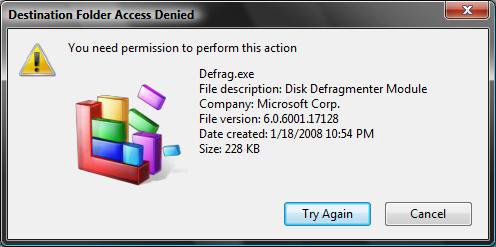
EXAMPLE: You need permission to perform this action
NOTE: You will see this Access Denied with the Try Again type message when your user account or group does not have Ownership of the file. Clicking on the Try Again does nothing.
 OPTION ONE
1. For how, see: How to Add Take Ownership to the Context Menu in Vista
OPTION TWO EX: To Take Ownership of this System file:
C:\Windows\System32\en-US\winload.exe.mui
EX: User name to Take Ownership with: Brink
1. Open an elevated command prompt.
2. In the elevated command prompt, type the command below and press Enter to take ownership of the file.
NOTE: Substitute full path of file with the full path of the file that you want to take ownership of within quotes.
takeown /f "full path of file"
For example:
takeown /f "C:\Windows\System32\en-US\winload.exe.mui"
3. A message will be displayed that this completed successfully. This will give you ownership of the file.
4. In the same elevated command prompt, type the command below and press Enter to grant a user full control of the file.
NOTE: Substitute full path of file with the full path of the file from step 2 within quotes , and (user name) with your user name.
icacls "full path of file" /grant (user name):F
For example:
Code:
icacls "[B][COLOR=red]C:\Windows\System32\en-US\winload.exe.mui[/COLOR][/B]" /grant [B][COLOR=red]Brink[/COLOR][/B]:F
5. A message will be displayed that this completed successfully.
NOTE: You should be able to delete or modify the file now. If you still can't, you may need to reboot into Safe Mode and try this again. It may vary according to the file. Some are more stubborn.
OPTION THREE 1. Go to the file, folder, drive, or registry key you want to delete or modify.
NOTE: For example, the system file:
C:\Windows\System32\en-US\winload.exe.mui
2. For a File, Folder, or Drive
A) Right click on the file, folder, or drive and click on Properties.
WARNING: Do not do this to the hard drive partition that Vista is installed on. It can mess up the boot files.
For example, the file: winload.exe.mui
B) Go to step 4
3. For a Registry Key
A) Click on the key in the left pane to highlight the registry key (folder).
B) Right click on the key and click on Permissions, or click on Edit (Menu Bar) and Permissions.
4. Click on the Security tab and on the Advanced button. (See screenshots below)
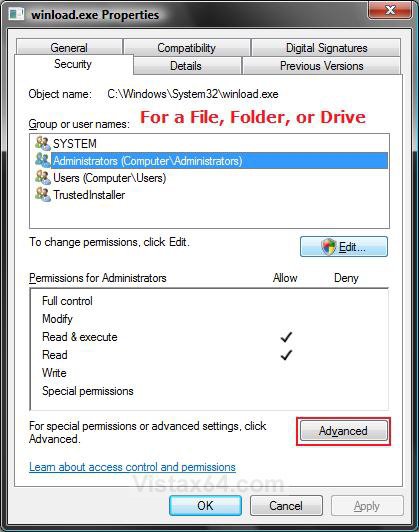
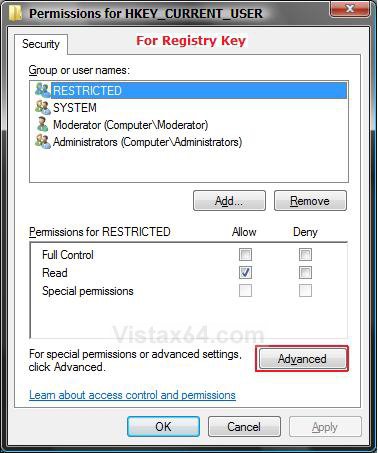
5. Click on the Owner tab. (See screenshot below)
NOTE: For a Registry key, go to step 8 after this.
WARNING: You should make note of who the current Owner is so you can change it back to it later if you like.
6. Click on the Edit button.
7. If prompted by UAC, click on Continue.
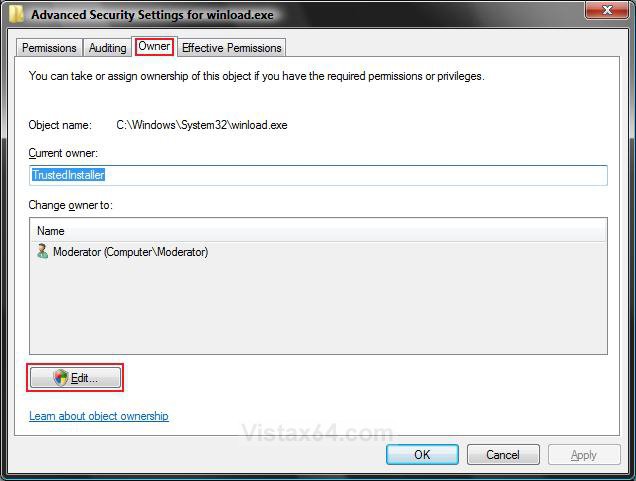
8. Under the Change owner to section, click on your user account name and click on OK. (See screenshots below
NOTE: If you have a check box for Replace owner on subcontainers and objects, then check it if you want to take ownership of them as well. You will not see this option when taking ownership of just a file. Only with a folder.
EX. Username: Moderator (Computer Name/Username)
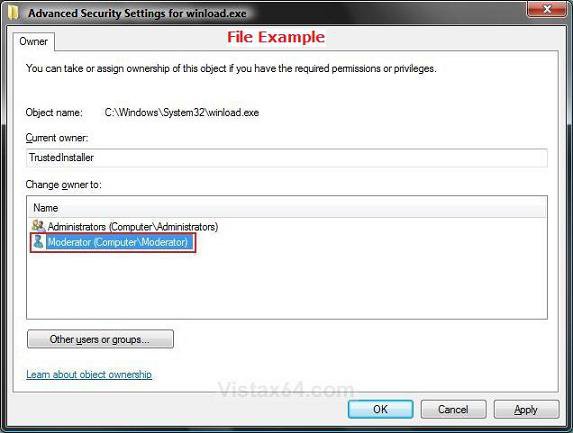
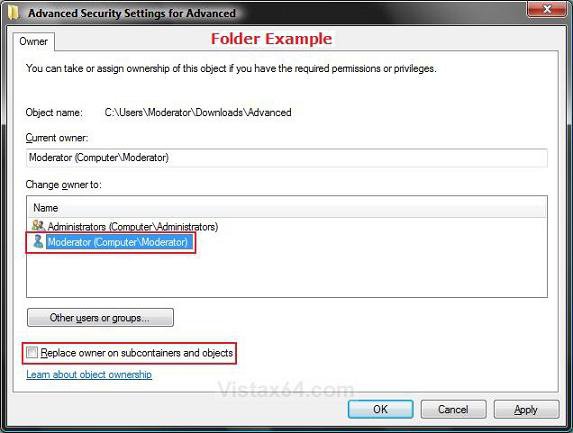
9. Click on OK at the Security pop-up window. (See screenshot below)
NOTE: For a Registry Key, you will not see steps 9 to 12. Go to step 13.
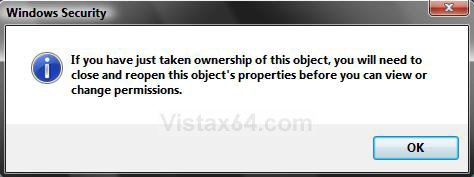
10. Click on OK. (See screenshot below step 7)
11. Click on the Edit button. (See screenshot below)
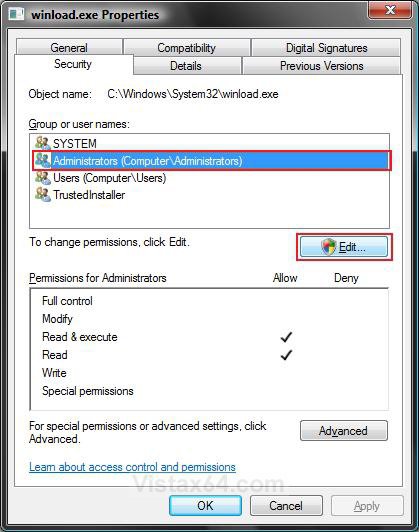
12. If prompted, click on Continue in the UAC prompt.
13. Click on the Add button. (See screenshot below)
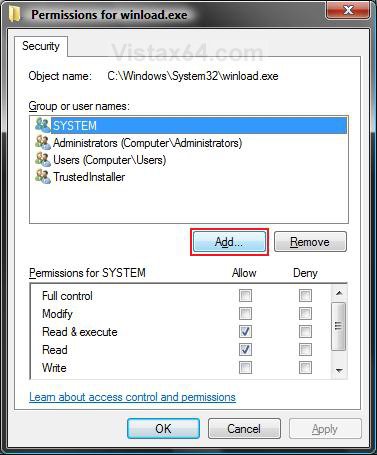
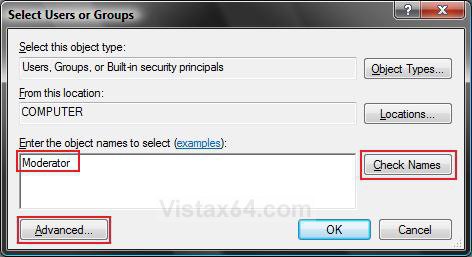
14. To Type in Your User Account Name
NOTE: If your user account name is already listed, then do step 15 instead.
A) Type in your user account name in the box under Enter the objects name to select. (See left screenshot below)
NOTE: For example, Moderator. If you needed to restore TrustedInstaller as the owner, then see: How to Restore TrustedInstaller as Owner of a File in Vista
B) Click on the Check Names button.
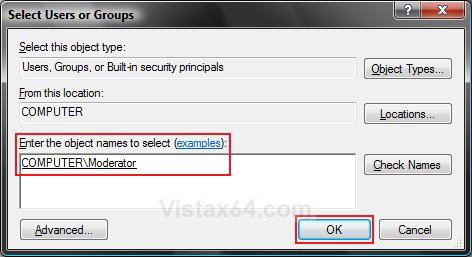
NOTE: If the username is found, then see right screenshot below. If it is not found, then go to step 15 below to select it.
C) Go to step 16.
15. To Select Your User Account name
A) Click on the Advanced button. (See left screenshot above)
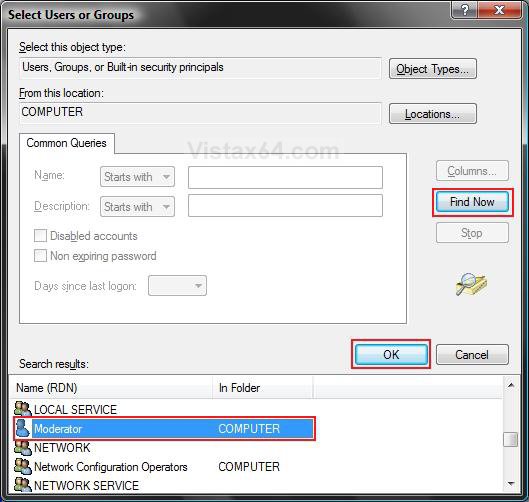
B) Click on the Find Now button. (See screenshot below)
C) Under Search results, click on your user account name to highlight it.
NOTE: For example, Moderator. If this is for something like a Flash USB drive, you may also want to select Everyone and give it full permission to. This way you will be able to access it from any user account.
D) Click on OK.
16. Click on OK. (See right screenshot above step 15)
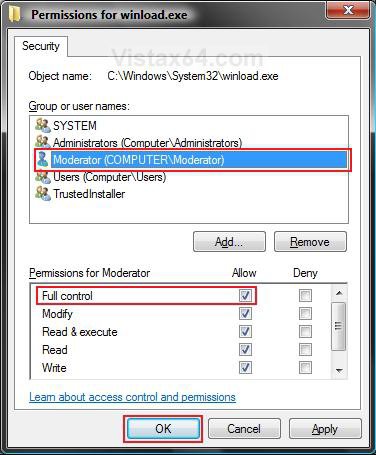
17. Click on your user account name to highlight it. (See screenshot below)
NOTE: For example, Moderator (Computer Name/Username)
18. Check the box for Full Control.
NOTE: For more information on these permission choices, see: Windows Help and How-to: What are Permissions?
19. Click on OK.
NOTE: For a Registry Key, you will not see steps 20 and 21. Go to step 22.
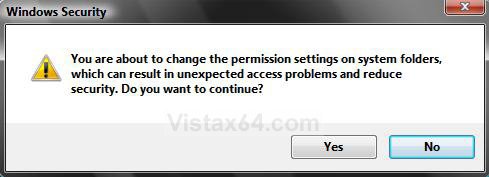
20. Click on Yes in Windows Security pop-up. (See screenshot below)
21. Click on OK. (See screenshot below step 11)
22. Your Done. You can now delete or modify the item.
23. If you wanted to, repeat the steps and change the Owner back to the previous owner you noted from step 5 above.
That's it,Shawn
Related Tutorials
- How to Turn UAC On or Off in Vista
- How to Enable or Disable the Real Built-in Administrator Account in Vista
- How to Elevate Administrators Privilege Level in Vista
- How to Hide or Show Hidden Files and Folders in Vista
- How to Add Take Ownership to the Context Menu in Vista
- How to Set and Unset the Read-only File and Folder Attribute in Vista
- Cannot Rename or Move a File or Folder in Vista Fix
- How to Restore or Remove the Security Tab in Vista
- How to Restore TrustedInstaller as Owner of a File in Vista
- How to Allow or Deny Permissions to Users and Groups
- How to Add or Remove Users and Groups from "User Rights Assignment"
- How to Allow or Prevent Users and Groups to Take Ownership
- How to Add Reset Permissions to Context Menu in Windows
Attachments

Last edited by a moderator:


