
How to Do a Clean Install with a Upgrade Version of Vista
 Information
This will show you how to do a CLEAN install with a Express or Retail Upgrade version of Vista instead of having to install your previous OS (EX: XP) then Vista. This will prevent compatibility issues between the previous OS and Vista.
 Note
Note- A OEM Recovery installation DVD can only do a clean install. It is just a clone of the hard drive that will set your computer back like it was from day one. The installation process is basically the same though.
- A Express or Retail Vista can be installed on any one computer at a time for as many times as you like. A OEM Vista may only be able to be installed on the exact same computer as many times as you like. The product key number for the Vista 32 bit version is the same one for it's 64 bit version. You can only have the Product Key activated on one computer and version of 32 bit or 64 bit Vista at a time. See: Microsoft: License Terms for Software Licensed from Microsoft
- Sometimes people have problems installing Vista with more than 2 GB of RAM installed. If you have this problem, then you should install Vista with a maximum of 2GB of RAM installed and add the rest of the RAM after Vista is fully installed.
Windows Help and Support: KB935806 Troubleshooting Stop error messages that may occur when you try to install Windows Vista
AND
Windows Help and Support: KB929777 Error message when you try to install Windows Vista on a computer that uses more than 3 GB of RAM: "STOP 0x0000000A"
 Warning
- If you do not have a legal copy of XP with your corresponding or better Upgrade Vista, then you have violated the EULA and it is considered theft which you may face prosecution for. For the license terms for Vista, see: Microsoft: License Terms for Software Licensed from Microsoft
- You can upgrade from your current edition of Microsoft Windows XP to a corresponding or better edition of Windows Vista by purchasing and installing an upgrade copy of Windows Vista. Go to this link for details on corresponding versions: Windows Vista: Upgrade Paths from Previous Versions
 Tip
TipMINIMUM SYSTEM REQUIREMENTS FOR VISTANOTE: For more information, see: Microsoft Windows Vista: Recommended System Requirements
Vista Home Basic
Vista Home Basic
- Processor: 1GHz (32 or 64 bit)
- System Memory (RAM): 512MB
- Hard Drive: 20GB with 15GB available for Vista
- Video Card: 32MB Memory and DirectX 9 Support
- DVD-ROM Drive
- Processor: 1GHz (32 or 64 bit)
- System Memory (RAM): 1GB
- Hard Drive: 40GB with 15GB available for Vista
- Video Card: 128MB Memory, DirectX 9 Support with: WDDM Driver, Pixel Shader 2.0, 32bits per pixel
- DVD-ROM Drive
 STEP ONE
  Warning
Before doing this clean install, you should download and save all of your device drivers to a USB flash drive, another HDD\partition, DVD, or some other media, to have them handy to make setting Vista back up easier after installation.
1. Boot the computer from your Vista Upgrade installation DVD.
NOTE: Make sure that the CD/DVD drive is selected first in the boot order in the BIOS.
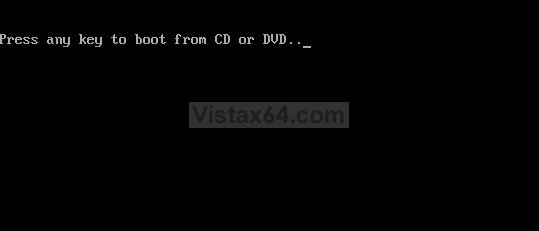
2. When prompted, press any key to start Vista from the installation DVD. (See screenshot below)
NOTE: You will only have about 8 seconds to press this key. If you miss it, you will have to restart the computer.
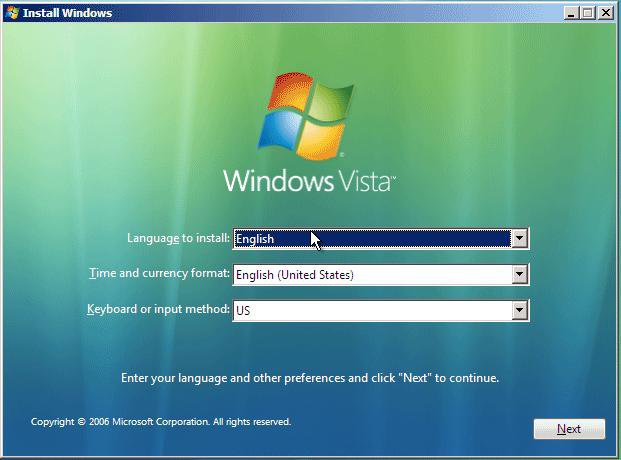
3. Set up your language preferences and click on Next. (See screeshot below).
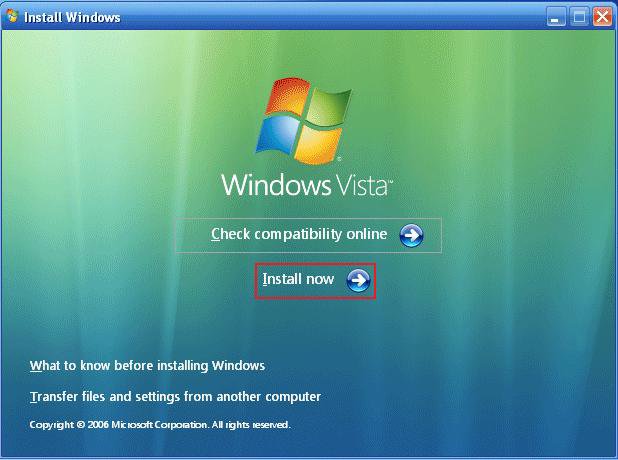
4. Click on Install Now to start the installation. (See screenshot below)
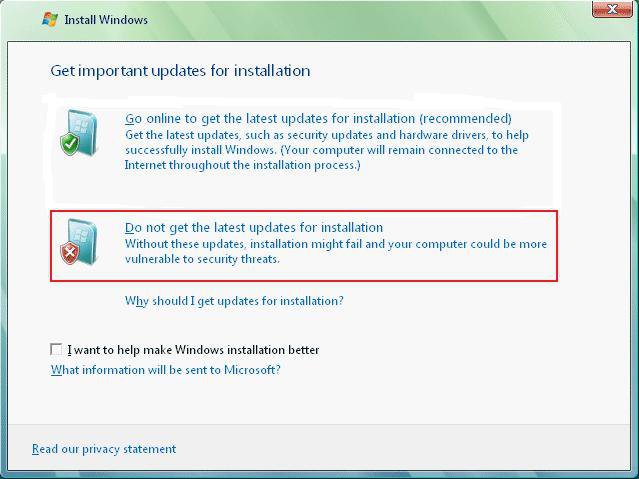
5. Select Do not get the latest updates for installation. (See screenshot below)
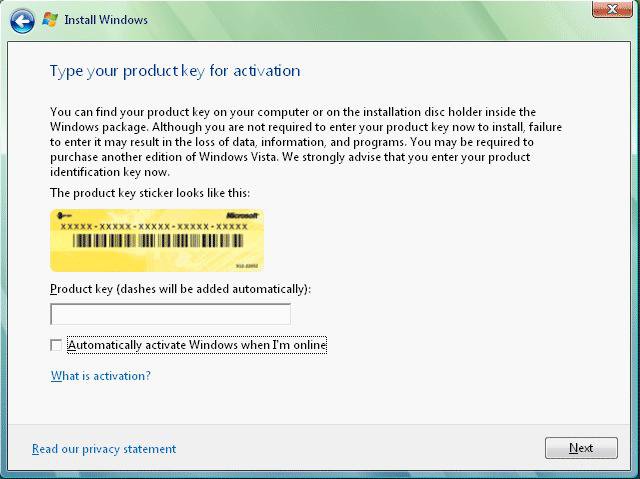
6. Do not type in a product key. (See screenshot below)
7. Leave the Automatically activate Windows when I'm online box unchecked.
8. Click on Next.
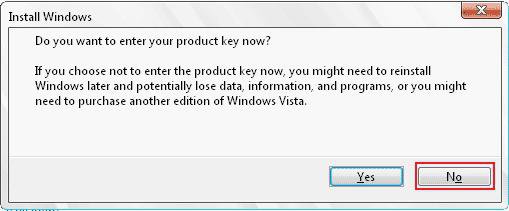
9. Click on the No button for the Do you want to enter your product key now? prompt. (See screenshot below)
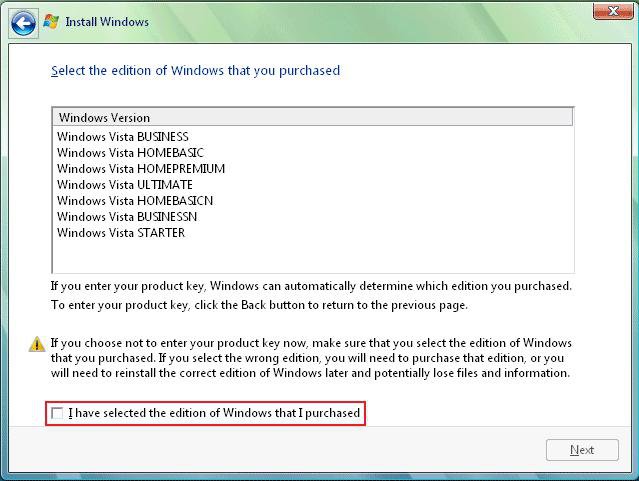
10. Select which version of Vista you have. (See screenshot below)
11. Check I have selected the edition of Windows that I purchased and click on Next. (See screenshot below)
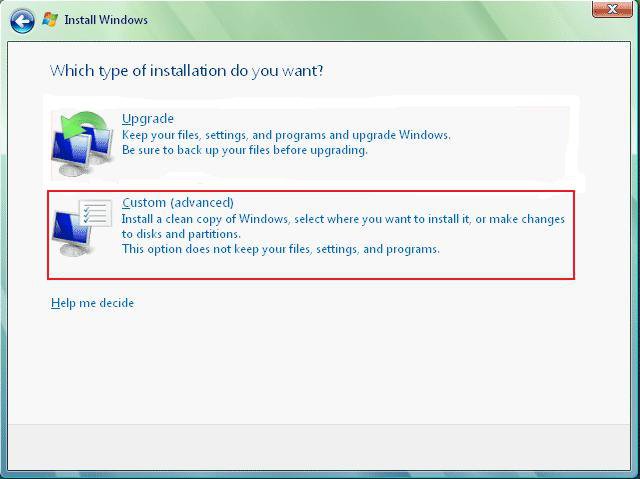
12. Click on Custom (advanced). (See screenshot below)
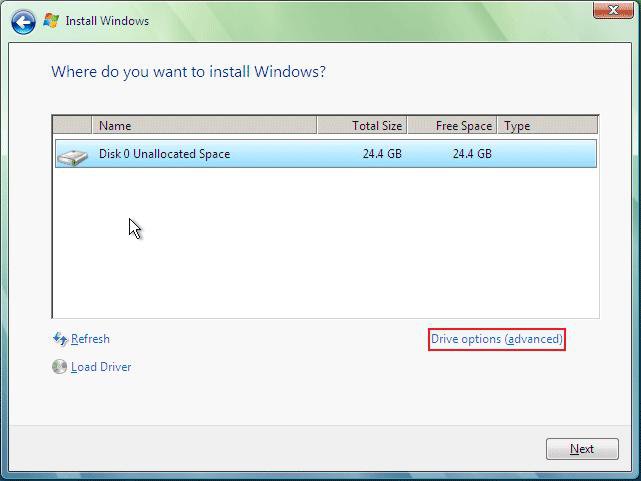
13. Select the hard drive you want to install Vista on and click on Drive Options (advanced). (See screenshot below)
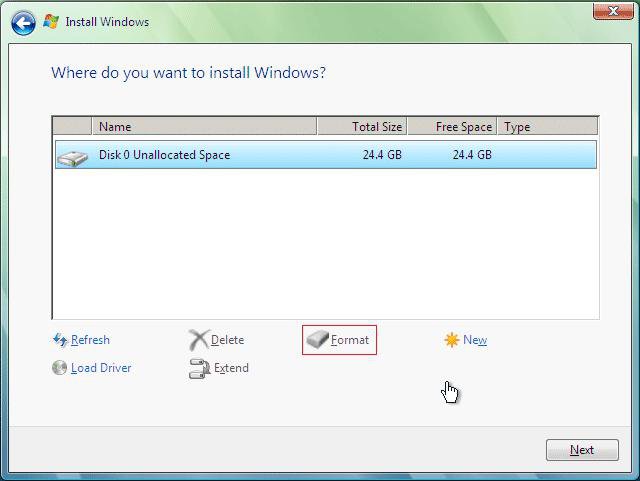
14. Click on Format to format the hard drive. (See screenshot below)
NOTE: If you have more than one partition on this hard drive and want to get rid of it to make one big drive, then click Delete for each partition. Now click on New and adjust the partition size to what you want, then click on Format.
15. Click on Next when it is done formating the hard drive.
16. Follow any instructions left until Vista is finished installing and has rebooted to the final welcome screen on the Vista desktop.
STEP TWO 17. When this first install is done, run the Vista Upgrade installation again from within the First Install (STEP ONE) of Vista this time.
WARNING: Do not boot from the Vista DVD this time. Leave the Vista installation DVD in the CD/DVD drive.
A) Click on Computer in the Start menu.
B) Click on the DVD drive to open a window with the DVD files.
C) Click on Setup to start the 2nd install.
D) Repeat steps 4 and 5 above.
18. This time, type in your product key for Vista and click Next. (See screenshot below step 8)
NOTE: If you are upgrading from Vista to another version of Vista, then type in the product key for the new version.
19. Leave the Automatically activate Windows when I'm online box unchecked. (See screenshot below step 8)
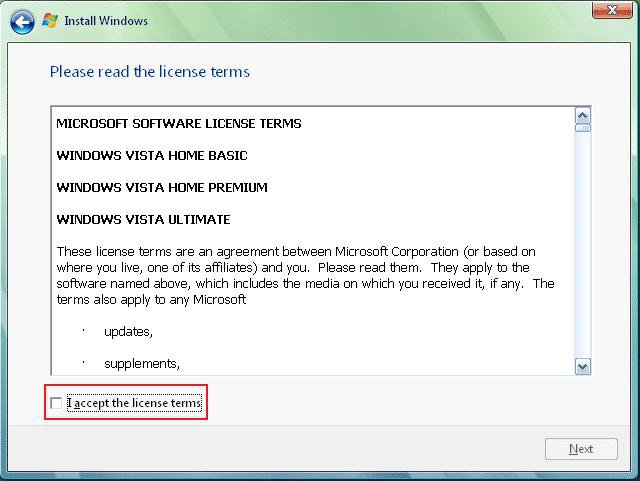
20. Check the I accept the license terms box. (See screenshot below step 21)
21. Click on Next.
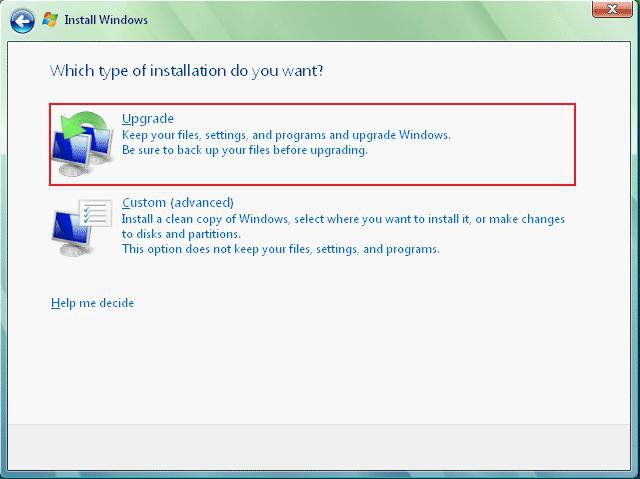
22. This time, click on the Upgrade option. (See screenshot below)
23. To setup Vista, see the STEP TWO section here: How to Do a Clean Install with a Full Version of Vista
24. Remove the Vista installation DVD.
25. Run Disk Cleanup.
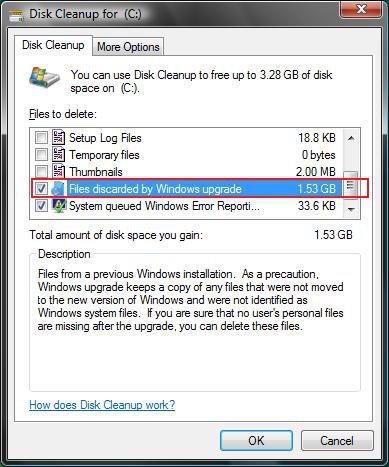
A) Check Files discarded by Windows upgrade. (See screenshot below)
NOTE: These will be the leftover upgrade files, C:\$INPLACE.~TR and C:\$WINDOWS.~Q, that did not get copied over.
B) Click on OK to delete it.
26. Update your WEI score.
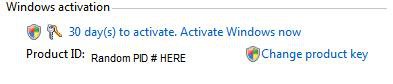
27. Now all you need to do is to activate Vista.
A) Right click Computer (Start Menu) and click Properties, or open the Control Panel (Classic View) and click on the System icon.
B) Scroll down a bit and click: Activate Windows Now. (See screenshot below)
NOTE: Now you have a clean install of the Upgrade version with no remnants of XP, or previous OS, to mess you up later.
That's it,
Shawn
Related Tutorials
- How to Perform a Repair Installation for Vista
- How to Activate Vista Normally and by Phone Activation
- How to Reset a User Account Password in Vista
- How to Do a Clean Install with a Full Version of Vista
- How to Extend Vista Trial Period for Up to 120 Days
- How to Get Out of Reduced Functionality Mode in Vista
- How to Create a Vista SP1 Slipstream Installation DVD
- How to Create a Bootable USB Flash Thumb Drive to Install Vista
- How to Setup a Dual Boot Installation with Windows Vista and XP
- How to Setup a Dual Boot Installation with Windows 7 and Vista
- How to Do a Custom Installation of Vista
Attachments
Last edited by a moderator:


 )
)