
How to Use and Create a Flip 3D Shortcut in Vista
 Information
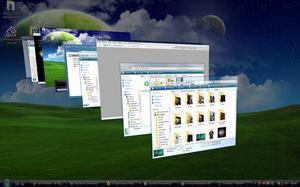
This will show you how to open and use Flip 3D, plus how to create a Flip 3D shortcut. Flip 3D is used to flip through your currently open windows in a easy to use format without having to click on the taskbar. Flip 3D displays your open windows in a stack. At the top of the stack, you'll see one open window. To see the other windows, you flip through the stack. Flip 3D is called Switch between windows in Quick Launch.
 Warning
HARDWARE REQUIREMENTS FOR: WINDOWS AERO
See: Windows Help and Support: Troubleshoot problems with Windows Aero
NOTE: The Windows Aero color scheme is not available for the Vista Home Basic version.

- 1 GHz 32-bit or 64-bit processor
- 1 GB of system memory
- A graphics card with support for DirectX 9 graphics with at least 128 MB of memory.
- The graphics card must support Pixel Shader 2.0 and the Windows Display Driver Model (WDDM).
- You must be have True Color (32 bit) set instead of High Color (16 bit).
- The Desktop Window Manager Session Manager and Themes Services need to be set as Started and Automatic.
- Refresh or update your WEI score.
- The Windows Aero color scheme selected and turned on.
- The Enable desktop composition and Animate controls and elements inside windows options enabled in Visual Effects.
 Tip
TipKeyboard Shortcut Keys without using Flip 3D
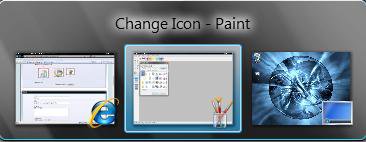
NOTE: This is for when you are using a color scheme other than Windows Aero. Press the key combinations below to activate. You will see this instead if your computer does not support Windows Aero Flip 3D.
Keyboard Shortcut Keys for Flip 3D
NOTE: Press the key combinations to activate. This is not supported in Vista Home Basic.
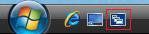
Quick Launch Shortcut
NOTE: It is called Switch between windows in Quick Lauch. Use the Tab or Arrow keys to scroll through the open windows, then press Enter to select the window in the front.
NOTE: This is for when you are using a color scheme other than Windows Aero. Press the key combinations below to activate. You will see this instead if your computer does not support Windows Aero Flip 3D.
- Alt + Tab = Press these two keys and hold down Alt and press Tab to scroll through the open windows. Release the Alt key to see the window that is highlighted.
- Ctrl + Alt + Tab = Choose the window to see by clicking on it, or press Tab to scroll through the open windows and press Enter to see the window highlighted.
Keyboard Shortcut Keys for Flip 3D
NOTE: Press the key combinations to activate. This is not supported in Vista Home Basic.
- Windows Key + Tab = Press and hold Windows Key, then press Tab (Or roll mouse scroll wheel) to scroll through the open windows. Choose the open window you want by releasing the Windows Key when it is up front.
- Ctrl + Windows Key + Tab = Scroll through the open windows by pressing the Tab key, arrow keys, or roll the mouse scroll wheel. Click on the window you want to see, or press Enter when it is up front.
Quick Launch Shortcut
NOTE: It is called Switch between windows in Quick Lauch. Use the Tab or Arrow keys to scroll through the open windows, then press Enter to select the window in the front.
 METHOD ONE
1. Click on the download button below to download the Flip 3D.zip file.

2. Click on Save and save it to the Desktop.
3. Right click on the Flip 3D.zip file (on desktop) and click on Open.
4. Click on Allow for UAC prompt.
5. Extract the Flip 3D shortcut to the desktop.
6. Put the shortcut where you like to use it at.
7. When done, you can delete the Flip 3D.zip file (on desktop) if you want to.
8. See the yellow How to Add the Flip 3D Shortcut Back to Quick Launch TIP box below.
METHOD TWO 1. Right click on a empty area on desktop.
2. Click on New and Shortcut.
3. Type C:\Windows\system32\rundll32.exe DwmApi #105 into the location area. (See screenshot below)
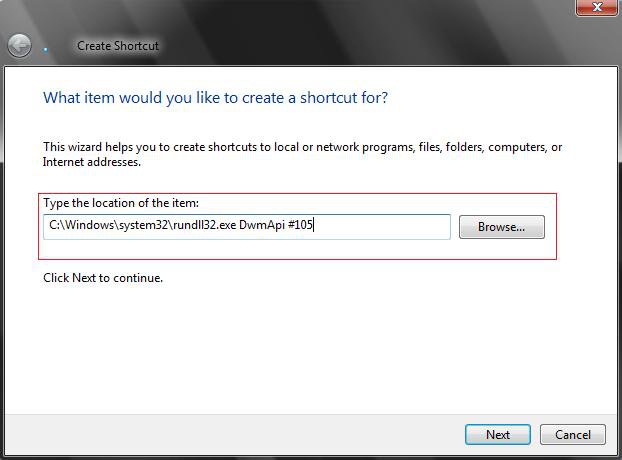
4. Click on the Next button.
5. Type Flip 3D for the name. (See screenshot below)
NOTE: You can name this anything you would like though.
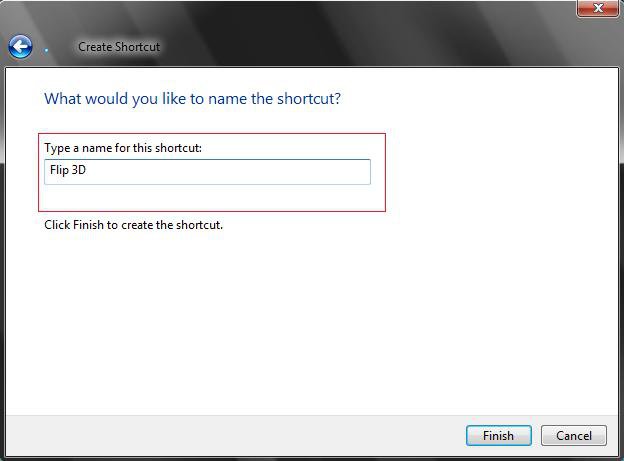
6. Click on the Finish button.
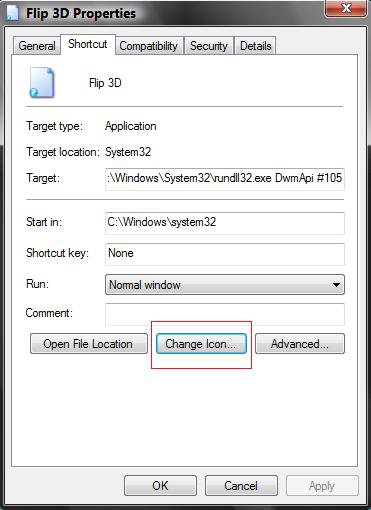
7. Right click on the new Flip 3D shortcut (on Desktop) and click on Properties.
8. Click on the Change Icon button. (See screenshot below)
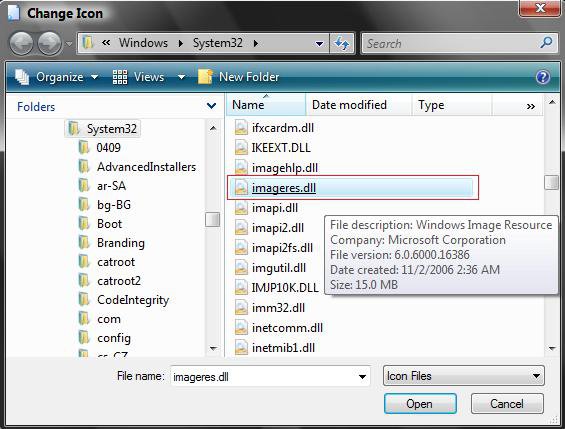
9. Click on the Browse button and scroll down and click on the file imageres.dll and on the Open button.
(See screenshot below)
10. Click on the upper left icon, highlighted in blue, and click OK. (See screenshot below)
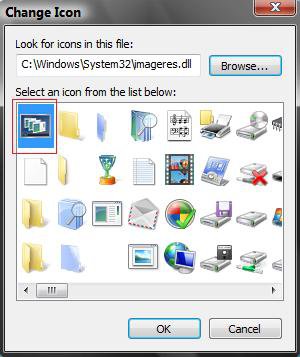
11. Click OK to apply.
12. Copy or move the shortcut to where you would like for easy use.
TipHow to Add the Flip 3D Shortcut Back to Quick Launch
NOTE: Originally called Switch between windows in Quick Launch.
1. Go to: How to Use Quick Launch in Vista
NOTE: See OPTION ONE under the How to Add or Remove Shortcuts to Quick Launchsection at this link.
2. Move the new Flip 3D shortcut (On Desktop) from above to inside the Quick Launch folder location.
NOTE: Originally called Switch between windows in Quick Launch.
1. Go to: How to Use Quick Launch in Vista
NOTE: See OPTION ONE under the How to Add or Remove Shortcuts to Quick Launchsection at this link.
2. Move the new Flip 3D shortcut (On Desktop) from above to inside the Quick Launch folder location.
That's it,
Shawn
Related Tutorials
- How to Create a Show Desktop Shortcut in Vista
- How to Create a Fully Functional Internet Explorer Shortcut in Vista
- How to Change the Size of Desktop Icons in Vista
- How to Change the Color Scheme in Vista
- How to Use Quick Launch in Vista
- How to Disable and Enable Windows Hotkeys in Vista
- How to Enable or Disable Flip 3D in Vista
- How to Add Flip 3D to the Context Menu in Vista
- How to Change the Color Bit Depth Settings in Vista
Attachments
Last edited:
 Excellent post, I could not find this anywhere else in the Internet. Super, Thanks a lot. My Quick launch got deleted by a virus scanner and this one restored my shortcuts.


