Windows Vista Forums
Vista Forums Home Join Vista Forums Windows 7 Forum Vista Tutorials Tags
Welcome to Windows Vista Forums. Our forum is dedicated to helping you find solutions with any problems, errors or issues you are experiencing with Windows Vista. The Vista forum also covers news and updates and has an extensive Windows Vista tutorial section that covers a wide range of tips and tricks.

Go Back   Vista Forums > Vista Forums > Tutorials

Vista Tutorial - Windows Explorer Default Opening

Comment
 

Windows Explorer Default Opening

How to Change Windows Explorer Default Open Location in Vista
Published by Brink
06-17-2007

How to Change Windows Explorer Default Open Location in Vista

Information
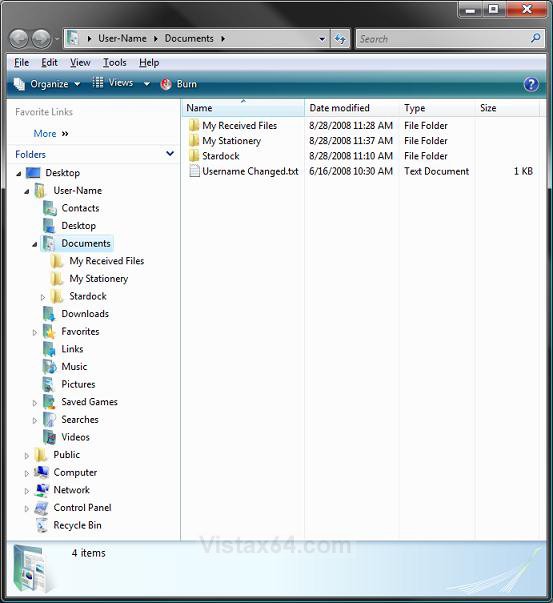
  This will show you how to set Windows Explorer to open to another location other than the default C:\Users\(your username)\Documents folder location. For more information on this, see: Microsoft Help and Support: KB130510
NOTE
  This doesn't change the location for Computer in the Start Menu. You could also just create a shortcut from the Windows Explorer EXE location (%SystemRoot%\explorer.exe or C:\Windows\explorer.exe) and use it. Just right click on the exe file and click on Send To and Desktop (create shortcut), then move the shortcut to where you like.
Tip
  Creating a shortcut to the desired location instead would be much easier to do if applicable.
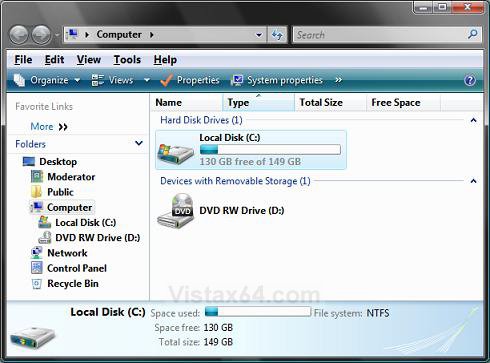
RELATED LINKS:EXAMPLE: Default Windows Explorer Target Open Location
default.jpgdefault_location.jpg

Here's How:
NOTE
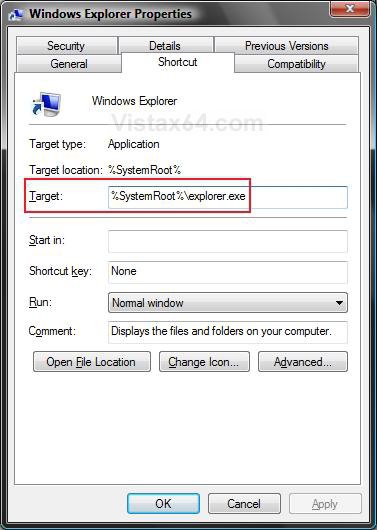
  To restore the default location setting, type %SystemRoot%\explorer.exe in the Target area. (See step 5 below)
1. Open the Start Menu.

2. Click on All Programs. (At bottom)

3. Click on the Accessories folder to expand it.

4. Right click Windows Explorer and click Properties.
NOTE: If you do not have this shortcut for Explorer here, then you can create a new shortcut from: C:\Windows\explorer.exe.

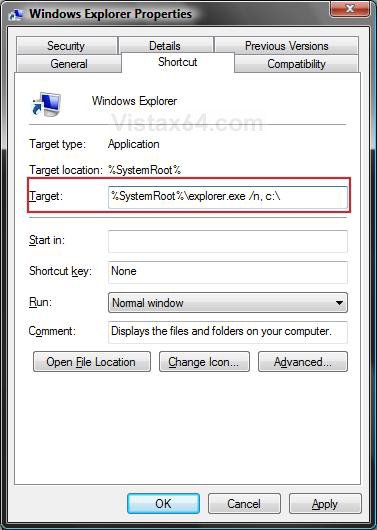
5. In Target: area, type %SystemRoot%\explorer.exe [/n,] [options] [folder path] (See screenshots and TIP box below)


NOTE
  See the Example sections below.
  • /n = Opens a new Windows Explorer window.
  • OPTIONS:
    • /root = Has only the selected folder and it's subfolders at the top in the folder tree.
    • /select = Has the folder's parent folder selected in the folder tree.
EXAMPLE A:
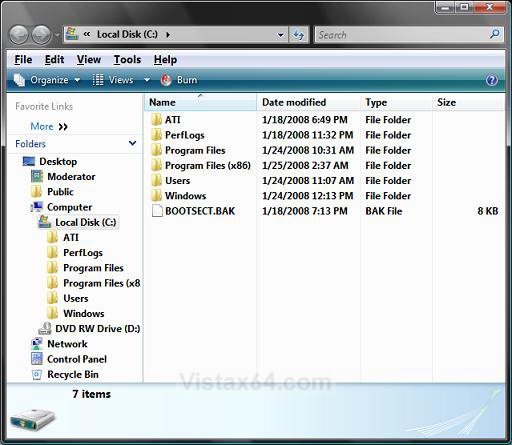
To Open to the C:\ Drive
A) You would type %SystemRoot%\explorer.exe /n, c:\ in the Target area. (See screenshots below)
drive_target.jpgdrive.jpg

EXAMPLE B:
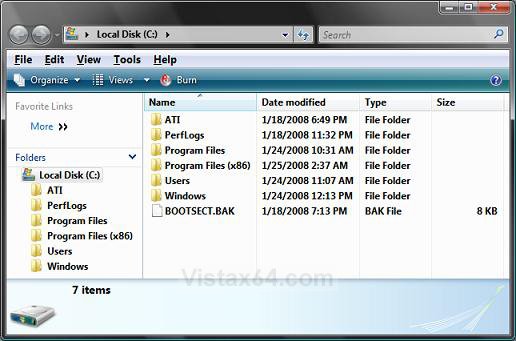
To Open to the C:\ Drive as the Root in the Folder Tree
B) You would type %SystemRoot%\explorer.exe /n, /root, c:\ in the Target area. (See screenshots below)
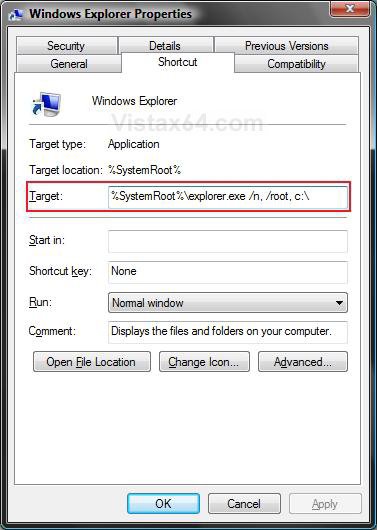
root_drive_target.jpgroot_drive.jpg

EXAMPLE C:
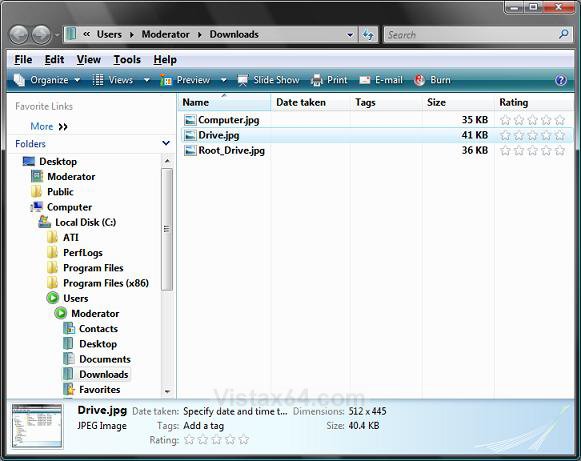
To Open to a Specific Folder (Ex: Downloads Folder)
C) You would type: (See screenshots below)
%SystemRoot%\explorer.exe /n, /root, c:\ /select, c:\Users\(your username)\Downloads in the Target area.
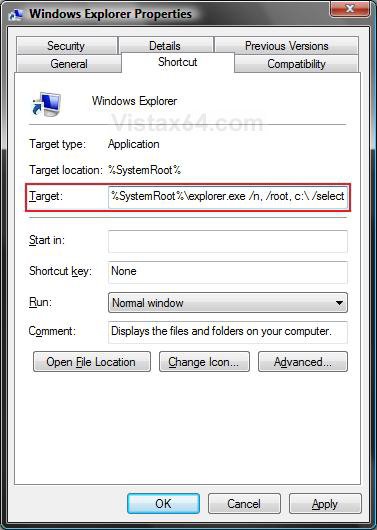
NOTE: Instead of using the path c:\Users\(your username)\Downloads, you can use the full path of the folder you want to have opened instead after %SystemRoot%\explorer.exe /n, /root,.
folder_target.jpgfolder_select.jpg
EXAMPLE D:
To Open the Same as Computer (Start menu)
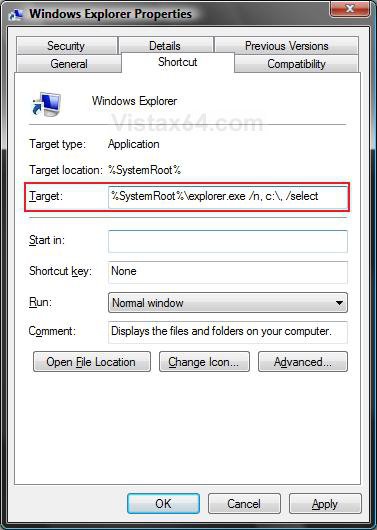
D) You would type %SystemRoot%\explorer.exe /n, c:\, /select in the Target area. (See screenshots below)
computer_target.jpgcomputer.jpg
Tip
  You can also copy and paste these items in bold into the Target area (step 5) to have Windows Explorer open to these locations.
  • Windows Explorer (default)
    • %SystemRoot%\explorer.exe
  • Computer
    • %SystemRoot%\explorer.exe /root,::{20D04FE0-3AEA-1069-A2D8-08002B30309D}
  • Documents
    • %SystemRoot%\explorer.exe /n,::{450D8FBA-AD25-11D0-98A8-0800361B1103}
  • Recycle Bin
    • %SystemRoot%\explorer.exe /N,::{645FF040-5081-101B-9F08-00AA002F954E}
  • Network Neighborhood
    • %SystemRoot%\explorer.exe /N,::{208D2C60-3AEA-1069-A2D7-08002B30309D}
  • Default Web Browser (ex: Internet Explorer)
    • %SystemRoot%\explorer.exe /N,::{871C5380-42A0-1069-A2EA-08002B30309D}
  • Computer Search Results Folder
    • %SystemRoot%\explorer.exe /N,::{1F4DE370-D627-11D1-BA4F-00A0C91EEDBA}
  • Network Search Results Folder
    • %SystemRoot%\explorer.exe /N,::{E17D4FC0-5564-11D1-83F2-00A0C90DC849}
  • Web Folders
    • %SystemRoot%\explorer.exe /N,::{20D04FE0-3AEA-1069-A2D8-08002B30309D}\::{BDEADF00-C265-11D0-BCED-00A0C90AB50F}
  • Control Panel
    • %SystemRoot%\explorer.exe /N,::{20D04FE0-3AEA-1069-A2D8-08002B30309D}\::{21EC2020-3AEA-1069-A2DD-08002B30309D}
  • Printers and Faxes
    • %SystemRoot%\explorer.exe /N,::{20D04FE0-3AEA-1069-A2D8-08002B30309D}\::{21EC2020-3AEA-1069-A2DD-08002B30309D}\::{2227A280-3AEA-1069-A2DE-08002B30309D}
  • Scanners and Cameras
    • %SystemRoot%\explorer.exe /N,::{20D04FE0-3AEA-1069-A2D8-08002B30309D}\::{21EC2020-3AEA-1069-A2DD-08002B30309D}\::{E211B736-43FD-11D1-9EFB-0000F8757FCD}
  • Fonts
    • %SystemRoot%\explorer.exe /N,::{20D04FE0-3AEA-1069-A2D8-08002B30309D}\::{21EC2020-3AEA-1069-A2DD-08002B30309D}\::{D20EA4E1-3957-11d2-A40B-0C5020524152}
  • Network Connections or My Network Place
    • %SystemRoot%\explorer.exe /N,::{20D04FE0-3AEA-1069-A2D8-08002B30309D}\::{21EC2020-3AEA-1069-A2DD-08002B30309D}\::{7007ACC7-3202-11D1-AAD2-00805FC1270E}
  • Administrative Tools
    • %SystemRoot%\explorer.exe /N,::{20D04FE0-3AEA-1069-A2D8-08002B30309D}\::{21EC2020-3AEA-1069-A2DD-08002B30309D}\::{D20EA4E1-3957-11d2-A40B-0C5020524153}
  • Tasks Scheduler
    • %SystemRoot%\explorer.exe /N,::{20D04FE0-3AEA-1069-A2D8-08002B30309D}\::{21EC2020-3AEA-1069-A2DD-08002B30309D}\::{D6277990-4C6A-11CF-8D87-00AA0060F5BF}

6. Click on OK in Properties to apply.

7. To make using the Windows Explorer shortcut easier to use, you might Pin it to the Start Menu.
That's it,
Shawn

Published by
Brink's Avatar
Administrator

Join Date: Apr 2007
Location: Texas, USA
Posts: 25,801
Rep Power: 150
Brink has a reputation beyond reputeBrink has a reputation beyond reputeBrink has a reputation beyond reputeBrink has a reputation beyond reputeBrink has a reputation beyond reputeBrink has a reputation beyond reputeBrink has a reputation beyond reputeBrink has a reputation beyond reputeBrink has a reputation beyond reputeBrink has a reputation beyond reputeBrink has a reputation beyond repute

Tutorial Tools

Applies to
All Vista Versions
64 Bit & 32 Bit

Old 04-11-2008  
BobF
Member


Join Date: Jan 2008
Vista Ultimate x64


Re: Windows Explorer Default Opening

Works just great on the shortcut it's applied to. Right-click on the start circle and the entry "explore" is visible. That doesn't appear to be a shortcut to which this procedure can be applied. Mine opens in an unuseful place "C:\Users\Bob\AppData\Roaming\Microsoft\Windows\Start Menu"
How do I change that "explore" ?

My System SpecsSystem Spec
Old 04-11-2008  
Brink
Administrator


Join Date: Apr 2007
Vista x64 Ultimate SP2, Windows 7 (7600) x64


Re: Windows Explorer Default Opening

Hi Bob,

This will how you to change the Start menu button's Explore context menu item open location.

Start Menu - Customize Context Menu


You can also add Windows Explorer to the Start Menu context menu. This tutorial will show you how to.

Start Menu - Customize Context Menu

In step 6, type Windows Explorer.

In step 10, use the same example above, that you used for your Windows Explorer shortcut, for the full path.

Hope this helps,
Shawn
My System SpecsSystem Spec
Old 06-25-2008  
sawlwin
Newbie


Join Date: Jun 2008
Vista 32 bit


Re: Windows Explorer Default Opening

Hi,

I had tried all this in my Vista Business SP1, it doesn't work. Can anyone tell me why?
Tried to change to C:, to Downloads, all doesn't work.
Always to default C:\Users\SAW LWIN\Documents.

Please help!!!
My System SpecsSystem Spec
Old 06-25-2008  
Brink
Administrator


Join Date: Apr 2007
Vista x64 Ultimate SP2, Windows 7 (7600) x64


Re: Windows Explorer Default Opening

Hello Sawlwin,

Did you type: (Example C)

%SystemRoot%\explorer.exe /n, /root, c:\ /select, c:\Users\SAW LWIN\Downloads

in the Target area?

Shawn
My System SpecsSystem Spec
Old 06-25-2008  
sawlwin
Newbie


Join Date: Jun 2008
Vista 32 bit


Re: Windows Explorer Default Opening

Hi Brink,

Thanks for you quick reply. Yes. I type as above & it's working now.
The reason behind is I don't create a new shortcut again after I change target. This is where I get problem.

The deafult shorcut at taskbar will never change setting no matter how I change target in Explorer Properties.

rgds,
Saw Lwin
My System SpecsSystem Spec
Old 06-25-2008  
Brink
Administrator


Join Date: Apr 2007
Vista x64 Ultimate SP2, Windows 7 (7600) x64


Re: Windows Explorer Default Opening

Saw Lwin,

I'm happy to hear that you got it working now.

Shawn
My System SpecsSystem Spec
Old 08-24-2008  
BJanke
Member


Join Date: Aug 2008
vista home basic 32bit


Re: Windows Explorer Default Opening

I just can't seem to get this to work. I have followed all the steps. I want to set Windows Explorer to open to
C:\A-My Files.
I entered the string
%SystemRoot%\explorer.exe /n, /root, c:\My Files.
But it still opens all the folders under c:\ and it still opens the "Users" folder.
This seems to be such a basic preference selection that I'm surpirsed Microsoft makes it so hard to do.
Thank you,
Bruce


I entered the string to have only
Quote  Quote: Originally Posted by Brink View Post
Hello Sawlwin,

Did you type: (Example C)

%SystemRoot%\explorer.exe /n, /root, c:\ /select, c:\Users\SAW LWIN\Downloads

in the Target area?

Shawn
My System SpecsSystem Spec
Old 08-24-2008  
Brink
Administrator


Join Date: Apr 2007
Vista x64 Ultimate SP2, Windows 7 (7600) x64


Re: Windows Explorer Default Opening

Hi BJanke, and welcome to Vista Forums.

If the folder location is at C:\A-My Files, then you would need to use this instead for example B:

%SystemRoot%\explorer.exe /n, /root, C:\A-My Files

Hope this helps,
Shawn

Last edited by Brink; 08-24-2008 at 10:36 PM.. Reason: Corrected command
My System SpecsSystem Spec
Old 08-24-2008  
BJanke
Member


Join Date: Aug 2008
vista home basic 32bit


Question Re: Windows Explorer Default Opening

It opens C:\ (which is okay if I can't get it to open at the subfolder A-My files), but the problem is that it ALSO opens the subfolder C:\Windows.
My System SpecsSystem Spec
Comment

Tutorial Tools


Similar Threads
Tutorial Category
Solved Windows Explorer opening location... General Discussion
default directory opening Windows Explorer Vista file management
OPening Windows Explorer Vista file management
Opening more than 15 files in Windows Explorer Vista file management
Win Explorer Default Opening Setting-Change? Vista General


Vista Forums is an independent web site and has not been authorized,
sponsored, or otherwise approved by Microsoft Corporation.
"Windows Vista", the Start Orb, and related materials are trademarks of Microsoft Corp.
© Designer Media Ltd
Tutorial powered by GARS 2.1.8m ©2005-2006

1 2 3 4 5 6 7 8 9 10 11 12 13 14 15 16 17 18 19 20 21 22 23 24 25 26 27 28 29 30 31 32 33 34 35 36 37 38 39 40 41 42 43 44 45 46