Windows Vista Forums
Vista Forums Home Join Vista Forums Windows 7 Forum Vista Tutorials Tags
Welcome to Windows Vista Forums. Our forum is dedicated to helping you find solutions with any problems, errors or issues you are experiencing with Windows Vista. The Vista forum also covers news and updates and has an extensive Windows Vista tutorial section that covers a wide range of tips and tricks.

Go Back   Vista Forums > Vista Forums > Tutorials

Vista - System Restore Point - Shortcut

Comment
 

System Restore Point - Shortcut

How to Make a Create System Restore Point Shortcut in Vista
Published by Brink
06-23-2007

How to Make a Create System Restore Point Shortcut in Vista
Information
  This will show you how to create a shortcut that when used will create a System Restore Point in Vista a lot easier and faster. Vista System Restore will normally create a restore point at various times. Usually on a schedule: daily (usually at Noon) and at startup, as well as when some apps are installed. To change this schedule, see: How to Change the Automatic System Restore Point Settings in Vista Task Scheduler

After you have used one or both of the shortcuts to create a restore point, it may take a moment for it to finish creating the restore point before it is available in System Restore.

These restore points contain information about registry settings and other system information that Windows 7 uses. System Restore points do not include the personal user files.
NOTE
  This will work for 32 bit and 64 bit Vista. You must have System Restore and the services responsible enabled for this shortcut to work. If not you will get the error message below when you try to use the shortcut below. See: How to Disable or Enable System Restore in Vista
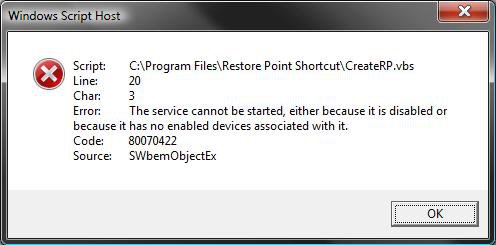
error_message.jpg


WARNING
 
RELATED LINKS:EXAMPLE: Create System Restore Point with description shortcut
NOTE: When you click on the Create System Restore Point shortcut, you will see this window. Just type in a name for the restore point, and click on OK to create the restore point.
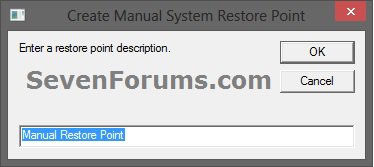
Name:  Restore_Point.jpg
Views: 3391
Size:  9.9 KB


OPTION ONE:
To Create the Shortcut
1. For a Create Restore Point with Description Shortcut -
NOTE: See the example above for what you will see when you use this shortcut.
A) Click on the download button below to download the Restore_Point_Shortcut.zip file.

2. For a Instant Create Restore Point Shortcut -
NOTE: This will instantly create a restore point named Instant Restore Point in System Restore without asking for a description.
A) Click on the download button below to download the Instant_Restore_Point.zip file.

3. Click on Save and save it to the Desktop (C:\Users\(user name)\Desktop).

4. Right click on the .zip file (on desktop) and click on Open.

5. If prompted, click on Allow in the UAC prompt.

6. Extract all of the ZIP file contents to the desktop.

7. After the files have been extracted, you can delete the .zip file (on desktop) if you like.

8. Right click on the extracted Restore Point Shortcut (step 1) or Instant_Restore_Point (step 2) folder and click on Cut.
NOTE
 
Just for Your Knowledge :
NOTE: The Restore Point Shortcut folder contains a file named CreateRP.vbs (left screenshot). The Instant_Restore_Point folder contains a file named Instant_Restore_Point.vbs (right screenshot). These VBS files are what actually creates the restore point. See the screenshots below to see what is in these VBS files.


9. Navigate to C:\Program Files in Windows Explorer, then right click on a empty area of the window and click on Paste. (See screenshot below step 10)

10. Click on Continue and Continue when prompted.

11. You should now see the Restore Point Shortcut (step 1) or Instant_Restore_Point (step 2) folder in the C:\Programs window now. (See screenshot below)
program_files.jpg
11. You can now leave the Create System Restore Point (left screenshot below) or Instant Restore Point (right screenshot below) shortcut on the desktop or move it to where you like for easy use of it.
Name:  Shortcut-1.jpg
Views: 2744
Size:  7.0 KBName:  Shortcut.jpg
Views: 2762
Size:  6.7 KB


OPTION TWO:
To Remove a Shortcut
1. Navigate to C:\Program Files in Windows Explorer, then right click on the Restore Point Shortcut or Instant_Restore_Point folder and click on Delete. (See screenshot below)
Click image for larger version

Name:	Program_Files.jpg
Views:	2508
Size:	80.4 KB
ID:	742
2. Click on Yes, Continue, and Continue when prompted.

3. Right click on the Create System Restore Point (left screenshot below) or Instant Restore Point (right screenshot below) shortcut and click on Delete.
Name:  Shortcut-1.jpg
Views: 2744
Size:  7.0 KBName:  Shortcut.jpg
Views: 2762
Size:  6.7 KB
That's it,
Shawn

Published by
Brink's Avatar
Administrator

Join Date: Apr 2007
Location: Texas, USA
Posts: 25,919
Rep Power: 150
Brink has a reputation beyond reputeBrink has a reputation beyond reputeBrink has a reputation beyond reputeBrink has a reputation beyond reputeBrink has a reputation beyond reputeBrink has a reputation beyond reputeBrink has a reputation beyond reputeBrink has a reputation beyond reputeBrink has a reputation beyond reputeBrink has a reputation beyond reputeBrink has a reputation beyond repute

Tutorial Tools

Applies to
All Vista Versions
64 Bit & 32 Bit

Old 07-28-2007  
Brink


Vista x64 Ultimate SP2, Windows 7 Ultimate x64


Re: System Restore Point

Updated the how to create a System Restore Point shortcut to make it real easy to do.

Shawn


Last edited by Brink; 08-31-2007 at 05:24 AM..
My System SpecsSystem Spec
Old 01-31-2008  
go-to-lady


Vista Home Premium 32-bit


Thumbs up Re: System Restore Point

Quote  Quote: Originally Posted by Brink View Post
Updated the how to create a System Restore Point shortcut to make it real easy to do.

Shawn
The instructions on creating a System Restore Point Shortcut are very easy to follow. This shortcut is exactly what I wanted.

Thank you very much!
My System SpecsSystem Spec
Old 01-31-2008  
Brink


Vista x64 Ultimate SP2, Windows 7 Ultimate x64


Re: System Restore Point - Shortcut

Your welcome go-to-lady, and welcome the Vista Forums.

Shawn
My System SpecsSystem Spec
Old 01-31-2008  
go-to-lady


Vista Home Premium 32-bit


Re: System Restore Point - Shortcut

Thank you! I almost gave up on finding these types of shortcuts when all people did in some other forum was ask me why I couldn't just go through the steps.
My System SpecsSystem Spec
Old 01-31-2008  
Brink


Vista x64 Ultimate SP2, Windows 7 Ultimate x64


Re: System Restore Point - Shortcut

LOL ! Yeah, when you need to create System Restore Points all the time, it can be a pain and time consuming to go through all the steps each time.

Have a great day,
Shawn
My System SpecsSystem Spec
Old 01-31-2008  
beauparc


Home premium 32


Re: System Restore Point - Shortcut

Hi Brink, followed your instructions exactly and double checked everything, but......no joy. All that happens is that the file opens in notepad

Could the problem be that, as a lone user, I operate with UAC turned off?
My System SpecsSystem Spec
Old 01-31-2008  
Brink


Vista x64 Ultimate SP2, Windows 7 Ultimate x64


Re: System Restore Point - Shortcut

Hi beauparc,

Welcome Vista Forums.

I tested it, and it does not matter if you have UAC turned on or off for the shortcut to work. You only need to make sure that System Restore is turned on for it to work.

Which file opens in Notepad?

Shawn
My System SpecsSystem Spec
Old 01-31-2008  
beauparc


Home premium 32


Re: System Restore Point - Shortcut

Hi Brink and thanks for your quick reply. The file which runs in notepad is "RunAs.vbs. Should I have something else installed to run this file since, looking in Control panel, all .VBS files are associated with Notepad?

I am running an Evesham laptop with a Core 2 Duo T7500 processor, 2GB RAM, 100GB HDD, Nvidia 8600M GT graphics and Vista Home Premium. Kasparsky Anti Virus and Windows firewall.
My System SpecsSystem Spec
Old 01-31-2008  
Brink


Vista x64 Ultimate SP2, Windows 7 Ultimate x64


Re: System Restore Point - Shortcut

beauparc,

That would be the problem. The VBS file extension should have C:\Windows\System32\wscript.exe set as it's current default program not Notepad. While your there, VBE should be set with this too.

See Method Two:
Default Programs

Shawn
My System SpecsSystem Spec
Comment

Tutorial Tools


Similar Threads
Tutorial Category
System Restore Task - Change Automatic Restore Point Schedule Tutorials
System Restore error (create restore point), event ID: 8193 Vista General
System Restore Not Saving Restore Point Vista General
System restore hasn't held a restore point since I installed Vista Vista General
Deleting System Restore Point Vista General


Vista Forums is an independent web site and has not been authorized,
sponsored, or otherwise approved by Microsoft Corporation.
"Windows Vista", the Start Orb, and related materials are trademarks of Microsoft Corp.
© Designer Media Ltd
Tutorial powered by GARS 2.1.8m ©2005-2006

1 2 3 4 5 6 7 8 9 10 11 12 13 14 15 16 17 18 19 20 21 22 23 24 25 26 27 28 29 30 31 32 33 34 35 36 37 38 39 40 41 42 43 44 45 46