How to Turn the Recent Items List On or Off in Vista
 Information
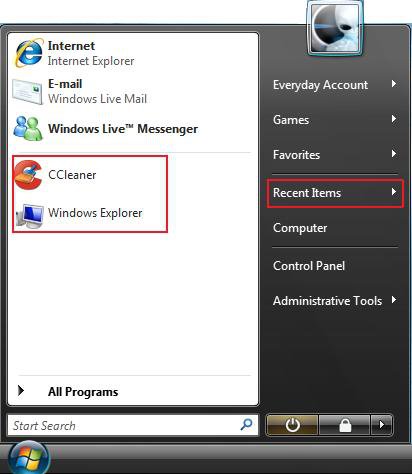
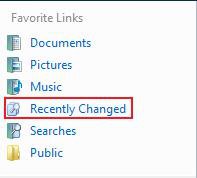
This is a list of recently opened files and programs displayed in the Start Menu and the Recently Changed shortcut in Favorite Links. Recent Items are not displayed in the Classic Start Menu.
 Note
NoteThe Recent Items folder is located at:
NOTE: You will need to have Show hidden files and folders checked in Folder Options.
C:\Users\(User-Name)\AppData\Roaming\Microsoft\Windows\Recent Items
NOTE: You will need to have Show hidden files and folders checked in Folder Options.
C:\Users\(User-Name)\AppData\Roaming\Microsoft\Windows\Recent Items
 Tip
Tip- You can also open this location by typing shell:recent and in the white line (Start Search) area of the Start Menu and pressing Enter.
- If you would like to remove (disable) the Start menu Pin to area to leave only Recent Programs listed, then see: How to Enable or Disable Pin to Start Menu in Vista
 Warning
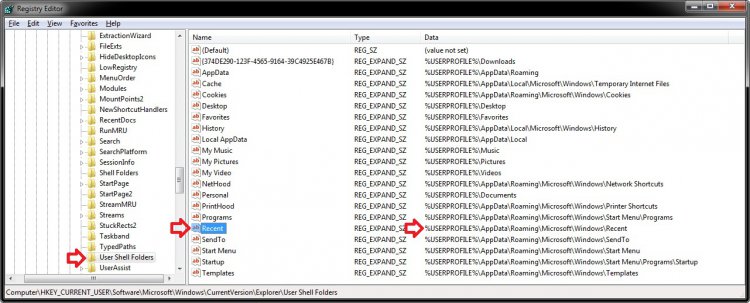
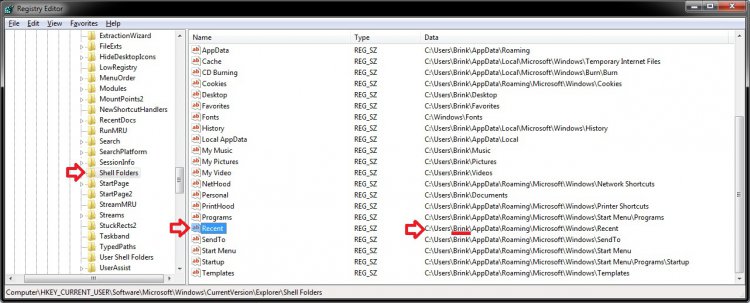
When you go to the Recent Items folder location above and you have a yellow folder named Recent instead of one named Recent Items with a icon, then right click on the Recent folder and click Delete. Type shell:recent in the white line (Start Search) area of the Start Menu and press Enter. Logoff and logon, or restart the computer, to rebuild the folder back to the default Recent Items. Recent Items will not function correctly if is not set as the default Recent Items folder.
EXAMPLE: Start Menu and Favorite Links
Here's How:
NOTE: This method is for both the normal and classic Start menu.
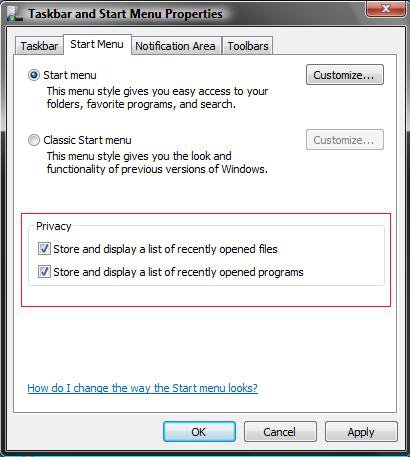
1. Right click on the Start Button and click Properties.
2. To Turn Recent Files List On or Off
A) Check or Uncheck the Store and display a list of recently opened files box. (See screenshot below step 5)
NOTE: This list is in the Recent Items button in the Start Menu and in Recently Changed for Favorite Links inside a Explorer window. (See screenshot at top) If this is not checked, the folder location (at top of tutorial) will only flash open and then close quickly.
B) Go to step 5.
3. To Turn Recent Programs List On or Off
A) Check or Uncheck the Store and display a list of recently opened programs box. (See screenshot below step 5)
NOTE: This list is displayed in the left white area of the Start Menu. (See screenshot at top)
B) Go to step 5.
4. To Clear the Recent Files and Programs List
NOTE: This will delete the lists and reset it clean.
A) For how, see: How to Clear the Recent Items List in Vista
5. Click Apply and then click on OK.
That's it,
Shawn
Related Tutorials
- How to Fix Recent Programs Not Being Remembered in Vista
- How to Customize the Start Menu in Vista
- How to Pin a Program Icon to the Start Menu in Vista
- How to Add or Delete a Shortcut or Folder From the Start Menu in Vista
- How to Change the Start Menu to Classic View in Vista
- How to Pin a Folder Icon to the Start Menu in Vista
- How to Display Small or Large Icons in the Vista Start Menu
- How to Change the Number of Recent Programs to Display in the Vista Start Menu
- How to Clear the Recent Items List History in Vista
- How to Enable or Disable Clear Recent Document Items History on Exit
- How to Add or Remove Help from the Normal and Classic Vista Start Menu
- How to Restore the Start Menu Search Button after Installing the Vista SP1
- How to Enable or Disable Pin to Start Menu in Vista
- How to Enable or Disable Recent Items in Windows 7 and Vista
- How to Change the Maximum Number of Recent Items to Display in Start Menu
Attachments
Last edited by a moderator: