
How to Use "Internet Time" Synchronization in Windows
 Information
You can synchronize your computer clock with a internet time server. This means that the clock on your computer is updated to match the clock on the time server, which can help ensure that the clock on your computer is accurate. Your clock is typically updated once a week and needs to be connected to the Internet for the synchronization to occur.
This will show you how to synchronize your PC time with the internet time, and how to troubleshoot and solve problems while doing it in Vista, Windows 7, and Windows 8.
You must be logged in as an administrator to be able to do the steps in this tutorial.
This will show you how to synchronize your PC time with the internet time, and how to troubleshoot and solve problems while doing it in Vista, Windows 7, and Windows 8.
You must be logged in as an administrator to be able to do the steps in this tutorial.
 Warning
TO HELP PREVENT TIME SYNCHRONIZATION PROBLEMS
- Make sure that the time zone and date and time are manually set correctly on your computer, or you may have a hard time trying to synchronize your computer clock with a internet time server. If the time is to far off, it may not be able to synch with the time server.
- Windows gets the initial time from the BIOS, so check to see if the time and date are correct in the CMOS settings in the BIOS.
- Check the CMOS battery on your motherboard to see if it is getting weak and dying. If weak, it can cause your clock to run slow, loose time, or reset if dead. If this is the case, you will just need to replace the battery. It will usually be a lithium button cell, type CR2032. Check your motherboard documenation to be sure.
- If your computer will not keep accurate time even after synchronizing and changing the time servers below, then see How to Change the Internet Time Synchronization Update Interval in Windows.
- If you have a 3rd party firewall program installed or router, then check their settings to make sure that they are not set to block the NPT access on UDP port 123. It should be set to open or allow. Windows Firewall will allow Internet Time Server through by default, unless changed.
 Note
NoteThe Internet Time Synchronization uses the Windows Time Service with the default settings of Started and Automatic.
 Tip
TipFor a list of time server names with their IP Address numbers to use in step 10B, see:
Microsoft Help and Support: KB262680 A list of the Simple Network Time Protocol (SNTP) time servers that are available on the Internet
Microsoft Help and Support: KB262680 A list of the Simple Network Time Protocol (SNTP) time servers that are available on the Internet
Here's How:
1. Do step 2 or 3 below for what you would like to do.
2. Open the Control Panel (Classic view - Vista) or Control Panel (icons view - Windows 7/8), click/tap on the Date and Time icon, close the Control Panel, and go to step 4 below.
3. Right click on the clock on the taskbar. (see screenshots below)
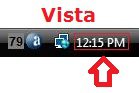
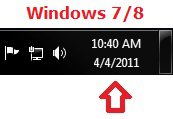
A) Click/tap on the Adjust Date/Time button, and go to step 4 below. (see screenshot below)
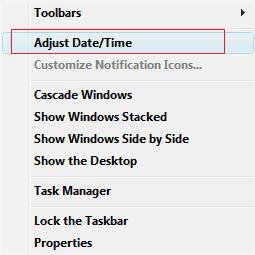
4. Click/tap on the Internet Time tab. (see screenshot below)
5. Click/tap on the Change Settings button.
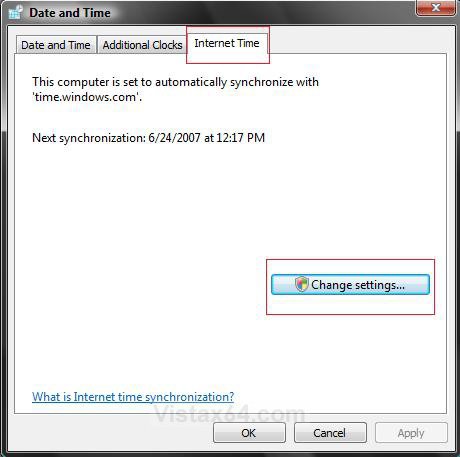
6. If prompted by UAC, click/tap on Continue (Vista) or Yes (Windows 7/8).
7. To Turn Automatic Internet Time Synchronization Off or On
NOTE: For Windows 8 and 8.1, see: How to Turn On or Off Internet Time Synchronization in Windows 8 and 8.1
A) Uncheck or check Synchronize with an Internet time server, and click on OK. (see screenshot below step 8)
B) If turned off, then go to step 13.
C) Continue on to step 8.
8. To Synchronize the Computer Time with the Internet Time
A) Click on the Update now button. (see screenshot below)
NOTE: Synchronization must be turned on for this to work in step 7.
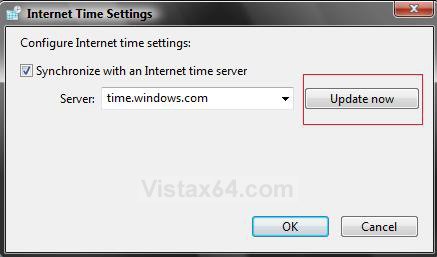
9. You will now see the screenshot below.
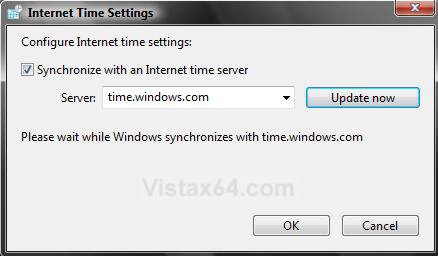
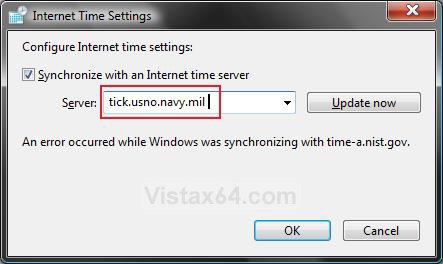
10. If you see this in the screenshot below, then click Update now again to see if it will work this time.
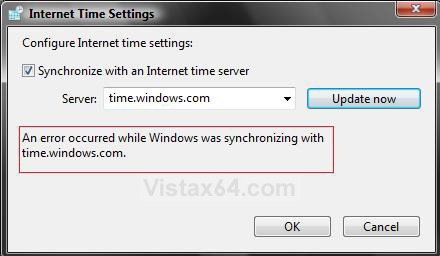
A) If you still get the error message below, go to step 11.
B) If you get no error message, then go to step 12.
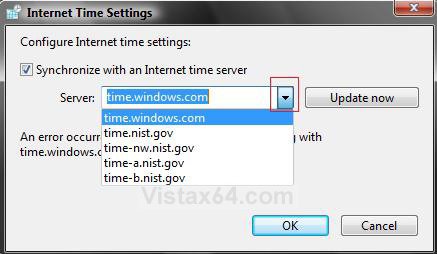
11. To Change the Time Server
A) Click/tap on the drop down arrow and choose another time server. (see left screenshot below)
OR
B) Type in a new time server name in the field instead. (see right screenshot below)
NOTE: For a list of time server names to type in here, see: Microsoft Help and Support: KB262680 A list of the Simple Network Time Protocol (SNTP) time servers that are available on the Internet.
C) Click/tap on the Update now button to try the new time server.
NOTE: You may need to repeat step 11 until you find a time server that will work. If you just cannot get it to sync, then see the WARNING at the top of the tutorial for settings to check that may be preventing it from working.
12. If successful, you will see this in the screenshot below.
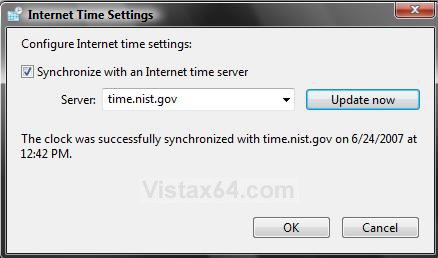
13. Click/tap on OK. (see screenshot above)
14. Click/tap on OK. (see screenshot below step 5)
That's it,Shawn
Related Tutorials
- How to Turn On or Off Internet Time Synchronization in Windows 8 and 8.1
- How to Change the Internet Time Synchronization Update Interval in Windows
- How to See the Date and Time on the Taskbar in Vista
- How to Set the Clock to Military 24 Hour Time in Vista
- How to Add Additional Time Zone Clocks in Vista
- How to Change the Date and Time in Vista
- How to Change the Date and Time in Windows 7
- How to Change the Date and Time in Windows 8 and Windows 8.1
- How to Change the Time Zone in Vista
- How to Change the Time Zone in Windows 8 and 8.1
- How to Change the Date Format in Vista
Attachments
Last edited by a moderator:


