
How to Create a Hibernate Computer Shortcut in Vista
 Information
This will save your current active state and shutdown the computer into a deep sleep, almost off. The keyboard and mouse will not wake the computer up in hibernation mode. Only the power button on the case.
 Note
NoteThis puts your computer into hibernation mode no matter what you have your power settings set for. You will need to press the computer case power button to wake up the computer to resume the same active state as when you put it in hibernation.
 Tip
TipIf you would like to create a keyboard shortcut key for this shortcut, then see: How to Create a Keyboard Shortcut for a Program in Vista
 Warning
You will need to have hibernate enabled for this hibernate shortcut to work.
 OPTION ONE
1. Click on the Download button below to download the Hibernate.zip file.

2. Click on Save and save it to the Desktop.
3. Right click on the Hibernate.zip file (on desktop) and click on Open.
4. Click on Allow in the UAC prompt.
5. Extract the Hibernate shortcut to the desktop.
6. Move the shortcut to where you like for easy use.
7. Enable hibernate.
8. When done, you can delete the Hibernate.zip file (on desktop) if you like.
OPTION TWO 1. Right click on a empty area of the desktop.
2. Click on New and Shortcut.
3. Typein the command below in the location field and click on Next. (See screenshot below)
rundll32.exe powrprof.dll,SetSuspendState 0,1,0
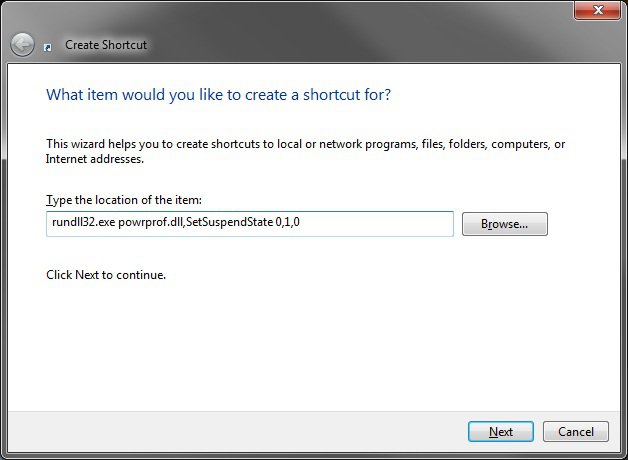
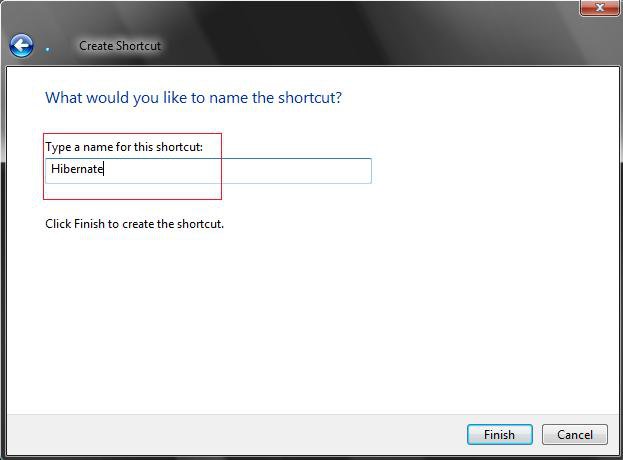
4. Type Hibernate for the name and click on Finish. (See screenshot below)
NOTE: You can type any name you would like though.
5. Right click on the new Hibernate shortcut (on desktop) and click Properties.
6. Click on the Change Icon button. (See screenshot below)
NOTE: For more on how to change a shortcut folder or file icon, see: How to Change a Shortcut Folder or File Icon in Vista
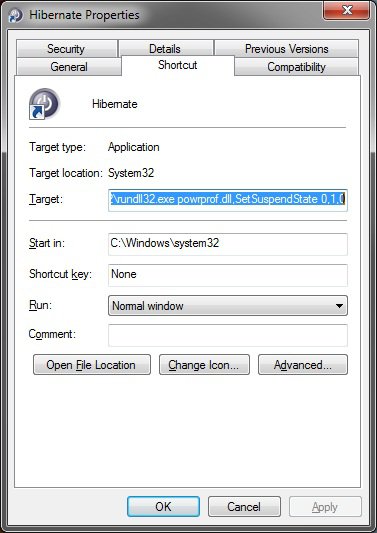
7. Clear the white line to the left of the Browse button, then type %SystemRoot%\System32\powrprof.dll and press Enter. (See screenshot below step 9)
NOTE: If you have your own icon you would rather use, then just navigate to where you have it saved. Vista needs a 256 bit icon for the best viewing results.
8. Click on the icon highlighted in blue below and click on OK.
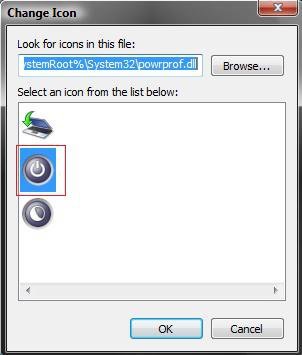
9. Click on OK to apply. (See screenshot below step 6)
10. Place the new Hibernate shortcut to wherever you like it to be.
That's it,Shawn
Related Tutorials
- How to Create a Log Off Shortcut in Vista
- How to Create a Lock Computer Shortcut in Vista
- How to Create a Shutdown Computer Shortcut in Vista
- How to Shutdown, Restart, Switch User, Log Off, Sleep, or Lock Vista from the Keyboard
- How to Create a Restart Computer Shortcut in Vista
- How to Create a Abort Shortcut in Vista
- How to Troubleshoot a Vista Sleep Mode Problem and Find a Solution
- How to Change Power Button Settings for the Start Menu and Case in Vista
- How to Create a Search Desktop Shortcut on Vista
- How to Create a Switch User Desktop Shortcut in Vista
- How to Create a Power Options Shortcut in Vista
- How to Restore the Administrative Tools Shortcuts in Vista
- How to Create a Sleep Shortcut on the Desktop in Vista
- How to Restore or Disable Hibernation in Vista
- How to Changed the Return to Sleep Timeout for a Unattended Wake Up in Vista
- How to Set Up a Timed Hibernate
- How to Change the Size of the hiberfil.sys File in Windows 7 and Vista
Attachments

Last edited: