
How to See and Flush the Contents of the DNS Resolver Cache in Windows
 Information
When you type a web address into your web browser and press ENTER, you are sending a query to a DNS (Domain Name System) server. If the query is successful, the website you want opens; if not, you'll see an error message. A record of these successful and unsuccessful queries is stored in a temporary storage location on your computer called the DNS cache. DNS always checks the cache before querying any DNS server, and if a record is found that matches the query, DNS uses that record instead of querying the server. This makes queries faster and decreases network and Internet traffic. Internet Explorer has it's own DNS cache it manages, not including this one. For more detailed information, see: Windows Help and How-to: DNS (Domain Name System) FAQs
This tutorial will show you how to see and flush the contents of the DNS (Domain Name System) Resolver cache. If this gets corrupted, it can cause internet connection problems.
You must be logged in as an administrator to be able to do the steps in this tutorial below.
This tutorial will show you how to see and flush the contents of the DNS (Domain Name System) Resolver cache. If this gets corrupted, it can cause internet connection problems.
You must be logged in as an administrator to be able to do the steps in this tutorial below.
 Note
NoteIf the DNS Cache becomes corrupted, it can cause internet connection problems. Flushing the DNS Cache resets it clean.
 Warning
Resetting the cache does not eliminate entries that are preloaded from the local Hosts file.
If you disabled the DNS Client in Services, this tutorial will not work because the DNS Cache is disabled.
If you disabled the DNS Client in Services, this tutorial will not work because the DNS Cache is disabled.
 OPTION ONE
1. Open an elevated command prompt.
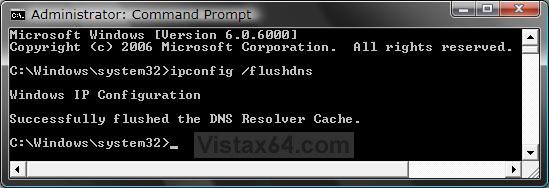
2. In the elevated command prompt, copy and paste the command below and press Enter. (See screenshot below)
ipconfig /flushdns
3. You will recieve the following message below if successful.
Windows IP Configuration Successfully flushed the DNS Resolver Cache.
4. In the elevated command prompt, type the commands below and press Enter one at a time.
net stop dnscache
net start dnscache
5. Close the elevated command prompt when done.
OPTION TWO 1. Open an elevated command prompt.
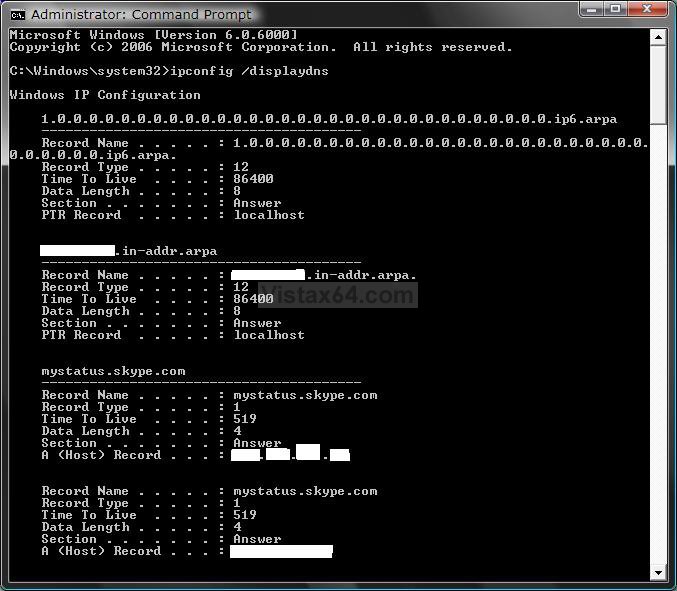
2. In the elevated command prompt, copy and paste the command belowand press Enter. (See screenshot below step 3)
ipconfig /displaydns
3. You will now see the contents of the DNS cache.
4. Close the elevated command prompt when done.
That's it,Shawn
Related Tutorials
- How to Enable or Disable the Receive Window Auto Tuning Level in Vista
- How to Clear the Thumbnail Cache in Vista
- How to Clear Vista Temporary Files in the Temp Folder
- How to Delete the Internet Explorer Browsing History in Vista
- How to Change or Disable the QoS Reserved Bandwidth Limit in Vista
- How to Rebuild the Icon Cache in Vista
- How to Enable or Disable Clear Virtual Memory Paging File at Shutdown in Vista
- How to Enable or Disable the Chimney Offload State in Vista
Attachments

Last edited: