
How to Customize the Recycle Bin Context Menu in Vista
 Information
This will show you how to add a program of your choice to the Recycle Bin context menu for easy use.
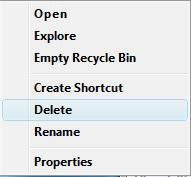
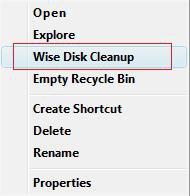
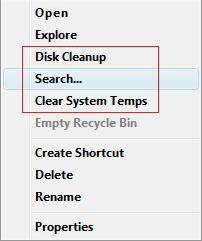
EXAMPLE: Before and two Afters
 OPTION ONE
NOTE: You can add one or all of these if you like.
1. To Add Disk Cleanup
A) Click on the Download button below to download the file below.
Add Disk Cleanup.reg file.

B) Go to step 7.
2. To Remove Disk Cleanup
A) Click on the Download button below to download the file below.
Remove Disk Cleanup.reg
B) Go to step 7.
3. To Add Search
A) Click on the Download button below to download the file below.
Add Search.reg
B) Go to step 7.
4. To Remove Search
A) Click on the Download button below to download the file below.
Remove Search.reg
B) Go to step 7.
5. To Add Clear System Temps
NOTE: This clears the %UserProfile%\AppData\Local\Temp and %SystemRoot%\Temp temporary files in Vista.
A) Click on the Download button below to download the file below.
Add Clear System Temps.reg
B) Go to step 7.
6. To Remove Clear System Temps
A) Click on the Download button below to download the file below.
Remove Clear System Temps.reg
7. Click on Save, and save the .reg file to the Desktop.
8. Right click on the downloaded .reg file and click on Merge.
9. Click on Run, Continue (UAC), Yes, and then OK when prompted.
10. When done, you can delete the downloaded .reg file if you like.
OPTION TWO NOTE: I will be using the program Wise Disk Cleaner as the example. You can use any program you like instead.
1. Open the Start Menu.
2. In the white line (Start Search) area, type regedit and press Enter.
3. Click on Continue in theUAC prompt.
4. In regedit, go to: (See screenshot below step 5)
NOTE: If Shell is not there, then right click on {645FF040-5081-101B-9F0B-00AA002F954E} and click on New and Key. Type Shell and press Enter.
Code:
HKEY_CLASSES_ROOT\CLSID\{645FF040-5081-101B-9F0B-00AA002F954E}\shell5. In the left pane, right click shell and click on New and Key. (See screenshot below)
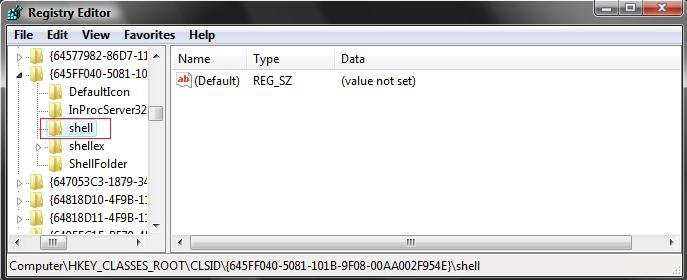
6. Type the name you want to appear in the context menu and press Enter. (See screenshot below)
NOTE: This will usually be the name of the program. For example: Wise Disk Cleaner. To REMOVE this, just right click on this key and click Delete and Yes.
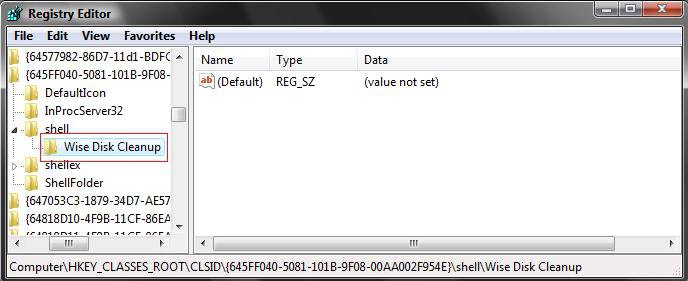
7. In the left pane, right click on the name of new key (Step 6 above) and click on New and Key.
EX: Wise Disk Cleaner.
8. Type command and press Enter. (See screenshot below)
NOTE: This must be named command.
9. In right pane, right click (Default) and click on Modify.
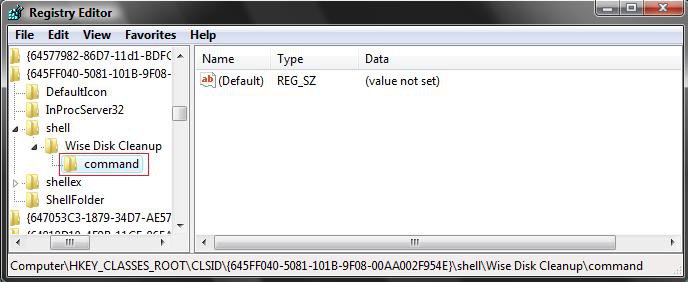
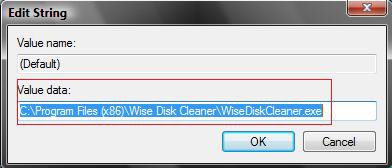
10. Type in the full path of the program .exe file. (See screenshot below)
NOTE: For the example:
C:\Program Files (x86)\Wise Disk Cleaner\WiseDiskCleaner.exe
11. Click on OK to apply.
12. The part you just added to the registry should look like this screenshot below.
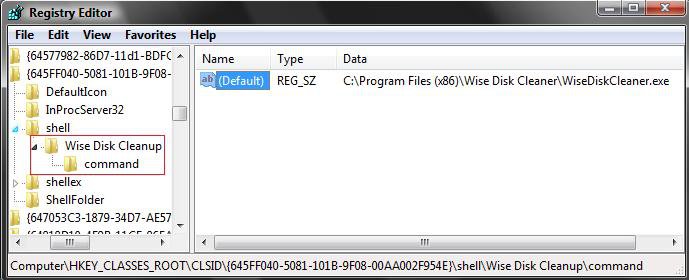
13. Close regedit.
That's it,Shawn
Related Tutorials
- How to Replace Delete in the Recycle Bin Context Menu in Vista
- How to Change the Recycle Bin Storage Size in Vista
- How to Set Recycle Bin to Permanently Delete a Item Immediately in Vista
- How to Enable or Disable the Recycle Bin Delete Confirmation Dialog in Vista
- How to Fix the Recycle Bin Icon Not Refreshing When Emptied
- How to Restore and Change a Desktop Icon in Vista
- How to Restore Previous Versions of a File and Folder in Vista
- How to Fix a Corrupted Recycle Bin in Vista
- How to Restore the Search Context Menu Item after Installing the Vista SP1
- How to Enable or Disable the Context Menu in Vista
- How to Add View and Print File Directory to the Context Menu in Vista
- How to Restore the Recycle Bin back to the Desktop in Vista
Attachments
-
Add Clear System Temps.reg1.4 KB · Views: 1,355
-
Add Search.reg1.5 KB · Views: 1,106
-
Remove Clear System Temps.reg120 bytes · Views: 1,232
-
Remove Search.reg242 bytes · Views: 1,082
-
Add Disk Cleanup.reg528 bytes · Views: 1,415
-
Remove Disk Cleanup.reg262 bytes · Views: 1,213
-
 Recycle_Bin_Empty.png48.7 KB · Views: 644
Last edited: