
How to Use Advanced Search Options in Vista
 Information
Advanced Search allows you to do a customized search. This will show you how to open and use the Advanced Search Options in Vista including search tips.
This is a good choice for searches whenever you:
This is a good choice for searches whenever you:
- Don't know where a file or folder is located, and want to look in many locations at once.
- Want your search results to include files from several folders at once.
- Want to create an advanced search that looks for files using several different criteria.
 Note
NoteBy default, the Search folder searches in a set of locations called Indexed Locations. This includes all of the folders in your personal folder (which includes Documents, Pictures, Music, Desktop, and other common locations), e‑mail, and offline files. You can add additional locations to be included in the Indexed Locations if you commonly store files in different locations.
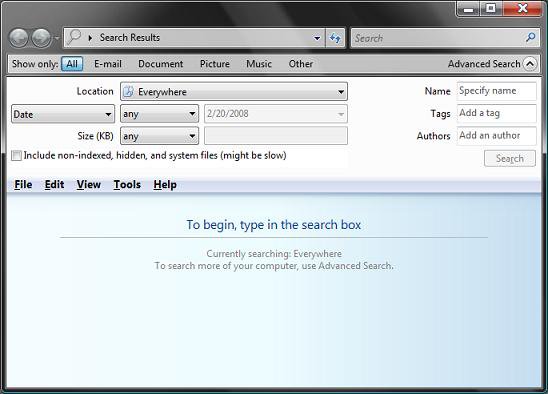
EXAMPLE: Advanced Search Window
Here's How:
1. Press the Windows Key + F.
NOTE: This will open the Advanced Search window from anywhere in Vista.
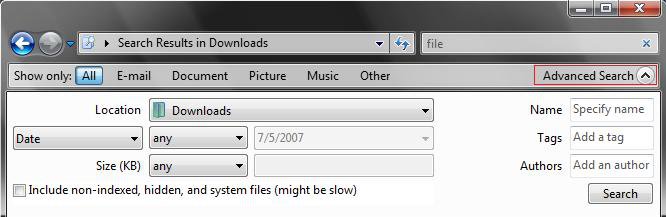
2. Click on the drop down arrow by Advanced Search. (See screenshot below step 11)
3. Select Search Results to be Displayed -
NOTE: This is the Show only section.
A) Select what type of item you want to only see in the search results. (See screenshot below step 11)
NOTE: This will be only All items, E-mail messages, Documents, Pictures, Music, or Other (All items except E-mail, Documents, Pictures, and Music).
4. Select a Location to Search -
NOTE: This will allow you to select any location to search in for the file.
A) Click on the drop down arrow to the right of Location. (See screenshot below step 11)
B) Select the search location.
5. To Narrow the Search by Date -
NOTE: You can narrow the search to any time before or after the date you specify.
A) Click on Date and choose to search by either the Date, Date Modifed, or Date Created for the file. (See screenshot below step 11)
B) To the right of Date, click on any. Select to search for any date or when a date is, is before, or is after a the date you specify in the field to the right.
C) Select a specific date.
NOTE: This will be grayed out for any in step 3B since you will not be narrowing the search by date.
6. To Narrow the Search by Size -
NOTE: You can look for files larger or smaller than the specified size.
A) Next to Size (KB), select to search for any size or for a size that equals, is less than, or is greater than the size you specify in the box to the right. (See screenshot below step 11)
B) Type in a file size number for KB.
7. To Do a Thorough Search -
NOTE: By default Advanced Search only searches the Indexed files. This will allow you to search all files. See: How to Use the Indexing Options in Vista
A) Check the Include non-indexed, hidden, and system files box. (See screenshot below step 11)
8. To Narrow the Search with a File Name -
NOTE: Type part or all of the file name you are looking for.
A) In the Name field, type in a file name to search for. (See screenshot below step 11)
NOTE: For some search tips, see: Windows Help and How-to: Tips for Finding Files and Windows Vista Blog: Advanced Search Techniques
9. To Narrow the Search by Tags -
NOTE: Type any tag, words or phrases you add to your files to describe them, to see a list of files to which that tag has been applied.
A) In the Tags field, type in a tag to search for. (See screenshot below step 11)
NOTE: For some search tips, see: Windows Help and How-to: Tips for Finding Files and Windows Vista Blog: Advanced Search Techniques
10. To Narrow the Search by Authors -
NOTE: The would be the name of the person who created the file.
A) In the Authors field, type in a author to search for. (See screenshot below step 11)
11. Click on the Search button when ready to start the search. (See screenshot below)
That's it,
Shawn
Related Tutorials
- How to Open and Change Search Options in Vista
- How to Hide or Show Hidden Files and Folders in Vista
- How to Enable or Disable Search Index in Vista
- How to Use the Indexing Options in Vista
- How to Use the Find Window to Find Text on a Page
- How to Change the Internet Explorer 7 Search Box Settings in Vista
- How to Create a Search Desktop Shortcut on Vista
- How to Restore the Search Context Menu Item after Installing the Vista SP1
- How to Restore the Start Menu Search Button after Installing the Vista SP1
- How to Use the Advanced Query Language to Improve Windows Search Results
- How to Find Text in the Vista Registry Editor - Regedit
Attachments

Last edited by a moderator:


