Vista Forums
Vista Forums Home Join Vista Forums Donate Vista Tutorials Tags

Welcome to Vista Forums we are your forum to discuss Windows Vista x64 and x86 systems. Whether you need help or just want to post an idea you have on Vista, this is the forum for you.
Register at Vista forums...the world biggest Windows Vista resource Join Vista Forums Now

Go Back   Vista Forums > Vista Forums > Tutorials

Vista Tutorial Categories Network & Internet Tutorials File & Folder Settings Tutorials Taskbar & Start Menu Tutorials Performance & Maintenance Tutorials General Tips Tutorials Programs & Features Tutorials Context Menu Tutorials Shortcut Tutorials Security & System Tools Tutorials Parental Controls Tutorials User Account Tutorials Hardware & Drivers Tutorials Appearance & Personalization Tutorials Backup & Restore Tutorials Music, Photo, Video and Media Tutorials Power Management Tutorials

Compatibility Mode

Update your Vista Drivers Update Your Drivers Now!!
Poll: Did this Tutorial help and work for you?
Poll Options
Did this Tutorial help and work for you?

Comment
 
Tutorial Tools Display Modes
<!-- google_ad_section_start -->Compatibility Mode<!-- google_ad_section_end -->
Compatibility Mode
How to Use Compatibilty Mode in Vista
Published by Brink
07-06-2007

How to Use Compatibility Mode in Vista
Information
  Compatibility mode is a feature in Vista that lets you run programs in Vista written for earlier versions of Windows. It is not a guarantee that it will work, but it may help the program run better or like normal.
NOTE
  For the best possible result you should try running the installation program in compatibility mode also, then try running the program's shortcut or .exe file in compatibility mode after it is installed. Some programs may also require to use Run as Administrator (step 8 below).
WARNING
 
  • If you turned off User Account Control (UAC), then some programs will be required to use compatibility mode to run properly.
  • Do not use Compatibility mode on older antivirus programs, disk utilities, or other system programs, because it might cause data loss or create a security risk. These type of programs run to specifically for the Windows version they were made for.
Tip
  To see if you hardware or software is listed as compatible with Vista, see: Windows Vista Compatibility Center
RELATED LINKS:
Here's How:
Tip
  Some older programs may just need a updated version or patch installed before they will work properly with Vista.
1. Right click on the program's shortcut, .exe file, or installation program.
2. Click on Properties.
3. Click on the Compatibility tab.
NOTE: If these options are grayed out, then you may be able to put the program in compatiblilty mode by adding it manually to the list. For how, see: How to See and Change the List of Programs in Compatibility Mode in Vista

4. To Have the Program Run in Compatibility Mode -
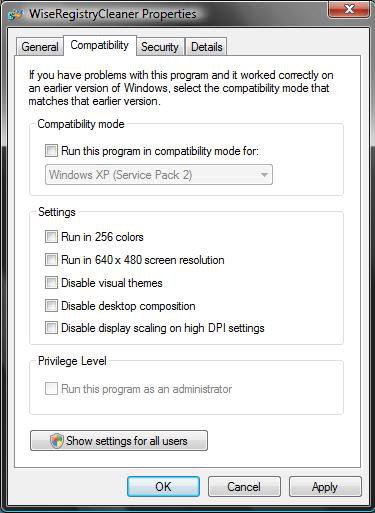
A) Check the Run this program in compatibility mode for box. (See screenshot below)
B) Continue to step 5.
Name:  Compatibility.jpg
Views: 3335
Size:  37.2 KB

5. Settings Section -
NOTE: On some older applications, it may be necessary to try different combinations of these display setting options if the application still does not quite run properly. See the screenshot above.

6. To Select or Change a Compatibility Mode for the Program -
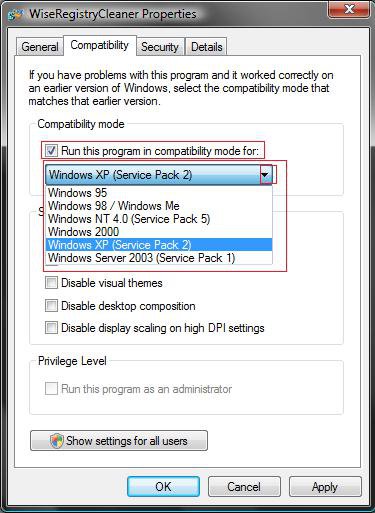
A) Click on the drop down menu arrow and select which version of Windows the program was made for. (See screenshot below step 10)
NOTE: Always pick the latest Windows version the program was made for to have a better chance of it running in Vista.

B) Go to Step 8.
7. To Remove the Program from Running in Compatibility Mode -
A) Uncheck the Run this program in compatibility mode for box. (See screenshot below step 10)
B) Go to step 10.
8. To Have the Program Run as Administrator -
NOTE: On some older programs and installation files, it may be required for them to Run as administrator for it run properly. This is usually due to the fact that the older program was not designed for the UAC permission approval in Vista. Test running the program without using this first.
A) Check the Run this program as an administrator box. (See screenshot below step 10)
B) Go to step 10.
9. To Stop the Program from Running as Administrator -
A) Uncheck the Run this program as an administrator box. (See screenshot below step 10)
10. Click OK to apply and close window.

Name:  Compatibilty mode.jpg
Views: 3333
Size:  43.1 KB

11. Now try and run the program to see if it will run properly.
NOTE: If it does not run properly, then try another compatibility mode setting.
That's it,
Shawn

Published by
Brink's Avatar
Administrator
Join Date: Apr 2007
Location: Texas, USA
Posts: 16,738
Rep Power: 150
Brink has a reputation beyond reputeBrink has a reputation beyond reputeBrink has a reputation beyond reputeBrink has a reputation beyond reputeBrink has a reputation beyond reputeBrink has a reputation beyond reputeBrink has a reputation beyond reputeBrink has a reputation beyond reputeBrink has a reputation beyond reputeBrink has a reputation beyond reputeBrink has a reputation beyond repute

Tutorial Tools
Show Printable Version Show Printable Version
Email this Page Email this Page

Applies to
All Vista Versions
64 Bit & 32 Bit

Old 04-13-2008  
Dwarf's Avatar
Dwarf
The Contemplator


Join Date: Mar 2008
Vista Ultimate 64-bit SP1
Doncaster, UK
 
Rep Power: 56
Dwarf has a brilliant futureDwarf has a brilliant futureDwarf has a brilliant futureDwarf has a brilliant futureDwarf has a brilliant futureDwarf has a brilliant futureDwarf has a brilliant futureDwarf has a brilliant futureDwarf has a brilliant futureDwarf has a brilliant futureDwarf has a brilliant future
  Dwarf is offline

Re: Compatibility Mode

Hi Shawn,

In addition to the information in your tutorial, it may also be necessary to try enabling and disabling various combinations of the options under the 'Settings' section if a program doesn't quite run correctly.
Dwarf

My System SpecsSystem Spec
Old 04-13-2008  
Brink's Avatar
Brink
Administrator


Join Date: Apr 2007
Vista x64 Ultimate SP1
Texas, USA
 
Rep Power: 150
Brink has a reputation beyond reputeBrink has a reputation beyond reputeBrink has a reputation beyond reputeBrink has a reputation beyond reputeBrink has a reputation beyond reputeBrink has a reputation beyond reputeBrink has a reputation beyond reputeBrink has a reputation beyond reputeBrink has a reputation beyond reputeBrink has a reputation beyond reputeBrink has a reputation beyond repute
  Brink is offline

Re: Compatibility Mode

Thank you Dwarf. It has been added.
My System SpecsSystem Spec
Old 04-13-2008  
Dwarf's Avatar
Dwarf
The Contemplator


Join Date: Mar 2008
Vista Ultimate 64-bit SP1
Doncaster, UK
 
Rep Power: 56
Dwarf has a brilliant futureDwarf has a brilliant futureDwarf has a brilliant futureDwarf has a brilliant futureDwarf has a brilliant futureDwarf has a brilliant futureDwarf has a brilliant futureDwarf has a brilliant futureDwarf has a brilliant futureDwarf has a brilliant futureDwarf has a brilliant future
  Dwarf is offline

Re: Compatibility Mode

You're welcome.
My System SpecsSystem Spec
Comment

Tags
compatibility, programs & features

Tutorial Tools
Display Modes


Update your Vista Drivers Update Your Drivers Now!!

Similar Threads
Tutorial Tutorial Starter Category Comments Last Post
Compatibility Mode? Old Surfer Vista Games 2 07-05-2008 11:07 PM
Compatibility Mode in Vista 0james0 .NET General 1 03-27-2008 12:58 AM
compatibility mode Joannie Vista General 3 08-25-2007 06:18 PM
Compatibility Mode S Murder Vista music pictures video 0 02-18-2007 12:00 AM
How to get a program out of compatibility mode? =?Utf-8?B?UmluemU=?= Vista General 1 09-25-2006 07:13 PM


Vistax64.com is an independent web site and has not been authorized,
sponsored, or otherwise approved by Microsoft Corporation.
"Windows Vista", the Start Orb, and related materials are trademarks of Microsoft Corp.
© Designer Media 2005-2008
Tutorial powered by GARS 2.1.8m ©2005-2006