
How to Disable or Enable Windows Hotkeys in Vista
 Information
This will show you how to enable or disable all of the keyboard shortcuts that have the Windows Key in them. You can do this for all users accounts, or just your user account on the computer.
 Note
NoteThis is for the Windows Key + key hotkeys that provides shortcuts for Start Menu, Quick Launch, and task swapping. EX: Quick Launch - Windows Key + (1 to 0)
 OPTION ONE
Using a REG File Download:
1. To Disable Windows Hotkeys
A) Click on the Download button below to download the file below.
Disable_Current_Windows_Hotkeys.reg

B) Go to step 3.
2. To Enable Windows Hotkeys again -
A) Click on the Download button below to download the file below.
Enable_Current_Windows_Hotkeys.reg.
3. Click on Save, and save the .reg file to the Desktop.
4. Right click on the downloaded .reg file and click on Merge.
5. Click on Run, Continue (UAC), Yes, and then OK when prompted.
6. Log off and log on, or restart the computer to apply the changes.
7. When done, you can delete the downloaded .reg file if you like.
Manually in the Registry Editor:
1. Open the Start Menu.
2. In the white line (Start Search) area, type regedit and press Enter.
3. Click on Continue in the UAC prompt.
4. In regedit, go to: (See screenshot below step 5)
NOTE: If you already have the Explorer key (folder) under Policies, then go to step 7.
Code:
HKEY_CURRENT_USER\Software\Microsoft\Windows\CurrentVersion\Policies
5. In the left pane, right click on Policies and click on New and Key.
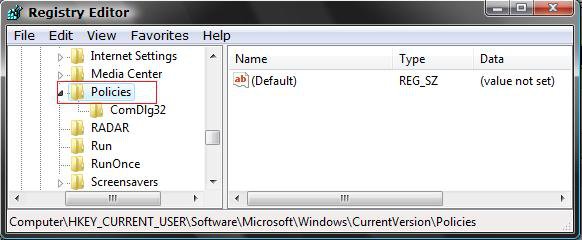
6. Type Explorer and press Enter. (See screenshot below)
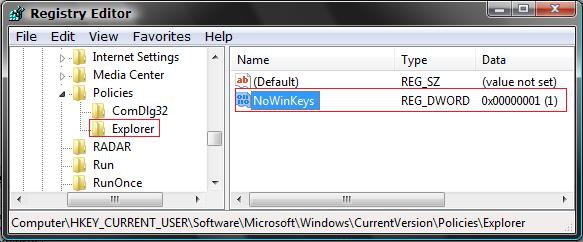
7. In the right pane, right click on a empty area and click on New and DWORD (32-bit) Value.
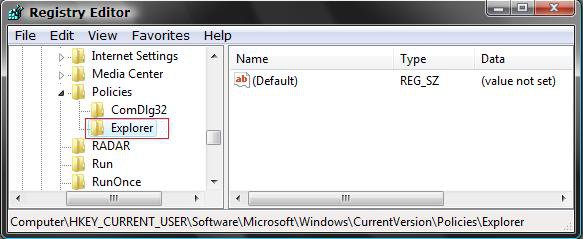
8. Type NoWinKeys and press Enter. (See screenshot below)
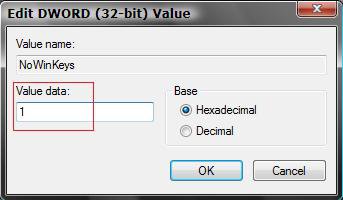
9. In the right pane, right click on NoWinKeys and click on Modify.
10. To Disable Windows Hotkeys
A) Type 1 and click on OK. (See screenshot below step 11)
11. To Enable Windows Hotkeys again
A) Type 0 (number zero) and click on OK.
12. Close Regedit.
13. Log off and log on, or restart the computer to apply changes.
OPTION TWO Using a REG File Download:
1. To Disable Windows Hotkeys
A) Click on the Download button below to download the file below.
Disable_All_Windows_Hotkeys.reg.
B) Go to step 3.
2. To Enable Windows Hotkeys again -
A) Click on the Download button below to download the file below.
Enable_All_Windows_Hotkeys.reg.
3. Click on Save, and save the .reg file to the Desktop.
4. Right click on the downloaded .reg file and click on Merge.
5. Click on Run, Continue (UAC), Yes, and then OK when prompted.
6. Log off and log on or restart the computer to apply the changes.
7. When done, you can delete the downloaded .reg file if you like.
Manually in the Registry Editor:
1. Open the Start Menu.
2. In the white line (Start Search) area, type regedit and press Enter.
3. Click on Continue in the UAC prompt.
4. In regedit, go to: (See screenshot below)
Code:
HKEY_LOCAL_MACHINE\SOFTWARE\Microsoft\Windows\CurrentVersion\Policies\Explorer
5. In the right pane, right click on a empty area and click on New and DWORD (32-bit) Value.
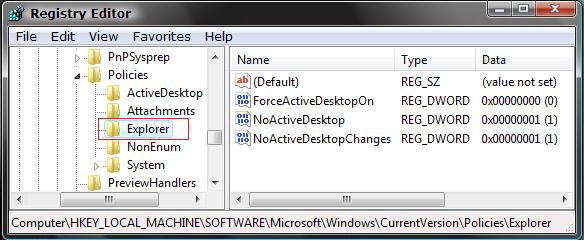
6. Type NoWinKeys and press Enter.
7. In the right pane, click on NoWinKeys and Modify. (See screenshot below)
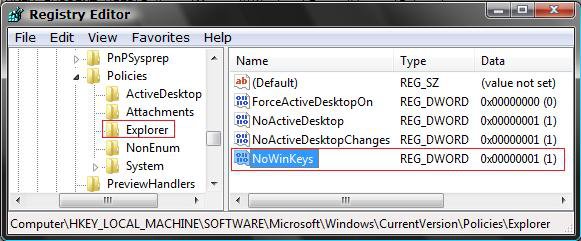
8. To Disable Windows Hotkeys
A) Type 1 and click on OK. (See screenshot below step 9)
9. To Enable Windows Hotkeys again
A) Type 0 (number zero) and click on OK.
10. Close regedit.
11. Log off and log on, or restart the computer to apply changes.
That's it,
Shawn
Attachments

Last edited:

