Windows Vista Forums
Vista Forums Home Join Vista Forums Windows 7 Forum Vista Tutorials Tags
Welcome to Windows Vista Forums. Our forum is dedicated to helping you find solutions with any problems, errors or issues you are experiencing with Windows Vista. The Vista forum also covers news and updates and has an extensive Windows Vista tutorial section that covers a wide range of tips and tricks.

Go Back   Vista Forums > Vista Forums > Tutorials

Vista Tutorial - Desktop Icons

Comment
 

Desktop Icons

How to Restore and Change a Desktop Icon in Vista
Published by Brink
08-09-2007

How to Restore and Change a Desktop Icon in Vista

Information
  This will show you how to restore or change the Computer, User's Files, Network, Recycle Bin, and Control Panel default Vista desktop icons.
NOTE
 
  • To change the desktop Control Panel icon, see: How to Change the Desktop Control Panel Icon in Vista
  • Sometimes refreshing the desktop will remove or show a icon that has been deleted or added to the desktop. To do so, press F5 or right click on the desktop and click Refresh.
  • Sometimes the desktop icon may be not aligned correctly and is offscreen and not seen. You can right on a empty space on the desktop and click on Auto Arrange to realign the desktop icons.
RELATED LINKS:

Here's How:
1. Right click on a empty area of the desktop and click on Personalize. (See screenshot below)
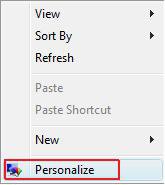
Name:  Right_Click.jpg
Views: 25770
Size:  5.6 KB
2. Click on Change desktop icons in the upper left corner. (See screenshot below)
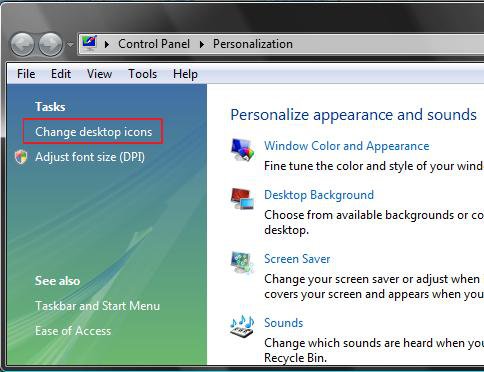
change.jpg
3. To Add or Remove a Destop Icon -
OPTION ONE:
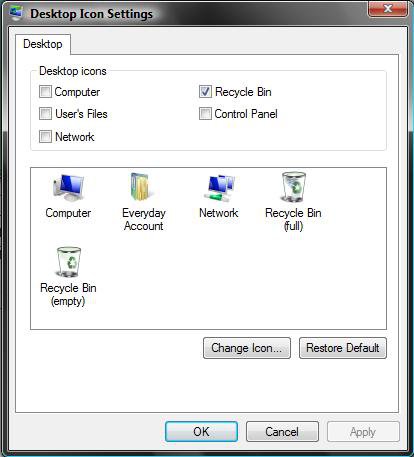
A) Check the Desktop icons in the top section that you want to add to the desktop. (See left screenshot below step 5)

B) Uncheck the Desktop icons in the top section that you want to remove from the desktop.
OPTION TWO:
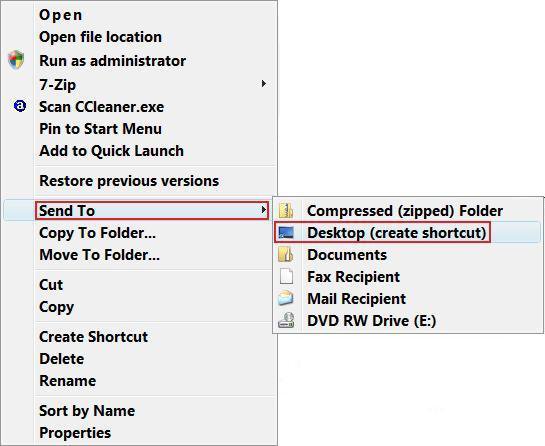
A) Right click on any file or folder.

B) Click on Send To and Desktop (create shortcut). (See Screenshot below)
context_menu.jpg
4. To Change the Icon for a Desktop Icon -
NOTE: To change the Control Panel icon, see: How to Change the Desktop Control Panel Icon in Vista
A) Click on a icon to highlight it in the middle section. (See left screenshot below step 5)

B) Click on the Change Icon button.

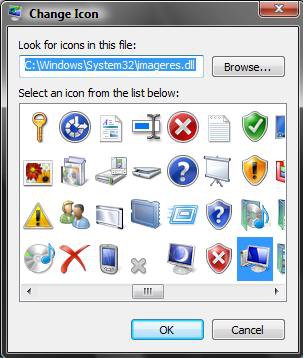
C) Select the icon you want for the desktop icon and click OK. (See right screenshot below step 5)
NOTE: If you have a icon of your own you want to use instead, then click the Browse button and navigate to the location you saved it to. For the icon to display properly, it needs to be a 256x256 .ico icon file.
5. To Restore the Default Icon for a Desktop Icon -
NOTE: If this does not restore the default icon and you already tried manually changing the icon back in step 4, then try rebuilding the icon cache.
A) Click on a icon you want to restore in the middle section to highlight it. (See left screenshot below)

B) Click on the Restore Default button.
NOTE: For some reason, when you use Restore Default on the Recycle Bin, it will sometimes cause the Recycle Bin to not refresh automatically anymore. This will leave the Recycle Bin to always show as full or empty when it is not. If this happens to you, then see: How to Fix the Recycle Bin Icon Not Refreshing When Emptied
desktop.jpgName:  Change_Icon.jpg
Views: 25692
Size:  25.0 KB
6. Click on OK to apply and close window.
That's it,
Shawn

Published by
Brink's Avatar
Administrator

Join Date: Apr 2007
Location: Texas, USA
Posts: 25,801
Rep Power: 150
Brink has a reputation beyond reputeBrink has a reputation beyond reputeBrink has a reputation beyond reputeBrink has a reputation beyond reputeBrink has a reputation beyond reputeBrink has a reputation beyond reputeBrink has a reputation beyond reputeBrink has a reputation beyond reputeBrink has a reputation beyond reputeBrink has a reputation beyond reputeBrink has a reputation beyond repute

Tutorial Tools

Applies to
All Vista Versions
64 Bit & 32 Bit

Old 03-31-2008  
rainer
Newbie


Join Date: Mar 2008
home premium


Re: Desktop Icons

Hi
Just joined the vista Forum.i was clever enough to delete my recycle bin,(yes,i did)
went for help, via GOOGLE,came here and followed the straight forward instruction.
great!!will have a good sniff about,what else i can find here.
rainer

My System SpecsSystem Spec
Old 03-31-2008  
Brink
Administrator


Join Date: Apr 2007
Vista x64 Ultimate SP2, Windows 7 (7600) x64


Re: Desktop Icons

Hi Rainer, and welcome to Vista Forums.

I'm glad that you found this tutorial helpful. I hope you find the rest of the site helpful as well.

Shawn
My System SpecsSystem Spec
Old 04-01-2008  
rainer
Newbie


Join Date: Mar 2008
home premium


Re: Desktop Icons

Thanks shawn.
i am sure the site will be great.
Rainer
My System SpecsSystem Spec
Old 05-10-2008  
TKsan
Newbie


Join Date: May 2008
Vista Business 32bit


Re: Desktop Icons

Hi,
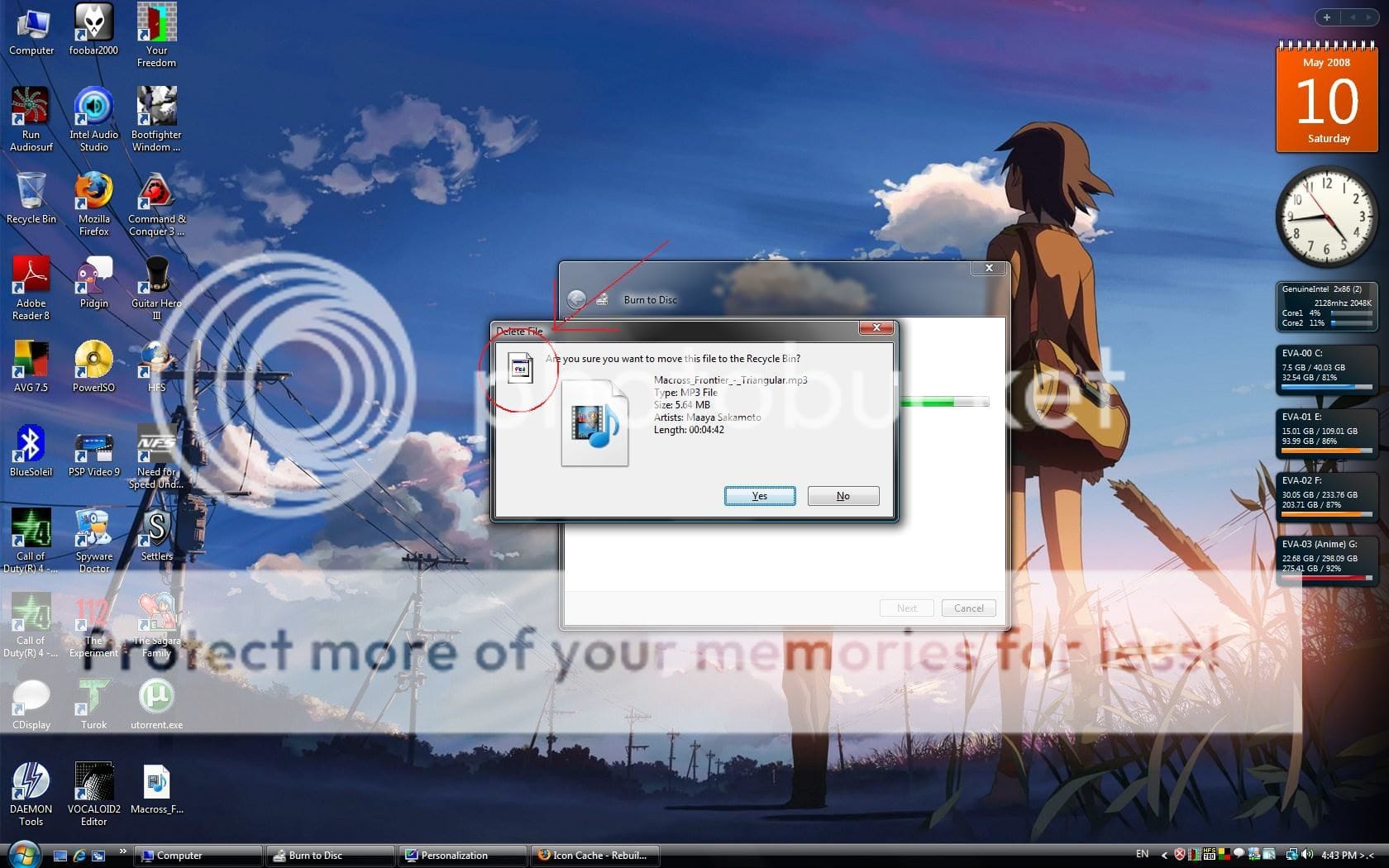
Its my first time in this forum. Im searching for my recycle bin problem(will not change to recyclebin(empty) icon when i empty the bin) solution and i end up with this forum. The solution solve my problem. Thanks. But Im still have 1 more problem. See the red circle. There is a blank icon when i want to delete an item. i already do the rebuild icon cache but still the same. Im sorry if I posting in the wrong thread.

Click the image to open in full size.
My System SpecsSystem Spec
Old 05-10-2008  
Brink
Administrator


Join Date: Apr 2007
Vista x64 Ultimate SP2, Windows 7 (7600) x64


Re: Desktop Icons

Hi TKsan,

Welcome to Vista Forums.

See if rebuilding the icon cache will help. This tutorial will show you how to if needed.

Icon Cache - Rebuild

Hope this helps,
Shawn
My System SpecsSystem Spec
Old 05-11-2008  
TKsan
Newbie


Join Date: May 2008
Vista Business 32bit


Re: Desktop Icons

Hi Brink,

Yeah. I already use the icon cache - Rebuild methods. The first method can't solved it. The second method, when i changed from 32bit to 16bit, the icon come back to the original. But when i changed back to 32bit, the icon become blank again..
My System SpecsSystem Spec
Old 05-11-2008  
TKsan
Newbie


Join Date: May 2008
Vista Business 32bit


Re: Desktop Icons

Problem solved. When i changed to 16bit, i restart the pc. After that i changed back to 32bit. Thanks
My System SpecsSystem Spec
Old 05-11-2008  
Brink
Administrator


Join Date: Apr 2007
Vista x64 Ultimate SP2, Windows 7 (7600) x64


Re: Desktop Icons

Your welcome TKsan. Thank you for your feedback. I added your experience to the tutorial to help others.

Shawn
My System SpecsSystem Spec
Old 07-31-2008  
sixx526
Member


Join Date: Jul 2008
Vista 32bit


Re: Desktop Icons (removal)

Hi there, everyone. I have an icon on my desktop that will simply not go away regardless of what I do. I have dragged it to the recycle bin, right click and deleted, tried to change or hide the icon, remove the text, cut and past to a different location, send to a different location, etc. I just keep getting the same message: "Could not find this item. This is no longer located in C:\Users\..... Verify the item's location and try again". I deleted the file previously, but this blank page icon just sits there. A bit like a cut in the roof of your mouth; not a disaster, but very annoying Any help would be greatly appreciated. Thank in advance.
My System SpecsSystem Spec
Comment

Tutorial Tools


Similar Threads
Tutorial Category
Taskbar Works, Desktop+Desktop Icons are Gone Vista General
Desktop Icons scambled using Remote Desktop Vista networking & sharing
How to make desktop icons go away from desktop toolbar in Vista? Vista General
desktop icons covered by unknown program icons Vista General
Icons corrupted (Not Desktop Icons) Vista General


Vista Forums is an independent web site and has not been authorized,
sponsored, or otherwise approved by Microsoft Corporation.
"Windows Vista", the Start Orb, and related materials are trademarks of Microsoft Corp.
© Designer Media Ltd
Tutorial powered by GARS 2.1.8m ©2005-2006

1 2 3 4 5 6 7 8 9 10 11 12 13 14 15 16 17 18 19 20 21 22 23 24 25 26 27 28 29 30 31 32 33 34 35 36 37 38 39 40 41 42 43 44 45 46