
How to Change the Color Scheme in Vista
 Information
This will show you how to change the Color Scheme in Vista to either one of the Windows Aero (All Vista editions except Home Basic), Windows Vista Standard (Only the Vista Home Basic edition), Windows Vista Basic, Windows Standard, Windows Classic, High Contrast White, High Contrast Black, High Contrast #2, and High Contrast #1 options for your edition of Vista.
 Note
NoteThese services with these default settings are responsible for the desktop theme. If these are disable, you would have nothing but the Windows Classic color scheme. To change these, see: How to Disable or Enable Vista Services With a Advice Guide
- Desktop Window Manager Session Manager (Default setting: Started and Automatic)
- Themes (Default setting: Started and Automatic)
 Warning
 There may be slight differences in the available color scheme options you see in the screenshots below based on what edition of Vista you have and what your graphics card can support.
 Tip
TipHARDWARE REQUIREMENTS FOR: WINDOWS AERO Color Scheme
See: Windows Help and Support: Troubleshoot problems with Windows Aero
NOTE: The Windows Aero color scheme is not available for the Vista Home Basic version.
See: Windows Help and Support: Troubleshoot problems with Windows Aero
NOTE: The Windows Aero color scheme is not available for the Vista Home Basic version.
- 1 GHz 32 bit or 64 bit CPU processor.
- The computer needs at least 1 GB of RAM.
- A graphics card with support for DirectX 9 graphics with 128 MB of memory.
- The graphics card must support Pixel Shader 2.0 in hardware.
- The graphics card driver must support Windows Vista Display Driver Model (WDDM)
- The computer display color depth must be set to 32 bits per pixel.
- The Desktop Window Manager Session Manager and Themes Services need to be set as Started and Automatic.
- Update or refresh the WEI score.
Here's How:
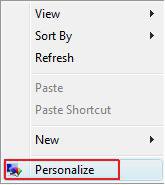
1. Right click on a empty area of your desktop and click on Personalize. (See screenshot below)
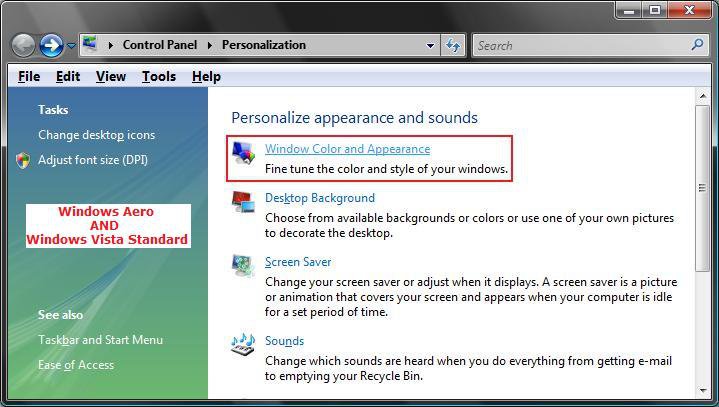
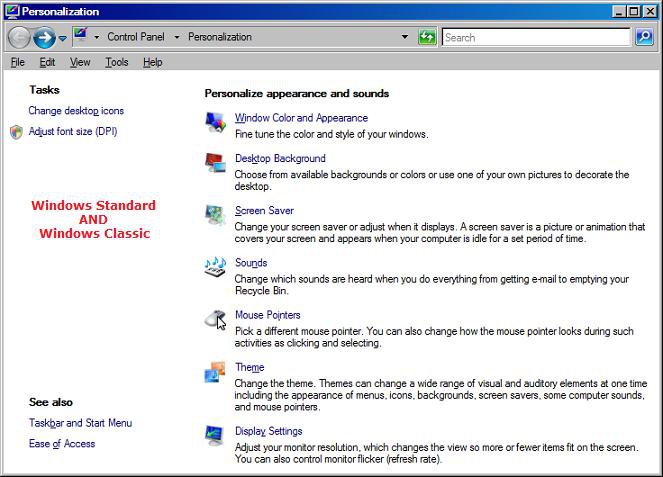
2. Click on the Window Color and Appearace link. (See screenshots below)
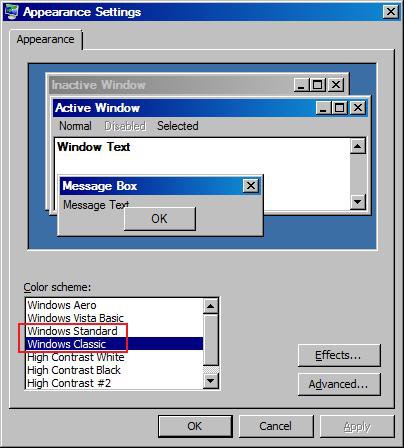
NOTE: The left screenshot is the normal window, and the right screenshot is with the Windows Classic color scheme.
3. To Change the Window Color and Appearance Settings -
WarningYou will not see this window screenshot below if the color scheme Windows Aero (In all Vista editions except Home Basic) or Windows Vista Standard (Only in Vista Home Basic edition) has not been selected in step 4 below. Instead you will see the window in step 4 below. If you want to see the Window Color and Appearance window again, then you will need to change the color scheme to one of the above again based on your edition of Vista. Go to Step 4.
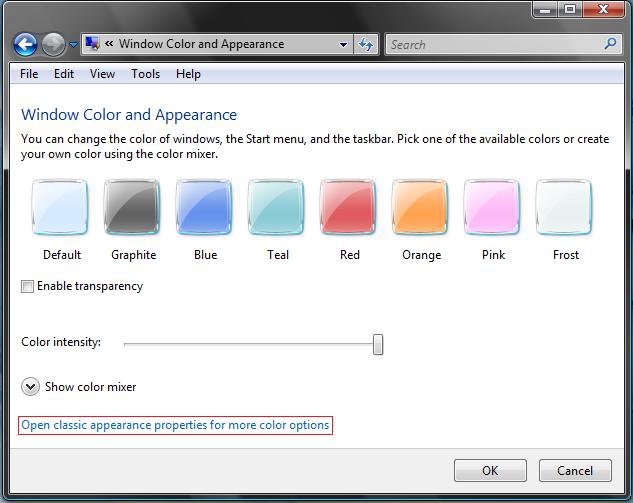
A) Click on Open classic appearance properties for more color options. (See screenshot below)
B) Click on a color you want to use for the windows, Start menu, and Taskbar borders.
C) For Enable transparency, see: How to Enable or Disable Aero Glass Transparency
D) Adjust the Color intensity by sliding the bar to the left to decrease the intensity and to the right to increase the intensity.
NOTE: If the Color intensity is set to far to the right, then the window borders and taskbar may be to dark to be transparent if enabled.
4. To Change the Color Scheme -
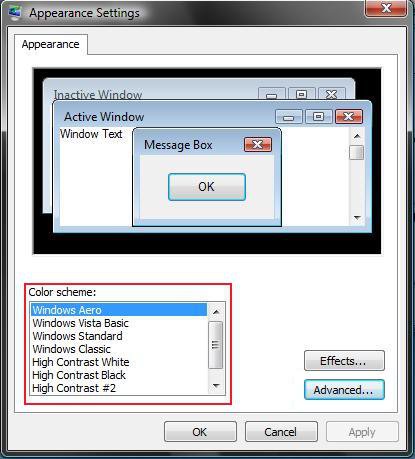
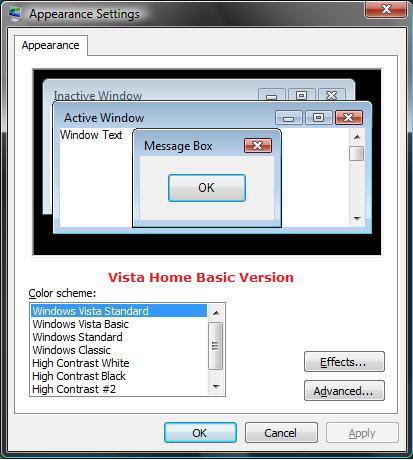
A) Click on the Color scheme you want to highlight it and click OK. (See screenshots below)
NOTE: The Windows Aero color scheme is not available for the Vista Home Basic edition. The Vista Home Basic edition will have the Windows Vista Standard color scheme instead. (See right screenshot below)
WARNING: If these color scheme options are grayed out, then see: How to Allow or Prevent the Color Scheme to be Changed in Vista
5. Close the window from below step 2.
That's it,Shawn
Related Tutorials
- How to Change the Advanced Appearance Settings in Vista
- How to Change a Computer Event Sound in Vista
- How to Change the Desktop Theme in Vista
- How to Change the Start Menu to Classic View in Vista
- How to Enable or Disable Aero Glass Transparency
- How to Change the Visual Effects Options for Appearance and Performance in Vista
- How to Install and Use DreamScene in Vista
- How to Add or Remove Turn Aero On or Off from the Vista Context Menu
- How to Change the Color Bit Depth Settings in Vista
- How to Allow or Prevent the Color Scheme to be Changed in Vista
Attachments

Last edited by a moderator:


