
How to Change the ClearType Font Settings in Vista
 Information
ClearType font smoothing makes text look sharp and clear on a LCD monitor. On a regular CRT (tube) monitor, this could make the text appear blurry and will need to be turned off.
 Note
NoteIf your screen is an LCD and you are not running it at it's native screen resolution, then this can also cause blurryness.
Here's How:
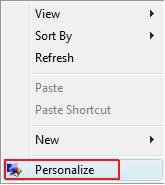
1. Right click on a empty area of your desktop and click on Personalize. (See screenshot below)
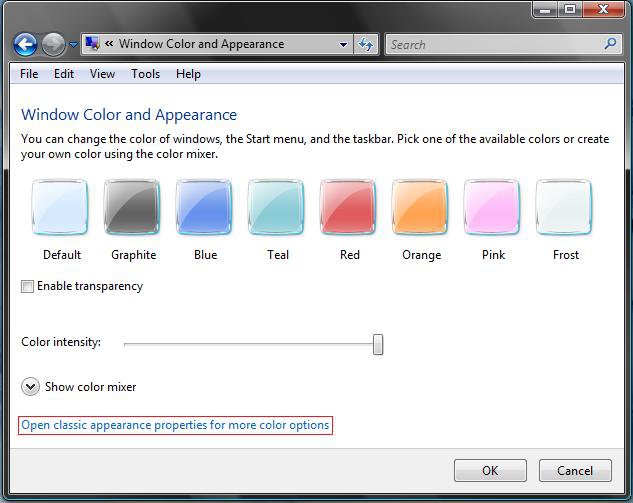
2. Click on the Window Color and Appearace link. (See screenshot below)

3. Click on the Open classic appearance properties for more color options link. (See screenshot below)
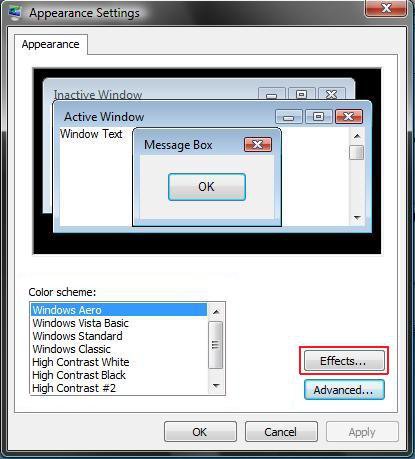
NOTE: If the color scheme Windows Aero (All Vista editions except Home Basic) or Windows Vista Standard (Only Home Basic edition) is not running, then you will not see this screen, but see the screen in step 4 instead.
4. Click on the Effects button. (See screenshot below)
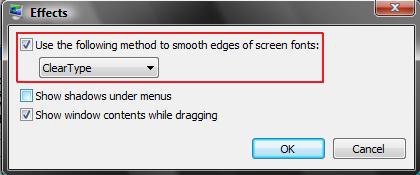
5. To Turn Off ClearType Font Smoothing -
NOTE: It should be Off (Unchecked) for CRT monitors and On (Checked) for LCD monitors.
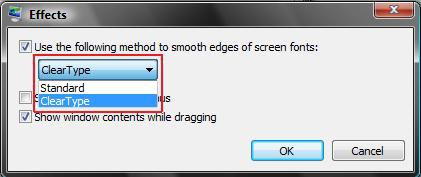
A) Uncheck Use the following method to smooth edges of screen fonts. (See screenshot below step 6)
B) Go to step 8.
6. To Turn On ClearType Font Smoothing
NOTE: It should be Off (Unchecked) for CRT monitors and On (Checked) for LCD monitors.
A) Check Use the following method to smooth edges of screen fonts. (See screenshot below)
B) Continue on to step 7.
7. To Change the ClearType Font Smoothing Method
A) Click on the drop down arrow and choose the method that looks better to you. (See screenshot below)
8. Click on OK.
9. Click on Apply in window for step 4 above to see the changes applied.
NOTE: See if the fonts look sharp and clear to you. If not repeat the steps with a different setting until they do.
10. Click on OK and close the window from below step 2 above.
That's it,Shawn
Related Tutorials
- How to Change the Advanced Appearance Settings in Vista
- How to Change the Visual Effects Options for Appearance and Performance in Vista
- How to Change the DPI Scale in Vista
- How to Change the Screen Resolution in Vista
- How to Change the Screen Refresh Rate in Vista
- How to Change the Default Vista Fonts
Attachments
Last edited: