
How to See Product Key in Vista
 Information
The product key number is a sequence of 25 letters and numbers. The number is divided into 5 groups of 5 characters each. During Vista installation, you must enter the product key number to activate Vista.
This will show you how to find the product key number from a Windows sticker, or if you lost the product key and need to get it from within your installed Vista.
This will show you how to find the product key number from a Windows sticker, or if you lost the product key and need to get it from within your installed Vista.
 Note
Note- If you reinstalled Vista or did not activate or type in the product key number after you installed Vista the first time, then the program in this tutorial will not be able to show you the number from within Vista since you did not enter it.
- A Express or Retail Vista can be installed on any one computer at a time for as many times as you like. A OEM Vista may only be able to be installed on the exact same computer as many times as you like. The product key number for the Vista 32 bit version is the same one for it's 64 bit version. You can only have the Product Key activated on one computer and version of 32 bit or 64 bit Vista at a time. If you had the product key activated on one computer and made some hardware changes to it (EX: Motherboard) or decided to use it on another computer, then you will have to remove it from the old computer and do a phone activation.
- You can usually find the product key on the back of a OEM desktop computer, on the bottom of a laptop computer, or on the retail installation disc holder inside the Vista package. Look for a sticker that looks like one of these below.
- For the license terms for Vista, see: Microsoft: License Terms for Software Licensed from Microsoft
 Tip
TipYou can tell if you have a OEM or Retail Vista by looking at the product key number. x = a random number or letter
- OEM - xxxxx-oemxx-xxxxx-xxxxx
NOTE: Will also include OEM on the Vista Product Key Stickers. See examples below. - Retail - xxxxx-xxxxx-xxxxx-xxxxx
 Warning
The Product ID number displayed here in Vista is not your Product Key number.NOTE: To see this, right click Computer (in Start menu) and click on Properties; or open the Control Panel (Classic View) and click System. Scroll to the bottom.

 OPTION ONE
1. For a OEM Product Key on COA Sticker
NOTE: These will be store bought computers that came with Windows 7 preinstalled on them. The product key sticker will usually be on the back of a desktop, and on the bottom or under the battery of a laptop and notebook. The sticker key number may be different than the key number reported in one of the programs below. If so, the key number on the sticker is the one that's unique to your computer, and that's the one you'll need to input should you ever clean install Windows. The different extracted key is just a master key used at the OEM factory.
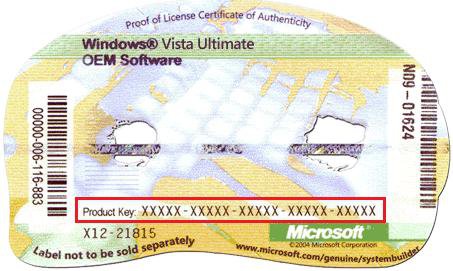
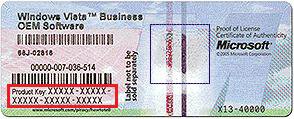
2. For a Retail Product Key on COA Sticker
NOTE: These will be computers that a retail copy of Windows 7 has been installed on. The product key sticker will be in the included paperwork in the retail Windows 7 box.
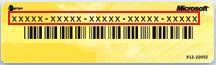
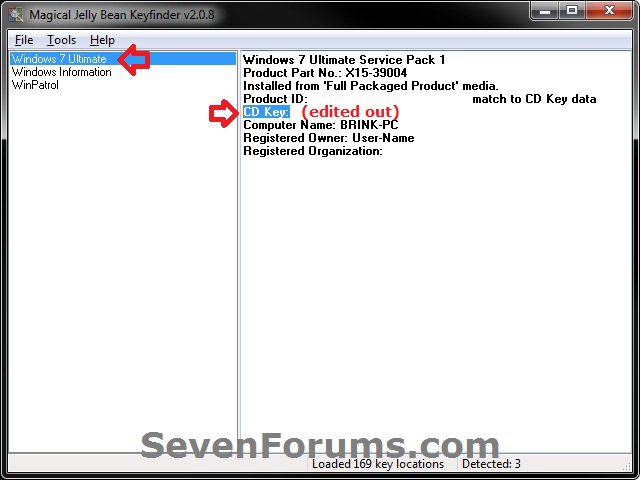
OPTION TWO NoteThis option shows you how to use the free program Magical Jelly Bean Keyfinder to see what the product key number is from within a Windows 7 that it has already been entered in (ex: activated). Magical Jelly Bean Keyfinder will not show the product key number for Windows 7 Enterprise though.
1. Download and run the free Magical Jelly Bean Keyfinder program towards the bottom of the link.
2. In the left pane, click on Windows 7 (your edition). You will see CD Key in the right pane displaying the Windows 7 product key number.
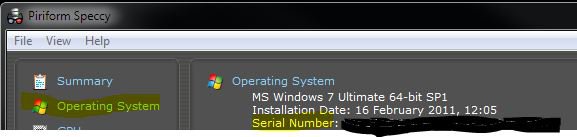
OPTION THREE Note This option shows you how to use the free program Speccy to see what the product key number is from within a Windows 7 that it has already been entered in (ex: activated). Speccy will not show the product key number for Windows 7 Enterprise though.
1. Download, install, and run the free Speccy program.
2. In the left pane, click on Operating System. In the right pane, you will see the product key number to the right of Serial Number.
OPTION FOUR NoteThis option shows you how to use the free program ProduKey to see what the product key number is from within a Windows 7 that it has already been entered in (ex: activated). ProduKey will not show the product key number for Windows 7 Enterprise though.
1. Download, extract, and run the free ProduKey program.
2. You will now see Windows product key listed.

OPTION FIVE NoteThis option was provided by our member Konst at this link.
There you can see that the encrypted key is stored in registry key:
HKLM\SOFTWARE\Microsoft\Windows NT\CurrentVersion\DigitalProductId
at Offset = 52
And that the key only includes this letters and numbers
BCDFGHJKMPQRTVWXY2346789
And no "AEILNOSUZ015 allowed.
There you can see that the encrypted key is stored in registry key:
HKLM\SOFTWARE\Microsoft\Windows NT\CurrentVersion\DigitalProductId
at Offset = 52
And that the key only includes this letters and numbers
BCDFGHJKMPQRTVWXY2346789
And no "AEILNOSUZ015 allowed.
1. Click on the Download button below to download the file below.
See_Windows_Product_Key.vbs

2. Save the VBS file to your desktop, run it, and approve running it.
NOTE: The .vbs file does not install anything on your computer. You can also right click on the .vbs file and click on Edit to see what the script contains.
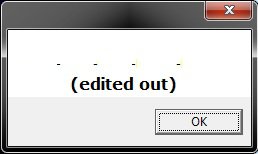
3. You will now get a pop-up dialog box displaying the product key number used to activate your current Windows installation. Click on OK to close the pop-up when ready. (see screenshot below)
OPTION SIX NoteYou must be signed in as an administrator to run this program. This program will not find the product key of Windows 7 Enterprise since it's a volume license.
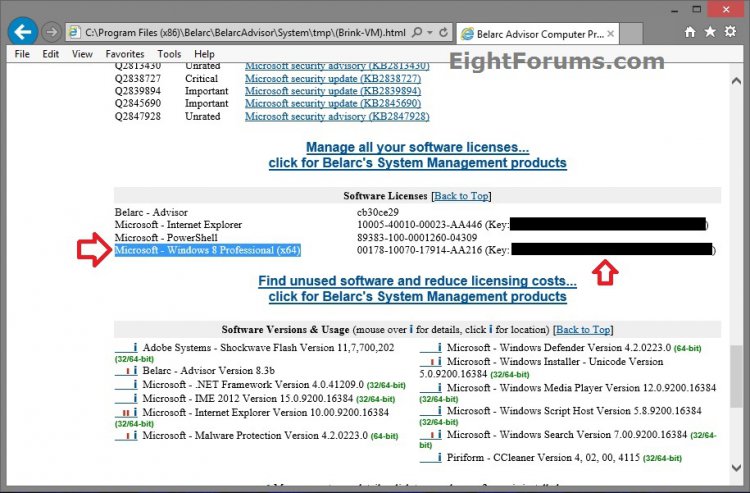
1. If you have not already, download and install the free Belarc Advisor program.
2. Run the program. When it displays the results in your default web browser, scroll down until you see your Windows 8 product key like below.
That's it,
Shawn
Related Tutorials
- How to Extend Vista Trial Time For Up to 120 Days
- How to Activate Vista Normally and by Phone Activation
- How to See Windows Vista Current License Information
- How to Do a Clean Install of Vista with a Upgrade Version
- How to Do a Clean Install with a Full Version of Vista
- How to Get Out of Reduced Functionality Mode in Vista
- How to Uninstall the Product Key Number and Deactivate Windows 7 and Vista
- How to Clear Product Key from Registry in Windows
Attachments

Last edited:


