Windows Vista Forums
Vista Forums Home Join Vista Forums Windows 7 Forum Vista Tutorials Tags
Welcome to Windows Vista Forums. Our forum is dedicated to helping you find solutions with any problems, errors or issues you are experiencing with Windows Vista. The Vista forum also covers news and updates and has an extensive Windows Vista tutorial section that covers a wide range of tips and tricks.

Go Back   Vista Forums > Vista Forums > Tutorials

Vista - Index - Windows Search Service

Comment
 

Index - Windows Search Service

How to Fix the Start Error For Windows Search Service to Enable the Index in Vista
Published by Brink
08-17-2007

How to Fix the Start Error for Windows Search Service to Enable the Index in Vista
Information
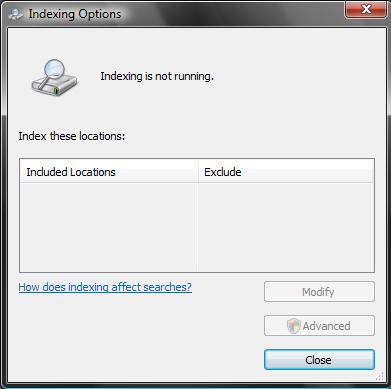
  The Indexing Options are grayed out and you cannot get the Windows Search service to start. Follow the steps one by one, and at the end the index should be running again.
NOTE
  If the steps below do not help you, then you will need to do either a System Restore to a restore point date before this problem, a Repair install, or Clean install to fix this problem. See the related links below for how to do these.
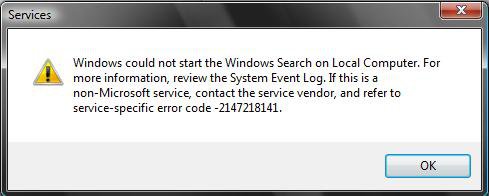
RELATED LINKS:EXAMPLE: Error Message
service_error.jpg
EXAMPLE: Index Options grayed out
Name:  Index_Greyed_Out.jpg
Views: 24508
Size:  17.5 KB


STEP ONE:
Windows Search Service
1. Leave Windows Search service set to only Automatic. (See screenshot below step 3)

2. Close Services.

3. Proceed to STEP TWO below.
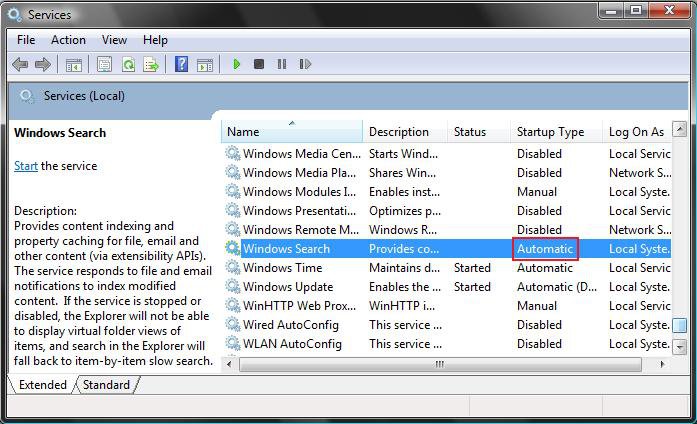
service.jpg


STEP TWO:
Reset the Index in the Registry
Through a Download:
1. Click on the download button below to download the Reset_Index.reg file.

2. Click on Save, and save the .reg file to the Desktop.

3. Right click on the .reg file (on Desktop) and click on Merge.

4. Click on the Run button in the Security Warning pop-up.

5. Click on Continue (UAC), Yes, and then OK when prompted.

6. When done, you can delete the .reg file (on Desktop).

7. Proceed to STEP THREE below.

The Manual Way:
1. Open the Start Menu.

2. In the white line (Start Search) area, type regedit and press Enter.

3. If prompted, click on Continue in the UAC prompt.

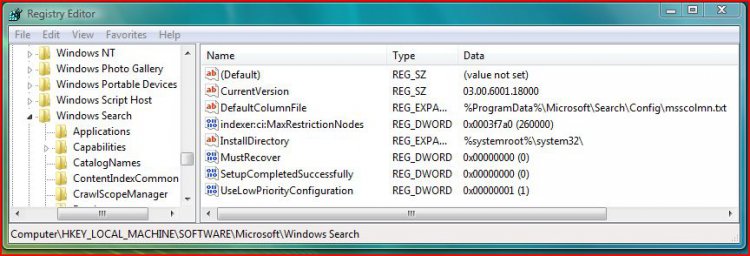
4. In regedit, go to: (See screenshot below step 5)
HKEY_LOCAL_MACHINE\SOFTWARE\Microsoft\Windows Search

5. In the right pane, right click on SetupCompletedSuccessfully and click on Modify.
NOTE: If SetupCompletedSuccessfully is not there, then in the right pane, right click on a empty area and click on New and DWORD (32 bit) Value. Type SetupCompletedSuccessfully and press Enter.
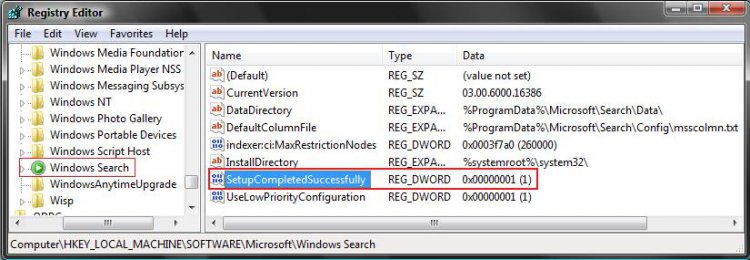
regedit.jpg
6. Type 0 and click on OK. (See screenshot below)
NOTE: This is the number zero.
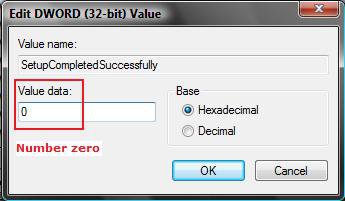
Name:  Modify.jpg
Views: 24338
Size:  14.1 KB
7. Close Regedit

8. Proceed to STEP THREE below.


STEP THREE:
Repair the Config Folder
WARNING
  If you have installed the Windows Search 4.0 update, then the Index location is no longer stored at C:\ProgramData\Microsoft\Search\Data (step 2) by default. Instead it is now located at C:\Users\User_Name\AppData\Local\Search\Data. The Config (step 4) folder is now in the Windows folder inside of the Applications folder instead. The relocated Config folder is empty now to. To see if you have installed the Windows Search 4.0 update, look in the Windows Updates View update history link and look for it in the list as being successfully installed.
1. Open Folder Options.
A) Click on the View tab.

B) Check Show hidden files and folders.

C) Click on OK to apply and close folder options.
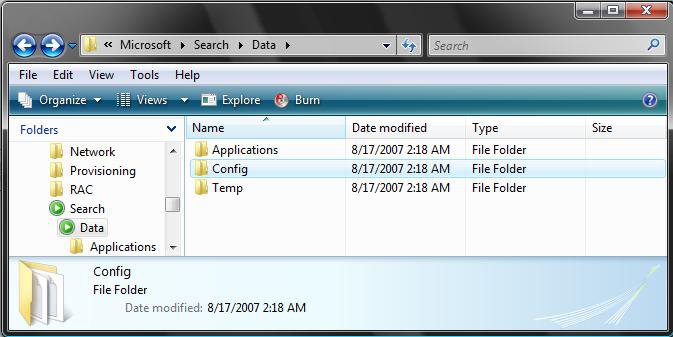
2. Go to C:\ProgramData\Microsoft\Search\Data (See screenshot below)
NOTE: You may notice that one or more of these folders may be missing from your window.
WARNING: If you installed the Windows Search 4.0 update, then you need to go to:
C:\Users\User_Name\AppData\Local\Search\Data instead.
data_folder.jpg
3. If the Applications folder is missing, then right click on a empty area and click New and click Folder. (See screenshot above)
NOTE: If the Applications folder is not missing, then continue to step 3F after deleting it's contents except for the Windows folder.
A) Click Continue for Access Denied prompt.
B) Click Continue for UAC prompt.
C) Type Applications and press Enter.
D) Click Continue for Access Denied prompt.
E) Click Continue for UAC prompt.
F) Open the Applications folder. If the Windows folder is missing, then click on New and Folder.
NOTE: If the Windows folder is not missing, then continue to step 4 after deleting it's contents.

G) Click Continue for Access Denied prompt.
H) Click Continue for UAC prompt.
I) Type Windows and press Enter.
J) Click Continue for Access Denied prompt.
K) Click Continue for UAC prompt.
4. If the Config folder is missing, then right click on a empty area and click New and click Folder. (See screenshot below step 2)
NOTE: If the Config folder is not missing, then continue to step 5 after deleting it's contents.
WARNING: If you installed the Windows Search 4.0 update, then the Config folder should now be inside of the Windows folder instead.
A) Click Continue for Access Denied prompt.
B) Click Continue for UAC prompt.
C) Type Config and press Enter.
D) Click Continue for Access Denied prompt.
E) Click Continue for UAC prompt.
5. If the Temp folder is missing, then right click on a empty area and click New and click Folder. (See screenshot below step 2)
NOTE: If the Temp folder is not missing, then continue to step 6 after deleting it's contents. This is still the same with the Windows Search 4.0 update.
A) Click Continue for Access Denied prompt.
B) Click Continue for UAC prompt.
C) Type Temp and press Enter.
D) Click Continue for Access Denied prompt.
E) Click Continue for UAC prompt.
6. Open the Config folder (step 4) and leave this window open. (See screenshot below step 2)
NOTE: You will need to copy the two files gathrprm.txt and schema.txt to inside this Config folder. See File Locations at the bottom to see where to copy them from.
WARNING: If you installed the Windows Search 4.0 update, then the Config folder should be empty instead. Go to step 11.

7. Open another Explorer window to locate the files below.

8. Right click gathrprm.txt and click Copy.
NOTE: See File Locations at the bottom to see where to copy from.
A) Right click in Config folder from step 3 above, and click Paste.
B) Click Continue for Access Denied prompt.
C) Click Continue for UAC prompt.
9. Right click schema.txt and click Copy.
NOTE: See File Locations at the bottom to see where to copy from.
A) Right click in Config folder from step 3 above, and click Paste.
B) Click Continue for Access Denied prompt.
C) Click Continue for UAC prompt.
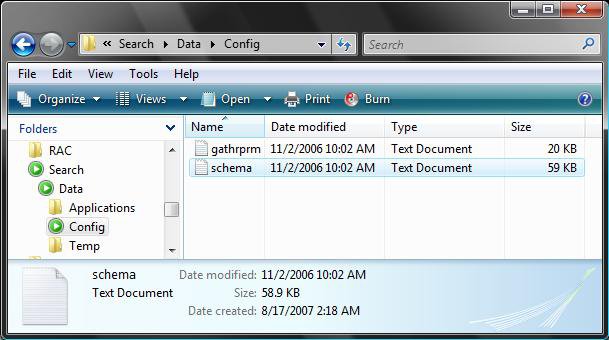
10. The Config folder should now look like this inside of it :
config_folder.jpg
11. Close all windows.

12. Restart the computer.
Tip
  FILE LOCATIONS:
NOTE: These two files are located in the same folder. If for some reason they are not located here, then just do a search for them. Make sure that you have checked Include system directories in the search options to include them in the search results. See: How to Open and Change Search Options in Vista

gathrprm.txt and schema.txt :

32 bit Vista =
C:\Windows\winsxs\x86_windowssearchengine_31bf3856ad364e35_6.0.6000.16386_none_47e1b1bb326f0fb4
\gathrprm.txt

64 bit Vista =
C:\Windows\winsxs\amd64_windowssearchengine_31bf3856ad364e35_6.0.6000.16386_none_
a4004d3eeacc80ea\gathrprm.txt


That's it,
Shawn

Published by
Brink's Avatar
Administrator

Join Date: Apr 2007
Location: Texas, USA
Posts: 25,919
Rep Power: 150
Brink has a reputation beyond reputeBrink has a reputation beyond reputeBrink has a reputation beyond reputeBrink has a reputation beyond reputeBrink has a reputation beyond reputeBrink has a reputation beyond reputeBrink has a reputation beyond reputeBrink has a reputation beyond reputeBrink has a reputation beyond reputeBrink has a reputation beyond reputeBrink has a reputation beyond repute

Tutorial Tools

Applies to
All Vista Versions
64 Bit & 32 Bit

Old 01-06-2008  
millsman27


Vista home basic 32 bit


Question Re: Index - Windows Search Service

Thank you for the precise directions. In following them I discovered that I do not have the "gathrptm.txt" file anywhere on my laptop. Is there anywhere I can find this file, web searches have only shown this repair site?

millsman27

My System SpecsSystem Spec
Old 01-06-2008  
Brink


Vista x64 Ultimate SP2, Windows 7 Ultimate x64


Re: Index - Windows Search Service

Hi Millsman27,

My apologies. There was a typo. It should be the gathrprm.txt file to search for. Make sure that you have Show hidden files and folders checked in Folder Options, and have system files included in the Search Options.

Sorry,
Shawn
My System SpecsSystem Spec
Old 01-07-2008  
millsman27


Vista home basic 32 bit


Re: Index - Windows Search Service

That did it! Everything is back to normal and we are on our way to 'computational bliss". Thanks again for you assistance, I was lost!

Steve
My System SpecsSystem Spec
Old 01-08-2008  
Brink


Vista x64 Ultimate SP2, Windows 7 Ultimate x64


Re: Index - Windows Search Service

Your welcome Steve,

Glad to hear your problem is now resolved. Thank you for the feedback.

Shawn
My System SpecsSystem Spec
Old 01-31-2008  
amanda


vista 32bit


Smile Re: Index - Windows Search Service

well awesome thanx so much i am so happy my computer is alive again no more errors fantastic trust me everyone if you had the problems i had this works a treat

thank you so much to the person who posted the answer to my problems well magic

i was a little worried at first but this works i have been putting up with the message your search index has stopped working for 5 months pulling my hair out but now my pc running real smooth and lots faster cheers to you............
My System SpecsSystem Spec
Old 01-31-2008  
Brink


Vista x64 Ultimate SP2, Windows 7 Ultimate x64


Re: Index - Windows Search Service

Your welcome Amanda, and welcome to Vista Forums.

I'm glad to hear that it fixed your problem for you. Thank you for the feedback.

Shawn
My System SpecsSystem Spec
Old 02-12-2008  
tai


32 bit home premium


Re: Index - Windows Search Service

I've gone through all the steps but still to no avail. Originally i have 2 hard drives my C drive with Vista on, and a 300gb 2nd drive that i partitioned. Since i partitioned it indexing no longer works. In the indexing options everything is greyed like in your tutorial, but when i try to start windows search in the services i get this error:

Windows could not start the windows search service on local computer. Error 3: The system cannot find the path specified.

I have copied the files you have said and tried to do it manually, done system restore and Vista repair and even spoke to microsoft but still nothing. Do you know of anyway to fix without doing a fresh install?
My System SpecsSystem Spec
Old 02-12-2008  
Brink


Vista x64 Ultimate SP2, Windows 7 Ultimate x64


Re: Index - Windows Search Service

Hi Tai,

Welcome to Vista Forums.

If you did everything exactly in the tutorial, then I cannot think of anything else to do but a clean reinstall.

Sorry,
Shawn
My System SpecsSystem Spec
Old 03-09-2008  
joaneee


Vista Home Premium 64 bit


Smile Re: Index - Windows Search Service

My problem was a little different - search service was working, but flailing - generating 100s of Error 3090 when I looked at the event viewer. I tried starting and restarting the indexer to no avail. So I tried this (link found in Microsoft communities) - and it worked!!! Oh thanks so much, Brink. Especially since I did not have a restore point from before the problem started.
My System SpecsSystem Spec
Comment

Tutorial Tools


Similar Threads
Tutorial Category
Windows Vista ultimate x64 Search engine issues - Search fails to index Vista General
Windows Search Indexing will not index Vista General
method of saving the windows desktop search index? (isam, hash etc Vista file management
Windows Search service and Indexing Service do not work General Discussion
opening a file within Windows Search Index problem Vista file management


Vista Forums is an independent web site and has not been authorized,
sponsored, or otherwise approved by Microsoft Corporation.
"Windows Vista", the Start Orb, and related materials are trademarks of Microsoft Corp.
© Designer Media Ltd
Tutorial powered by GARS 2.1.8m ©2005-2006

1 2 3 4 5 6 7 8 9 10 11 12 13 14 15 16 17 18 19 20 21 22 23 24 25 26 27 28 29 30 31 32 33 34 35 36 37 38 39 40 41 42 43 44 45 46