Windows Vista Forums
Vista Forums Home Join Vista Forums Windows 7 Forum Vista Tutorials Tags
Welcome to Windows Vista Forums. Our forum is dedicated to helping you find solutions with any problems, errors or issues you are experiencing with Windows Vista. The Vista forum also covers news and updates and has an extensive Windows Vista tutorial section that covers a wide range of tips and tricks.

Go Back   Vista Forums > Vista Forums > Tutorials

Vista Tutorial - Programs and Features - Remove Uninstall Entry

Comment
 

Programs and Features - Remove Uninstall Entry

How to Remove a Uninstall Entry in Programs and Features for Vista
Published by Brink
08-21-2007

How to Remove a Uninstall Entry in Programs and Features for Vista
Information
  In Programs and Features there is a list of programs on your computer that have a uninstall program for it. If the program uninstall entry is invalid or you simply want to remove it from the list, then this will show you how to remove the uninstall entry using your choice of three methods.
NOTE
  The first two methods use a 3rd party program, and the third method is through the registry. Just pick the method that you are most comfortable doing.
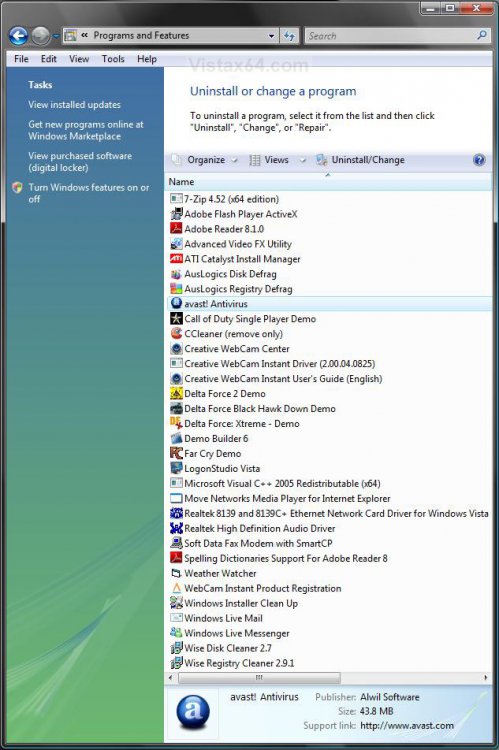
RELATED LINKS:EXAMPLE: Program and Features
NOTE: Open the Control Panel (Classic View) and click Programs and Features. If the uninstall option does not appear or Programs and Features is not displaying correctly, then try resetting the Folder View setting using METHOD TWO here: How to Reset Windows Explorer Folder View Settings to Make Vista Remember
programs_features.jpg


METHOD ONE:
Using the Windows Install Cleanup Program
NOTE
  This is a free program from Microsoft. The download link for this program is here: http://support.microsoft.com/kb/290301
1. Download and install the Windows Install Cleanup program.
NOTE: If you get the Error "800A0046 - Permission Denied" when installing this program, then right click on the setup file msicuu2.exe and click Run as Administrator to install it.

2. Click on the Windows Install Cleanup shortcut icon in the Start Menu and All Programs location to run the program. (See screenshot below)
Name:  WICU_Shortcut.jpg
Views: 26912
Size:  2.0 KB
3. Select a entry and click the Remove button to remove it from the Programs and Features uninstall list. (See screenshot below step 4)

4. Click on Exit when done.
windows_clean_up.jpg


METHOD TWO:
Using the CCleaner Program
NOTE
  This is a free program that can be downloaded here:
http://ccleaner.com/
1. Download and install the latest version of the CCleaner program.

2. Click on the CCleaner shortcut icon either on your desktop or in the Start Menu to run the program. (See screenshot below)
Name:  CCleaner_Icon.jpg
Views: 26871
Size:  2.9 KB
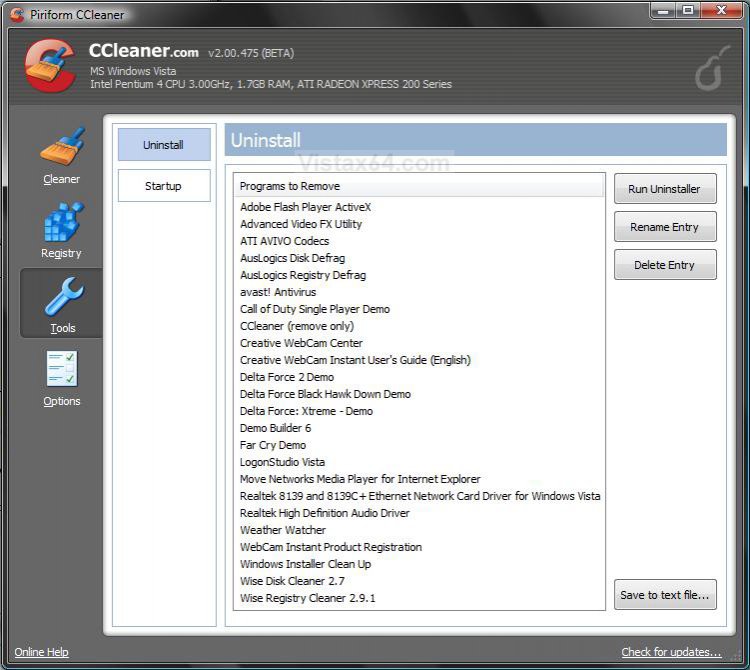
3. Click on the Tools button on the left. (See screenshot below step 5)

4. Select the uninstall entry and click the Delete Entry button to remove it from the Programs and Features uninstall list.

5. Click on the X in the upper right corner to close CCleaner when done.
ccleaner.jpg


METHOD THREE:
Using the Registry
1. Open the Start Menu.

2. In the white line (Start Search) area, type regedit and press Enter.

3. Click on the Continue button in the UAC prompt.

4. For the 32 Bit and 64 Bit Vista -
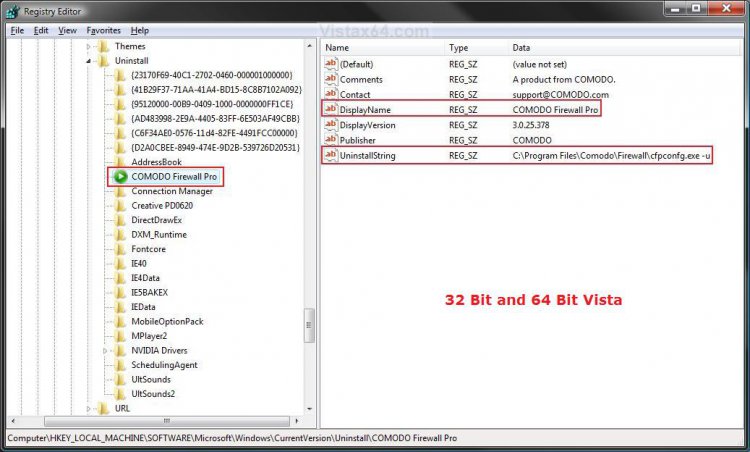
A) In regedit, go to: (See top screenshot below step 11)
HKEY_LOCAL_MACHINE\SOFTWARE\Microsoft\Windows\CurrentVersion\Uninstall
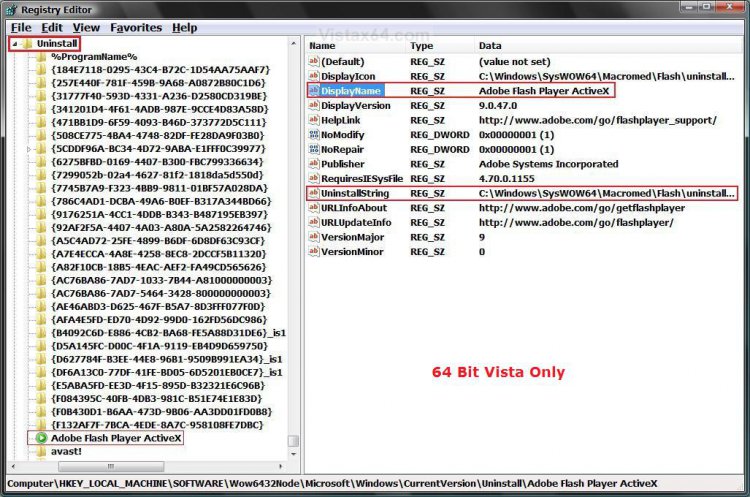
5. For Only the 64 Bit Vista -
A) In regedit, go to: (See bottom screenshot below step 11)
HKEY_LOCAL_MACHINE\SOFTWARE\Wow6432Node\Microsoft\Windows\CurrentVersion\Uninstall

WARNING
  To be safe you should make a Back Up of this key, just in case you delete something you did not want to.
  • In the left pane, right click on Uninstall and click Export.
  • In the Export Registry File dialog box, click Desktop in the Save in box and type Uninstall Backup in the File name box, then click Save.
  • To Undo Changes you made to this Uninstall key and restore it back to as it is now, right click on Uninstall Backup.reg and click Merge. Click Run, Continue (UAC), Yes, and then OK when prompted.

6. Click on Continue (UAC), Yes, and then OK when prompted.

7. In the left pane, each subkey, folder with {long number} or program name, under Uninstall represents a program that appears in the Programs and Features uninstall list.

8. Click on a subkey, folder with {long number} or program name, under Uninstall to determine which program that key represents.
NOTE: In the right pane of the subkey:
DisplayName = Shows the name listed in Programs and Features.
UninstallString = Shows the full path of the program that is used to uninstall the program.

9. To Remove the Uninstall Entry -
A) Right click on the subkey, folder with {long number} or program name in the left pane, for the program you want to remove from the uninstall list and click Delete.

B) Click on YES to confirm the delete.
10. Open Programs and Features and confirm that the uninstall entry is gone, then you can delete the Uninstall Backup.reg (on desktop) file if you like.
NOTE: See the Example at the top of this tutorial.

11. Close regedit.
NOTE: The top screenshot is for the 32 bit Vista and 64 bit Vista, and the bottom screenshot is for only the 64 bit Vista.
32bit_reg.jpg

64bit_reg.jpg
That's it,
Shawn

Published by
Brink's Avatar
Administrator

Join Date: Apr 2007
Location: Texas, USA
Posts: 25,801
Rep Power: 150
Brink has a reputation beyond reputeBrink has a reputation beyond reputeBrink has a reputation beyond reputeBrink has a reputation beyond reputeBrink has a reputation beyond reputeBrink has a reputation beyond reputeBrink has a reputation beyond reputeBrink has a reputation beyond reputeBrink has a reputation beyond reputeBrink has a reputation beyond reputeBrink has a reputation beyond repute

Tutorial Tools

Applies to
All Vista Versions
64 Bit & 32 Bit

Old 01-05-2008  
punktdawg
Newbie


Join Date: Jan 2008
Vista Home Premium 32bit


Re: Programs and Features - Remove Uninstall Entry

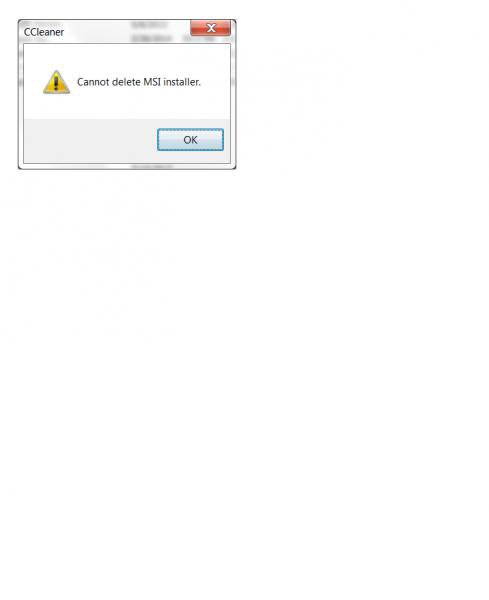
Awesome tutorial, very helpful. Never used CCleaner before reading this, while CCleaner was unable to delete the entry I was trying to remove I found a work around. I had an entry named "Search" which was being very difficult. Obviously too many entires in registry named "search" to do a registry search, and the entry wasn't in the default key. Windows Install Cleanup saw the key but was unsuccessful in removing it. I used CCleaner to rename it to "findmenow"(which was successful) then searched the registry for "findmenow". Done in 2 minutes what was taking me hours looking through different entries in the registry. Excellent recommendation on CCleaner. Much appreciated.

My System SpecsSystem Spec
Old 01-05-2008  
Brink
Administrator


Join Date: Apr 2007
Vista x64 Ultimate SP2, Windows 7 (7600) x64


Re: Programs and Features - Remove Uninstall Entry

Hi Punktdawg,

Welcome to Vista Forums.

I'm glad you like and found this tutorial helpful. Thank you for sharing your workaround for solving your problem. Some of these programs can be messy when it comes to uninstalling them due to shotty programming.

Shawn
My System SpecsSystem Spec
Old 05-29-2008  
arboleya1074
Newbie


Join Date: May 2008
Vista Ultimate OEM 64


Re: Programs and Features - Remove Uninstall Entry

Thanks for the great tutorial, I was unable to do Method 1 nor 2, becouse of the difgital signs (certificates) -I can't install any program with "unknown certificate" (another headache)-, but Using the Registry was a great help indeed.
Thank you so much.
My System SpecsSystem Spec
Old 05-29-2008  
Brink
Administrator


Join Date: Apr 2007
Vista x64 Ultimate SP2, Windows 7 (7600) x64


Re: Programs and Features - Remove Uninstall Entry

You're welcome Arboleya, and welcome to Vista Forums.

Shawn
My System SpecsSystem Spec
Old 10-10-2008  
unbreakable
Newbie


Join Date: Jan 2008
Vista Ultimate 32 bit


Re: Programs and Features - Remove Uninstall Entry

I have Vista ultimate 32 bit SP1 and there is no such path in the registry:

HKEY_LOCAL_MACHINE\SOFTWARE\Wow6432Node\Microsoft\Windows\CurrentVersion\Uninstall

perhaps something has changed with sp1?
My System SpecsSystem Spec
Old 10-10-2008  
Brink
Administrator


Join Date: Apr 2007
Vista x64 Ultimate SP2, Windows 7 (7600) x64


Re: Programs and Features - Remove Uninstall Entry

Hello Unbreakable, and welcome to Vista Forums.

No, nothing has changed. I have simply forgot to include the 32 bit Vista location.

It is included now.

HKEY_LOCAL_MACHINE\SOFTWARE\Microsoft\Windows\CurrentVersion\Uninstall


Thank you,
Shawn
My System SpecsSystem Spec
Old 11-16-2008  
giksy
Member


Join Date: Nov 2008
Vista Ultimate x64


Re: Programs and Features - Remove Uninstall Entry

very helpful! thx for all the efort and all the forum!
My System SpecsSystem Spec
Old 11-16-2008  
Brink
Administrator


Join Date: Apr 2007
Vista x64 Ultimate SP2, Windows 7 (7600) x64


Re: Programs and Features - Remove Uninstall Entry

You're welcome Giksy, and welcome to Vista Forums.

Shawn
My System SpecsSystem Spec
Comment

Tutorial Tools


Similar Threads
Tutorial Category
How to remove Invalid entry from Programs and Features...? Vista General
Unable to uninstall items in Programs & Features Vista General
Cannot uninstall any application thru Programs and Features of Vis Vista installation & setup
no uninstall option in programs and features Vista General
No Uninstall entry in "Add/Remove programs" Vista installation & setup


Vista Forums is an independent web site and has not been authorized,
sponsored, or otherwise approved by Microsoft Corporation.
"Windows Vista", the Start Orb, and related materials are trademarks of Microsoft Corp.
© Designer Media Ltd
Tutorial powered by GARS 2.1.8m ©2005-2006

1 2 3 4 5 6 7 8 9 10 11 12 13 14 15 16 17 18 19 20 21 22 23 24 25 26 27 28 29 30 31 32 33 34 35 36 37 38 39 40 41 42 43 44 45 46