Vista Forums
Vista Forums Home Join Vista Forums Donate Vista Tutorials Tags

Welcome to Vista Forums we are your forum to discuss Windows Vista x64 and x86 systems. Whether you need help or just want to post an idea you have on Vista, this is the forum for you.
Register at Vista forums...the world biggest Windows Vista resource Join Vista Forums

Go Back   Vista Forums > Vista Forums > Tutorials

Theme Settings

Poll: Did this Tutorial help and work for you?
Poll Options
Did this Tutorial help and work for you?

Comment
 
Tutorial Tools Display Modes
<!-- google_ad_section_start -->Theme Settings<!-- google_ad_section_end -->
Theme Settings
How to Change the Desktop Theme in Vista
Published by Brink
08-22-2007

How to Change the Desktop Theme in Vista

INFO: A Desktop Theme is a collection of visual elements and sounds for your computer desktop. These elements consists of the appearance of menus, icons, wallpapers, screen savers, fonts, some computer sounds, mouse pointers, and etc.

NOTE: Vista only includes these two desktop themes: Windows Vista and Windows Classic. However, you can save any desktop theme you setup as a custom theme to save. Each user account can create and save their own custom desktop theme. See step 4 below for how to save a theme. See the related links for how to change each element in a desktop theme.

FILE EXTENSION: .theme

FOLDER LOCATION: C:\Windows\Resources\Themes

RELATED LINKS:
1. How to Change the Color Scheme in Vista

2. How to Change a Computer Event Sound in Vista

3. How to Change the Desktop Background Wallpaper in Vista

4. How to Install and Use DreamScene in Vista

5. How to Enhance Windows Vista DreamScene with Stardock DeskScapes

6. How to Change the Visual Effects Options for Appearance and Performance in Vista

7. How to Change the Advanced Appearance Settings in Vista

8. How to Restore and Change a Desktop Icon in Vista

9. How to Change the Size of Desktop Icons in Vista

10. How to Add or Remove a Desktop Toolbar in Vista

11. How to Change the Desktop Theme in Vista

12. How to Change the Desktop Icons View Alignment and Sort By Order in Vista

13. How to Add or Remove the Theme Option in Vista


Here's How:
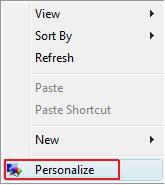
1. Right click on a empty area of your desktop and click Personalize. (See screenshot below)

Right_Click.jpg

2. Click on Theme. (See screenshot below)
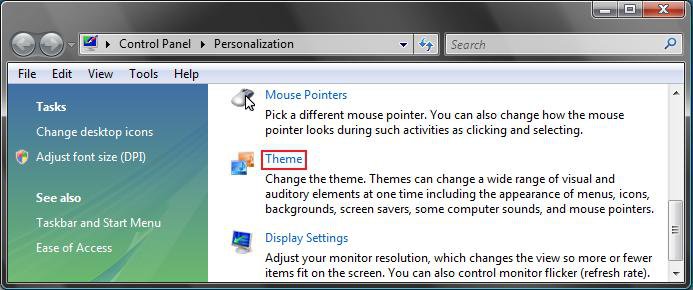
Theme.jpg

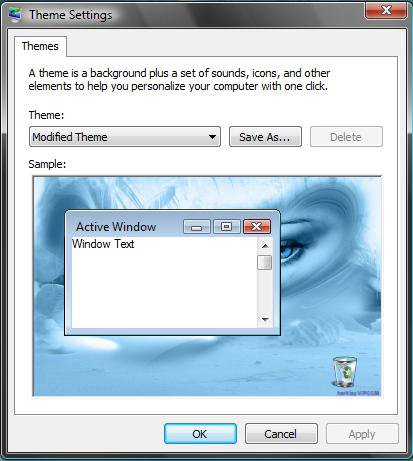
3. Here are the Theme Settings :

Settings1.jpgSettings2.jpg

4. To Save the Current Theme -
NOTE: This is helpful if you want to save all of the changes you made to the desktop theme so you can add it back later if needed.
A) Click on the Save as button. (See screenshots above)
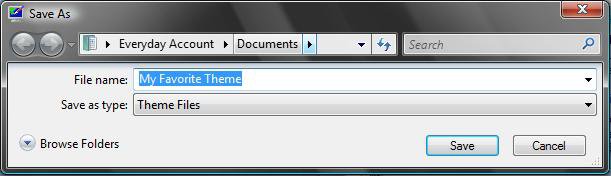
B) Select where you want to save the theme by clicking Browse Folders. (See screenshot below)
C) Type in a name for the theme and click the Save button.
D) Click Apply and click OK.

Save_As.jpg

5. To Change a Theme -
NOTE: This would be a .theme file that you downloaded off the internet or one that you saved from step 3 above.
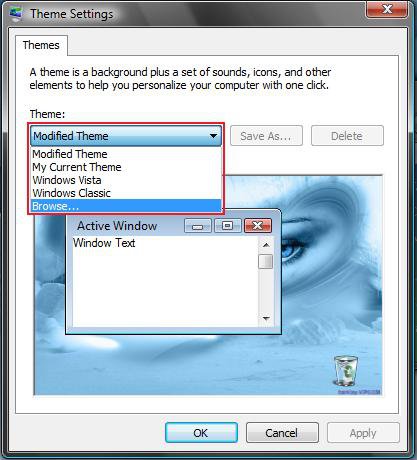
A) Click the Theme: drop down menu and select a theme or click Browse to get
one from another location. (See screenshot from step 3 above)
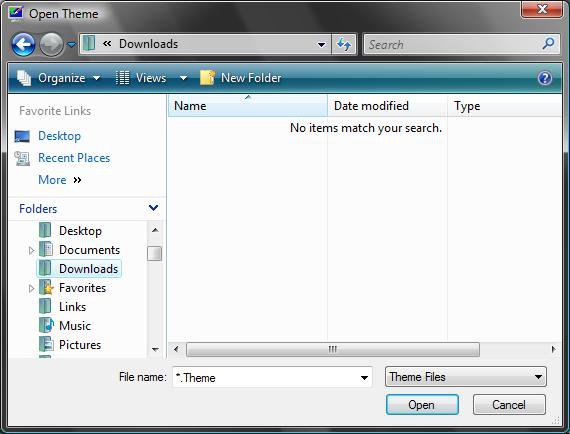
B) Navigate to the location of the .theme file and click the Open button. (See screenshot below)
C) Click Apply and OK.

Browse.jpg

6. To Delete a Theme -
NOTE: You cannot delete the default Windows Vista and Windows Classic themes, only the ones you added or saved.
A) Select a theme under the Theme: drop down menu.
(See screenshots from step 3 above)
B) Click the Delete button.
C) Click Apply and click OK.


That's it,
Shawn
Published by
Brink's Avatar
Administrator
Join Date: Apr 2007
Location: Texas, USA
Posts: 12,929
Rep Power: 200
Brink has a reputation beyond reputeBrink has a reputation beyond reputeBrink has a reputation beyond reputeBrink has a reputation beyond reputeBrink has a reputation beyond reputeBrink has a reputation beyond reputeBrink has a reputation beyond reputeBrink has a reputation beyond reputeBrink has a reputation beyond reputeBrink has a reputation beyond reputeBrink has a reputation beyond repute

Tutorial Tools

Applies to
All Vista Versions
64 Bit & 32 Bit

Rating
Skill Level
20%20%20%
1

Page copy protected against web site content infringement by Copyscape

Old 6 Days Ago  
Termis
Newbie
Termis has a spectacular aura aboutTermis has a spectacular aura aboutTermis has a spectacular aura about
 
Join Date: May 2008
vista
Posts: 8

Re: Theme Settings

Am I missing something, but when I try to load a new theme it only changes to windows classic, which looks horrible. I can' get the new theme to work.

I have Vista Ultimate x64 so do I need to do something special in order to get custom themes working?
Termis is offline   Reply With Quote
Old 6 Days Ago  
Brink
Administrator
Brink has a reputation beyond reputeBrink has a reputation beyond reputeBrink has a reputation beyond reputeBrink has a reputation beyond reputeBrink has a reputation beyond reputeBrink has a reputation beyond reputeBrink has a reputation beyond reputeBrink has a reputation beyond reputeBrink has a reputation beyond reputeBrink has a reputation beyond reputeBrink has a reputation beyond repute
 
Brink's Avatar
 
Join Date: Apr 2007
Vista x64 Ultimate SP1
Posts: 12,929

Location: Texas, USA
Re: Theme Settings

Hello Termis,

Vista only comes with the Windows Classic and the default Windows Vista theme. Unless you made changes to your desktop and saved it as a theme in step 4, or downloaded a .theme, you will not have any other options.

I do not know of any sites yet that have .theme files available for download.

So your not missing anything.

Hope this helps,
Shawn

There are no dumb questions, just the people that do not ask them.
Please post feedback to help others.
Brink is online now   Reply With Quote
Old 6 Days Ago  
Termis
Newbie
Termis has a spectacular aura aboutTermis has a spectacular aura aboutTermis has a spectacular aura about
 
Join Date: May 2008
vista
Posts: 8

Re: Theme Settings

Quote:
Brink
View Post
Hello Termis,

Vista only comes with the Windows Classic and the default Windows Vista theme. Unless you made changes to your desktop and saved it as a theme in step 4, or downloaded a .theme, you will not have any other options.

I do not know of any sites yet that have .theme files available for download.

So your not missing anything.

Hope this helps,
Shawn
Brink, thanks for the answer but I found out myself what I should do. I needed to download custom dll's and replace them in system32. Then you can download .themes from across the internet , like deviant art, and copy them into resources/themes folder and then pick them in your themes menu.

Here's the link where I found the instructions:

deviantART Forum: How do I change my vista theme???Is it necessary to have some sort of program to do it??

Vista themes can be downloaded for example from here:

Free Windows Vista Themes
Termis is offline   Reply With Quote
Old 6 Days Ago  
Brink
Administrator
Brink has a reputation beyond reputeBrink has a reputation beyond reputeBrink has a reputation beyond reputeBrink has a reputation beyond reputeBrink has a reputation beyond reputeBrink has a reputation beyond reputeBrink has a reputation beyond reputeBrink has a reputation beyond reputeBrink has a reputation beyond reputeBrink has a reputation beyond reputeBrink has a reputation beyond repute
 
Brink's Avatar
 
Join Date: Apr 2007
Vista x64 Ultimate SP1
Posts: 12,929

Location: Texas, USA
Re: Theme Settings

Nice tip Termis. Thank you for sharing.

Shawn

There are no dumb questions, just the people that do not ask them.
Please post feedback to help others.
Brink is online now   Reply With Quote
 
Comment

Tags
settings, theme

Tutorial Tools
Display Modes


Vistax64.com is an independent web site and has not been authorized,
sponsored, or otherwise approved by Microsoft Corporation.
"Windows Vista", the Start Orb, and related materials are trademarks of Microsoft Corp.
© Vistax64.com 2005-2008
Tutorial powered by GARS 2.1.8m ©2005-2006

1 2 3 4 5 6 7 8 9 10 11 12 13 14 15 16 17 18 19 20 21 22 23 24 25 26 27 28 29 30 31 32 33 34 35 36 37 38 39 40 41 42 43 44 45 46 47 48