
How to Change the Default Open Window Size for a Shortcut in Vista
 Information
This will show you how change the default Open window size of a shortcut to normal (default), minimized, or maximized.
 Tip
TipIf you cannot get Vista to remember these settings, then try resetting the Folder View Settings completely in METHOD TWO here: How to Reset Windows Explorer Folder View Settings to Make Vista Remember
Here's How:
1. Right click on any shortcut.
NOTE: For a keyboard shortcut, right click on the shortcut that the keyboard shortcut is assigned to.
2. Click on Properties.
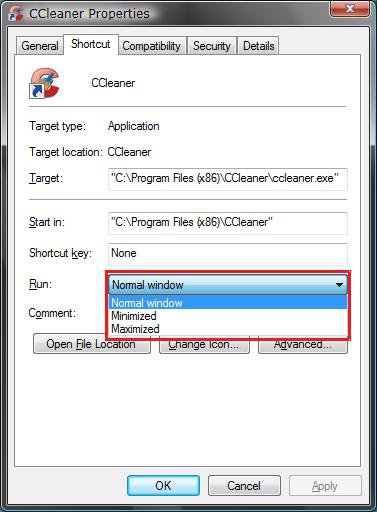
3. Click on the Shortcut tab. (See screenshot below)
4. In the Run drop down menu, select the window size you want the shortcut to open to.
Window Size | Description |
Normal Window | This is the default setting in Vista that will open the shortcut in a window the way you left it when you closed it last. |
Minimized | This will always open the shortcut in a window minimized to the taskbar. When you open the window from the taskbar, it will open like the Normal Window. |
Maximized | This will always open the shortcut in a window maximized to full screen. You will notice that if you try to restore down (middle button) this window, it is still full screen. You will need to move the mouse pointer to a corner until it turns into a double arrow and then click and hold the left mouse button and drag the window to the size you want it to be. |
5. Click on Apply.
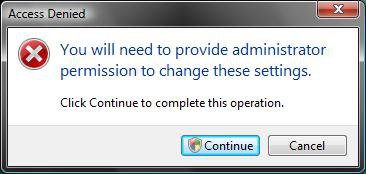
6. Click on Continue in the Access Denied prompt. (See screenshot below)
7. Click on Continue in the UAC prompt.
8. Click on OK.
That's it,Shawn
Related Tutorials
- How to Change a Windows Explorer Folder Type Template in Vista
- How to Reset Windows Explorer Folder View Settings to Make Vista Remember
- How to Change the Visual Effects Options for Appearance and Performance in Vista
- How to Create a Keyboard Shortcut for a Program in Vista
- How to Change the Target Path Location of a Shortcut in Vista
- How to Change a Shortcut Folder or File Icon in Vista
- How to Change the Windows Explorer Columns and Sort Order in Vista
- How to Disable Auto Arrange in Vista Windows Explorer to have Free Sorting
Attachments

Last edited:


