
How to Harvest, Restore, & Retain Icons on Vista
 Information
This tutorial will show you how to harvest icons from your system and the internet, how to refresh and rebuild the icon cache to restore your icons, and how to retain your designated icons.
 Tip
TipIcon Extraction :
There are literally thousands of icons on your system from Windows and from other programs you have installed. You can search for these icons from a Browse box when in the middle of changing an icon or you can get a program like PC Icon Extractor (free trial, cheap to buy) which will scan all types of files that contain icons and convert them into many types of image files for icon use.
How to Make Your Own Icons :Using image converter software you can convert photos and other image files to icons. A good free image converter program is Imagicon.
 STEP ONE
Icons harvested from the internet are usually too small for Vista. Vista is designed to use scalable icons with greater pixel size than those used in XP or previous versions. You can use a free program like FavOrg to harvest icons from the internet for all your Favorites (favicons):
Or you can harvest favicons from internet sites manually. For example, www.google.com is the address at the top of your browser when you’re at the google site. Add “/favicon.ico” to this so it’s www.google.com/favicon.ico then hit enter and if the site has a favicon you’ll get a page with the favicon on it that you can copy to a Folder in your Documents that you make to store your icons. To Drag-and-Drop your Favorite shortcuts onto your Desktop, click on Start, then Favorites. Place the cursor over the link you want, depress and hold down the left mouse button, and move the mouse over the Desktop carrying the link with you. Then release the left mouse button dropping the link on the desktop. You may have to replace the link in your Favorites.
Unfortunately, most icons from the internet and from third-party software are small icons in the 16 X 16 or 32 X 32 pixel range and Vista doesn’t like to display small icons in the large or medium icon display that it normally uses on the Desktop. When Vista is asked to do this, your designated small Icon often reverts to the generic IE icon even though in Properties it will show the correct icon.
STEP TWO NOTE: Reduce your icon display size to make Vista compatible with the smaller icons available on the web.
1. Right click on an empty space on your Desktop, select View, then Classic Icons.
A) At step 6, click on the drop down Item: list and select Icon.
B) To the right of the Icon item, decrease the icon size to the low 20’s.
NOTE: You can later experiment with sizing to see what works best for you.
C) Click OK, then Apply, OK.
STEP THREE NOTE: Sometimes, even after resizing, Desktop and Taskbar icons that you have designated, especially internet shortcut icons, will revert to the generic IE icon. Refreshing the icon cache will often restore your designated icons.
1. Right-click on the Desktop.
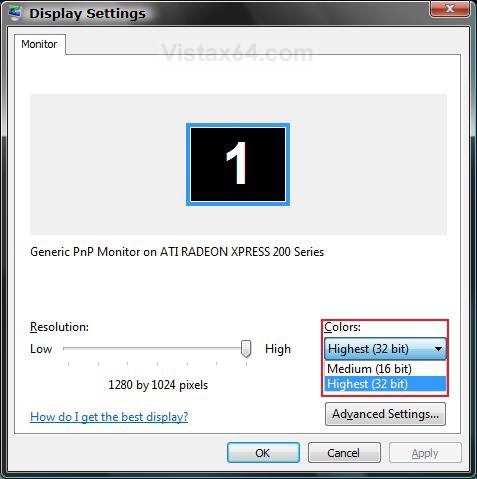
2. Select Personalize and select Display Settings.
3. Change the Color from 32 bit to 16 bit and click Apply. (See screenshot below)
4. Change the Color back to 32 bit and click Apply.
STEP FOUR NOTE: The previous method for refreshing the icon cache is helpful if the iconcache.db file is not corrupt. (Step Three above)
1. For how see: Performance & Maintenance - Icon Cache - Rebuild
STEP FIVE 1. In Windows Explorer, navigate to C:\Program Files\Internet Explorer\iexplore.exe.
2. Drag iexplore.exe to the Desktop.
3. Right-click the new iexplore shortcut, select Properties, select Target.
4. Modify the Target address to include the desired URL.
NOTE: Leave the space between .EXE" and www. (Remove the space between www and .yahoo.com.)
Example: "C:\Program Files\Internet Explorer\IEXPLORE.EXE"
Becomes: "C:\Program Files\Internet Explorer\IEXPLORE.EXE" www .yahoo.com
5. Click Apply to apply the new Target.
6. Rename the shortcut as desired.
A) Right click the shortcut, and click Rename.
7. Change the shortcut's icon to your custom icon.
STEP SIX NOTE: This is one more step to assure retention of your designated icons.
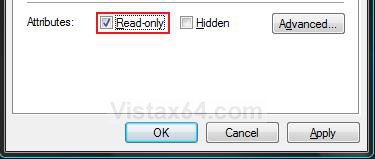
1. Right-click on your icon and select Properties.
2. Under the General tab, check Read-Only and click Apply. (See screenshot below)
NOTE: If in the future you want to modify the shortcut, you will need to uncheck Read-Only. Be sure to check it back when done.
Thanks to the many contributors to the Windows Communities who provided source materials from which this was compiled.
Bruce
Attachments
Last edited by a moderator: