
How to Change the Keyboard Settings in Vista
 Information
This will show you how to open and change the keyboard settings so you can customize how long you must press a key before the keyboard character starts repeating, the speed at which keyboard characters repeat, and the rate at which the cursor blinks.
Here's How:
1. Open the Control Panel. (Classic View)
2. Click on the Keyboard Icon.
NOTE: These are the default settings. Your Keyboard Properties may look a little bit different depending on your keyboard drivers, but should still have these same settings there.
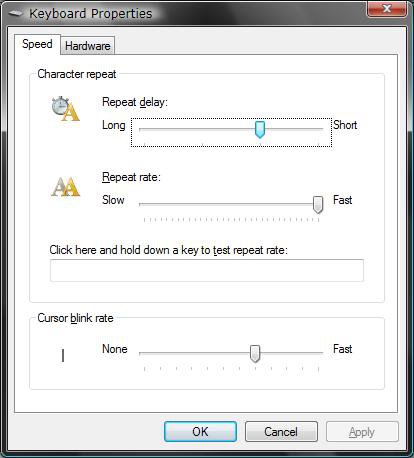
3. To Change the Character Repeat Delay
A) Move the Repeat delay slider to the left to increase the amount of time you must hold down a key before the keyboard character repeats. Move the slider to the right to decrease the amount of time before characters repeat.
B) Test the repeat rate in the white box underneath.
C) Go to step 6.
4. To Change the Character Repeat Rate
A) Move the Repeat rate slider to the left to make keyboard characters repeat more slowly, or to the right to make them repeat faster.
B) Test the repeat rate in the white box underneath.
C) Go to step 6.
5. To Change the Cursor Blink Rate
NOTE: Look at the blinking cursor as a test for your setting changes.
A) Move the Cursor blink rate slider to the right to increase the cursor blink speed. If you move the slider all the way to the left, the cursor will stop blinking.
6. Click Ok when done.
That's it,Shawn
Related Tutorials
- How to Adjust the Thickness of the Blinking Cursor in Vista
- How to Use Mouse Keys in Vista
- How to Turn the Toggle Keys Beep Alert On or Off in Vista
- How to Underline Keyboard Shortcuts in Vista
- How to Change the Keyboard Input Language in Vista
- How to Turn the On-Screen Keyboard On or Off in Vista
- How to Use Character Map in Vista, Windows 7, and Windows 8
- How to Open and Use Private Character Editor in Vista, Windows 7, and Windows 8
- How to Enable or Disable the Caps Lock Key in Vista
Attachments
Last edited by a moderator:


