
How to Fix a Personal User Shell Folder Displayed as a Standard Yellow Folder Icon in Vista
 Information
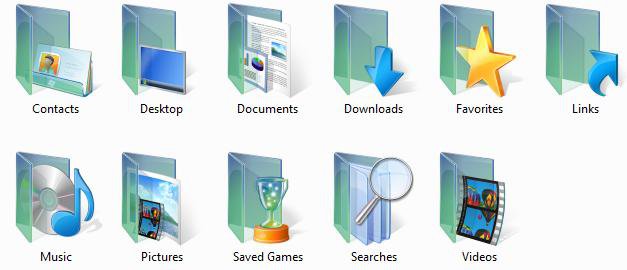
If you open your personal user folder in the Start menu or from C:\Users\(user name), and a user folder has a standard yellow folder icon instead of the special green folder icon, then this will show you how to restore the green folder icon for that particular user folder.
 Note
NoteThis usually can occur when the desktop.ini file in the shell folder is missing or incorrect, or the user folder has no read only attribute set to it.
EXAMPLE: Special Green Personal User Profile Folder Icons
 OPTION ONE
NOTE: This is the User Name folder that appears in the Desktop folder tree view in Windows Explorer or the Start Menu.
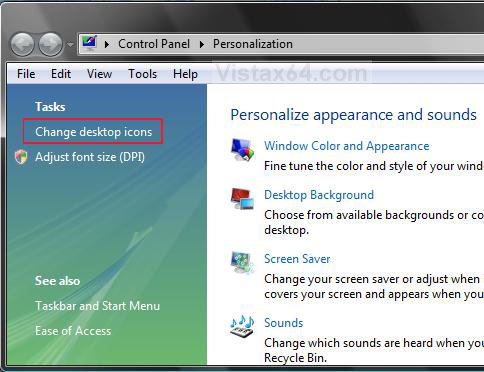
1. Right click on a empty area of the desktop and click on Personalize.
2. Click on Change desktop icons in the upper left corner. (See screenshot below)
3. In the lower box, click on your User Name folder to highlight it in blue. (See screenshot below)
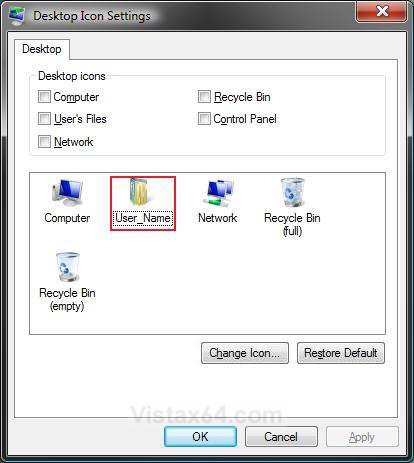
4. Click on the Restore Default button. (See screenshot above)
A) Click on Apply.
NOTE: If it did not restore the default User Name folder icon, then proceed to step 5.
B) Go to step 6.
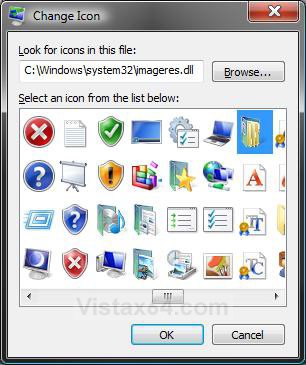
5. Click on the Change Icon button. (See screenshot below step 3)
A) If not already in the top line, then click on the Browse button and browse to C:\Windows\system32\imageres.dll.
B) Select the default User Name folder icon and click OK. (See highlighted in blue icon in the screenshot below)
6. Click on OK. (See screenshot below step 3)
OPTION TWO 1. Verify that the user folder has it's correct default path in METHOD THREE here.
STEP ONE:
Shell Command
2. Open the Start Menu.
3. Type in the Shell command (see table below) for the Personal User folder and press Enter..
User Folder | Shell Command |
Contacts | shell:Contacts |
Desktop | shell:desktop |
Documents | shell  ersonal ersonal |
Downloads | shell:downloads |
Favorites | shell:Favorites |
Links | shell:Links |
Music | shell:My Music |
Pictures | shell:My Pictures |
Saved Games | shell:SavedGames |
Searches | shell:Searches |
Videos | shell:My Video |
4. This will open the personal user folder from it's location.
5. Close the personal user folder window.
6. Check to see if the personal user folder has turned back to the special green folder in the start menu.
A) If yes, then your done.
B) If not, proceed to STEP TWO below.
STEP TWO:
Replace Desktop.ini File for User Folder
7. Have Show hidden files and folders dotted and Hide protected operating system files (Recommended) unchecked in Folder Options.
8. Click on the download button below to download the User Folders.zip file, then click on Save and save it to the Desktop.

9. Right click on the User Folders.zip file (on Desktop) and click on Open.
10. Extract the same folder(s) for your user folder name with the standard yellow icon displayed to the Desktop.
11. Open the extracted folder and right click on the desktop.ini file and click Copy. (See screenshot below)
NOTE: This file is set as a hidden file. This is why it is faded.

12. Open the user folder that has the standard yellow folder icon displayed.
A) Right click on a empty area in the folder's window and click Paste.
NOTE: If you are asked if you want to replace the old desktop.ini file, then click Copy and Replace. (See screenshot below)
B) Repeat step 11 for each user folder you need to fix.
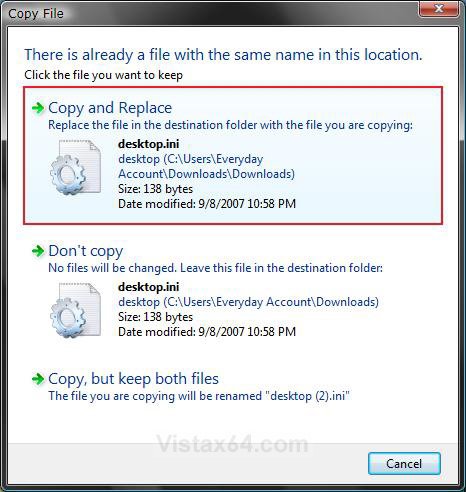
13. Close all windows.
14. Open a elevated command prompt.
15. If prompted, click on Continue in the UAC prompt.
16. In the elevated command prompt, type the command below (see table below) for the user folder name you need to fix. (See screenshot below table)
NOTE: This will set the user folder as Read-only. You can Copy and Paste these to make it easier for you.
WARNING: If you have changed the default location of your user folder, then you will need to type the full path of it's new location after attrib +r instead of the default %USERPROFILE% location below. For example, attrib +r D:\New location
User Folder | Command |
Contacts | attrib +r -s -h %USERPROFILE%\Contacts /S /D |
Desktop | attrib +r -s -h %USERPROFILE%\Desktop /S /D |
Documents | attrib +r -s -h %USERPROFILE%\Documents /S /D |
Downloads | attrib +r -s -h %USERPROFILE%\Downloads /S /D |
Favorites | attrib +r -s -h %USERPROFILE%\Favorites /S /D |
Links | attrib +r -s -h %USERPROFILE%\Links /S /D |
Music | attrib +r -s -h %USERPROFILE%\Music /S /D |
Pictures | attrib +r -s -h %USERPROFILE%\Pictures /S /D |
Saved Games | attrib +r -s -h %USERPROFILE%\"Saved Games" /S /D |
Searches | attrib +r -s -h %USERPROFILE%\Searches /S /D |
Videos | attrib +r -s -h %USERPROFILE%\Videos /S /D |

17. Repeat step 16 for each user folder that you replaced the desktop.ini file for.
18. Close the elevated command prompt.
19. Restart the computer, or logoff and login again for the changes to take effect.
20. Confirm that the folder icon is back to normal.
21. You can now delete the downloaded folders on the desktop and set your hidden files and folders settings back to normal in step 7 above.
That's it,
Shawn
Related Tutorials
- How to Change a Folder Icon in Vista
- How to Use the Vista Shell Command
- How to Change a Personal User Folder Location in Vista
- How to Rebuild the Icon Cache in Vista
- How to Restore a Missing Personal User Folder in Vista
- How to Fix a Public Folder Displayed as a Standard Yellow Folder Icon in Vista
- How to Change a File Extension Type Icon in Vista
- How to Prevent or Allow User Profile Folders Location Change in Vista
- How to Change the Default Location of a User Profile in Windows 7 and Vista
Attachments

Last edited:


