
How to Enable or Disable a Toggle Key at Startup in Vista, Windows 7, and Windows 8
 Information
A toggle key is the Num Lock, Caps Lock, and Scroll Lock keys. These are disabled by default in Vista at startup. You can enable or disable a toggle key by pressing it. Usually there is a light for each key that indicates when the toggle key is enabled or disabled.
 Tip
TipSometimes there is a setting in the BIOS to turn one or more of these toggle keys on or off. This can override your setting in the tutorial below. You should check there first.
 OPTION ONE
NOTE: Normally, the user account will startup with the same state of the toggle key as you last left it at logoff or shutdown of that user account.
1. Press the toggle keys to turn them On or Off for how you want them at startup.
2. Press the Windows + R keys to open the Run dialog, type regedit, and press Enter.
3. If prompted by UAC, click on Continue (Vista) or Yes (Windows 7/8).
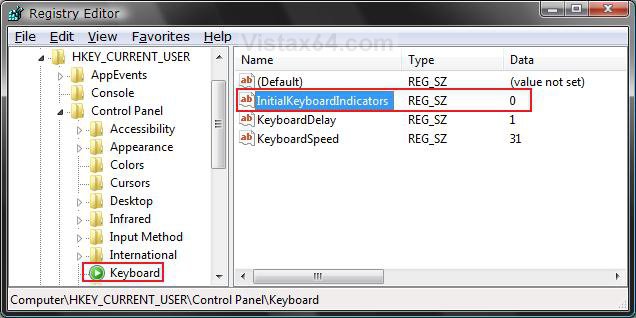
4. In regedit, navigate to the location below. (see screenshot below)
HKEY_CURRENT_USER\Control Panel\Keyboard
5. In the right pane, double click/tap on InitialKeyboardIndicators to modify it.
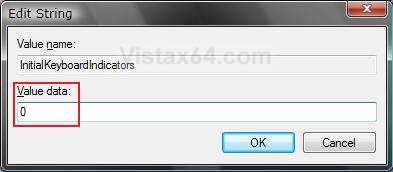
6. Type in a number in the table below for what you want, and click/tap on OK. (See screenshot below table)
[TABLE=class:-grid,-width:-500][TR][TD]Number
[/TD]
[TD]
Description
[/TD][/TR]
[TR][TD]
0
[/TD]
[TD]
All indicators off (Default setting)
[/TD][/TR]
[TR][TD]
1
[/TD]
[TD]
Caps Lock on
[/TD][/TR]
[TR][TD]
2
[/TD]
[TD]
Num Lock on
[/TD][/TR]
[TR][TD]
3
[/TD]
[TD]
Caps Lock and Num Lock on
[/TD][/TR]
[TR][TD]
4
[/TD]
[TD]
Scroll Lock on
[/TD][/TR]
[TR][TD]
5
[/TD]
[TD]
Caps Lock and Scroll Lock on
[/TD][/TR]
[TR][TD]
6
[/TD]
[TD]
Num Lock and Scroll Lock on
[/TD][/TR]
[TR][TD]
7
[/TD]
[TD]
Caps Lock, Num Lock, and Scroll Lock on
[/TD][/TR][/TABLE]
7. Close regedit.
8. Log off and log on to set the change.
OPTION TWO NOTE: This is before you logon to a user account. You will either need to do this in a Administrator account or have regedit Run as administrator in a Standard account.
1. Press the Windows + R keys to open the Run dialog, type regedit, and press Enter.
2. If prompted by UAC, click on Continue (Vista) or Yes (Windows 7/8).
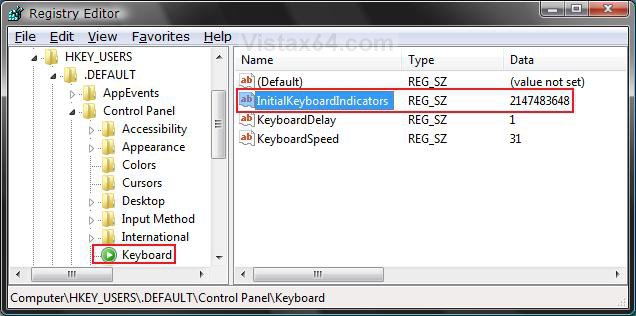
3. In regedit, navigate to the location below. (see screenshot below)
HKEY_USERS\.Default\Control Panel\Keyboard
4. In the right pane, double click/tap on InitialKeyboardIndicators to modify it.
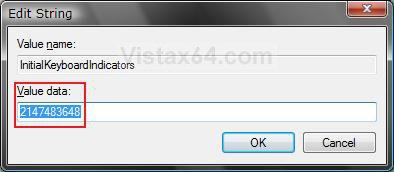
5. Type in a number below for what you want, and click/tap on OK. (See screenshot below table)
NOTE: It is safe to change this longer default number 2147483648 (decimal equivalent of 0x80000000). It acts the same as 0.
[TABLE=class:-grid,-width:-500][TR][TD]Number
[/TD]
[TD]
Description
[/TD][/TR]
[TR][TD]
0
[/TD]
[TD]
All indicators off (Default setting)
[/TD][/TR]
[TR][TD]
1
[/TD]
[TD]
Caps Lock on
[/TD][/TR]
[TR][TD]
2
[/TD]
[TD]
Num Lock on
[/TD][/TR]
[TR][TD]
3
[/TD]
[TD]
Caps Lock and Num Lock on
[/TD][/TR]
[TR][TD]
4
[/TD]
[TD]
Scroll Lock on
[/TD][/TR]
[TR][TD]
5
[/TD]
[TD]
Caps Lock and Scroll Lock on
[/TD][/TR]
[TR][TD]
6
[/TD]
[TD]
Num Lock and Scroll Lock on
[/TD][/TR]
[TR][TD]
7
[/TD]
[TD]
Caps Lock, Num Lock, and Scroll Lock on
[/TD][/TR][/TABLE]
6. Close regedit.
That's it,
Shawn
Attachments

Last edited by a moderator:


 Steve
Steve