
How to View the Internet Explorer Temporary Internet Files and Settings in Vista
 Information
When you view a webpage, Internet Explorer saves a temporary copy of that page so that the page can be displayed more quickly if you open it again later. This will show you how to view the Temporary Internet Files and how to change the settings for it.
 Note
NoteThe Temporary Internet Files folder is at this is a hidden protected operating system file location.
C:\Users\(User Name)\AppData\Local\Microsoft\Windows\Temporary Internet Files
C:\Users\(User Name)\AppData\Local\Microsoft\Windows\Temporary Internet Files
Here's How:
1. Open the Control Panel. (Classic View)
A) Click on the Internet Options icon.
B) Go to step 3.
OR
2. Open Internet Explorer - IE .
A) Click on the Tools menu and on Internet Options.
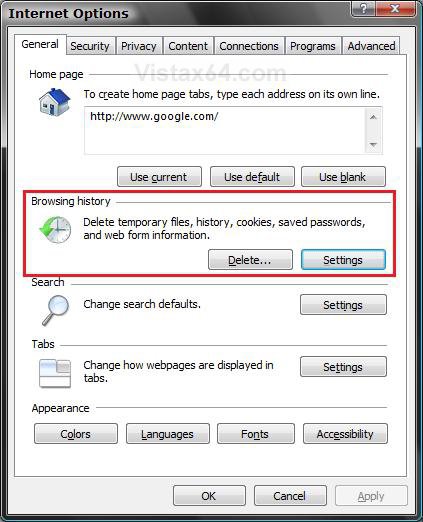
3. Under the Browsing History section, click on the Settings button. (See screenshot below)
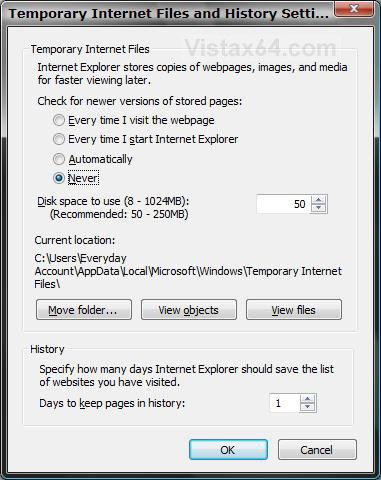
4. Make any changes to the settings here. (See screenshot below)
5. To Move the Temporary Internet Files Folder Location
A) Click the Move folder button. (See screenshot below step 4)
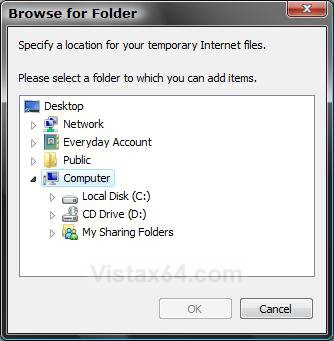
B) Navigate to where you want the new temporary internet files folder to be and click on OK. (See screenshot below)
6. To View the Downloaded Program Files
A) Click on the View objects button. (See screenshot below step 4)
7. To View the Temporary Internet Files
A) Click on the View files button. (See screenshot below step 4)
8. Click on OK to apply any changes.
That's it,Shawn
Related Tutorials
- How to Put the Menu Bar on Top in Internet Explorer
- How to Add or Remove the Internet Explorer Search Box in Vista
- How to Change the Internet Explorer Search Box Settings in Vista
- How to Delete the Internet Explorer Browsing History in Vista
- How to Create or Remove a Custom Title Bar in Internet Explorer
- How to Use Tabbed Browsing in Internet Explorer in Vista
- How to Change the Maximum Download Sessions in Internet Explorer for Vista
- How to Add a Fully Functional Internet Explorer Shortcut Icon to the Desktop in Vista
- How to Allow or Block Cookies in Internet Explorer in Vista
- How to Fix a Crashing Internet Explorer in Vista
- How to Create Shortcuts to Delete Internet Explorer Browsing History in Vista
- How to Turn On or Off and Use Internet Explorer Pop-up Blocker in Vista
- How to Import and Export Favorites in Internet Explorer
- How to Remove or Restore the Vista Internet Explorer Command Bar
- How to Reset the Favorites Favicon Icons in Vista
Attachments

Last edited by a moderator: