
How to Delete and Extend a Partition with Disk Management in Vista
 Information
When you Delete a hard disk partition (volume) you turn that partition into a unallocated (unformated) partition. You can then use this unallocated partition to Extend another partition to a larger size. For more information, see: Windows Help and How-to: Partition and Understanding Disk Partitioning
[TABLE=class:-grid,-width:-700][TR][TD]
Partition Type
[/TD]
[TD]
Description
[/TD][/TR]
[TR][TD]
Primary Partition
[/TD]
[TD]
A type of partition created on a hard drive that can host an operating system and functions as though it were a physically separate hard drive. Also called a volume. Only up to four primary partitions, or 3 primary partitions and 1 extended partition can be created on a single hard drive. Primary partitions can be used to install and start an operating system. If you want to create more than three partitions, the fourth partition is created as an extended partition. See: Windows Help and How-to: What are system partitions and boot partitions? and The Storage Team at Microsoft - File Cabinet Blog : Understanding the error message "There is not enough space available on the disk(s) to complete this operation" when you create a volume
[/TD][/TR]
[TR][TD]
Extended Partition
[/TD]
[TD]
A type of partition on a hard drive that should be used if you want to create more than four Primary partition. Extended partitions can contain multiple logical drives that can be formatted and have drive letters assigned to them. An extended partition is a container that can hold one or more logical drive. Logical drives function like primary partitions except that they cannot be used to start an operating system. This option has been removed in Disk Management for Vista. For how, see: The Storage Team at Microsoft - File Cabinet Blog :How to create an extended partition in Windows Vista (Click Yes for Security Information)
[/TD][/TR][/TABLE]
[TABLE=class:-grid,-width:-700][TR][TD]
Partition Type
[/TD]
[TD]
Description
[/TD][/TR]
[TR][TD]
Primary Partition
[/TD]
[TD]
A type of partition created on a hard drive that can host an operating system and functions as though it were a physically separate hard drive. Also called a volume. Only up to four primary partitions, or 3 primary partitions and 1 extended partition can be created on a single hard drive. Primary partitions can be used to install and start an operating system. If you want to create more than three partitions, the fourth partition is created as an extended partition. See: Windows Help and How-to: What are system partitions and boot partitions? and The Storage Team at Microsoft - File Cabinet Blog : Understanding the error message "There is not enough space available on the disk(s) to complete this operation" when you create a volume
[/TD][/TR]
[TR][TD]
Extended Partition
[/TD]
[TD]
A type of partition on a hard drive that should be used if you want to create more than four Primary partition. Extended partitions can contain multiple logical drives that can be formatted and have drive letters assigned to them. An extended partition is a container that can hold one or more logical drive. Logical drives function like primary partitions except that they cannot be used to start an operating system. This option has been removed in Disk Management for Vista. For how, see: The Storage Team at Microsoft - File Cabinet Blog :How to create an extended partition in Windows Vista (Click Yes for Security Information)
[/TD][/TR][/TABLE]
 Note
NoteThis can be handy, for example, if you have one hard drive with two partitions and would like to Delete the second partition and Extend the first (boot) partition with Vista back to one large partion (volume).
 Tip
TipThe default location for Disk Management is C:\Windows\System32\diskmgmt.msc.
 Warning
- You will not lose any data on the partition (volume) that you are Extending. The partition you want to delete and use to extend another partion must be to the immediate right of the one you want to extend. You can cannot extend a partition from a deleted partition two or more partions to the right of it.
- All data on a partition will be lost when you Delete it. Be sure to back up any files that you want to save to a different location before you continue.


 STEP ONE
1. Open the Control Panel. (Classic View)
A) Click on the Administrative Tools icon.
B) Click on Computer Management.
2. Click on Continue in the UAC prompt.
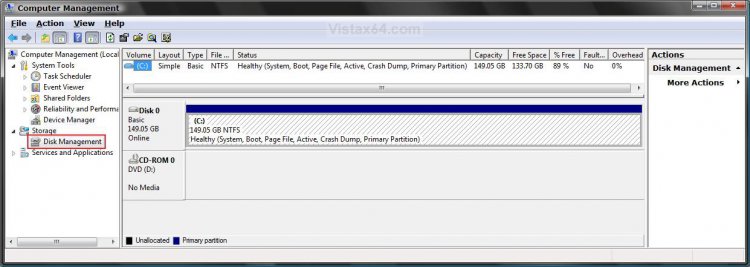
3. In the left pane, click on Disk Management under Storage. (See screenshot below step 4)
4. Right click on the volume (EX: E:\ ) you want to delete that is just to the right of the partition that you want to extend, and click on Delete Volume.
NOTE: If your hard disk is currently set up as a single partition, then you cannot delete it. You also cannot delete a system partition (OS isntalled on), boot partition, or any partition that contains a virtual memory paging file, because Vista needs this information to start correctly. You will have to use the Vista installation disk to delete it.
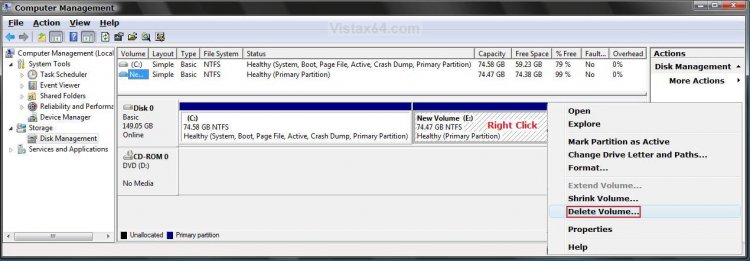
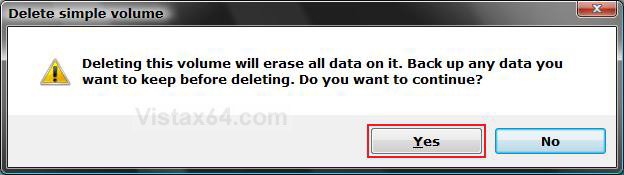
5. Click on Yes to the confirmation prompt. (See screenshot below)
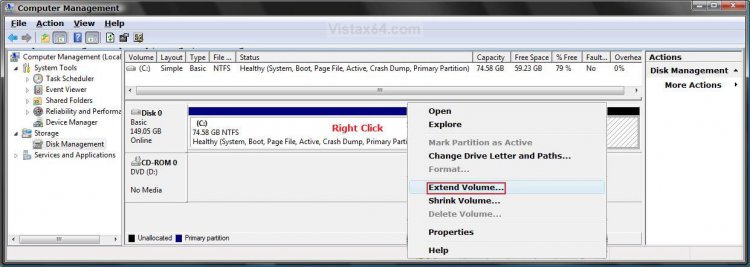
NOTE: This will leave the partition as unallocated (blank) with no drive letter.
STEP TWO 6. Right click on the partition (EX: C:\ ) the is just to the left of the unallocated space that you want to Extend it into, and click on Extend Volume. (See screenshot below)
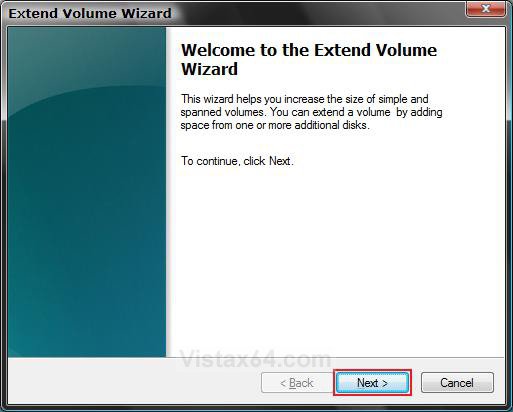
7. Click on Next for the Welcome to the Extend Volume Wizard window. (See screenshot below)
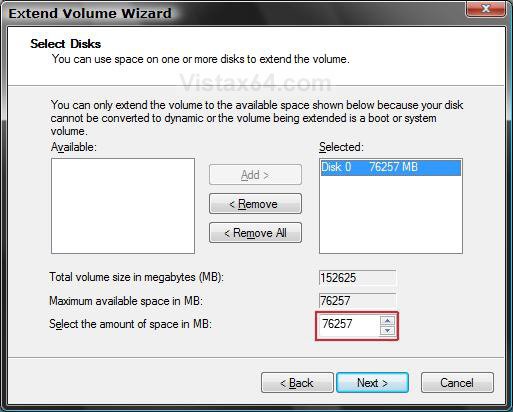
8. Select the amount of space in MB you want to use from the unallocated partition to use to Extend this partition. (See screenshot below)
NOTE: If you want to make one partition again, then select all of the available space for that one disk. If there were other drives with free unallocated space, they would be shown under the Available selection.
WARNING: It is advised that you do not extend a volume on one disk with free space from another disk. If one of the drives has a hardware failure, then all the data on that partition (volume) will be deleted.
A) Click on Next.
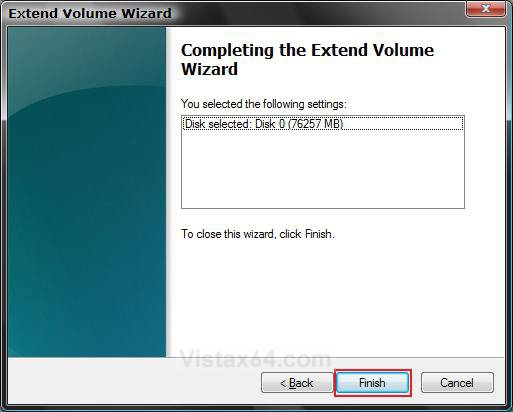
9. Click on Finish in the Completing Extend window. (See screenshot below)
10. You will now see the Disk Management console with the new Extended partition volume ready to be used. (See screenshot below)
11. Close Computer Management.
12. Click on Computer in the Start Menu and see your new Extened partition volume. (See screenshot below)
NOTE: In this example, we will have one large partition from the same hard disk now.
That's it,
Shawn
Related Tutorials
- How to Shrink and Create a Partition with Disk Management in Vista
- How to Change a Drive Icon in Vista
- How to Add, Change, or Remove a Drive Letter in Vista
- How to Change the Default Boot Partition in Vista
- How to Show or Remove Drive Letters from Displaying in Vista
- How to Rename a Drive in Vista
- How to Disable or Enable Low Disk Space Warning in Vista
- How to Increase Hard Drive Performance in Vista
- How to Restrict or Unrestict Drive Access in Vista
- How to Hide or Unhide a Drive in Vista
- How to Create a Drive Shortcut in Vista
- How to Mount or Dismount a Drive or Partition to a Folder in Vista
- How to Convert a FAT or FAT32 Volume to NTFS in Vista
- How to Recover Deleted Partitions in Vista, Windows 7, and Windows 8
Attachments

Last edited by a moderator:


