Vista Forums
Vista Forums Home Join Vista Forums Donate Vista Tutorials Tags

Welcome to Vista Forums we are your forum to discuss Windows Vista x64 and x86 systems. Whether you need help or just want to post an idea you have on Vista, this is the forum for you.
Register at Vista forums...the world biggest Windows Vista resource Join Vista Forums Now

Go Back   Vista Forums > Vista Forums > Tutorials

Vista Tutorial Categories Network & Internet Tutorials File & Folder Settings Tutorials Taskbar & Start Menu Tutorials Performance & Maintenance Tutorials General Tips Tutorials Programs & Features Tutorials Context Menu Tutorials Shortcut Tutorials Security & System Tools Tutorials Parental Controls Tutorials User Account Tutorials Hardware & Drivers Tutorials Appearance & Personalization Tutorials Backup & Restore Tutorials Music, Photo, Video and Media Tutorials Power Management Tutorials

Windows Mail Stationery

Update your Vista Drivers Update Your Drivers Now!!
Poll: Did this Tutorial help and work for you?
Poll Options
Did this Tutorial help and work for you?

Comment
 
Tutorial Tools Display Modes
<!-- google_ad_section_start -->Windows Mail Stationery<!-- google_ad_section_end -->
Windows Mail Stationery
How to Use and Create Stationery in Windows Mail
Published by Brink
10-02-2007

How to Use and Create Stationery in Windows Mail
Information
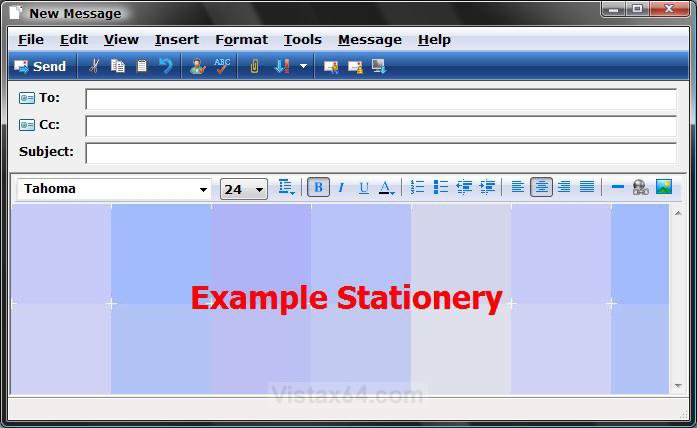
  Stationery is a background image for messages. This will show you how to Create and Use stationery in Vista Windows Mail. Stationery uses the .HTM file extension.
NOTE
  The default stationery folder location used by Windows Mail is:
NOTE: AppData is a hidden folder, see Option Two here: How to Hide or Show Hidden Files and Folders in Vista

C:\Users\(your username)\AppData\Local\Microsoft\Windows Mail\Stationery

Tip
  For free Stationery files to download see: http://thundercloud.net/help/vista.htm
RELATED LINK:
EXAMPLE: Stationery
Name:  Example_Stationery.jpg
Views: 1611
Size:  97.5 KB

OPTION ONE:
How to Use Stationery in Windows Mail
1. Open Windows Mail.

2. In Windows Mail Main Window -
NOTE: You can also click this in a compose Message window to open a New Message window with the selected stationery.
A) Click Message. (See sceenshot below)
B) Click New Message Using.
C) Select a stationery listed, or click Select Stationery to choose from another location. (See step 4)
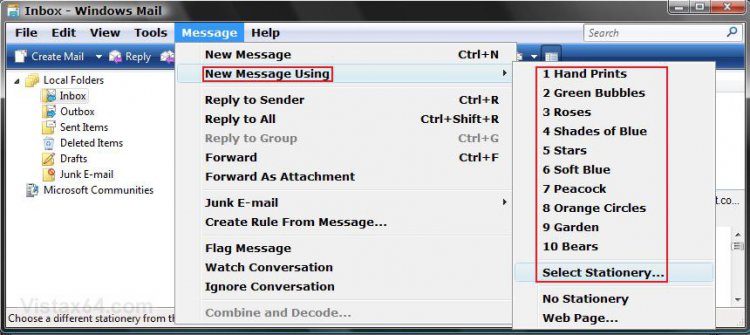
Name:  In_Windows_Mail.jpg
Views: 2379
Size:  157.6 KB

3. In a Compose Message Window -
A) Click Format.
B) Click Apply Stationery.
C) Select a stationary listed, or click More Stationery to choose from another location. (See step 4)
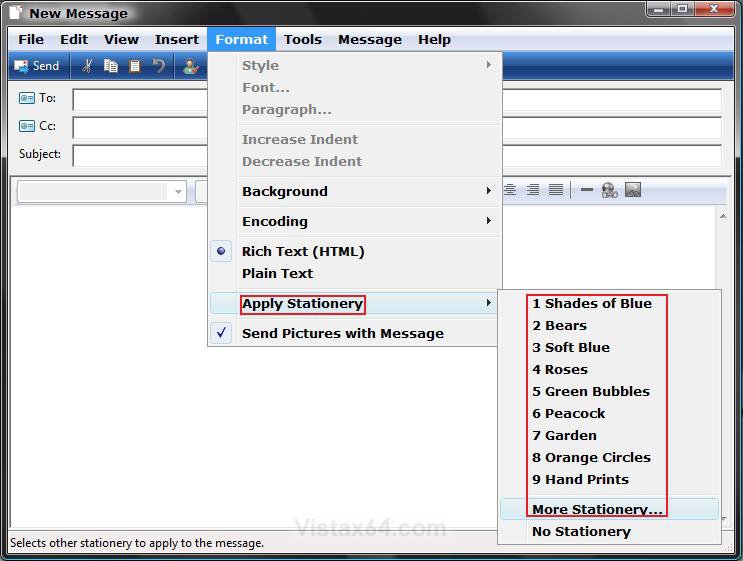
Name:  In_Message_Window.jpg
Views: 2353
Size:  138.6 KB

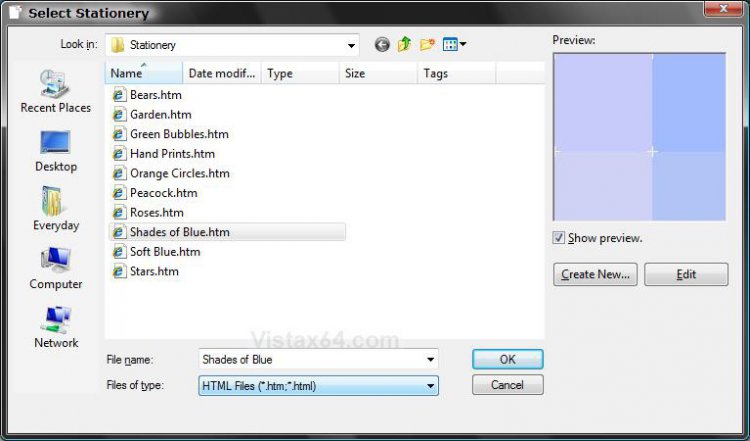
4. For Select Stationery or More Stationery -
A) Select the stationery you want from it's location. (See screenshot below)
B) Click OK.
Name:  Select_Stationary.jpg
Views: 2333
Size:  106.4 KB

OPTION TWO:
How to Create Stationery in Windows Mail :
5. Click the Create New button. (See screenshot above)
6. Click Next in the Stationery Wizard window. (See screenshot below)
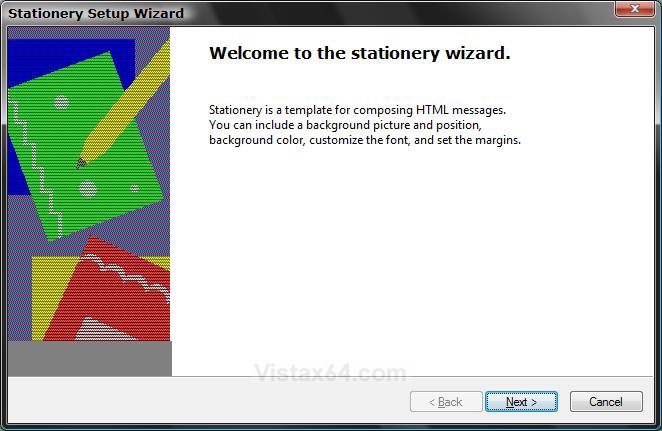
Name:  Wizard_Welcome.jpg
Views: 2320
Size:  112.6 KB

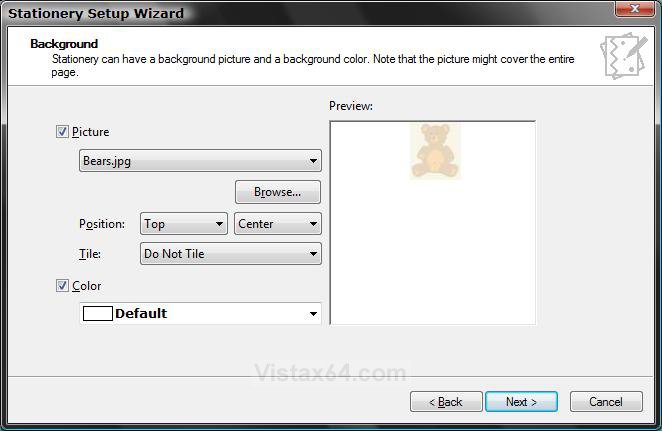
7. To Choose a Picture -
A) Check Picture and select a picture for the background. (See screenshot below)
NOTE: Click Browse to use a .BMP, .GIF, .JPG, .WMF, .WBM, and .ART image of your own.

B) Select a Postion and Tile effect for the image.
8. To Choose a Background Color -
A) Check Color and choose a color.
9. Click Next.

Name:  Step_1_Wizard.jpg
Views: 2278
Size:  72.6 KB

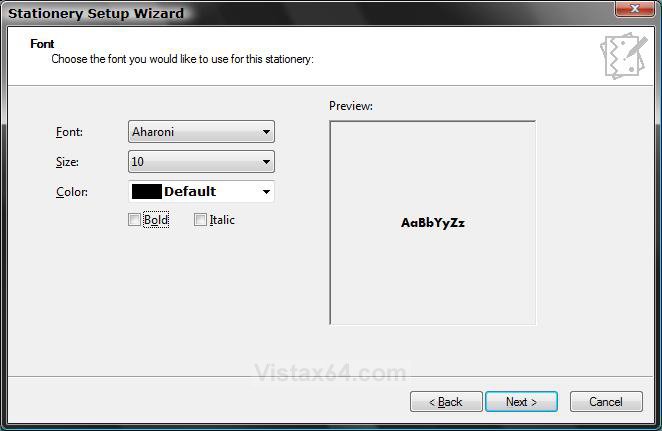
10. Choose the font you would like to use in this stationery. (See screenshot below)
NOTE: See the preview window to see how it will look.
A) Select a Font style.
B) Select a Size for the font.
C) Select a Color for the text.
D) Select if you want a Bold or Italic font.
NOTE: By default it will be set as Normal if nothing is dotted.
11. Click Next.

Name:  Step_2_Wizard.jpg
Views: 2239
Size:  57.1 KB

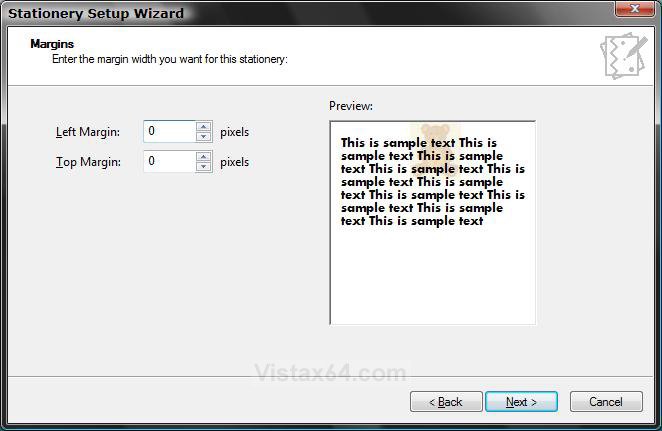
12. Enter the margin width you want for this stationery. (See screenshot below)
A) Adjust the Left Margin and Top Margin to the location you want it.
NOTE: See the preview window to see how it will look.
13. Click Next.

Name:  Step_3_Wizard.jpg
Views: 2236
Size:  78.5 KB

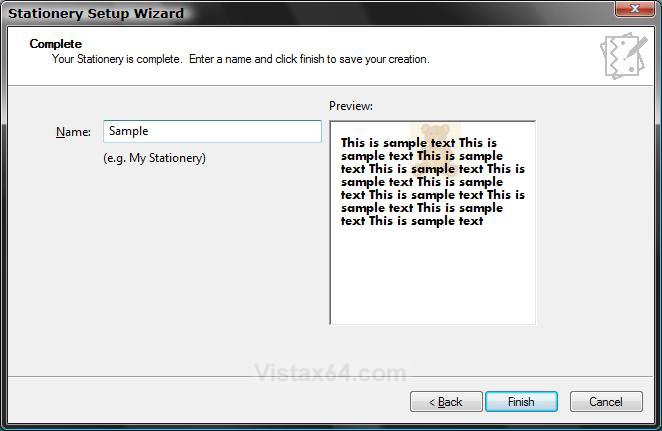
14. Type in a name for this stationery. (See screenshot below)
15. Select a location you want to save the stationery file.
NOTE: The default location is: C:\Users\(your username)\AppData\Local\Microsoft\Windows Mail\Stationery

16. Click Finish.

Name:  Step_4_Wizard.jpg
Views: 2217
Size:  80.2 KB

17. You will now see the file listed under the Select Stationery window. (See screenshot below)
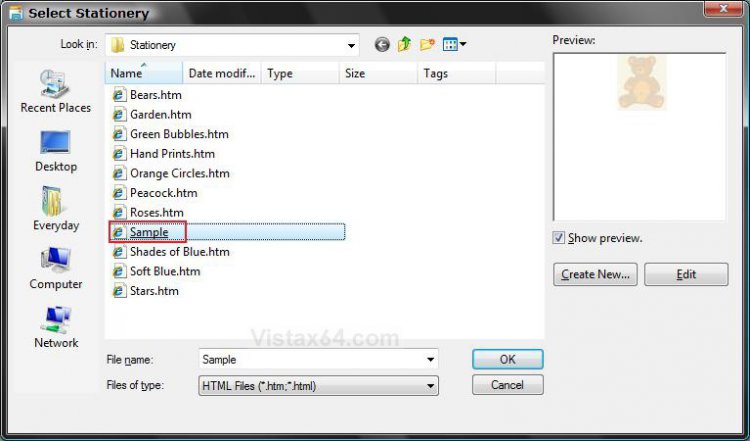
Name:  Added_To_Select.jpg
Views: 2204
Size:  109.7 KB
That's it,
Shawn

Published by
Brink's Avatar
Administrator
Join Date: Apr 2007
Location: Texas, USA
Posts: 16,573
Rep Power: 150
Brink has a reputation beyond reputeBrink has a reputation beyond reputeBrink has a reputation beyond reputeBrink has a reputation beyond reputeBrink has a reputation beyond reputeBrink has a reputation beyond reputeBrink has a reputation beyond reputeBrink has a reputation beyond reputeBrink has a reputation beyond reputeBrink has a reputation beyond reputeBrink has a reputation beyond repute

Tutorial Tools
Show Printable Version Show Printable Version
Email this Page Email this Page

Applies to
All Vista Versions
64 Bit & 32 Bit

Comment

Tags
mail, programs & features, stationery, windows

Tutorial Tools
Display Modes


Update your Vista Drivers Update Your Drivers Now!!

Similar Threads
Tutorial Tutorial Starter Category Comments Last Post
Stationery in Windows Mail Ceciliah Vista installation & setup 0 07-01-2008 03:09 AM
Creating stationery in windows mail beachfox Vista mail 1 11-16-2007 01:56 PM
Stationery in Windows Mail CatMar Vista mail 11 11-11-2007 08:55 PM
Windows mail stationery BArrow Vista mail 8 07-21-2007 02:30 PM
Using Stationery In Windows Mail Mikki7 Vista mail 5 02-23-2007 03:09 PM


Vistax64.com is an independent web site and has not been authorized,
sponsored, or otherwise approved by Microsoft Corporation.
"Windows Vista", the Start Orb, and related materials are trademarks of Microsoft Corp.
© Designer Media 2005-2008
Tutorial powered by GARS 2.1.8m ©2005-2006