
How to Pin a Folder to the Start Menu in Vista
 Information
By default in Vista, you are only able to pin a program or a program shortcut to the left white side of the Start Menu. This will show you how to also allow a folder or a folder shortcut to be pinned to the Start Menu.
 Note
Note- This will only add Pin to Start Menu to a folder, or folder shorcut, on the Desktop or in Windows Explorer. It does not add it for folders in the Start menu All Programs area.
- It is best to Pin the actual source folder and not a shortcut to the folder. It is easier for a shortcut to be moved or deleted, causing the Pinned folder in the Start menu to not work anymore.
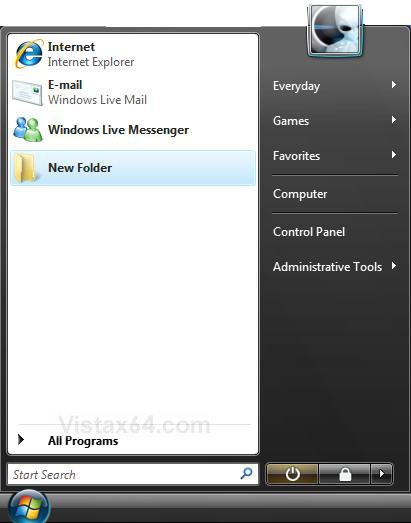
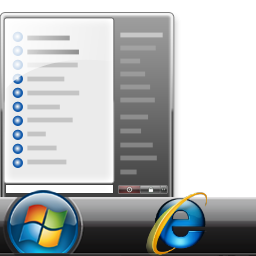
EXAMPLE: Pin area of the Start Menu
NOTE: This is the left white side of the Start menu. If you would like to change the size of these icons to be large or small, then see: How to Display Small or Large Icons in the Vista Start Menu
 STEP ONE
Using a REG File Download
1. To Add the Pin Folder Option
A) Click on the download button below to download the Add_Pin_Folder.reg file.
B) Go to step 3.

2. To Remove the Pin Folder Option
A) Click on the download button below to download the Remove_Pin_Folder.reg file.
3. Click on Save, and save the .reg file to the Desktop.
4. Right click on the downloaded .reg file and click on Merge.
5. Click on Run, Continue (UAC), YES , and OK when prompted.
6. When done, you can delete the downloaded .reg file if you want to.
Manually Through Registry Editor
1. Open Start Menu.
2. In the white line (Start Search) area, type regedit and press Enter.
3. Click on Continue in the UAC prompt.
4. In regedit, go to: (See screenshot below step 5A)
HKEY_CLASSES_ROOT\Folder\shellex\ContextMenuHandlers
5. To Add the Pin Folder Option
A) In the left pane, right click on ContextMenuHandlers and click New and click Key.
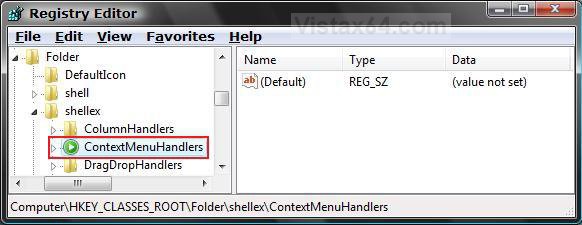
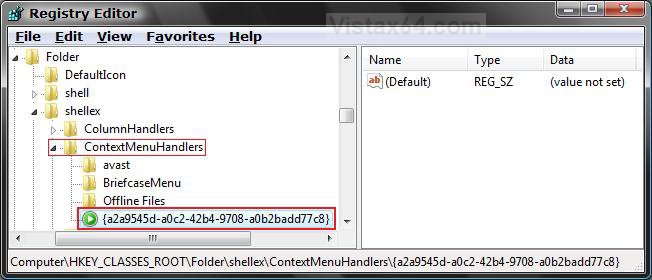
B) Type {a2a9545d-a0c2-42b4-9708-a0b2badd77c8} and press Enter. (See screenshot below step 6B)
6. To Remove the Pin Folder Option
A) Right click on {a2a9545d-a0c2-42b4-9708-a0b2badd77c8} and click Delete. (See screenshot below)
B) Click on Yes to confirm the deletion.
7. Close regedit.
STEP TWO
How to Pin a Folder to the Start Menu:
 Warning
You must add the Folder Pin Option above first.
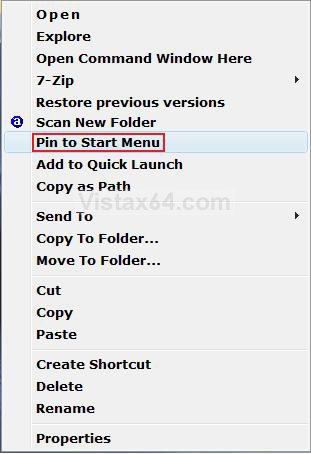
1. Press and hold the Shift key, then right click on the folder or folder shortcut that you want pinned to the Start Menu.
2. Click on Pin to Start Menu. (See screenshot below)
How to Remove a Pinned Folder
NoteIf you cannot get Vista to remove the pin, then see step two here: How to Fix Recent Programs Not Being Remembered in Vista
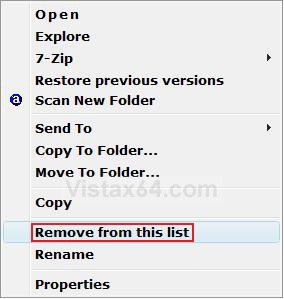
1. Right click on the pinned folder in the Start Menu.
2. Click on Remove from this list. (See screenshot below)
That's it,
Shawn
Related Tutorials
- How to Add or Delete a Shortcut or Folder From the Start Menu in Vista
- How to Customize the Start Menu in Vista
- How to Change the Start Menu to Classic View in Vista
- How to Turn the Recent Items List On or Off in Vista
- How to Customize the Context Menu for the Start Menu in Vista
- How to Pin a Program to the Start Menu in Vista
- How to Display Small or Large Icons in the Vista Start Menu
- How to Enable or Disable the All Programs List in the Vista Start Menu
- How to Add or Remove Help from the Normal and Classic Vista Start Menu
- How to Restore the Start Menu Search Button after Installing the Vista SP1
- How to Enable or Disable Pin to Start Menu in Vista
- How to Enable or Disable the Taskbar and Start Menu Properties Window in Vista
- How to Reset the Pin To Start Menu Area in Vista
- How to Restore Missing "Pin to Start Menu" Context Menu Item in Vista Shortcuts
Attachments
Last edited:


