Vista Forums
Vista Forums Home Join Vista Forums Donate Vista Tutorials Tags

Welcome to Vista Forums we are your forum to discuss Windows Vista x64 and x86 systems. Whether you need help or just want to post an idea you have on Vista, this is the forum for you.
Register at Vista forums...the world biggest Windows Vista resource Join Vista Forums Now

Go Back   Vista Forums > Vista Forums > Tutorials

Vista Tutorial Categories Network & Internet Tutorials File & Folder Settings Tutorials Taskbar & Start Menu Tutorials Performance & Maintenance Tutorials General Tips Tutorials Programs & Features Tutorials Context Menu Tutorials Shortcut Tutorials Security & System Tools Tutorials Parental Controls Tutorials User Account Tutorials Hardware & Drivers Tutorials Appearance & Personalization Tutorials Backup & Restore Tutorials Music, Photo, Video and Media Tutorials Power Management Tutorials

Restore Complete Computer

Poll: Did this Tutorial help and work for you?
Poll Options
Did this Tutorial help and work for you?

Comment
 
Tutorial Tools Display Modes
<!-- google_ad_section_start -->Restore Complete Computer<!-- google_ad_section_end -->
Restore Complete Computer
How to Restore the Complete Computer from a Complete Backup and Restore Image in Vista
Published by Brink
10-17-2007

How to Restore the Complete Computer from a Complete Backup and Restore Image in Vista
Information
  A Windows Complete PC Backup image contains copies of your programs, system settings, and files. It is a complete system backup that you can use to restore the contents of your computer if your hard disk or entire computer ever stops working. For more information, see: Windows Help and How-to: Restore your computer from a system image backup
NOTE
 
BACKUP LOCATION:


A) If you want to delete or copy the entire WindowsImageBackup folder to save it to another location to keep a copy of it, you will need to open each subfolder in the WindowsImageBackup folder and grant access permission to them first by clicking Continue twice for eace folder. You will then be able to copy this folder like any other folder. You may want to do this because when a new Complete PC Backup is made it can overwrite the previous Complete PC Backup with the differences to create the new backup.
  • Backups are saved in this format: (backup location)\WindowsImageBackup\(computer name)\Backup (year-month-day) (time)
  • If the backup was done on Local Disk D: at 9/7/2007 1:00:50 PM (It uses 24 hour time), then the full backup file path would be:
  • D:\WindowsImageBackup\Computer\Backup 2007-09-07 130050
  • You would right click the folder Backup 2007-09-07 130050 and click Delete to delete that backup.
  • To see what your computer name is, see: How to Change the Computer Name in Vista
B) To delete all but the most recent Complete PC Backup, you can use Disk Cleanup. You will just need to select the drive that the complete PC backups are stored on and select the More Options tab. For how see step 15 here: How to Use Disk Cleanup in Vista
Tip
 
  • This only applies to Vista Enterprise, Ultimate, and Business versions.
  • If you do not have a normal Vista installation DVD and only have a recovery partion on your OEM computer, then do option A in step 3 here to restore your backup: How to Boot Up in and Use Advanced Boot Options in Vista
  • For SP1 news about changes to Backup, see: Technet.com: What’s new with backup and Restore on Vista SP1
  • When you restore your computer from a Windows Complete PC Backup image, it is a complete restoration. You can't choose individual items to restore, and everything you’ve done since that backup was created will be lost. This includes new programs, settings, and all files like pictures and music.
  • If you dual boot with Windows XP, then everytime you start in XP the System Restore Points and all except the most recent Complete PC Backup files in Vista get deleted. For how, see: How to Stop System Restore Points from being Deleted in Vista when Dual Booting with XP
  • You cannot restore a 32 bit Vista version complete pc backup on a 64 bit Vista version, or the other way around.
RELATED LINKS:
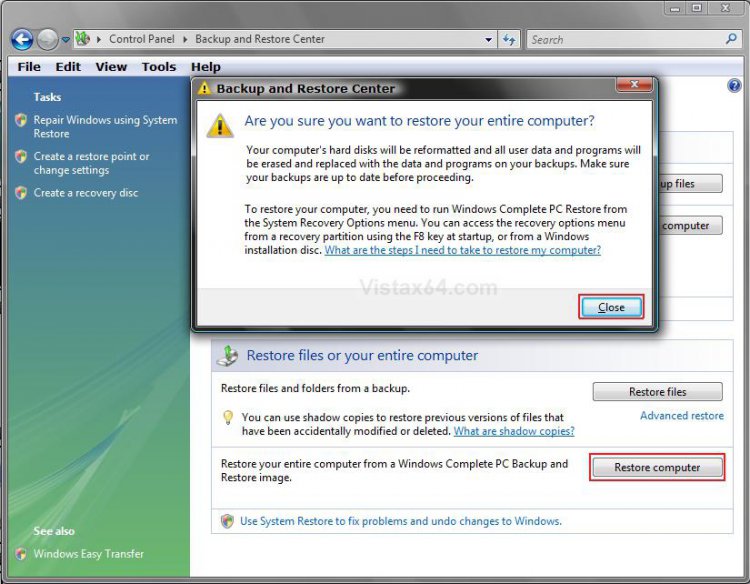
EXAMPLE: Restore Complete PC Backup Notice
NOTE: When you click on the Restore computer button from the Backup and Restore Center in the Control Panel (Classic View), you will see the screenshot below. Just click Close and see how to to restore the computer below.
Restore_Computer.jpg

Here's How:
1. Boot the computer from your Vista Express or Retail installation DVD. (This will not work from a Vista Recovery DVD)
NOTE: Make sure that the CD/DVD is listed first in the boot order in your BIOS settings. If your backup is on a external device (EX: USB), then make sure it is plugged in before starting.

2. When prompted, press any key to start Vista from the installation DVD. (See screenshot below)
NOTE: You will only have about 8 seconds to press this key.

boot-from-cd-prompt.jpg

3. Set up your language preferences and click Next. (See screeshot below).

Select_Language.jpg

4. Click on Repair your computer. (See screenshot below)

Repair_Computer.jpg

5. Select which operating system you want to restore and the click on Next. (See screenshot below)
NOTE: If Vista is not listed here, or it is blank, then it is ok. Click on Next anyway.

Select_OS.jpg

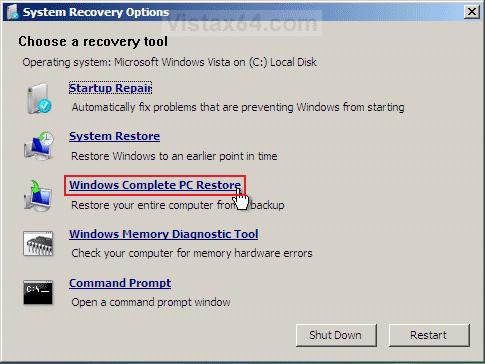
6. Click Windows Complete PC Restore. (See screenshot below)

Complete_Restore.jpg

7. If you saved the backup image on a set of multiple DVDs, then insert the last DVD from the backup set when prompted. If not, go to step 8.
A) Go to step 9 below.
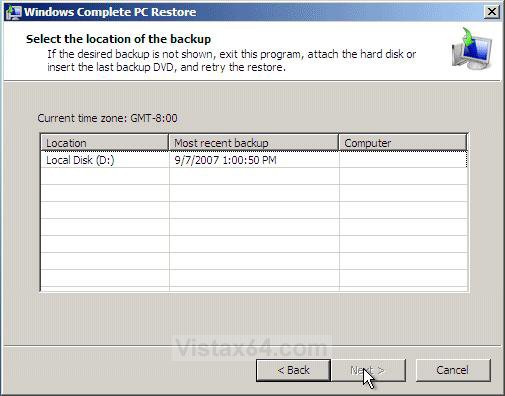
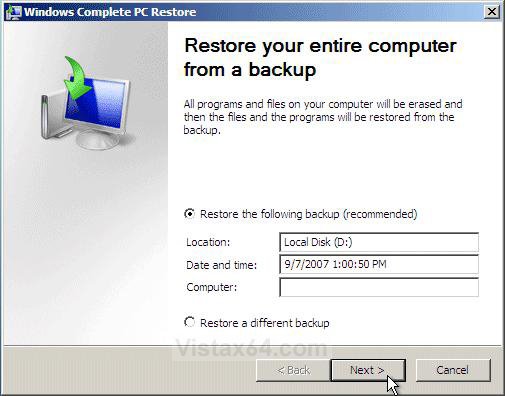
8. If you have a saved backup image on a connected hard drive or another partition, then you will see this screenshot
below.
A) If you want to restore the latest backup, then click Next.
NOTE: The Restore the following backup is normally the last backup made.

B) To restore a different backup image, dot Restore a different backup and then press Next.
NOTE: This is if the backup you want to use is not listed here and you have made other complete PC backups in this same location that you wish to choose from instead. If you have a backup from another location that you want to choose from, then it will need to be connected to the computer before step 1.
Restore_From.jpg
C) Select which backup to restore from the list and then click Next. (see screenshot below)
D) Click Finish.
Another_Restore_From.jpg

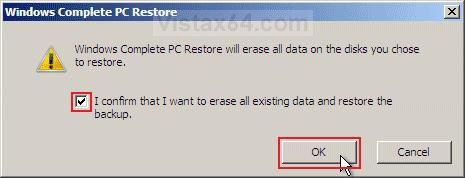
9. Check the confirm box and click OK. (See screenshot below)

Confirm.jpg

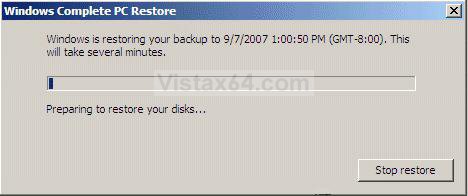
10. You will now see this screenshot below.
NOTE: If you have the backup image on DVDs, have them ready. See step 7 above.

Restoring.jpg

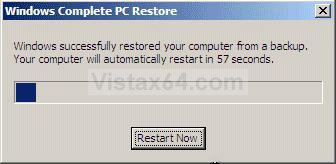
11. When done, click Restart Now to finish. (See screenshot below)
NOTE: Your computer will restart and the restore will be done.
Success.jpg
That's it,
Shawn
Published by
Brink's Avatar
Administrator
Join Date: Apr 2007
Location: Texas, USA
Posts: 15,362
Rep Power: 150
Brink has a reputation beyond reputeBrink has a reputation beyond reputeBrink has a reputation beyond reputeBrink has a reputation beyond reputeBrink has a reputation beyond reputeBrink has a reputation beyond reputeBrink has a reputation beyond reputeBrink has a reputation beyond reputeBrink has a reputation beyond reputeBrink has a reputation beyond reputeBrink has a reputation beyond repute

Tutorial Tools
Show Printable Version Show Printable Version
Email this Page Email this Page

Applies to
Business,Enterprise,Ultimate
64 Bit & 32 Bit

Rating
Skill Level
40%40%40%
2

Old 10-17-2007  
uvbogden
uvbogden


  uvbogden is offline

Re: Restore Complete Computer

Very nice!
Old 10-17-2007  
Brink's Avatar
Brink
Administrator


  Brink is online now

Re: Restore Complete Computer

Your welcome Uvbogden,

Thank you for the suggestion to create one for it,
Shawn
Old 12-02-2007  
redsled
Newbie


  redsled is offline

Re: Restore Complete Computer

I can ONLY get to step 3 when I try for a complete pc reinstall. The screen is the multi blue color with an active mouse pointer. If I disconnect both my raid drives the step 3 screen comes up and continues, BUT my back up img is on one of my raid drives. Any work-around clues?
Old 12-02-2007  
Brink's Avatar
Brink
Administrator


  Brink is online now

Re: Restore Complete Computer

Hi Redsled,

Welcome to the forum.

Raid setups can be tricky sometimes. It's been a while since I played with raid. You might look at this tutorial to see if will help get it to recognize you raid drives.

Raid Install


The only workaround that I know to do is to copy the image to another partition on the main drive, or other device, that would be recognized at step 3. (EX: USB device)

Wish I could help more, but it's been to long away from Raid.

Shawn
Old 12-02-2007  
redsled
Newbie


  redsled is offline

Re: Restore Complete Computer

I'm sorry I didn't give enough information.(I thought EVERYBODY took mind reading classes )
Vista is on a single non raid drive. My full pc restore back up is on a raid drive. All drives are sata drives.
Old 12-02-2007  
Brink's Avatar
Brink
Administrator


  Brink is online now

Re: Restore Complete Computer

LOL Redsled,

I figured that you had another main drive in there for Vista other than the Raid ones.

That workaround is still the only thing I know to do. It's just been to long since I used RAID.

How to Delete and Extend a Partition with Disk Management in Vista

Hopefully someone else here will know of a easier workaround for you.


Shawn
Old 12-11-2007  
niGht kiD's Avatar
niGht kiD
hello KiDdy


  niGht kiD is offline

Re: Restore Complete Computer

Hi Shawn,

Startup Repair can only be started using Vista Installatio DVD?

My laptop only comes with recovery DVD...


Old 12-12-2007  
Brink's Avatar
Brink
Administrator


  Brink is online now

Re: Restore Complete Computer

Sorry niGht kiD,

Only with the Express or Retail Vista installation DVD.

Shawn
Old 02-12-2008  
missouriboy
Newbie


  missouriboy is offline

Re: Restore Complete Computer

how do u do a reinstall if u only have the reinstallation dvd?
Comment

Tags
backup & restore, complete, computer

Tutorial Tools
Display Modes


Similar Threads
Tutorial Tutorial Starter Category Comments Last Post
File restore after Complete PC Restore - 0x80070057 error OliverNZ Vista performance & maintenance 4 06-04-2008 08:19 PM
Ultimate complete pc restore doesn't restore all files! Dreamsayer Vista performance & maintenance 0 03-11-2008 08:47 PM
Complete PC Restore- HOW?? Wayne Vista performance & maintenance 10 02-27-2008 01:06 PM
Reg key for Complete PC Restore Jeff Vista performance & maintenance 2 05-02-2007 06:53 PM
Complete PC Restore Linear2202 Vista performance & maintenance 11 10-22-2006 02:44 PM


Vistax64.com is an independent web site and has not been authorized,
sponsored, or otherwise approved by Microsoft Corporation.
"Windows Vista", the Start Orb, and related materials are trademarks of Microsoft Corp.
© Designer Media 2005-2008
Tutorial powered by GARS 2.1.8m ©2005-2006

1 2 3 4 5 6 7 8 9 10 11 12 13 14 15 16 17 18 19 20 21 22 23 24 25 26 27 28 29 30 31 32 33 34 35 36 37 38 39 40 41 42 43 44 45 46 47 48 49 50