
How to Disable or Enabled EFS Encryption in Vista, Windows 7, and Windows 8
 Information
Encrypting folders and files is a way to protect them from unwanted access. Encrypting File System (EFS) is a feature of Windows that allows you to store information on your hard disk in an encrypted format. Encryption is enabled by default in Vista. If you disable encryption, no user account will be able to encrypt a file or folder.
 Note
NoteThe EFS Encrypt feature is only available in the Vista Business, Ultimate, Enterprise, Windows 7 Professional, Ultimate, Enterprise, and Windows 8 Pro and Enterprise editions.
This option will remain grayed out in the Vista Home Basic and Home Premium and Windows 7 Starter, Home Basic and Home Premium editions.
This option will remain grayed out in the Vista Home Basic and Home Premium and Windows 7 Starter, Home Basic and Home Premium editions.
 Warning
Be sure to decrypt all files and folders before you disable encryption. Once encryption is disabled, all user accounts will lose access to encrypted files and folders until it is enabled again.
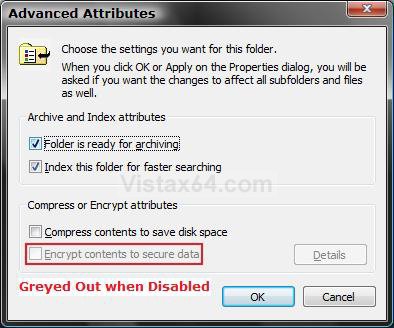
EXAMPLE: Encrypt Option grayed out after disabled
NOTE: If you have the Compress contents to save disk space option checked, then the Encrypt contents to secure data option will also be grayed out since you can only use one or the other and not both.
 METHOD ONE
1. To Disable Encryption
A) Click on the download button below to download the
Disable_Encryption.reg file.
B) Go to step 3.

2. To Enable Encryption
A) Click on the download button below to download the
Enable_Encryption.reg file.
3. Click on Save, and save the .reg file to the Desktop.
4. Right click on the downloaded .reg file and click on Merge.
5. Click on Run, Continue (UAC-Vista) or Yes (UAC-Windows 7), Yes, and then OK when prompted.
6. Restart the computer to apply the changes.
7. You can delete the downloaded .reg file when done if you like.
METHOD TWO 1. Open the Start Menu.
2. In the white line (Start Search) area, type regedit and press Enter.
3. If prompted by UAC, then click on Continue (Vista) or Yes (Windows 7).
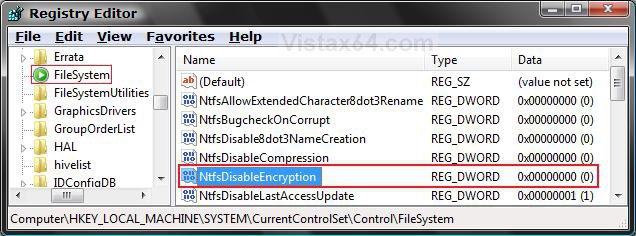
4. In regedit, go to: (See screenshot below step 5)
HKEY_LOCAL_MACHINE\SYSTEM\CurrentControlSet\Control\FileSystem
5. In the right pane, right click on NtfsDisableEncryption and click on Modify.
6. To Disable Encryption
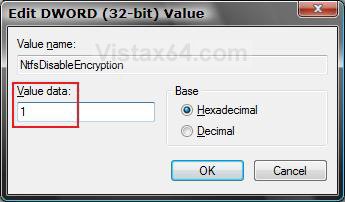
A) Type 1 and click on OK. (See screenshot below step 7)
B) Go to step 8.
7. To Enable Encryption
A) Type 0 (number zero) and click on OK.
8. Close regedit.
9. Restart the computer to apply the changes.
That's it,Shawn
Related Tutorials
- How to Restore Encrypted File System (EFS) Certificate in Vista, Windows 7, and Windows 8
- How to Backup Encrypted File System (EFS) Certificate in Vista, Windows 7, and Windows 8
- How to Add Encrypt and Decrypt to the Context Menu in Vista
- How to Encrypt or Decrypt a Folder or File in Vista, Windows 7, and Windows 8
- How to Disable or Enable NTFS Compression in Vista
- How to Create an "Encrypting File System" Manager Shortcut in Windows
- How to Find and See a List of All Encrypted Files on All Local Hard Drives
Attachments

Last edited:


