
How to Change the Display Language in Vista
 Information
The display language is the language that Vista uses in wizards, dialog boxes, menus, Help and Support topics, and other items in the user interface. This will show you how to install or uninstall a language pack, and how to change the display language for only the Vista Ultimate and Enterprise editions.
 Warning
This must be done while logged on to a administrator account
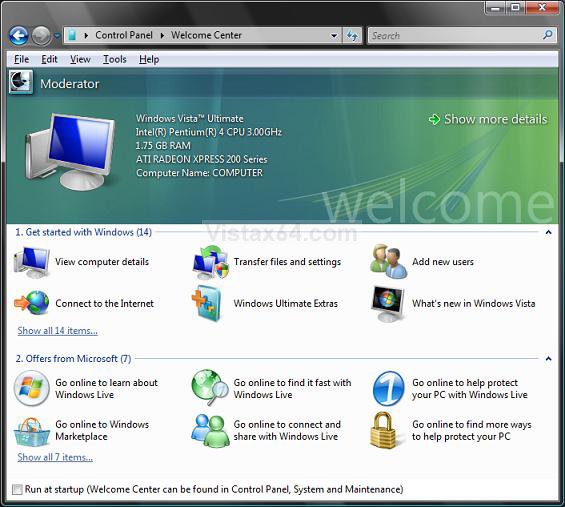
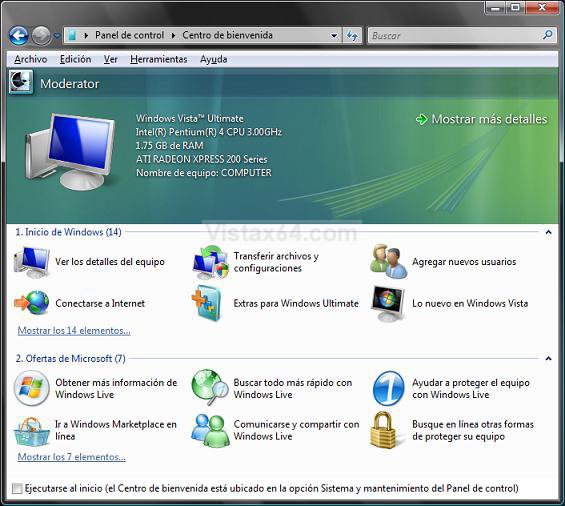
EXAMPLE: BEFORE and AFTER Display Language Change
 STEP ONE
OPTION ONE:
How to Install the Language Pack(s)
NOTE: You must have a language pack installed to be able to change the display language in STEP TWO below.
1. Open the Control Panel (Classic View).
2. Click on Windows Update.
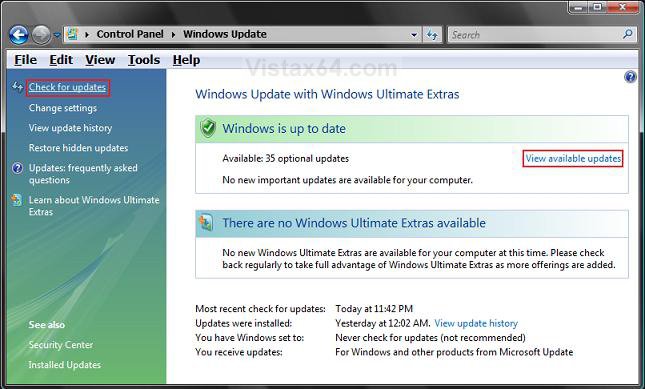
3. Click on Check for updates in the upper right corner. (See screenshot below)
NOTE: This may take a moment to finish.
4. Click on View available updates.
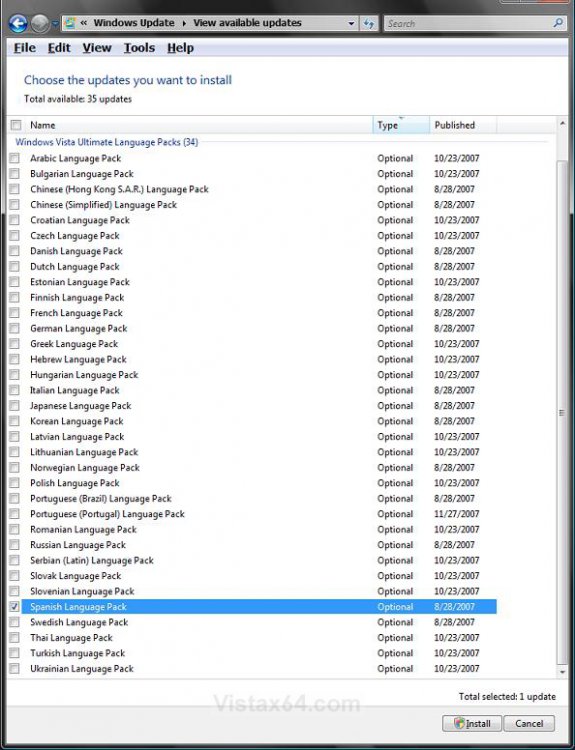
5. Check the language pack(s) you want for your display language and click Install. (See screenshot below)
NOTE: Example, the Spanish Language Pack.
6. Click on Continue in the UAC prompt.
7. You will now see this as the language pack(s) is downloading and installing. (See screenshots below)
NOTE: This will take some time to finish depending on how many language packs you selected. This example took around 20 minutes.
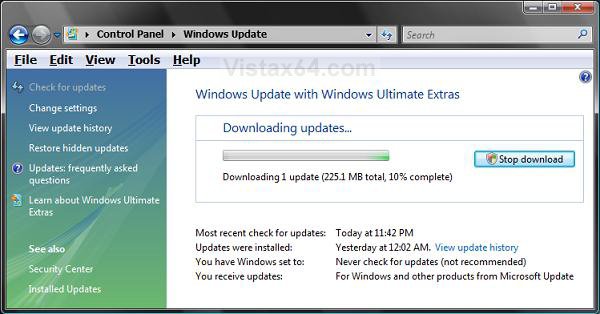
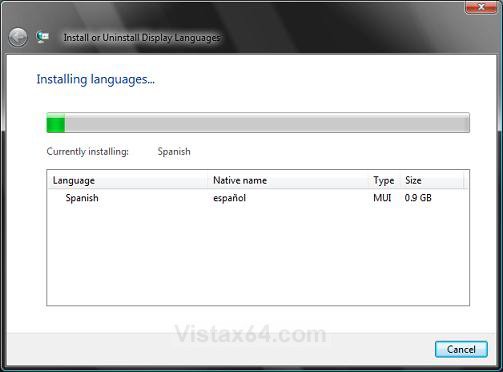
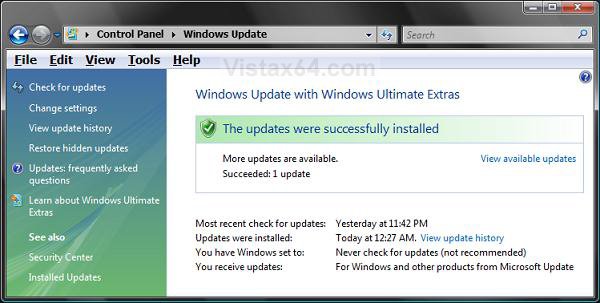
8. When finished you will see this screenshot below.
9. Close Windows Update.
OPTION TWO:
How to Uninstall the Language Pack(s)
1. Open the Control Panel. (Classic View)
2. Click on the Regional and Language Options icon.
3. Click on the Keyboards and Languages tab. (See screenshot below step 5)
4. Click on the Install/uninstall languages button.
5. Click on Continue in the UAC prompt.
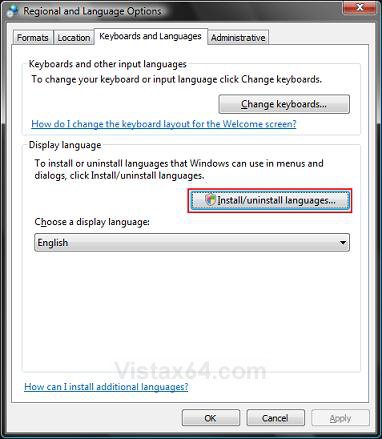
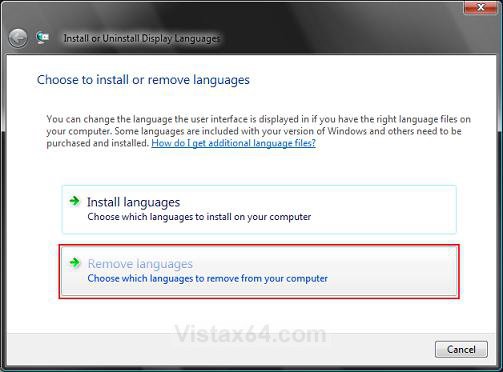
6. Click on Remove languages. (See screenshot below)
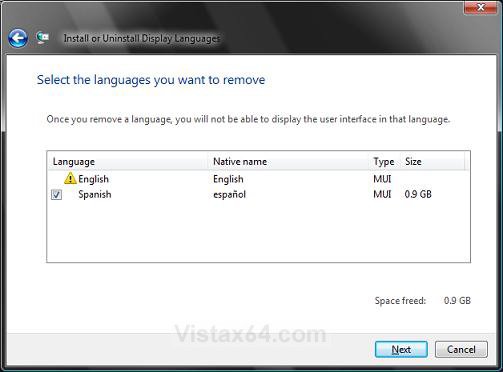
7. Check the language pack(s) you want to uninstall and click on Next. (See screenshot below)
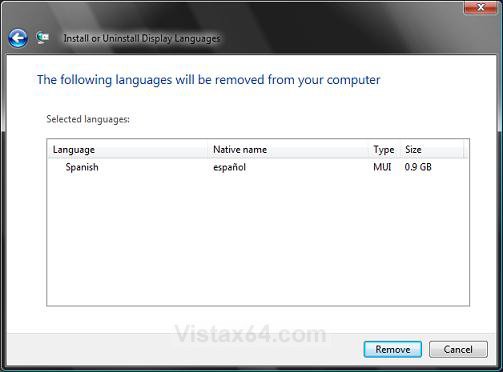
8. Click on Remove to confirm uninstalling the language pack. (See screenshot below)
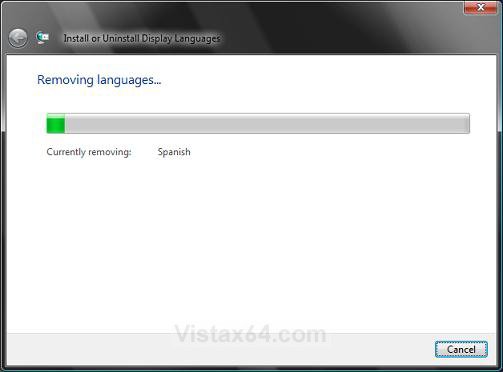
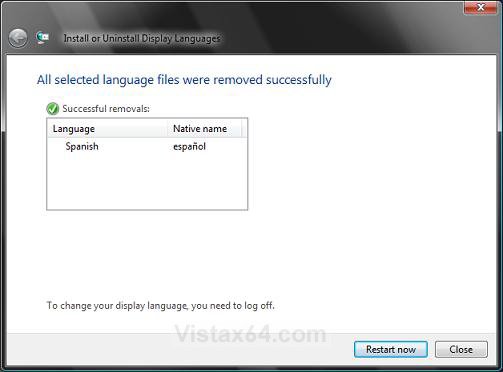
9. You will now see this screenshot below.
NOTE: This will take a bit to finish.
10. When finished, click on Restart now. (See screenshot below)
NOTE: It will take a little bit to finish restarting as Vista is Configuring updates.
STEP TWO 1. Open the Control Panel. (Classic View)
2. Click on the Regional and Language Options icon.
3. Click on the Keyboards and Languages tab. (See screenshot below step 5)
4. Click on the Choose a display language drop down arrow and select a display language.
5. Click on OK.
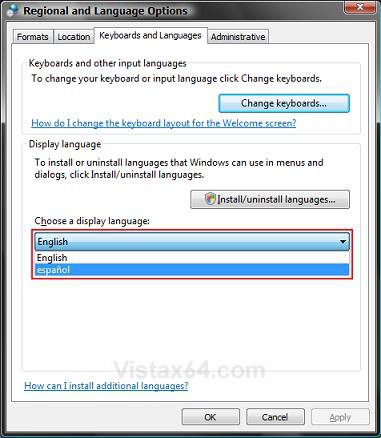
6. Click on Log off now. (See screenshot below)
NOTE: You will be taken to the logon screen.
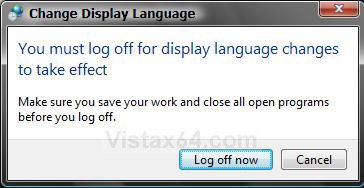
7. Log back on to this same user account.
NOTE: The display language is now changed.
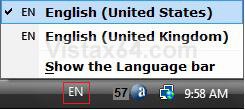
8. You will now notice the Language Bar on the taskbar. (See screenshot below)
NOTE: This is for the Keyboard Input Language.
That's it,
Shawn
Attachments

Last edited by a moderator: