
Windows Vista Forums
Vista Forums Home Join Vista Forums Windows 7 Forum Vista Tutorials Tags

Welcome to Windows Vista Forums. Our forum is dedicated to helping you find solutions with any problems, errors or issues you are experiencing with Windows Vista. The Vista forum also covers news and updates and has an extensive Vista tutorial section that covers a wide range of tips and tricks.

Go Back   Vista Forums > Vista Forums > Tutorials

Vista Tutorial - Task Manager - Open and Close Applications and Processes

Comment
 
LinkBack Tutorial Tools Display Modes
<!-- google_ad_section_start -->Task Manager - Open and Close Applications and Processes<!-- google_ad_section_end -->
Task Manager - Open and Close Applications and Processes
How to Open and Close a Application and Process in Vista Task Manager
Published by Brink
01-15-2008

How to Open and Close a Application and Process in Vista Task Manager
Information
  This will show you how to use Task Manager to Open or Close a Application or Process.
NOTE
 
  • This can be useful to force a not responding application or process to close. You can also use this to make sure a application or process is no longer running or has multiple instances of it running.
  • If you still cannot stop the not reponding application or process after the steps below, then the only other options is to logoff and logon again or restart the computer. Use CTRL+ALT+DEL if your computer is not responding at all to do this.
RELATED LINKS:

STEP ONE:
Open Task Manager
1. Press CTRL+SHIFT+ESC.

OR

2. Right click on the Taskbar and click on Task Manager.

OR

3. Press CTRL+ALT+DELETE.
NOTE: This will take you to the Windows Security screen. This can be helpful if your computer is not responding at all.
A) Click on Start Task Manager.
NOTE: You will now be taken back to the desktop with Task Manager opened.


OPTION ONE:
To Close a Application
NOTE
  This will force a open application you select to close. The application will also be listed under the Processes tab in OPTION TWO below with the application's EXE file.
1. Do STEP ONE above.

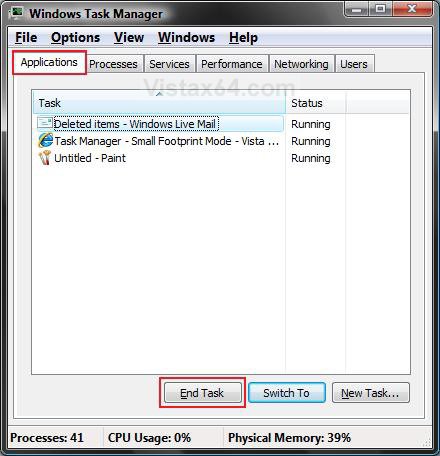
2. Click on the Applications tab. (See screenshot below)

3. Click on the application you want to close to highlight it.

4. Click on End Task.
NOTE: This will close the application without a confirmation.
applications.jpg
5. Close Task Manager when done.


OPTION TWO:
To Close a Application or Process
NOTE
  This will force a application or process you select, that is open or running in the background, to close.
1. Do STEP ONE above.

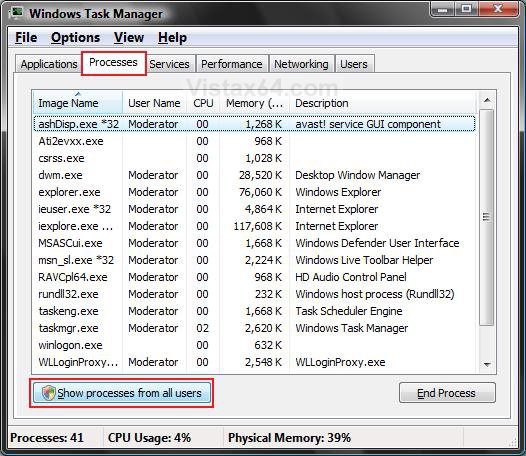
2. Click on the Processes tab. (See screenshot below)

3. Click on the Show processes from all users button.

4. Click on Continue in the UAC prompt.
processes1.jpg
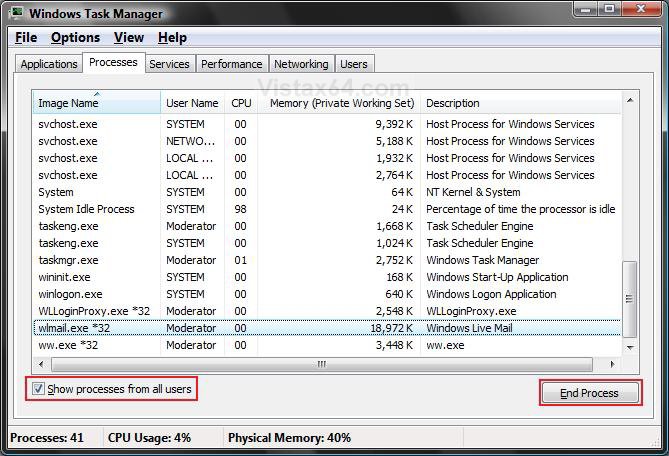
5. Click on the process you want to close to highlight it. (See screenshot below)
NOTE: The file name will be under the Image Name column, and the application or process name under the Description column.

6. Click on the End Process button.
processes2.jpg
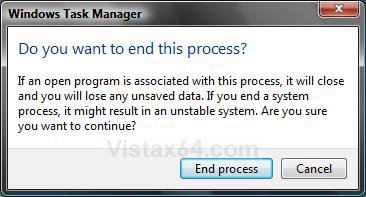
7. Click on End Process to confirm and close the selected application or process. (See screenshot below)
Name:  End_process.jpg
Views: 4550
Size:  54.5 KB
8. Close Task Manager when done.


OPTION THREE:
To Open a Application or Process
NOTE
  This will let you open a program, folder, document, or Internet resource. This is the same as the Run command window.
1. Do STEP ONE above.

2. Click on File on the menu bar. (See screenshot below)

3. Click on New Task.
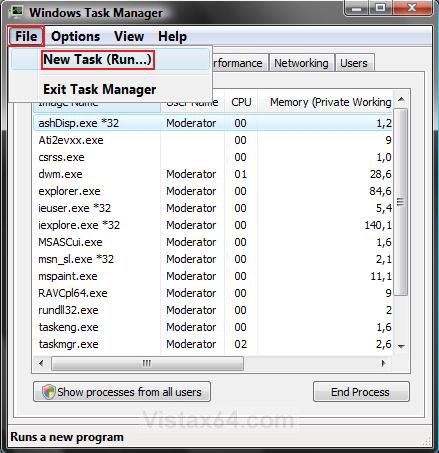
new_task.jpg
4. Type in the full path of the application or task you want to open and click OK. (See screenshot below)
NOTE: You can also click on the Browse button to navigate to the application or task and select it, then click Open. The task may also be listed under the drop down arrrow to select from.
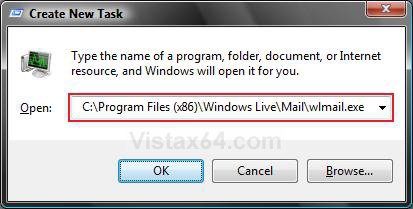
open_task.jpg
5. Close Task Manager when done.
That's it,
Shawn
Published by
Brink's Avatar
Administrator

Join Date: Apr 2007
Location: Texas, USA
Posts: 23,753
Rep Power: 150
Brink has a reputation beyond reputeBrink has a reputation beyond reputeBrink has a reputation beyond reputeBrink has a reputation beyond reputeBrink has a reputation beyond reputeBrink has a reputation beyond reputeBrink has a reputation beyond reputeBrink has a reputation beyond reputeBrink has a reputation beyond reputeBrink has a reputation beyond reputeBrink has a reputation beyond repute

Tutorial Tools
Show Printable Version Show Printable Version
Email this Page Email this Page

Applies to
All Vista Versions
64 Bit & 32 Bit

Page copy protected against web site content infringement by Copyscape

Old 07-29-2008  
mmucino
Newbie


Join Date: Jul 2008
Vista Home Premium 32bit
 
Rep Power: 7
mmucino is on a distinguished road
  mmucino is offline

Question Re: Task Manager - Open and Close Applications and Processes

How can I close an application if my Task Manager Windows has't a Tab called Applications or a Tab called Process.
My System SpecsSystem Spec
Old 07-29-2008  
Brink's Avatar
Brink
Administrator


Join Date: Apr 2007
Vista x64 Ultimate SP2
Texas, USA
 
Rep Power: 150
Brink has a reputation beyond reputeBrink has a reputation beyond reputeBrink has a reputation beyond reputeBrink has a reputation beyond reputeBrink has a reputation beyond reputeBrink has a reputation beyond reputeBrink has a reputation beyond reputeBrink has a reputation beyond reputeBrink has a reputation beyond reputeBrink has a reputation beyond reputeBrink has a reputation beyond repute
  Brink is online now

Re: Task Manager - Open and Close Applications and Processes

Hi MMucino, and welcome to Vista Forums.

You may be in small foot print mode in Task Manager. Check with this tutorial to see if you are.

Task Manager - Small Footprint Mode

Hope this helps,
Shawn
My System SpecsSystem Spec
Comment

Tags
applications, processes, programs, programs & features, security & system tools, task manager

Tutorial Tools
Display Modes


Similar Threads
Tutorial Tutorial Starter Category Comments Last Post
Task Manager CANNOT KILL PROCESSES j90qfj90q34fjwefi2 Vista General 20 04-07-2009 07:21 AM
accidental ending of processes using task manager Shelley_treasures Vista performance & maintenance 3 06-03-2008 04:38 PM
Processes Tab Missing from Task Manager KFloyde Vista General 1 12-06-2007 05:16 PM
Task manager/Processes lazarus General Discussion 4 08-09-2007 06:57 AM
Task Manager System Critical Processes SeniorNovice Vista General 2 05-01-2007 10:19 PM


Vista Forums is an independent web site and has not been authorized,
sponsored, or otherwise approved by Microsoft Corporation.
"Windows Vista", the Start Orb, and related materials are trademarks of Microsoft Corp.
© Designer Media Ltd
Tutorial powered by GARS 2.1.8m ©2005-2006