
How to Enable or Disable Clear Recent Document Items History on Exit
 Information
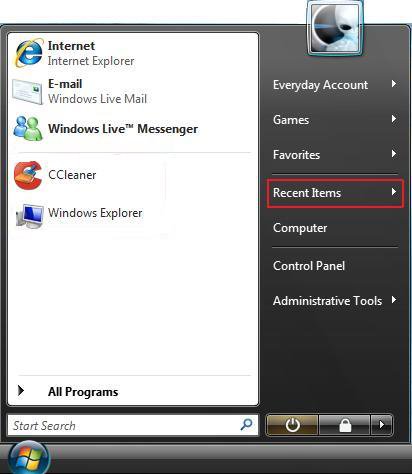
This will show you how to enable or disable Vista to clear the recently opened documents history for when the current user account logs off. This way the Recent Items menu button on the Start menu is always empty when the user logs on. This is disable by default in Vista.
 Note
NoteIf you have only one user account on your computer that is shared with other users, then this can be handy to keep each user's recently opened document history private when they log off or shutdown.
 Warning
This does not clear the Recent Programs history on exit. This will still need to be manually done.
EXAMPLE: Recent Items Menu Button on the Start Menu
 OPTION ONE
NOTE: This option is only available for the Vista Business, Ultimate, and Enterprise editions. See OPTION TWOor OPTION THREE below for the Vista Home Basic and Home Premium editions.
1. Open the all users, specific users or groups, or all users except administrators Local Group Policy Editor for how you want this policy applied.
2. In the left pane, click on User Configuration, Administrative Templates, and Start Menu and Taskbar. (See screenshot below)
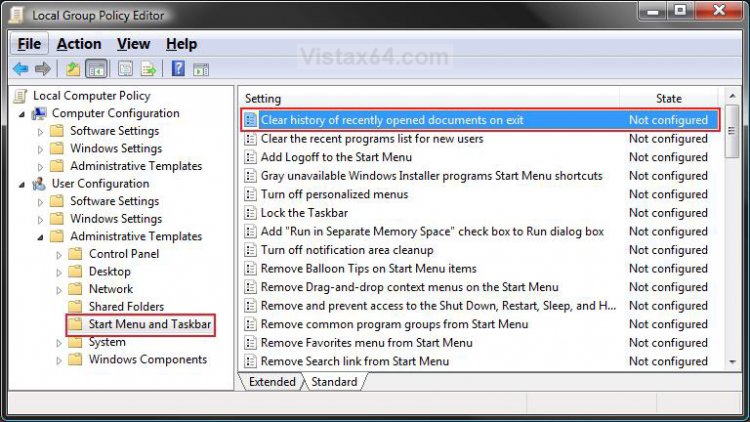
3. In the right pane, right click on Clear history of recently opened documents on exit and click on Properties. (See screenshot above)
4. To Enable Clear Recent Items History on Exit
A) Select (dot) Disabled or Not Configured and click on OK. (See screenshot below step 5A)
B) Go to step 6.
5. To Disable Clear Recent Items History on Exit
A) Select (dot) Enabled and click on OK.
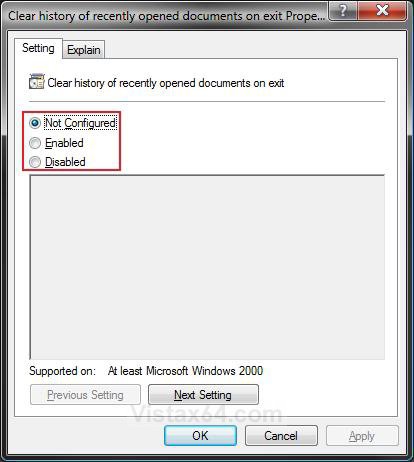
6. Close the Local Group Policy Editor window. Your done.
OPTION TWO NOTE: This option will work for all Vista editions.
1. To Enable Clear Recent Items History on Exit
A) Click on the download button below to download the file below.
Enable_Clear_Recent_Item_On_Exit.reg

B) Go to step 3.
2. To Disable Clear Recent Items History on Exit
A) Click on the download button below to download the file below.
Disable_Clear_Recent_Item_On_Exit.reg
3. Click on Save, and save the .reg file to the Desktop.
4. Right click on the downloaded .reg file and click on Merge.
5. Click on Run, Continue (UAC), Yes, and then OK when prompted.
6. When done, you can delete the downloaded .reg file if you like.
OPTION THREE NOTE: This option will work for all Vista editions.
1. Open the Start Menu.
2. In the white line (Start Search) area, type regedit and press Enter.
3. Click on the Continue button in the UAC prompt.
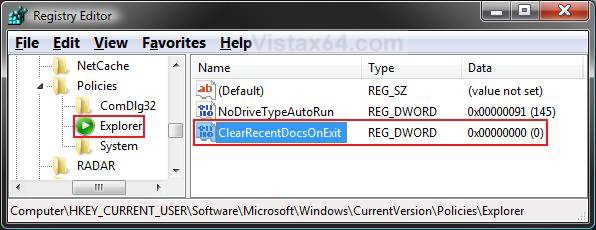
4. In regedit, go to: (See screenshot below)
NOTE: If you do not have Explorer, then right click on Polices and click on New and Key. Type Explorer and press Enter.
HKEY_CURRENT_USER\Software\Microsoft\Windows\CurrentVersion\Policies\Explorer
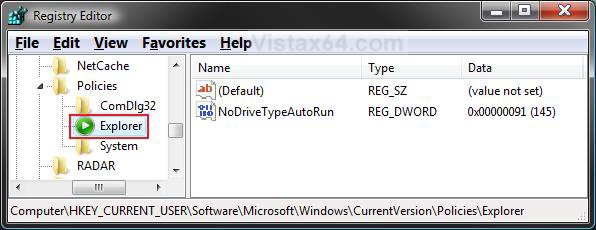
5. To Enable Clear Recent Items History on Exit
A) In the right pane, right click on a empty area and click on New and DWORD (32-bit) Value. (See screenshot above)
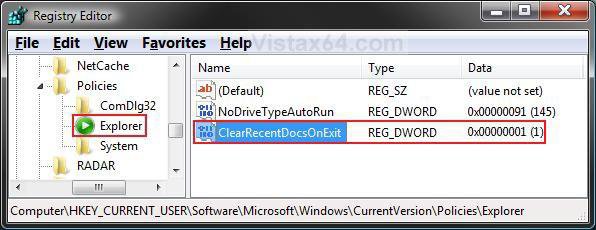
B) Type ClearRecentDocsOnExit and press Enter.
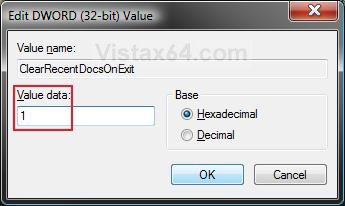
C) Right click on ClearRecentDocsOnExit and click on Modify. (See screenshot below)
D) Type 1 and click on OK. (See screenshot below)
E) The registry will now look like this. (See screenshot below)
F) Go to step 7.
6. To Add Log Off to the Ctrl+Alt+Del Screen
A) In the right pane, right click on ClearRecentDocsOnExit and click on Delete. (See screenshot above)
B) Click on Yes to confirm deletion.
7. Close regedit.
That's it,Shawn
Related Tutorials
- How to Fix Recent Programs Not Being Remembered in Vista
- How to Customize the Start Menu in Vista
- How to Pin a Program Icon to the Start Menu in Vista
- How to Add or Delete a Shortcut or Folder From the Start Menu in Vista
- How to Change the Start Menu to Classic View in Vista
- How to Pin a Folder Icon to the Start Menu in Vista
- How to Display Small or Large Icons in the Vista Start Menu
- How to Turn the Recent Items List On or Off in Vista
- How to Clear the Recent Items List History in Vista
- How to Change the Number of Recent Programs to Display in the Vista Start Menu
- How to Enable or Disable Recent Items in Windows 7 and Vista
- How to Change the Maximum Number of Recent Items to Display in Start Menu
Attachments
Last edited: