
How to Remove or Show Drives in "Send To" Context Menu in Vista, Windows 7, and Windows 8
 Information
This tutorial will show you how to have all available drive letters to be removed or displayed in the "Send To" context menu in Vista, Windows 7, or Windows 8.
 Note
NoteHaving drive letters in the Send To menu can sometimes cause it to open slowly or hang for a bit while it is reading from the drives when the Send To menu opens.
Especially if you have Windows set to turn off idle hard drives while it waits for them to spin back up.
Especially if you have Windows set to turn off idle hard drives while it waits for them to spin back up.
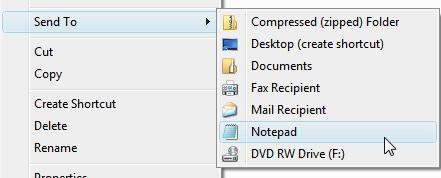
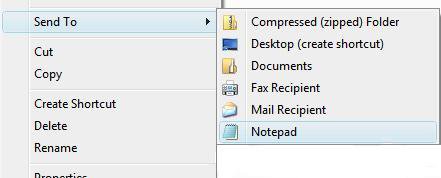
EXAMPLE: Send To Context Menu Before and After Driver Letters Removed
 OPTION ONE
1. To Remove All Drives from "Send To" Context Menu
A) Click/tap on the download button below to download the file below.
NOTE: This will only be applied to the current user only.
Remove_SendTo_Drives.reg

B) Go to step 3.
2. To Show All Drives in "Send To" Context Menu
NOTE: This is the default setting.
A) Click/tap on the download button below to download the file below.
NOTE: This will only be applied to the current user only.
Show_SendTo_Drives.reg
3. Save the .reg file to your Desktop.
4. Double click/tap on the downloaded .reg file to merge it.
5. Click/tap on Run, Continue (UAC-Vista) or Yes (UAC-Windows 7/8), Yes, and then OK when prompted.
6. When finished, you can delete the downloaded .reg file if you like.
7. Log off and log on, or restart the computer to apply the changes.
OPTION TWO 1. Press the Windows + R keys to open the Run dialog, type regedit, and press Enter.
2. If prompted by UAC, then click/tap on Continue (Vista) or Yes (Windows 7/8).
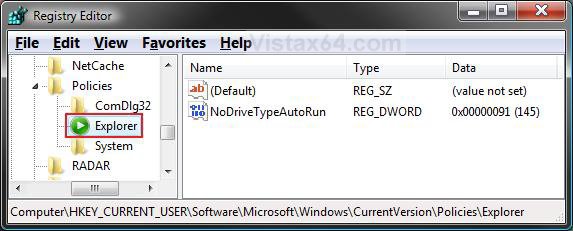
3. In regedit, navigate to the location below that you want this applied to. (See screenshot below)
For Current User Only:
HKEY_CURRENT_USER\Software\Microsoft\Windows\CurrentVersion\Policies\Explorer
For All User Accounts on Computer:
HKEY_LOCAL_MACHINE\SOFTWARE\Microsoft\Windows\CurrentVersion\Policies\Explorer
4. Do step 5 or 6 below for what you would like to do.
5. To Remove All Drives from "Send To" Context Menu
A) In the right pane of Explorer, right click on a empty area, and click/tap on New and DWORD (32-bit) Value. (See screenshot above)
NOTE: If the Explorer key is not there, then right click on Policies (left pane) and click/tap on New and Key. Type Explorer and press enter.
B) Type NoDrivesInSendToMenu and press Enter.
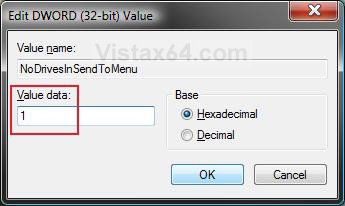
C) Double click/tap on NoDrivesInSendToMenu to modify it. (See screenshot below)
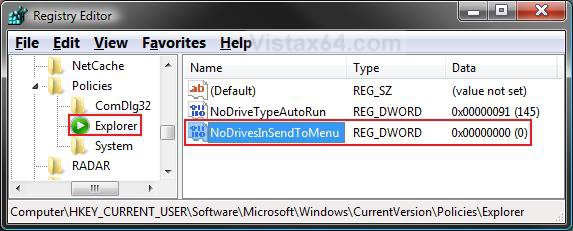
D) Type 1,and click/tap on OK. (See screenshot below)
E) The registry will now look like this. (See screenshot below)
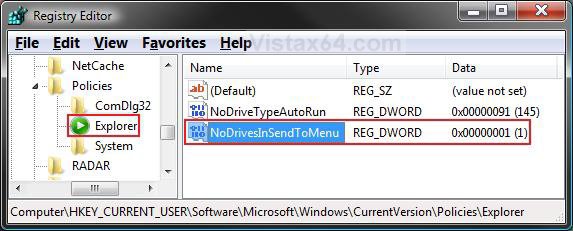
F) Go to step 7 below.
6. To Show All Drives in "Send To" Context Menu
NOTE: This is the default setting.
A) In the right pane of Explorer, right click on NoDrivesInSendToMenu, and click/tap on Delete. (See screenshot above)
B) Click/tap on Yes to confirm deletion, and go to step 7 below.
7. Close regedit.
8. Log off and log on, or restart the computer to apply the changes.
That's it,Shawn
Related Tutorials
- How to Expand the Context (Shortcuts) Menu in Vista
- How to Enable or Disable the Context Menu in Vista
- How to Customize the Send To Context Menu in Vista, Windows 7, and Windows 8
- How to Hide or Show Drive Letters in Vista, Windows 7, and Windows 8
- How to Add, Change, or Remove a Drive Letter in Vista
- How to Rename a Drive in Vista
- How to Change a Drive Icon in Vista
- How to Add View and Print File Directory to the Context Menu in Vista
- How to Restrict or Unrestict Drive Access in Vista
- How to Hide or Unhide a Drive in Vista
- How to Create a Drive Shortcut in Vista
- How to Restore Missing Default Send To Context Menu Items in Vista
- How to Mount or Dismount a Drive or Partition to a Folder in Vista
- How to Add Google Drive to "Send To" Context Menu in Windows
- How to Add or Remove "Send To" from the Context Menu in Vista
- How to Add or Remove "Send to" from Context Menu in Windows 7 and Windows 8
Attachments
Last edited:


